

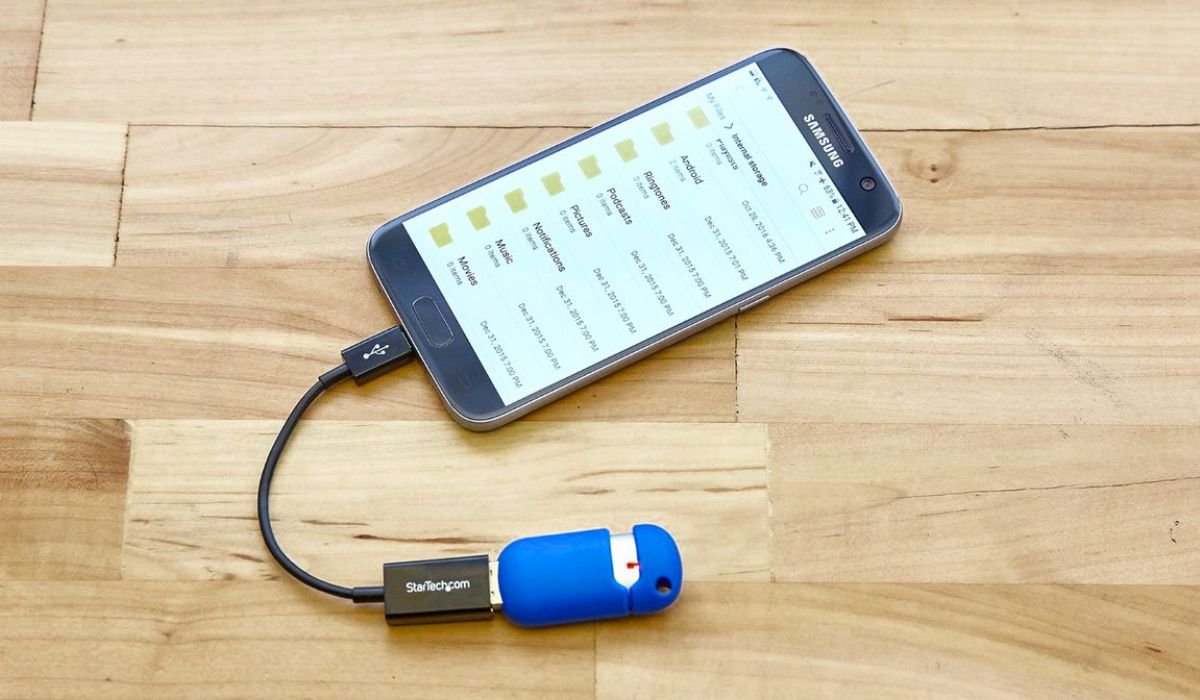
The Onn SD Card Reader is a simple yet powerful tool for anyone looking to manage extra storage on their Android device. This device makes it easy to transfer files between an SD card and your phone or tablet, without needing a computer.
For Android users, SD card readers are incredibly useful. They allow quick access to photos, videos, or documents stored on external memory, making it easier to expand your device’s storage or move large files.
In this blog, we’ll guide you through how to use the Onn SD Card Reader on Android. You’ll learn how to connect it, access files, transfer data, and troubleshoot common issues.
Understanding Onn SD Card Reader
The Onn SD Card Reader comes packed with features that make file management easy and efficient. It’s designed to read multiple types of SD cards, such as MicroSD, SDHC, and SDXC, allowing users to access various storage sizes and formats with ease.
When it comes to compatibility, most Android devices that support OTG (On-The-Go) functionality can use the Onn SD Card Reader. It’s crucial to check if your Android version supports OTG, usually Android 6.0 and above.
Whether you’re using a small MicroSD or a larger SDXC card, the Onn SD Card Reader ensures fast and reliable access to your files.
Preparing Your Android Device
Before using the Onn SD Card Reader, it’s important to ensure that your Android device supports OTG (On-The-Go) functionality. OTG allows your Android phone or tablet to act as a host, enabling it to connect with external devices like SD card readers.
To check if your device supports OTG, you can use apps like OTG Checker, which quickly confirms compatibility. Simply download the app from the Play Store, run it, and it will tell you whether your device can handle OTG connections.
If your Android version is outdated or lacks OTG support, you may need to update your device software. Additionally, some SD card readers require specific apps to manage files, so it’s a good idea to install file management apps like Google Files or ES File Explorer to ensure smooth operation.
Steps to Connect Onn SD Card Reader to Android
To connect the Onn SD Card Reader to your Android device, follow these simple steps:
- Plug the Onn SD Card Reader into your Android device’s USB port. Most Android phones and tablets have a USB-C port, so ensure you have the right adapter if needed.
- Insert the SD card into the reader. Make sure the SD card is fully and securely inserted to avoid connection issues. Align the card with the slot and gently push it until it clicks into place.
- Once connected, your device should display a notification or icon indicating that the SD card is recognized. You might see a notification saying “USB storage device detected” or something similar. You can also confirm the connection by checking for the SD card in your device’s File Manager.
By following these steps, you’ll have the SD card ready to use on your Android device.
Accessing Files on the SD Card
Once your Onn SD Card Reader is connected and recognized by your Android device, you can access the files stored on the SD card. To do this, you’ll need a file manager app. Most Android devices come with a built-in file manager, but you can also use popular apps like Google Files or ES File Explorer for better control and organization.
To access the SD card, open your file manager app and look for an option labeled SD card or USB storage. This is separate from your internal storage, which typically shows as “Internal Storage” or “Device Storage.” The SD card section will contain its own folders for documents, photos, videos, and other file types.
By navigating through these folders, you can easily view, edit, or transfer files between the SD card and your internal storage. Understanding this file structure will help keep your data organized and accessible.
Transferring Files Between SD Card and Android Device
Transferring files between your SD card and Android device is simple with a file manager app like Google Files or ES File Explorer. Here’s how to do it:
- Copying or Moving Files: Open your file manager and navigate to the SD card. Select the files or folders you want to transfer. Use the Copy or Move option, then navigate to the destination folder on your device’s internal storage and paste the files there. For transferring files from the device to the SD card, follow the same steps in reverse.
- Best Practices for File Transfers: Make sure to avoid interrupting the transfer process. Interruptions can cause data corruption. It’s also important to safely eject the SD card after the transfer is complete. You can do this by going to Settings > Storage and selecting the option to eject the SD card.
- Handling Large Files: For large files or bulk transfers, it’s better to use a Wi-Fi connection if available, or simply keep your device stable and ensure enough battery power. Bulk transfers might take time, so avoid switching tasks to prevent interruptions.
These steps will ensure smooth and efficient file transfers between your SD card and Android device.
Troubleshooting Common Issues
Here are some common issues you might face when using the Onn SD Card Reader with an Android device, along with solutions:
- Device Doesn’t Recognize the SD Card Reader:
- Ensure that your Android device supports OTG functionality. If not, it won’t recognize the SD card reader.
- Try restarting your device and reconnecting the reader.
- Test the SD card on another device to confirm it’s not faulty.
- File Format Not Supported:
- Some Android devices might not recognize certain file formats stored on the SD card. You can install file management apps like Google Files or media player apps to handle uncommon formats.
- Alternatively, transfer the files to a compatible format using a computer.
- SD Card Not Detected:
- If the SD card isn’t detected, try reformatting it. Be sure to back up all data first, as reformatting will erase everything on the card.
- Check if the SD card is properly inserted into the reader.
- Slow Transfer Speeds:
- If transfer speeds are unusually slow, try using a higher-speed SD card like SDHC or SDXC, which are designed for faster data transfer.
- Ensure there’s no background activity on your Android device that might slow down the process.
By addressing these common issues, you can resolve most problems and ensure a seamless experience with the Onn SD Card Reader.
Using Onn SD Card Reader with Different Android Apps
The Onn SD Card Reader can be used with various Android apps to enhance productivity and creativity, making it a versatile tool for different use cases.
- Photo Editing Apps:
- If you’re a photographer, you can easily import high-resolution images from your SD card directly into apps like Adobe Lightroom or Snapseed for quick edits. This is especially useful for photographers who need to edit and share photos on the go.
- Document Readers:
- For business users, accessing important files from an SD card is simple with document reader apps like Google Docs, Microsoft Word, or PDF Reader. You can open and edit documents saved on your SD card without transferring them to your device first.
- Video Editing for Vloggers:
- Vloggers can benefit greatly from the Onn SD Card Reader by quickly importing videos into apps like KineMaster or PowerDirector for editing. It allows you to work with large video files stored on external memory without filling up your device’s internal storage.
Benefits
- Photographers can manage large RAW files without using internal storage.
- Vloggers can edit videos without having to wait for Wi-Fi to transfer large files.
- Business users can quickly access, edit, and share presentations or reports.
Using the SD card reader with these apps allows you to maximize productivity, no matter your profession or needs.
Tips for Safe Use and Maintenance
To ensure your Onn SD Card Reader remains in good working condition, follow these safe use and maintenance tips:
- Handle with Care: Always handle both the SD card and the reader gently. Forceful insertion or removal can damage the SD card or the reader’s slots.
- Avoid Physical Damage: Store the SD card reader in a protective case or pouch when not in use to prevent dust, moisture, or accidental damage.
- Safe Ejection: Always eject the SD card safely from your Android device before physically disconnecting it. Go to Settings > Storage, then select the option to safely remove the SD card. This helps prevent data corruption.
- Keep it Clean: Periodically clean the SD card reader with a soft, dry cloth to remove any dust or debris. Avoid using liquids or abrasive materials that could damage the device.
- Store Properly: When not in use, store the SD card reader and the SD cards in a cool, dry place. Avoid exposure to extreme temperatures or humidity, which can affect performance.
By following these tips, you’ll extend the lifespan of your SD card reader and ensure smooth operation over time.
Conclusion
Using the Onn SD Card Reader with your Android device makes file management, photo editing, and video transfers much easier. We’ve covered the key steps, from connecting the reader to your device, accessing files, transferring data, and troubleshooting common issues. Additionally, we’ve discussed the benefits of using the reader with various apps and shared some important tips for safe use and maintenance.
If you’ve had experience using the Onn SD Card Reader or have any questions, feel free to share them in the comments below. We’d love to hear from you!
For those looking to expand their Android device’s capabilities, consider exploring other compatible accessories, such as USB-C hubs or wireless storage options, for even more flexibility.
FAQs
1. Can I use the Onn SD Card Reader on any Android device?
Most Android devices that support OTG (On-The-Go) functionality can use the Onn SD Card Reader. Be sure to check if your device supports OTG by using an app like OTG Checker.
2. What types of SD cards are compatible with the Onn SD Card Reader?
The Onn SD Card Reader supports various types of SD cards, including MicroSD, SDHC, and SDXC. These cover a range of storage capacities, so you can easily transfer files, photos, and videos.
3. Why isn’t my Android device recognizing the SD card reader?
If your device doesn’t recognize the SD card reader, check if it supports OTG. Also, ensure that the SD card is properly inserted, and try restarting your device or using a different SD card to see if the issue persists.
4. How can I safely remove the SD card reader from my Android device?
To safely remove the SD card reader, go to Settings > Storage, and select the option to safely eject the SD card. This helps prevent data corruption before physically disconnecting the reader.
5. Can I transfer large files using the Onn SD Card Reader?
Yes, you can transfer large files. However, for smoother transfers, especially with large or bulk files, ensure you are using a high-speed SD card like SDXC and avoid interrupting the process to prevent errors.


