

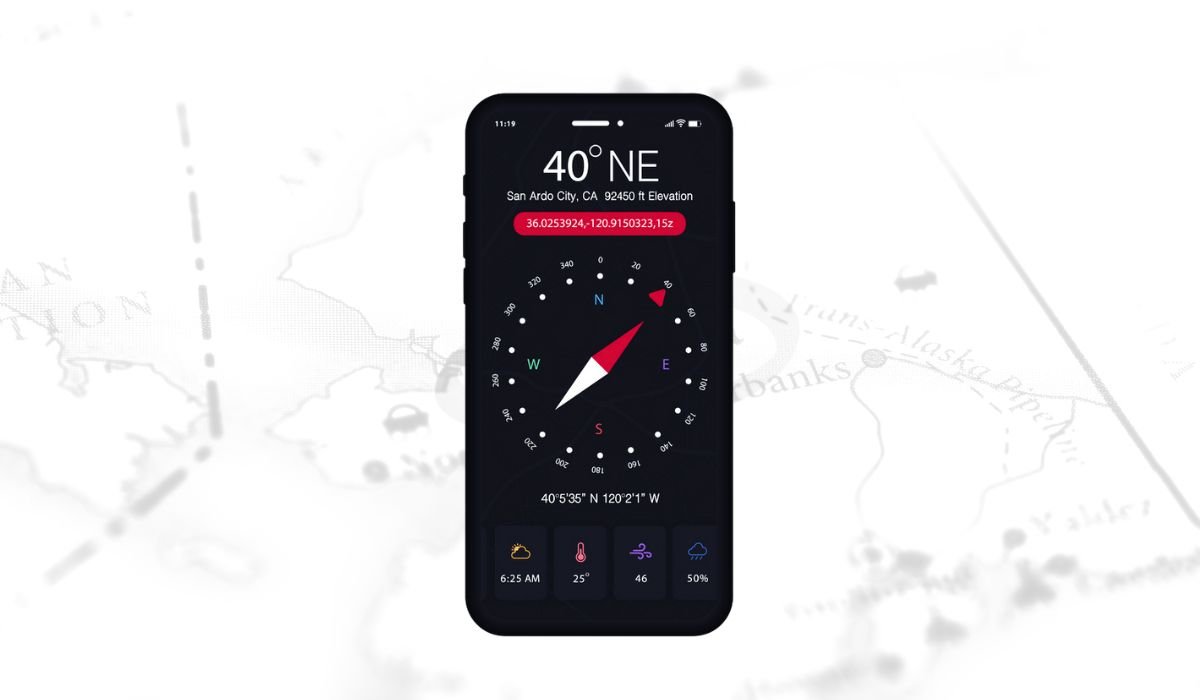
A well-calibrated compass on an Android device is essential for accurate navigation. It ensures that apps like Google Maps show the correct direction and help users find their way without confusion. When the compass is miscalibrated, it can cause issues like inaccurate map orientation, leading to wrong turns and frustration.
Problems such as the map showing you facing the wrong way or unreliable GPS signals are common with a faulty compass. This article aims to guide users step-by-step on how to properly calibrate the compass on their Android device, ensuring smooth and accurate navigation every time.
Why Calibrating Your Compass is Important
Android devices rely on a magnetic sensor, often called a magnetometer, to determine direction. This sensor measures the Earth’s magnetic field and helps your device understand where north is, which is crucial for navigation apps to work properly. The compass uses this data to show you the correct direction, whether you’re driving, walking, or exploring.
When the compass is miscalibrated, it can lead to GPS inaccuracies. You might notice that your map app shows you’re heading in the wrong direction, even though you’re moving correctly. Other issues include misaligned maps, which can make navigating unfamiliar areas difficult and frustrating.
You should calibrate your compass if you notice signs like incorrect map orientation, inconsistent navigation, or if the compass arrow in apps seems off. Regular calibration ensures you’re always heading in the right direction, especially after installing updates or moving to a new location.
Also read: Connect TWS Earbuds to Android: A Comprehensive Guide
Methods to Calibrate the Compass on Android
Method 1: Google Maps Calibration
Step-by-Step Guide:
- Open Google Maps.
- Tap on the blue dot indicating your location.
- Tap the “Calibrate” button (if available).
- Perform the figure-eight motion with your phone to recalibrate the compass.
Pro Tip: After calibration, observe the blue dot and the direction cone. The more accurate your compass, the narrower the cone will be. If the cone is wide, your compass might still be slightly off.
Method 2: Using the Phone’s Settings
Step-by-Step Guide:
- Go to “Settings.”
- Navigate to Location > Advanced Settings.
- Find the compass calibration option (this may vary by manufacturer).
- Follow the on-screen instructions to calibrate your compass.
Note: Not all Android phones offer a direct setting for compass calibration. If this option isn’t available, use one of the alternative methods.
Method 3: Using a Compass Calibration App
Step-by-Step Guide:
- Download a trusted compass calibration app such as GPS Status & Toolbox or Compass Galaxy.
- Install and open the app on your phone.
- Follow the in-app instructions to complete the calibration.
Important Note: Always download apps from reputable sources like Google Play Store to avoid malware or unreliable software. Trusted apps provide accurate results and ensure your phone’s security.
Also read: Video File Not Playing on Android: Causes and Solutions
Tips for Accurate Calibration
Perform Calibration Outdoors
Calibrating your compass outdoors is crucial for accuracy. Metal objects and indoor magnetic fields, like those from electronics, can interfere with your phone’s sensors. Performing the calibration in an open space ensures you’re getting the best results.
Avoid Magnetic Interference
Strong magnetic fields can throw off your compass calibration. Keep your phone away from things like large speakers, magnets, or even metal tables during the process. These objects can distort the magnetic readings, leading to inaccurate compass performance.
Check for Software Updates
Always make sure your Android device is up to date. Software updates often fix bugs and sensor issues, improving the accuracy of your compass. Missing updates can lead to problems with the compass’s functionality.
Recalibrate Regularly
It’s a good habit to recalibrate your compass from time to time. Regular calibration, especially before traveling or when navigating unfamiliar areas, ensures your compass stays accurate. This is especially important if you’ve moved to a different geographic location or installed new apps that use the compass.
Common Mistakes to Avoid During Calibration
Avoid Calibrating Indoors Near Electronics
Calibrating indoors, especially near electronics like computers, TVs, or microwaves, can interfere with your phone’s magnetic sensor. These devices emit electromagnetic fields that can disrupt the calibration process, leading to inaccurate results. Always choose an open, outdoor space to ensure precise calibration.
Skipping the Figure-Eight Motion
The figure-eight motion is a critical step for proper calibration. Skipping or performing it incorrectly can result in a miscalibrated compass. Ensure that you move your phone in a smooth figure-eight pattern to allow the magnetic sensor to adjust and realign.
Relying Solely on One App
After calibration, it’s a good idea to verify the accuracy through multiple apps, not just the one you used to calibrate. Checking Google Maps and other navigation apps can help confirm that your compass is pointing in the right direction, ensuring consistent performance across platforms.
Troubleshooting Calibration Issues
What to Do If Calibration Fails
If your compass calibration fails, try restarting your phone. Sometimes, a simple reboot can resolve sensor glitches. After restarting, repeat the calibration process to see if the issue is fixed. If that doesn’t work, clearing the cache of apps like Google Maps may help.
Magnetic Field Sensor Issues
If you continue to experience calibration problems, your phone’s magnetic sensor might be malfunctioning. To check this, you can use diagnostic apps or tools available in your phone’s settings. If the sensor is faulty, you may need to visit a service center for repairs.
Software Glitches or Bugs
Outdated software can cause calibration issues. Make sure your phone’s operating system and apps are updated to the latest version. Updates often include fixes for sensor problems that may affect the compass.
Factory Reset as a Last Resort
If all else fails, performing a factory reset can help. This should be a last resort, as it will erase your personal data and settings. Before doing this, back up your data, and if the issue persists, consider consulting a technician for further assistance.
Conclusion
Regularly calibrating your Android compass is essential for ensuring accurate navigation, whether you’re using maps for daily commutes or exploring new places. A well-calibrated compass helps prevent misdirection and makes your navigation apps more reliable.
By following the simple steps outlined in this guide, you can easily maintain your compass’s accuracy. Make it a habit to check and recalibrate periodically, especially if you notice any issues with your device’s navigation.
If you found this article helpful, feel free to share it with others! And if you have any questions or need further assistance, leave a comment below—we’d love to help!
FAQs
1. How often should I calibrate my Android compass?
It’s a good idea to calibrate your compass every few weeks, especially before using navigation apps in new areas. If you notice inaccurate map orientation or inconsistent GPS signals, recalibrate immediately.
2. Why does my compass keep losing accuracy?
Magnetic interference from nearby electronics or metal objects can cause your compass to lose accuracy. Regular calibration and avoiding magnetic fields can help maintain proper functionality.
3. Can I calibrate the compass without an internet connection?
Yes, you can calibrate your compass without an internet connection. Most calibration processes, like using the figure-eight motion, do not require internet access.
4. What should I do if my compass calibration fails repeatedly?
First, try restarting your phone and recalibrating. If the problem persists, check for software updates or clear your app cache. If the issue continues, your magnetic sensor might be faulty, requiring professional assistance.
5. Does every Android phone have a built-in compass?
Most Android phones come with a magnetic sensor for compass functionality. However, some budget models may not have this feature. You can check if your phone has a compass by using diagnostic tools or compass apps.


