

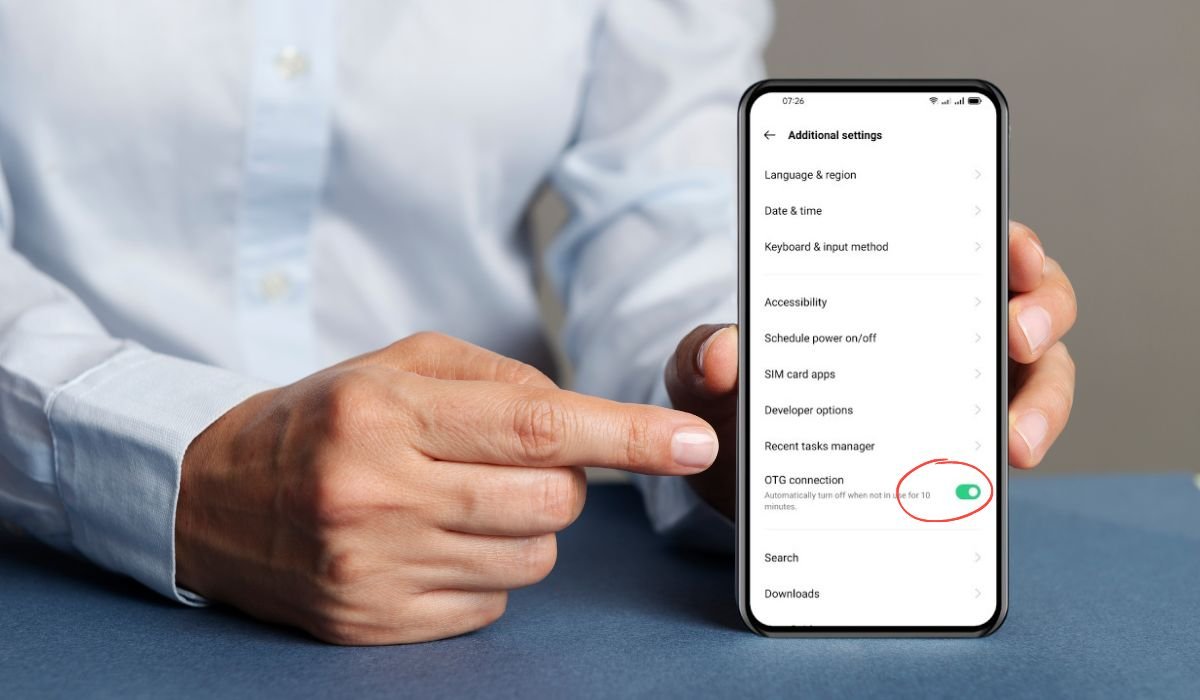
To enable OTG (On-The-Go) on an Android device, it’s a simple process that can unlock a lot of powerful features. OTG allows Android users to connect external devices, like USB drives, keyboards, mice, and even game controllers, directly to their smartphones or tablets. This small but powerful feature transforms your mobile device into a versatile tool for work, entertainment, or extra storage.
By enabling OTG, you can quickly transfer files from a USB drive, connect external keyboards for easier typing, or even use a mouse for more precise control. It’s a handy option for anyone looking to expand their Android’s capabilities beyond the screen.
What is OTG and Why You Might Want to Use It?
OTG (On-The-Go) is a feature that allows your Android device to act as a host, letting you connect various external devices like USB drives, keyboards, and game controllers directly to your phone or tablet. This feature opens up a world of functionality beyond your device’s built-in capabilities.
The practical uses of OTG are endless. You can transfer files between a USB drive and your phone without needing a computer. Connecting a keyboard or mouse makes working on your phone much easier, especially when typing long documents or navigating with precision. For gamers, OTG enables you to hook up a game controller, offering a console-like experience right on your phone.
One of the key advantages is Android’s flexibility with OTG. Many devices support OTG out of the box, making it easy to access these benefits without needing additional apps or complex settings.
How to Check If Your Android Device Supports OTG
To check if your Android device supports OTG, you can follow these simple steps:
1. Check Device Specifications
Start by looking at your phone’s device specifications. OTG support is often listed under the connectivity section in your device’s user manual or on the manufacturer’s website. Look for terms like “OTG” or “USB Host” to confirm if your phone can handle external devices.
2. Use an OTG Checker App
If checking the specs seems complicated, there’s an easier way. You can download an OTG Checker app from the Google Play Store. Apps like USB OTG Checker will quickly scan your device and tell you whether OTG is supported.
3. Common Brands and Models with OTG Support
Most modern Android devices from well-known brands support OTG. Here’s a list of some common brands and models that typically offer this feature:
- Samsung Galaxy series (S10, S20, S21, Note series)
- Google Pixel series
- OnePlus (7, 8, 9 Pro)
- Xiaomi Mi and Redmi series
- Huawei (P and Mate series)
If your phone falls within these categories, it likely supports OTG, but using the steps above will give you a definitive answer.
How to Enable OTG on Android
To enable OTG on Android, follow these steps:
1. Check Default Settings
Some Android devices have OTG enabled by default, meaning all you need to do is plug in your OTG cable and it will work instantly. However, on some devices, you’ll need to manually activate it.
2. Step-by-Step Guide to Enable OTG
If OTG is not automatically enabled, follow these steps:
- Go to Settings on your Android device.
- Navigate to Connected devices or Additional settings, depending on your Android version.
- Look for the OTG toggle option and switch it on.
Once enabled, your Android will be ready to connect external devices using the OTG feature.
3. Enable OTG with a Third-Party App
If you don’t find the OTG option in your settings, you can use a third-party app. Trusted apps like USB OTG Helper can enable OTG functionality on devices that don’t have the option readily available in settings. Simply download the app from the Google Play Store, follow the in-app instructions, and you’ll be able to use OTG in no time.
Connecting and Using OTG Devices
To use OTG on your Android device, you need an OTG adapter or OTG cable. This adapter allows you to connect external devices to your phone’s charging port.
How to Physically Connect OTG Devices:
- Plug the OTG adapter into your phone’s charging port (USB-C or micro-USB, depending on your device).
- Connect the external device (e.g., USB drive, keyboard) to the other end of the OTG adapter.
- Once connected, your phone should automatically recognize the device, allowing you to start using it.
List of Compatible OTG Devices:
- USB drives: Transfer or access files directly.
- Keyboards: Type documents more easily.
- Mice: Navigate your phone with precision.
- Game controllers: Enhance your mobile gaming experience.
- External hard drives: Store or retrieve larger files.
Troubleshooting Common OTG Issues:
- Device not recognized: Make sure your OTG adapter is fully plugged in. Check if your Android device supports OTG and whether OTG is enabled.
- Power issues: Some OTG devices, like external hard drives, require more power than your phone can provide. In this case, use a powered OTG hub to supply extra power.
- Incompatible formats: If your Android device can’t read a USB drive or external storage, it might be formatted in an unsupported file system. You may need to reformat the drive to FAT32 or exFAT.
Managing Files with OTG on Android
Once you’ve connected your OTG device, managing files becomes easy. Here’s how you can access and transfer files using OTG on your Android device:
Steps to Access and Manage Files from OTG-Connected Devices
- Open a File Manager App: Use your phone’s built-in file manager or download one if needed. Popular options include:
- Google Files: Pre-installed on many Android devices, it automatically detects OTG-connected devices.
- ES File Explorer or Solid Explorer: Great third-party options with more advanced features for file management.
- Locate Your OTG Device: In the file manager, you should see your OTG-connected device listed under Storage Devices or USB Drives. Tap on it to access the files.
- Managing Files: You can now open, delete, or move files just like you would on your phone’s internal storage.
File Transfer Options
- Moving Files to/from External Drives: To transfer files:
- Select the files you want to move.
- Choose Move to or Copy to depending on whether you want to transfer or simply copy the files.
- Navigate to the destination (either your phone’s storage or the external drive) and complete the transfer.
Using a reliable file manager makes it easy to organize and transfer files between your phone and external devices, ensuring you can work on the go without hassle.
OTG Features on Popular Android Versions
The OTG feature has evolved with each Android version, making it easier to use external devices on newer phones. Here’s a quick breakdown of how OTG is handled in Android 9, 10, and newer versions:
Android 9 (Pie)
- Native OTG Support: Most devices running Android 9 come with OTG support enabled by default, meaning you can plug in an OTG cable and start using it right away.
- Improved File Management: Android 9 introduced better integration with Google Files, making it easier to access and manage files from OTG-connected devices.
Android 10
- Enhanced Security: Android 10 brings improved USB security, giving you better control over which apps can access OTG-connected devices.
- Automatic OTG Detection: In many cases, OTG devices are automatically detected without the need to manually toggle the OTG setting.
Android 11 and Newer
- Seamless OTG Use: OTG functionality is further refined in newer versions, offering faster recognition of connected devices and more compatibility with different file formats.
- Scoped Storage: In Android 11 and later, there’s better control over which files apps can access, meaning your OTG storage is protected from unwanted access.
Rooting for Older Android Versions
For devices running older versions of Android, like Android 5 or 6, OTG may not be enabled by default. In such cases, you might need to root your device to gain access to OTG features. However, rooting comes with risks:
- Voiding the warranty: Rooting often voids the manufacturer’s warranty.
- Security vulnerabilities: Rooted devices are more vulnerable to malware and hacking.
- System instability: Rooting may cause unexpected crashes or other issues.
While newer Android versions make OTG easier and safer to use, it’s important to weigh the risks if you’re considering rooting an older device for OTG support.
Common Problems and Solutions with OTG
While OTG is a great feature, users might encounter some common issues when using it. Here’s a breakdown of those problems and how to solve them:
1. Incompatible Formats
If your Android device doesn’t recognize a connected OTG device, it might be due to an incompatible file format.
- Solution: Most Android devices support FAT32 or exFAT formats. If your device is formatted in NTFS or another unsupported format, your phone may not detect it. To fix this:
- Reformat the device: Connect the OTG device (e.g., a USB drive) to a computer and reformat it to FAT32 or exFAT. Be sure to back up important data first.
- Use a third-party app: Apps like Total Commander or Paragon File System can enable NTFS support on some devices.
2. Power Issues
Some OTG devices, like external hard drives or certain peripherals, may require more power than your Android phone can supply.
- Solution: To resolve power-related issues:
- Use a powered OTG hub: This allows you to connect external devices while providing additional power.
- Choose low-power devices: Devices like flash drives and basic peripherals typically don’t require extra power and are more compatible with OTG connections.
3. Fixing Driver-Related Issues
Some phones may have trouble recognizing certain OTG devices due to missing or outdated drivers.
- Solution: You can fix driver issues by:
- Updating your phone’s software: Check for system updates in your phone’s settings. Often, manufacturers release updates that improve device compatibility.
- Using third-party apps: Apps like USB OTG Helper or StickMount (for rooted devices) can help load the necessary drivers to recognize OTG devices.
By following these steps, you can overcome most OTG-related issues and enjoy the full range of functionality that OTG offers.
Enhancing OTG Functionality with Accessories
To get the most out of OTG, using the right accessories can significantly improve its functionality and convenience. Here are some options to consider:
1. OTG Hubs: Using Multiple Devices Simultaneously
An OTG hub allows you to connect multiple devices to your phone at the same time, which is particularly useful if you want to use a keyboard, mouse, and USB drive together.
- How it works: These hubs expand a single OTG port into multiple USB ports, allowing you to plug in more than one device at once. For example, you can connect a keyboard and USB drive while simultaneously controlling your phone with a mouse.
- Recommendation: Look for multi-port OTG hubs that offer at least three or more USB ports for the best functionality.
2. OTG Power Options: Charging Your Phone While Using OTG Devices
One limitation of using OTG is that the Android device typically cannot be charged while OTG devices are connected. However, there are solutions:
- Powered OTG hubs: Some OTG hubs come with a separate power input that allows you to charge your phone while using OTG devices. This is especially helpful if you’re using power-hungry devices like external hard drives.
- Y-Cable adapters: A Y-cable OTG adapter is another option. It splits the connection into two: one for data transfer and one for charging. This way, your phone stays powered while using OTG devices.
3. Recommended OTG Adapters for Best Performance
Choosing the right OTG adapter is key for smooth performance. Some top recommendations include:
- Anker USB-C to USB OTG Adapter: Known for reliability, this adapter is perfect for devices with USB-C ports and supports fast data transfer.
- UGREEN Micro USB OTG Cable: Ideal for older Android devices with micro-USB ports, offering stable and efficient OTG functionality.
- AUKEY USB-C OTG Adapter: A compact, durable option for newer Android phones, with high compatibility and excellent transfer speeds.
By using the right OTG hubs, adapters, and power solutions, you can unlock the full potential of OTG and enjoy more flexibility when connecting external devices to your Android phone.
Advantages and Limitations of Using OTG on Android
OTG (On-The-Go) brings a host of benefits to Android users, but it also comes with a few limitations. Let’s explore both sides:
Advantages of OTG
- Mobility: One of the biggest advantages of OTG is that it enhances the portability of your Android device. You can connect external peripherals without needing a laptop or desktop, making your phone or tablet even more powerful on the go.
- Expanding Storage: With OTG, you can easily connect a USB drive or external hard drive to your phone, allowing you to expand your storage. This is incredibly useful for users with limited internal storage or those looking to back up important files.
- Device Versatility: OTG allows you to connect a variety of devices, from keyboards and mice for better productivity to game controllers for a more immersive gaming experience. It turns your phone into a multi-functional device, whether you’re working or playing.
Limitations of OTG
- Device Compatibility: Not all Android devices support OTG. Some older models may require rooting or a third-party app to enable OTG functionality. Even among compatible devices, certain OTG accessories or file formats (like NTFS) may not be supported without additional apps or configurations.
- Power Constraints: OTG drains your phone’s battery quickly, especially when connecting power-hungry devices like external hard drives. Many devices may also need external power sources, like a powered OTG hub, to function properly.
- Limited Support for Larger Devices: While OTG works great for smaller devices like USB sticks, it may struggle with larger peripherals that need more power or specific drivers to work, such as certain printers or external monitors.
By understanding both the strengths and limitations of OTG, Android users can better decide how to leverage this feature to enhance their mobile experience.
Security Concerns When Using OTG
While OTG offers great functionality, it also comes with potential security risks. Using OTG devices without caution can expose your Android phone to malware and other vulnerabilities. Here are some important security concerns to consider:
Potential Risks
- Malware on USB Devices: Just like computers, Android devices can be infected by malware from compromised USB drives or external storage devices. Plugging in an infected USB stick can transfer viruses, ransomware, or other malicious software to your phone, which can compromise sensitive data or even damage your system.
- Unauthorized Access: If an OTG device is not properly managed, it could allow unauthorized access to files and data stored on your phone. For instance, if you lose your OTG-connected drive with sensitive information, it could easily fall into the wrong hands.
Safe Usage Tips
- Scan USB Devices: Always scan USB drives or external devices for malware before connecting them to your phone. You can use trusted antivirus software or even a desktop computer to scan the device for potential threats.
- Use Trusted Devices: Only connect trusted OTG devices to your phone. Avoid using public or unfamiliar USB drives, as these could be loaded with malicious files.
- Disable OTG When Not in Use: Keeping OTG enabled unnecessarily can leave your device vulnerable. After you’re done using OTG, it’s a good practice to turn it off in the settings to prevent any unauthorized connections.
- Use Antivirus Software: Consider installing a reliable antivirus app on your Android device to monitor and protect against any malware threats that could arise from OTG use.
By following these tips and being cautious about the devices you connect, you can safely enjoy the benefits of OTG without risking the security of your Android device.
Conclusion
Enabling and using OTG on Android unlocks a world of possibilities, from expanding your device’s storage to improving productivity with external peripherals like keyboards and mice. It’s a simple yet powerful feature that brings greater flexibility and mobility to your phone, making it a versatile tool for both work and play.
Whether you’re transferring files on the go, enjoying a more immersive gaming experience with a controller, or connecting a USB drive for easy backups, OTG offers a wide range of practical uses. With a little caution and the right accessories, you can safely take advantage of all that OTG has to offer. Explore its potential today and enhance your Android experience!
FAQs
What is OTG, and how does it work on Android?
OTG (On-The-Go) allows your Android device to act as a host, letting you connect external devices like USB drives, keyboards, and game controllers. It essentially turns your phone into a mini-computer that can manage external peripherals.
How do I know if my Android device supports OTG?
You can check your device’s specifications under the connectivity section or use an OTG checker app from the Google Play Store to confirm if your device is OTG-compatible.
What do I need to connect OTG devices to my Android?
You’ll need an OTG adapter or cable that matches your phone’s charging port (USB-C or micro-USB). This adapter allows you to plug in external devices like USB sticks, keyboards, and mice.
Why isn’t my Android recognizing my OTG device?
This could be due to incompatible formats or a lack of power. Try reformatting the USB device to FAT32 or exFAT, or use a powered OTG hub if your device requires additional power.
Can I charge my phone while using OTG devices?
Yes, with a powered OTG hub or a Y-cable adapter, you can charge your phone while using OTG-connected devices like external hard drives or USB sticks.
What types of devices can I connect via OTG?
You can connect a wide range of devices, including USB drives, keyboards, mice, game controllers, external hard drives, and even some cameras for quick file transfers.
Are there any security risks with using OTG?
Yes, connecting an unknown or infected USB device can expose your phone to malware. Always scan external devices for viruses before connecting them and only use trusted OTG accessories.


