

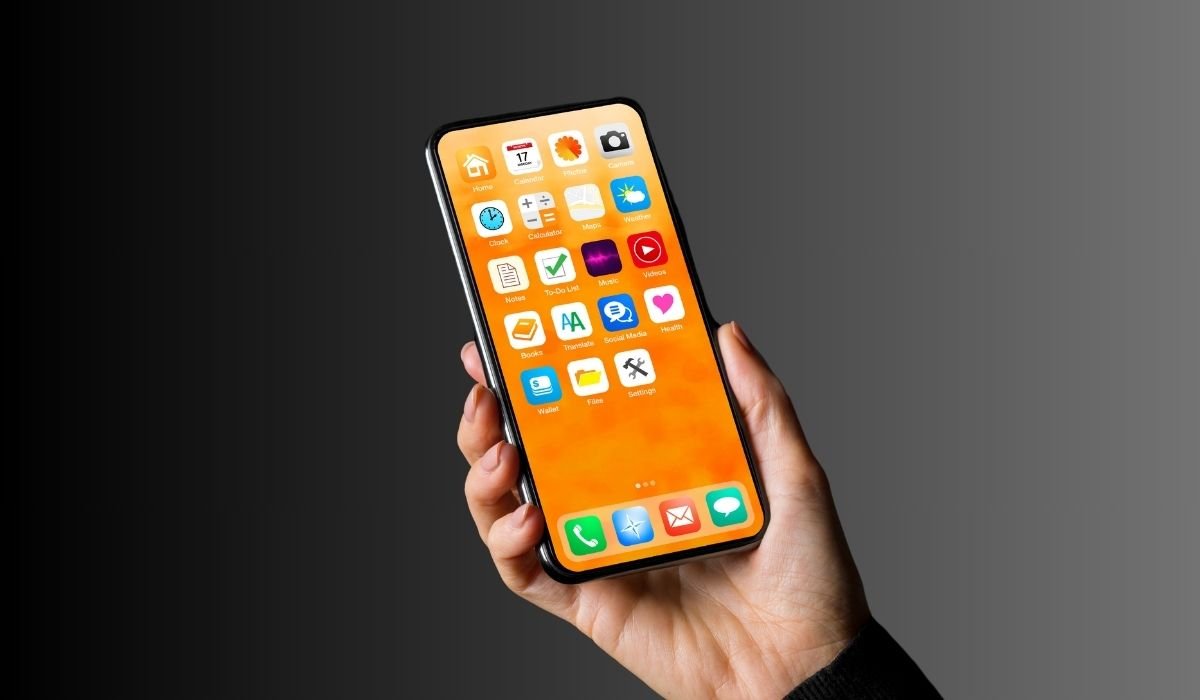
When apps on your Android appear greyed out, it can be frustrating. These inactive icons often signal something is wrong with the app, making it unusable until resolved.
Addressing this issue quickly is crucial for smoother phone usage. It ensures your apps function properly and avoids further disruptions.
Several common reasons cause apps to grey out. They include pending updates, insufficient storage, or even app corruption. Recognizing these problems early can help get your apps back to normal.
Common Reasons for Greyed-Out Apps
Pending Updates
Outdated apps can often become greyed out if they haven’t been updated in a while. Pending updates can make apps temporarily unusable, as they may not be fully compatible with your Android version.
To fix this, go to the Google Play Store, tap on your profile icon, and select Manage apps & device. From there, you can check for updates and install any that are pending.
App Disabled
Sometimes, apps get disabled either by the user or by the system to save resources. A disabled app will appear greyed out and cannot be opened until re-enabled.
To re-enable it, head to Settings > Apps, find the greyed-out app, and tap Enable.
Insufficient Storage
Low storage on your Android can cause apps to stop functioning and appear greyed out. When storage is full, apps can’t download necessary updates or store temporary files, leading to restricted access.
To check storage, go to Settings > Storage. Free up space by deleting unnecessary files or uninstalling unused apps.
App Corruption or Bugs
Corrupted app data or a buggy update can cause apps to malfunction, turning them grey. This can happen if an app didn’t install properly or encountered a glitch during an update.
To resolve this, go to Settings > Apps, select the affected app, and choose Clear cache or Clear data. If that doesn’t work, try uninstalling and reinstalling the app.
Greyed-Out Apps Due to External SD Card Issues
Apps that have been moved to an external SD card can appear greyed out if the SD card becomes unmounted or corrupted. This happens because Android can no longer access the app’s data stored on the card, rendering the app inactive.
To troubleshoot, first check if your SD card is properly mounted. Go to Settings > Storage, and make sure the SD card is listed and mounted. If it’s unmounted, tap Mount SD card.
If the SD card is corrupted, try removing it and reinserting it. You can also attempt to repair or format the SD card, but be aware this might erase your data. Always back up your files before proceeding.
Apps Greyed Out After Phone Restart
After restarting your phone, apps may appear greyed out temporarily as the system re-initializes. This happens because Android needs time to load all apps and services properly, especially if many apps are installed.
To ensure a proper boot-up, give your device a few moments to finish loading after restarting. Avoid opening apps immediately. If apps remain greyed out, try restarting your phone again to refresh the system. Make sure all updates are installed, as outdated software can slow down the boot-up process.
Apps Greyed Out Due to Battery Saver or Power Mode
Battery-saving modes on Android can restrict certain apps to conserve energy, which may cause them to appear greyed out or inactive. These modes limit background activity, pausing apps that aren’t considered essential to extend battery life.
To adjust this, go to Settings > Battery > Battery Saver. Here, you can either turn off battery saver mode or adjust which apps are restricted. You can also visit Settings > Apps, select the affected app, and toggle off Battery optimization to ensure it continues running even in power-saving mode.
Greyed-Out Apps from Restricted Permissions
When apps lose necessary permissions, they may stop functioning properly, causing them to appear greyed out. This can happen if you accidentally deny certain permissions or if an update resets the app’s settings. Without access to required resources, the app becomes restricted and unusable.
To fix this, follow these steps:
- Go to Settings > Apps.
- Find the greyed-out app and select it.
- Tap on Permissions.
- Review the required permissions (like storage, camera, or location) and toggle them on as needed.
- Relaunch the app to ensure it works correctly.
This should restore the app’s functionality if missing permissions were the issue.
Other Possible Causes
Corrupted OS Update
An incomplete or corrupted system update can cause apps to grey out if critical files needed to run the apps aren’t properly installed. This may occur due to an interrupted update or software glitches. When the system doesn’t fully update, it can leave apps in a non-functional state.
To fix this, check if there are any new system updates available by going to Settings > System > Software Update. If no updates are available, consider resetting the phone’s settings or performing a factory reset as a last resort.
App Compatibility Issues
Some apps may become incompatible with newer Android versions after an update, causing them to grey out. This usually happens if the app developer hasn’t updated the app to support the latest OS changes, rendering it unusable.
To address this, check the Google Play Store for app updates. If no update is available, the app may no longer be supported, and you’ll need to contact the developer or look for an alternative app.
How to Fix Greyed-Out Apps
Check for Updates (System and Apps)
One of the first steps in fixing greyed-out apps is ensuring both your Android system and the apps are up-to-date. An outdated system or app can lead to compatibility issues, causing apps to become unresponsive.
To check for updates:
- Go to Settings > System > Software Update for Android updates.
- Open the Google Play Store, tap your profile icon, and select Manage apps & device to check for app updates.
Reinstall the App
If an app remains greyed out, uninstalling and reinstalling it can often fix the problem. Reinstallation can remove any corrupt data causing the issue.
Steps:
- Go to Settings > Apps.
- Find the greyed-out app and tap Uninstall.
- Reinstall the app from the Google Play Store.
Clear Cache and Data
Sometimes, greyed-out apps are caused by corrupt cache files. Clearing the cache can resolve the issue without uninstalling the app.
Steps:
- Go to Settings > Apps.
- Select the greyed-out app.
- Tap Storage > Clear cache. If this doesn’t work, try Clear data to reset the app.
Factory Reset as a Last Resort
If none of the above methods work, a factory reset might be necessary. This will erase all data on your device, so it’s important to back up your information beforehand.
To perform a factory reset:
- Go to Settings > System > Reset options.
- Choose Erase all data (factory reset) and follow the prompts.
This should restore your phone to its default state, hopefully resolving any persistent issues with greyed-out apps.
When to Contact Support
If you’ve tried all the troubleshooting methods—updating the system, reinstalling apps, clearing cache, and even performing a factory reset—and the apps are still greyed out, it’s time to seek professional help.
You should contact Android support or your device manufacturer’s customer service if the issue persists. Persistent app problems could indicate a deeper hardware or software issue that only official support can diagnose and fix.
It’s also wise to reach out if your device is under warranty or if the issue started after a recent update and you suspect it might be a broader problem with your model.
Conclusion
Greyed-out apps on Android can result from various issues like pending updates, insufficient storage, app corruption, or even SD card problems. By following simple steps like keeping your apps and system updated, clearing cache, and managing storage, most of these issues can be resolved quickly.
To prevent greyed-out apps in the future, make sure to regularly check for updates, free up space when needed, and keep an eye on your SD card’s health. These preventive measures will ensure smoother app performance and a better overall Android experience.
FAQs
1. Why are my apps greyed out on Android?
Apps may appear greyed out due to reasons such as pending updates, app corruption, insufficient storage, disabled apps, or issues with external SD cards.
2. How do I fix greyed-out apps on my Android?
Start by checking for system and app updates, reinstalling the app, clearing cache and data, or freeing up storage. If none of these work, a factory reset may be needed.
3. Can low storage cause apps to grey out?
Yes, insufficient storage can restrict app functionality, causing them to appear greyed out. Freeing up storage can resolve this issue.
4. What should I do if an app is greyed out after a restart?
Give your phone time to fully load after restarting. If the issue persists, try restarting your device again or checking for updates.
5. Why are apps moved to my SD card greyed out?
If your SD card is unmounted or corrupted, apps moved to it may become greyed out. Re-mounting or repairing the SD card should fix the issue.
6. Will a factory reset fix greyed-out apps?
A factory reset can resolve persistent greyed-out app issues, but it should be used as a last resort after trying other solutions like clearing cache or reinstalling the app.


