

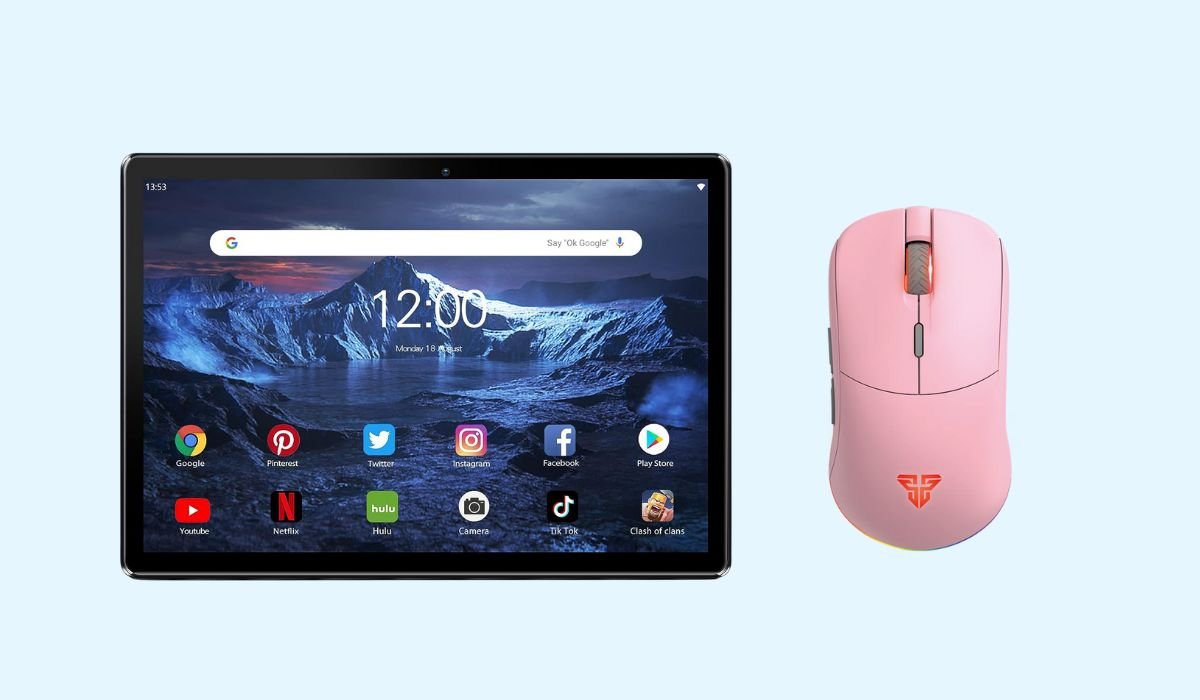
Pairing a wireless mouse with your Android device is simpler than you might think. Whether you’re using a tablet or a smartphone, adding a mouse can instantly boost productivity. It makes navigating through apps, selecting text, and performing precise tasks much easier.
Using a wireless mouse can be especially helpful for those who use their device for work or gaming. It provides smoother control, improving your overall experience. It also offers accessibility benefits for people who find touch controls challenging.
There are two main types of wireless mice to choose from: Bluetooth and USB receiver. Both are easy to connect and work seamlessly with most Android devices.
Can I Use a Wireless Mouse with Your Android Device?
Yes, you can easily use a wireless mouse with your Android device. Whether through Bluetooth or a USB OTG adapter, connecting a wireless mouse enhances navigation, improves productivity, and makes tasks like editing and gaming more efficient. It’s a simple way to upgrade your mobile experience.
Requirements Before Pairing
Before you can pair a wireless mouse with your Android device, there are a few things to check. First, make sure your device supports Bluetooth or has an OTG-capable USB port for connecting external devices.
It’s also essential to verify that your Android device runs Android 4.0 or higher. This is because earlier versions may not support external peripherals like a wireless mouse.
When it comes to choosing a wireless mouse, popular options include Logitech, Microsoft, and Jelly Comb. These brands are known for their reliability and compatibility with Android devices.
Steps to Pair a Bluetooth Wireless Mouse
- Step 1: Activate Bluetooth on your Android device: Open Settings and go to Bluetooth. Toggle it on and make sure your device is set to be discoverable.
- Step 2: Put your wireless mouse in pairing mode: To pair the mouse, press and hold the designated button on the mouse to activate pairing mode. You may notice a blinking LED light indicating it’s ready to pair.
- Step 3: Find and select the mouse: Look for your mouse in the Bluetooth list on your Android device. Once you find it, tap the name to pair.
- Step 4: Test the connection: After pairing, move the mouse to ensure the cursor appears and functions properly on your screen.
Also read: All Android Operating System Names: A Complete List
Steps to Pair a Wireless Mouse via USB Receiver (OTG Method)
Step 1: Check for OTG support
Before starting, ensure your Android device supports USB OTG (On-the-Go). You can verify this by checking your device’s specs or using an app designed to detect OTG compatibility.
Step 2: Use a USB OTG cable
Connect the OTG adapter to your Android device. Then, plug the wireless mouse’s USB receiver into the adapter.
Step 3: Test the connection
Once everything is connected, move the mouse to confirm that the device recognizes it. No additional settings are typically required with this method—your Android device should automatically start working with the mouse.
Customizing Mouse Settings on Android
Pointer speed
To adjust the sensitivity of your mouse, go to Settings > Accessibility > Pointer speed. From here, you can increase or decrease the mouse sensitivity based on your preference.
Enable pointer trail
For improved cursor visibility, especially on smaller screens, enable the Pointer trail option in the Accessibility settings. This creates a visible trail behind the cursor as it moves.
Right/Left-handed mode
Some Android devices allow for button remapping, making it easier for left-handed users to use the mouse. If available, you can switch the primary and secondary buttons in the device’s settings.
Also read: Connect TWS Earbuds to Android
Troubleshooting Common Issues
Bluetooth mouse not detected
- Make sure the mouse is in pairing mode.
- Try restarting Bluetooth on your Android device.
- If that doesn’t work, remove the mouse from the paired devices list and try to re-pair it.
Mouse not working after connection
- If using the OTG method, try reconnecting the OTG cable or resetting the Bluetooth connection.
- Check the batteries of your wireless mouse. Replace or charge them if necessary.
Cursor not showing on the screen
- Go to Settings > Accessibility > Pointer speed and adjust the mouse speed or sensitivity to see if that helps display the cursor.
Advantages of Using a Wireless Mouse with Android Devices
- Improved productivity: Easier multitasking and navigation.
- Precision: Better control for text selection and editing.
- Accessibility: Helpful for users with physical challenges.
- Gaming: Provides smoother, more accurate gameplay.
- Ergonomics: Reduces hand strain compared to touchscreens.
How to Connect Mouse to Android Phone Without OTG and Bluetooth
If your Android phone doesn’t support OTG or Bluetooth, connecting a wireless mouse directly isn’t possible. However, there are some alternative methods:
- Use a USB-C or Micro-USB to USB Adapter: If OTG isn’t an option, you can try using a different type of adapter, but this still technically uses a wired connection.
- Use a Wireless Keyboard/Mouse Combo App: Some apps, like Remote Mouse or Unified Remote, allow you to control your phone with your computer’s mouse via Wi-Fi. This requires installing the app on both your phone and computer, and then using the mouse through the app.
- Wi-Fi or Bluetooth Accessories: Look for wireless mice or keyboards designed specifically for Android that use Wi-Fi or proprietary connectivity solutions instead of standard Bluetooth or OTG.
Without OTG or Bluetooth, options are limited, but certain apps and adapters can help overcome this barrier.
Conclusion
Pairing a wireless mouse with your Android device is a quick and straightforward process. Whether you’re using Bluetooth or a USB receiver with an OTG adapter, the steps are easy to follow.
Using a wireless mouse can significantly enhance navigation, boost productivity, and make tasks like editing and gaming much more efficient. It’s also a great tool for improving accessibility and ergonomics.
If you haven’t tried it yet, consider pairing your wireless mouse today and enjoy a smoother, more efficient mobile experience!
FAQs
1. Can any wireless mouse be used with an Android device?
Yes, most Bluetooth and USB receiver wireless mice are compatible with Android devices.
2. Do I need an app to connect a wireless mouse to Android?
No, Android devices support wireless mice natively through Bluetooth or OTG.
3. How do I know if my Android device supports OTG?
You can check your device’s specs or use an OTG detection app to verify compatibility.
4. Will a wireless mouse drain my phone’s battery faster?
Using Bluetooth may slightly increase battery usage, but the impact is generally minimal.
5. Can I customize mouse settings on Android?
Yes, you can adjust pointer speed and enable additional options like pointer trail in the Accessibility settings.
6. Why is my wireless mouse not connecting to my Android device?
Ensure the mouse is in pairing mode, check the Bluetooth or OTG connection, and try restarting the device.


