

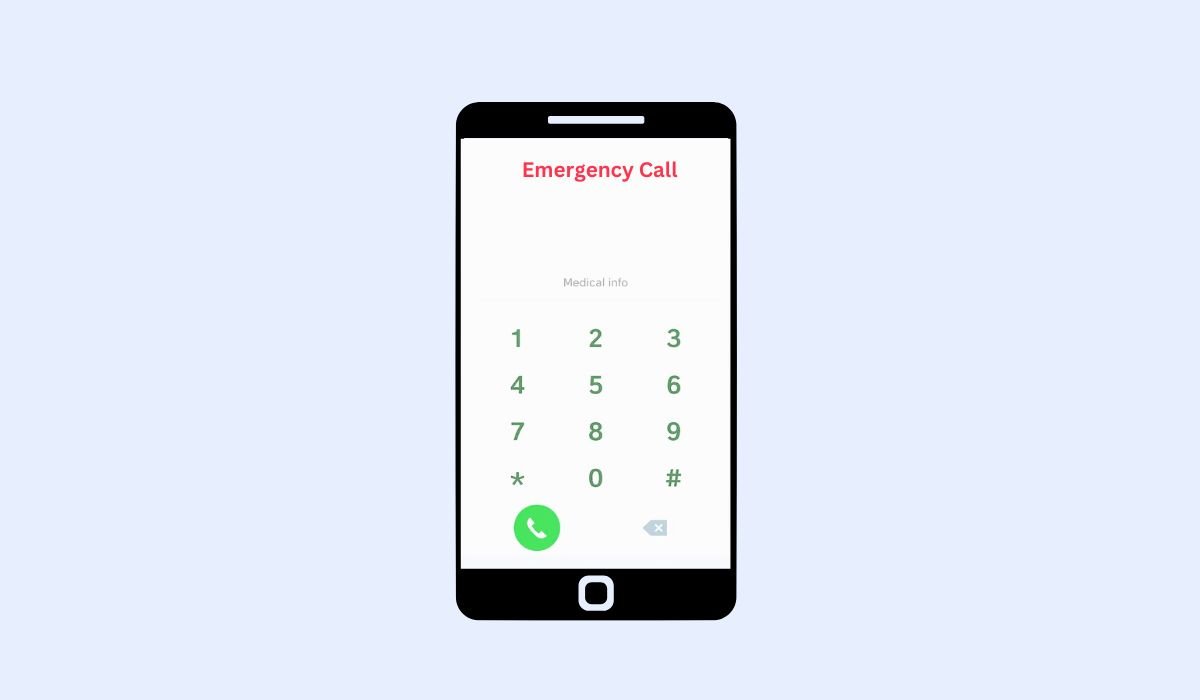
Adding an emergency contact to your Android lock screen is simple and crucial. This feature allows first responders or good Samaritans to access vital contact details without needing to unlock your phone.
Having emergency contact information easily accessible can save precious time in critical moments. If you’re unable to communicate, your phone becomes a tool for others to reach your loved ones quickly.
Most Android devices come equipped with the ability to display emergency information directly on the lock screen. This feature makes it easy for anyone to access the necessary details during an emergency.
Why Add an Emergency Contact to the Lock Screen?
Adding an emergency contact to your lock screen provides quick access to important information. First responders or bystanders can immediately see who to contact without needing to unlock the phone.
In accidents or emergencies, when the phone owner is unconscious or unable to unlock the device, this feature becomes invaluable. It ensures that help can be summoned fast, preventing delays in reaching family or emergency contacts.
By displaying this information on the lock screen, you make it easier for others to act swiftly, providing timely assistance when every second counts.
How to Add Emergency Contact on Android Devices
To add an emergency contact on an Android device, follow these simple steps:
- Go to Settings: Open the Settings app on your Android device. You can do this by tapping the gear icon in your app drawer or swiping down from the top of your screen and selecting the gear icon in the quick settings panel.
- Select About Phone or User & Accounts: Scroll down and look for the “About Phone” or “User & Accounts” option, depending on your phone model. This is where you will find the emergency information settings.
- Add Emergency Contacts: In the Emergency Information section, tap “Emergency Contacts.” From here, you can add contacts who should be notified in case of an emergency. Select the desired contacts from your list and save them.
- Enable Display on Lock Screen: Make sure the “Display Emergency Info on Lock Screen” option is turned on. This ensures that anyone can see the emergency contacts without needing to unlock your phone.
By following these steps, you ensure your emergency contacts are visible on the lock screen, ready to provide critical help when needed.
Also read: Step-by-Step Guide to Update Your Android OS
Alternative Methods Using Health or Safety Apps
In addition to using Android’s built-in settings, you can rely on health and safety apps to display emergency contact information. Apps like Google Health or Samsung Health not only help track your health but also offer options to include emergency details that can be displayed on your lock screen.
Many third-party apps are also available that focus specifically on emergency information. These apps often allow for customizable lock screen displays, letting you add not only emergency contacts but also critical health details like allergies, medical conditions, or medications.
By using these apps, you can further personalize how your emergency information appears, ensuring that responders have the exact details they need, all without unlocking your phone.
How to Display Additional Emergency Information
To further safeguard yourself during emergencies, you can add medical details like allergies, blood type, or medical conditions alongside your emergency contacts. This information is critical, as it allows first responders to understand any health risks before providing treatment.
Most Android devices allow you to include these details in the same section as your emergency contact. Look for the option to add medical information under Emergency Information in your settings. Here, you can input important details, such as current medications, pre-existing conditions, or any specific allergies.
Additionally, using ICE (In Case of Emergency) contacts is a common way to label emergency numbers. This ensures anyone viewing your phone during an emergency knows exactly who to contact and understands your medical needs, providing full protection when it matters most.
Also read: What is Android System Intelligence: A Complete Guide
Tips for Ensuring Privacy and Security
Here are a few tips for ensuring privacy and security when adding emergency contacts:
- Limit displayed information: Only show essential details like contact numbers and critical medical info.
- Use lock screen widgets: Some apps allow emergency info without revealing too much.
- Regularly update information: Keep your emergency details current while avoiding oversharing.
- Review third-party app permissions: Ensure any health or safety apps you use have secure access settings.
- Test visibility: Confirm what appears on the lock screen by viewing it while the phone is locked.
Device-Specific Instructions for Adding Emergency Contacts
1. Samsung Devices
- Go to Settings → Open “Safety & Emergency” or “About Phone.”
- Emergency Information → Select “Emergency Contacts.”
- Add Contacts → Choose the desired contacts and save.
- Ensure the “Show on Lock Screen” option is enabled.
2. Google Pixel
- Open Settings → Navigate to “Safety & Emergency.”
- Medical Info & Emergency Contacts → Add your emergency contacts and any medical information.
- Make sure “Allow access from lock screen” is enabled.
3. OnePlus Devices
- Go to Settings → Select “User & Accounts” or “Emergency Information.”
- Add Contacts → Enter emergency contacts, along with relevant medical data.
- Enable the “Show on Lock Screen” feature to make it accessible without unlocking.
Variations to Note
- The name of settings may vary slightly depending on the Android version or device model (e.g., “Safety & Emergency” vs. “Emergency Information”).
- Some devices have a dedicated Emergency SOS feature that can also be customized with emergency contacts and details.
Common Issues and Troubleshooting for Adding Emergency Contacts
- Emergency Info Not Showing on Lock Screen
- Fix: Check if the “Show on Lock Screen” option is enabled in settings. Restart your phone to refresh the system.
- Cannot Add Emergency Contacts
- Fix: Ensure your contacts app has the necessary permissions to access emergency info. Update the phone’s OS if the feature is unavailable.
- Information Doesn’t Save
- Fix: Make sure you hit “Save” after entering the contacts. Check if your phone has enough storage or if a software bug is causing the issue.
- Emergency Contacts Not Accessible from the Lock Screen
- Fix: Test by locking and unlocking the device. Some security apps or settings may override the display, so adjust those if needed.
- No Option for Emergency Information on Older Phones
- Fix: If your device is older or doesn’t support this feature, consider downloading a third-party emergency information app for visibility on the lock screen.
Conclusion
Having an emergency contact on your Android lock screen is a simple yet vital step to ensure help is just a tap away during critical moments. By following the steps outlined, you can easily add important contacts and even medical details, giving first responders quick access without unlocking your phone.
Regularly updating your emergency contacts ensures that the right people can be reached when needed. This small action can make a big difference in saving time and potentially lives during emergencies.
Being prepared is key. By using the lock screen feature, you’re taking an important step toward protecting yourself and others in urgent situations.
FAQs
Can I add more than one emergency contact to the lock screen?
Yes, most Android devices allow you to add multiple emergency contacts for better preparedness during emergencies.
Will adding emergency information compromise my privacy?
No, you can choose what information to display. Only essential emergency contacts and details will be visible, ensuring a balance between safety and privacy.
Do I need to unlock my phone for someone to see my emergency contacts?
No, emergency contacts can be viewed directly from the lock screen without unlocking the phone.
What if my phone doesn’t have the emergency contact feature?
If your phone lacks this feature, you can use third-party apps like Google Health or Samsung Health to add and display emergency contacts.
How do I update my emergency contacts?
Go to the settings where you initially added the contacts, and simply edit or replace the existing ones with updated information.
Will my medical details also be visible on the lock screen?
Yes, if you add medical information like allergies or conditions, it will be visible on the lock screen along with your emergency contacts. You can control what details are shown.


