

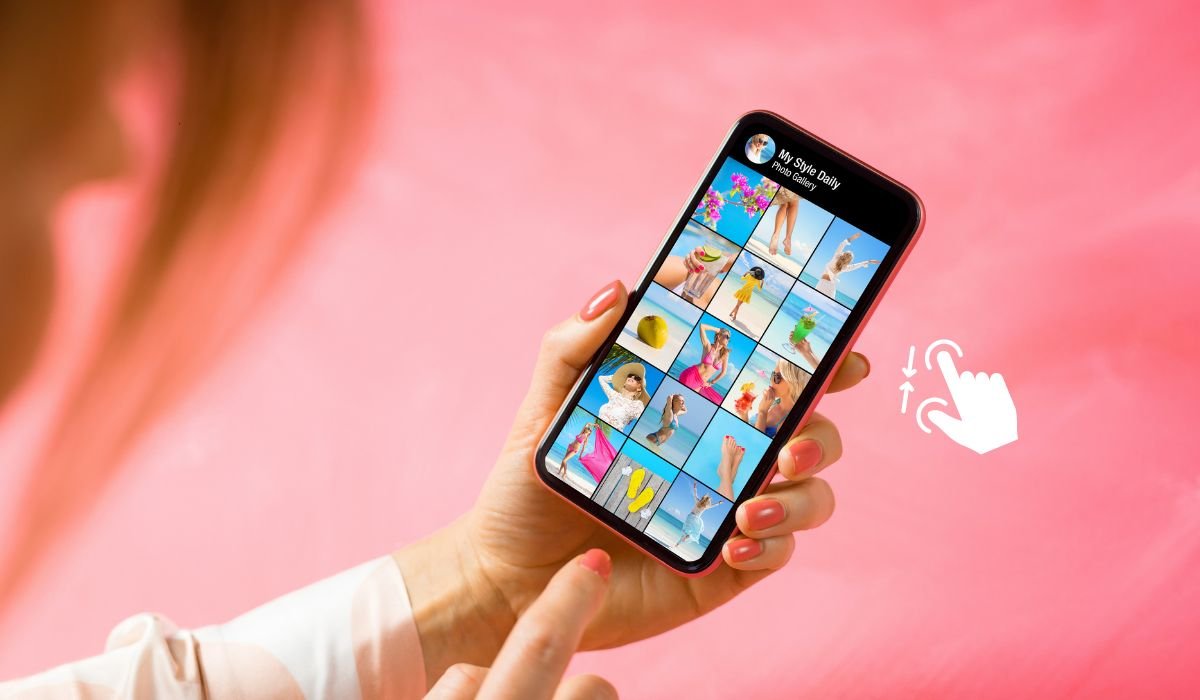
Zooming out on an Android phone is a simple and useful feature. It helps users see more content on the screen without scrolling.
Whether you’re viewing a web page, navigating through maps, or looking at photos, zooming out provides a broader view. This can be especially handy when you want to get a quick overview or find something specific.
Android offers multiple ways to zoom out, from gestures to settings. These options are designed for both ease of use and accessibility, ensuring everyone can adjust the screen to their needs effortlessly.
Can I Zoom Out On an Android Phone?
Yes, you can easily zoom out on an Android phone using the pinch-to-zoom gesture, adjusting display settings, or using accessibility options. These methods work across various apps like browsers, photos, and maps. If needed, you can also reduce icon sizes on the home screen for better organization.
Using Pinch-to-Zoom Gesture
The pinch-to-zoom gesture is the easiest and most common way to zoom out on an Android phone. This gesture uses two fingers to control the zoom level.
Here’s how to do it:
- Place two fingers (usually your thumb and index finger) on the screen.
- Slowly move them closer together to zoom out and see more of the content.
This gesture works in many apps, including photo galleries, web browsers, and maps. Whether you’re zooming out on a webpage or getting a wider view in Google Maps, this feature is both intuitive and convenient.
Also read: How to Optimize Your Android Phone
Adjusting Display Size in Android Settings
To adjust the display size on an Android phone, follow these steps:
- Go to “Settings” and select “Display.”
- Tap on either “Font size” or “Display size.”
From here, you can use the slider to make everything on your screen smaller, effectively zooming out system-wide. This method is great if you want to reduce the size of text and icons across all apps.
It’s especially useful for those who prefer to see more content on the screen at once, such as when reading or navigating menus. This feature gives you full control over how things are displayed.
Zooming Out in Web Browsers
In Google Chrome, you can zoom out on a webpage using two simple methods:
- Pinch-to-zoom: Place two fingers on the screen and move them closer together to zoom out.
- Menu option: Tap the three dots in the top-right corner, select “Zoom”, and adjust the scale.
Other browsers, like Firefox, Opera, or the Samsung Browser, also support pinch-to-zoom. However, some may have slightly different settings for adjusting zoom levels within their menus.
For text-heavy articles, browsers often offer a Reader Mode. This mode simplifies the layout, making it easier to zoom out and view large chunks of text at once.
Also read: How to Turn Off Blue Light on Android
Zooming Out in Photos and Maps
In the Google Photos or Gallery app, zooming out is just as simple:
- Place two fingers on the photo.
- Move them closer together to zoom out and see the full image.
This works great when you want to view an entire photo without having to scroll or pan around.
For Google Maps, zooming out helps you see a larger area for better navigation. Just use the same pinch-to-zoom gesture:
- Place two fingers on the map.
- Slide them closer together to zoom out and get a broader view of your surroundings or route.
This gesture is quick and effective for adjusting your map view on the go.
Using Accessibility Settings for Zoom Adjustments
To enable Magnification gestures on your Android device:
- Go to “Settings” and select “Accessibility.”
- Tap on “Magnification” and turn the feature on.
Once activated, you can triple-tap the screen to zoom in and out. This is especially useful for visually impaired users who need a closer view of text or images.
With this feature, users can navigate their phone more easily, allowing them to magnify areas like menus, apps, or web pages for better readability and interaction. It’s an excellent accessibility tool for those who require visual assistance.
Also read: 7 Best Ways to Reduce Data Usage on Android
How to Zoom Out on Android Home Screen
To zoom out on your Android home screen, simply follow these steps:
- Pinch the screen using two fingers, moving them closer together.
- This will zoom out and give you an overview of all your home screen pages, making it easier to rearrange apps or widgets.
To reduce icon size, you can adjust the layout through launcher settings:
- Press and hold on the home screen and select “Home settings” or “Settings”.
- Look for “Grid size” or “Icon size” and adjust them to make icons smaller.
This helps in organizing your home screen and fitting more apps in view without clutter.
Zooming Out in Third-Party Apps
In some third-party apps, such as PDF readers or note-taking apps, zooming out may work differently. These apps often have their own built-in zoom settings.
For example, in a PDF reader, you might find zoom options in the toolbar or menu, allowing you to zoom out for a full-page view. Similarly, note-taking apps like OneNote or Evernote may have a zoom slider in their settings.
To check for these options:
- Open the app’s menu (usually found in the top-right corner).
- Look for settings like “View”, “Zoom”, or “Display”.
- Adjust the zoom level based on your preference.
This ensures a better experience when handling specific types of content, like documents or detailed notes.
Keyboard Shortcuts for Android Tablets
For Android tablets with keyboard attachments, using keyboard shortcuts can make zooming out much faster and easier. In web browsers, you can use the following shortcut:
- Ctrl + Minus (-): This will zoom out on the webpage, reducing the size of the content displayed.
These shortcuts are especially helpful when using a larger screen, allowing users to quickly adjust the zoom level without relying on touch gestures. Additionally, you can check app-specific settings for any custom keyboard shortcuts that may help with zooming out in other apps like PDF readers or document editors.
Conclusion
There are several easy ways to zoom out on an Android phone, from the simple pinch-to-zoom gesture to adjusting the display size in settings. You can also zoom out using accessibility features, adjust layouts on the home screen, or use keyboard shortcuts on tablets. Each method is designed to suit different needs, whether you’re navigating a webpage, viewing photos, or adjusting app content.
Try the method that fits your situation best. If you ever run into issues where zooming out doesn’t work, a quick tip is to restart the app or your phone—this often solves any temporary glitches.
FAQs
1. How do I zoom out on my Android phone?
You can zoom out on your Android phone by using the pinch-to-zoom gesture. Simply place two fingers on the screen and move them closer together. This method works in apps like browsers, photo galleries, and maps.
2. Can I adjust the screen size on Android?
Yes, you can adjust the screen size by going to Settings > Display > Font size or Display size. Use the slider to zoom out and make text and icons smaller across your device.
3. How do I zoom out on Google Chrome?
In Google Chrome, you can zoom out by pinching the screen or by tapping the three-dot menu, selecting Zoom, and adjusting the scale. This works for viewing webpages more comfortably.
4. What if pinch-to-zoom doesn’t work on my Android phone?
If pinch-to-zoom doesn’t work, try restarting the app or your phone. Some apps may also have specific settings to enable or disable zoom, so check those as well.
5. Can I zoom out on the Android home screen?
Yes, you can zoom out on the home screen by using the pinch gesture. This gives you a view of all your home pages at once. You can also adjust icon size in the home screen settings.
6. How do I zoom out in Google Maps?
In Google Maps, place two fingers on the screen and move them closer together to zoom out. This allows you to see a larger area on the map for easier navigation.


