

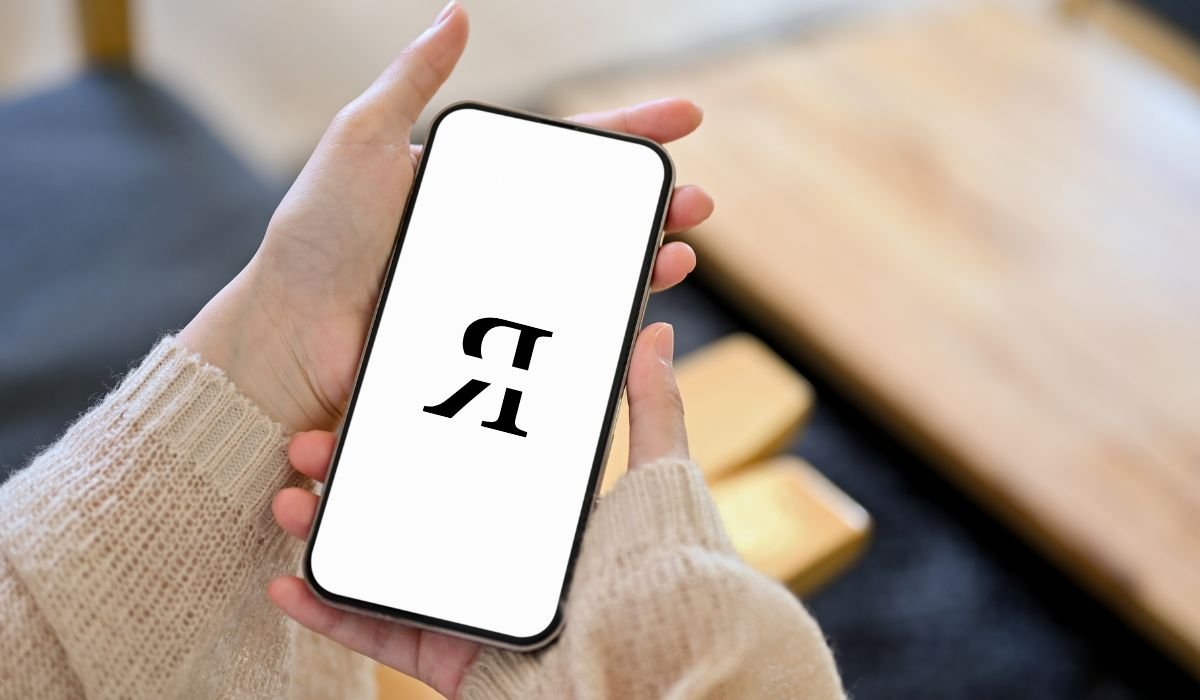
Typing special characters on an Android device can spark a lot of curiosity. A backwards ‘R’, in particular, grabs attention because it’s unusual and not easily found on standard keyboards.
People often want to use a backwards ‘R’ for creative purposes. Whether it’s to make a unique name, design a cool logo, or just add a bit of flair to their text, finding ways to type it is both practical and artistic.
Can I Type a Backwards R On Android?
Yes, you can type a backwards ‘R’ on Android by using a Unicode keyboard (ʁ: U+0281), enabling the Cyrillic keyboard (Я), or using third-party apps like Gboard or SwiftKey. You can also copy and paste from online symbol generators for quick access.
Understanding the Backwards ‘R’ (ʁ)
The backwards ‘R’ (ʁ) isn’t just a random symbol. It holds significance in several fields, including linguistics and design. In the International Phonetic Alphabet (IPA), the symbol represents a voiced uvular fricative, a sound used in some languages like French and German.
Beyond phonetics, the backwards ‘R’ has gained attention in visual design and branding. It’s often used in logos or artistic text to give a unique, edgy feel. Some even use it in usernames or creative text formatting to stand out from the crowd.
Also read: How to Receive Text Messages from Another Phone Number on Android
Typing a Backwards ‘R’ on Android: 5 Key Methods
1. Unicode Input Method
Typing the backwards ‘R’ using the Unicode input method is straightforward once you know the code. The specific Unicode for the backwards ‘R’ is U+0281.
Here’s how you can do it:
- Download and install a Unicode keyboard app like “Unicode Pad.”
- Open the app, search for U+0281 or scroll through the IPA symbols section.
- Tap to insert the backwards ‘R’ (ʁ) directly into your text field.
2. Third-Party Keyboard Apps
Using popular third-party keyboard apps gives you more flexibility to access special characters.
- Gboard and SwiftKey are top options for typing unique symbols like the backwards ‘R’.
To enable special characters on these apps:
- Go to the app settings and enable “Symbols” or “Extended Characters.”
- Hold down the “R” key to see alternative characters. If the backwards ‘R’ doesn’t appear, you can add custom characters via the keyboard’s settings or search Unicode symbols.
3. Copy and Paste Method
An easy way to type a backwards ‘R’ is by copying it from online sources.
Here’s how:
- Search for a backwards ‘R’ symbol (ʁ) on the web or use a special character generator.
- Copy the character.
- Paste it directly into your Android text field.
Websites like CoolSymbols and SymbolCopy have extensive lists of special characters to choose from.
4. Accessing the Backwards ‘R’ on Default Android Keyboard
If you’re using the default Android keyboard, you might need to access special language settings to find a backwards ‘R’. Here’s how you can do it:
- Open Settings on your Android device.
- Go to Languages & Input and select Virtual Keyboard.
- Tap Gboard (or your default keyboard) and choose Languages.
- Scroll through and enable Cyrillic (Russian).
This will add the Cyrillic alphabet to your keyboard, which includes the backwards ‘R’ (Я). - Switch to the Cyrillic keyboard in any text field by holding down the space bar and selecting Cyrillic.
- The backwards ‘R’ can be found on this layout as Я.
If the backwards ‘R’ (Я) isn’t natively available on your default keyboard, adding this language option will provide it easily.
5. Using Online Tools for Backwards Text
Another method is to use online tools that generate mirrored or backwards text. These tools allow you to flip text, including letters like ‘R’, into a backwards version.
Steps:
- Search for online tools like FlipText, MirrorText, or BackwardTextGenerator.
- Type the letter ‘R’ or any text you want to reverse.
- The tool will generate the backwards version of the text, including the backwards ‘R’ (Я or ʁ).
- Copy the text from the tool and paste it directly into your Android apps.
These tools are handy for creating mirrored text quickly, especially when you don’t want to adjust your keyboard settings.
Also read: How to Mirror Android to Firestick: A Comprehensive Guide
Alternative Creative Ways to Represent Backwards ‘R’
1. Font and Text Art Apps
Using specialized font and text art apps is a fun way to create backwards letters, including a backwards ‘R’. Here are some apps and websites that can help you generate creative text designs:
- Cool Fonts: Available on the Play Store, this app allows users to choose from a wide variety of fonts, including mirrored and reversed letters.
- TextArt: This app helps create text art, where you can customize individual letters, like flipping an ‘R’ to achieve a backwards effect.
- Fontify: Another great option, this app generates stylish fonts that can be copied and used in social media posts, messages, or text fields. It often includes flipped letters as part of its custom fonts.
How to Use These Apps on Android:
- Download the app from the Play Store.
- Open the app and type the letter or word you want to reverse.
- Select the font style that includes mirrored or backwards letters.
- Copy the result and paste it into your desired app or text field on Android.
2. Custom Fonts and Text Stylization
If you want to get more creative, using custom font apps allows you to add reversed letters, including the backwards ‘R’, to your Android keyboard.
Apps like:
- Stylish Text: Allows you to use custom fonts, including mirrored characters, directly in your text.
- HiFont: Offers a range of custom fonts that can be applied system-wide on Android, including fonts with reversed characters.
Step-by-step guide to install custom fonts on Android:
- Download a custom font app like HiFont or iFont from the Play Store.
- Browse through the available fonts and choose a pack that includes mirrored or reversed letters.
- Install the font pack on your device.
- Go to Settings > Display > Font Style and apply the new font.
- Use the backwards ‘R’ or other reversed characters directly in your apps or text.
By combining these tools, users can easily add a creative touch to their texts and designs with backwards letters like the ‘R’.
Also read: How to Turn Off Text-to-Speech on Android: A Easy Guide
Tips for Typing Special Characters Efficiently
- Use a Third-Party Keyboard: Install apps like Gboard or SwiftKey for quick access to special symbols.
- Enable Unicode Input: Use a Unicode keyboard to type unique characters like the backwards ‘R’ (ʁ).
- Copy and Paste: Save frequently used special characters and paste them when needed.
- Create Text Shortcuts: Set custom shortcuts for special symbols in your keyboard settings.
- Use Language Options: Enable specific keyboards, such as Cyrillic, to access alternative characters.
- Bookmark Special Character Sites: Keep handy websites like FlipText for quick access to mirrored letters.
Troubleshooting and Common Issues
- Special Character Not Displaying Correctly: Some apps or devices may not support certain Unicode characters, leading to display issues. Ensure you’re using an updated app or switch to a more compatible app.
- Keyboard Doesn’t Show Backwards ‘R’: If your keyboard doesn’t have the backwards ‘R’, enable Cyrillic keyboards or use third-party apps like Gboard or Unicode Pad to access it.
- Copy-Paste Not Working: If copying from an online tool doesn’t work, try clearing the clipboard or use a different tool. Some apps block special characters for security reasons.
- Font Compatibility: Not all fonts support mirrored characters. If you’re using custom fonts, ensure that the font includes Unicode support for special symbols.
- Input Delays: If using a Unicode keyboard causes delays, consider switching to a lighter keyboard app or clear your device’s cache for smoother performance.
Conclusion
Typing a backwards ‘R’ on Android can be done in several ways, whether through Unicode input, third-party keyboard apps, or copy-pasting from online tools. For more creative options, users can explore font apps or even enable Cyrillic keyboards for quick access.
Feel free to experiment with different apps and methods to find what works best for you. These tools make it easy to add a unique touch to your texts.
If you’ve come across any other cool or tricky characters, we’d love to hear about them! Share which symbols you’re curious about typing on Android.
FAQs
1. Can I type a backwards ‘R’ using the default Android keyboard?
Yes, by enabling the Cyrillic keyboard in your Android settings, you can access the backwards ‘R’ (Я). Simply switch to the Cyrillic layout when typing and select the letter from the keyboard.
2. How do I copy a backwards ‘R’ on Android?
You can easily copy a backwards ‘R’ (ʁ or Я) from websites like SymbolCopy or FlipText. Just paste it into your Android text field after copying from the online tool.
3. What apps can I use to type a backwards ‘R’?
Apps like Gboard and SwiftKey allow easy access to special characters, including a backwards ‘R’. You can enable extended symbols or Unicode inputs through the app settings.
4. Can I use custom fonts to type a backwards ‘R’?
Yes, custom font apps like HiFont allow you to install fonts that may include mirrored or backwards characters. After applying the font, you can use these letters across apps.
5. Is the backwards ‘R’ available in Unicode?
Yes, the backwards ‘R’ (ʁ) is a Unicode character with the code U+0281. You can use a Unicode keyboard to type it directly on Android.
6. Can I generate a backwards ‘R’ with online tools?
Yes, websites like FlipText or BackwardTextGenerator allow you to create mirrored or backwards text, including a backwards ‘R’. Copy the text and paste it into any Android app.


