

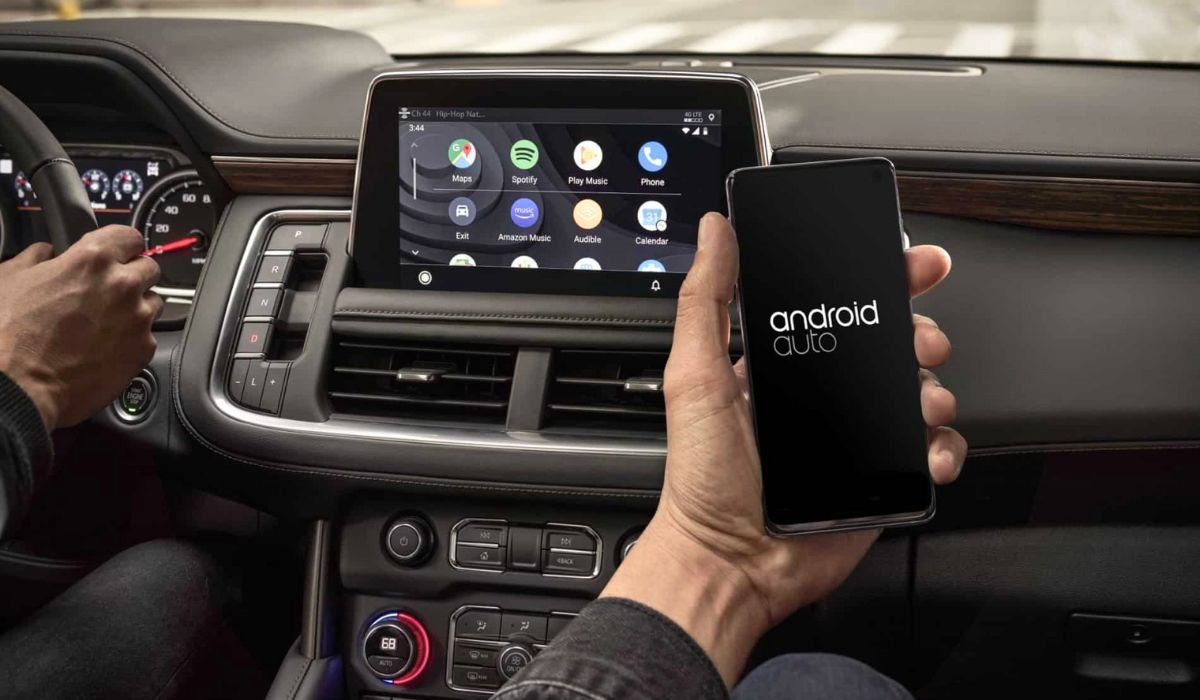
Using Android Auto with Uconnect is a smart way to make driving more convenient and enjoyable. Android Auto lets you access your phone’s apps, like navigation, music, and messaging, directly from your car’s Uconnect system. This combination allows you to stay connected without needing to take your eyes off the road.
Integrating Android Auto with Uconnect enhances safety, as you can use voice commands through Google Assistant. This hands-free operation means you can keep both hands on the wheel while managing calls, texts, and directions.
The setup also boosts functionality. You can enjoy your favorite apps on a bigger screen, access real-time navigation, and stream music—all seamlessly integrated into your vehicle’s dashboard. Convenience and safety come together for a smoother, distraction-free driving experience.
Can I Use Android Auto with Uconnect
Yes, you can use Android Auto with Uconnect if your vehicle and phone are compatible. Simply connect your phone via USB cable or wirelessly (depending on your system) to access apps like navigation, music, and messaging on your Uconnect display, all while using hands-free controls for a safer driving experience.
Also read: Reduce the MB Size of a Photo on Android: A Easy Guide
What is Android Auto?
Android Auto is a platform designed to bring essential apps and functions from your phone to your car’s dashboard. It allows drivers to safely access navigation, music, calls, and messages while keeping their focus on the road.
Some of its key features include:
- Navigation: Real-time GPS and traffic updates through Google Maps or Waze.
- Music: Stream music, podcasts, and audiobooks from apps like Spotify, YouTube Music, and more.
- Calls and Messaging: Make and receive calls, send texts, and manage conversations hands-free.
- Voice Commands: Use Google Assistant to control everything with just your voice.
The biggest benefit of Android Auto is the hands-free control it provides, making it much safer compared to traditional in-car systems. You don’t have to look down at your phone or manually operate it, which reduces distractions and helps you stay focused on the road.
What is Uconnect?
Uconnect is an advanced vehicle infotainment system found in many cars, providing drivers with a range of features such as navigation, media, communication, and climate control—all accessible through a central touchscreen. Uconnect offers a user-friendly interface that makes it easy to control various aspects of your vehicle.
One of its standout features is its compatibility with Android Auto. This allows drivers to connect their Android phones and use essential apps right from the Uconnect screen. In addition to Android Auto, Uconnect also supports Apple CarPlay and Bluetooth, enhancing its versatility.
Uconnect is commonly found in Chrysler, Dodge, Jeep, and Ram vehicles, making it widely available for drivers looking for a modern infotainment solution that integrates seamlessly with their smartphones.
Also read: Set a Spotify Song as a Ringtone on Android: A Easy Guide
Requirements for Using Android Auto with Uconnect
To use Android Auto with Uconnect, there are a few requirements to ensure a smooth setup:
- Android Auto App: You’ll need to have the Android Auto app installed on your phone if it’s not already built-in. You can easily download it from the Google Play Store by searching “Android Auto” and clicking install. Once installed, open the app and follow the on-screen instructions to set it up.
- Uconnect System: Not all Uconnect systems are compatible with Android Auto, so it’s essential to check the version of your Uconnect system. Most newer models come with Android Auto support. To check, refer to your vehicle’s manual or look for the Android Auto icon on your Uconnect display. If necessary, you may need to update the system.
- USB Cable or Wireless Connection: Depending on your vehicle and phone, you can connect via a USB cable or wirelessly.
- USB: Use a high-quality cable to connect your phone to the car’s USB port.
- Wireless: If your Uconnect system and phone support wireless Android Auto, simply enable Bluetooth and Wi-Fi on your phone to pair it with your car.
Step-by-Step Guide: How to Set Up Android Auto with Uconnect
1. Ensure Compatibility
- First, make sure that both your phone and Uconnect system are compatible with Android Auto. Check your vehicle’s manual or the Uconnect display for confirmation.
2. Download the Android Auto App
- If your phone doesn’t have Android Auto pre-installed, head to the Google Play Store and download the app. Open it and follow the initial setup instructions.
3. Connect Your Phone to Uconnect
- USB Connection: Plug your phone into your car’s USB port using a compatible cable.
- Wireless Connection: If both your phone and Uconnect system support wireless Android Auto, enable Bluetooth and Wi-Fi on your phone, and pair it with the car.
4. Grant Permissions
- Once connected, you’ll be prompted to grant Android Auto access to your contacts, messages, calls, and location. Approve these permissions to proceed.
5. Customize Settings
- After the connection is successful, you can customize the display preferences and app shortcuts on the Uconnect screen. Set your preferred navigation app, music app, etc.
6. Enable Voice Commands
- Activate Google Assistant by pressing the voice command button on your steering wheel or saying “Hey Google.” This allows you to control Android Auto with your voice for hands-free use.
By following these steps, you can easily set up Android Auto on your Uconnect system and enjoy a seamless in-car experience.
Here is a step-by-step guide to setting up Android Auto with Uconnect presented in a table format:
| Step | Description |
|---|---|
| 1 | Ensure your phone and Uconnect system are compatible. |
| 2 | Download the Android Auto app from the Google Play Store if needed. |
| 3 | Connect your phone via USB cable or wirelessly. |
| 4 | Grant required permissions for contacts, messages, and location. |
| 5 | Customize settings and display preferences on the Uconnect screen. |
| 6 | Activate Google Assistant for voice control. |
Also read: How to Share Google Calendar on Android: A Ultimate Guide
Troubleshooting Common Issues
Here are some common troubleshooting tips for resolving issues with Android Auto on Uconnect:
1. Connection Problems
- USB Cable Issues: If Android Auto isn’t connecting, try using a different USB cable. Low-quality or damaged cables can cause connection issues.
- Wireless Connection Issues: For wireless setups, ensure both Bluetooth and Wi-Fi are enabled on your phone. Restart both your phone and Uconnect system if the connection drops.
2. App Not Displaying on Uconnect Screen
- Make sure that Android Auto is enabled on your Uconnect system. Go to the settings menu on your Uconnect screen and ensure that Android Auto is turned on.
- Check if your phone is up-to-date and that the Android Auto app is running the latest version.
3. Audio Issues
- If the sound isn’t coming through correctly, check that the audio source on Uconnect is set to Android Auto. Also, confirm that your phone’s volume is turned up.
- Restart both the Uconnect system and your phone to resolve any temporary glitches.
4. App Compatibility
- Some apps may not work properly with Android Auto. Ensure that your apps, like Google Maps or Spotify, are fully updated from the Play Store to avoid compatibility issues.
5. Phone Not Recognized
- If your phone isn’t being recognized, restart the Uconnect system and disconnect any other Bluetooth devices that might interfere with the connection. Also, try rebooting your phone to refresh the connection.
These troubleshooting tips can help resolve most of the common issues when using Android Auto with Uconnect, ensuring a smooth and uninterrupted driving experience.
Tips for a Seamless Experience
Here are some helpful tips to ensure a seamless experience when using Android Auto with Uconnect:
- Keep Android Auto Updated: Regularly check the Google Play Store for updates to the Android Auto app. Updates often include bug fixes and new features that can improve performance.
- Update Your Uconnect System: Make sure your Uconnect system has the latest software version. You can check for updates via your vehicle’s settings menu or contact your dealer to ensure your system is up-to-date.
- Use a High-Quality USB Cable: If you’re connecting via USB, use a good-quality cable to avoid connection issues. A damaged or low-quality cable can cause frequent disconnections.
- Utilize Voice Commands: For hands-free control, rely on Google Assistant. Just say “Hey Google” or press the voice command button on the steering wheel to make calls, send texts, or navigate.
- Minimize Distractions: Customize the Android Auto settings to display only the essential apps. This helps keep distractions at a minimum while driving, allowing for a safer experience.
- Regularly Reboot Devices: If you notice slowdowns or glitches, a quick restart of your phone or Uconnect system can often resolve minor issues.
By following these tips, you can ensure that your Android Auto and Uconnect experience remains smooth and reliable.
Safety and Legal Considerations
When using Android Auto with Uconnect, it’s important to be aware of safety and legal considerations to ensure you’re driving responsibly:
- Hands-Free Operation: Android Auto is designed to reduce distractions by allowing hands-free control through Google Assistant. This feature lets you make calls, send messages, and get directions without touching your phone, keeping your hands on the wheel and eyes on the road.
- Minimize Screen Interaction: Although the Uconnect screen makes it easy to use apps, avoid interacting with it while driving. Rely on voice commands to control functions to prevent distractions.
- Obey Local Laws: Different regions have laws regarding phone use while driving. In many places, it’s illegal to hold or manually use your phone while on the road. Android Auto helps you comply with these regulations by offering a safer, hands-free alternative.
- Avoid Texting While Driving: Even though Android Auto can read texts out loud, it’s important to avoid responding manually to texts while driving. Use the voice-to-text feature to send messages instead.
- Regular Updates for Security: Keeping both your Uconnect system and Android Auto app updated ensures you have the latest security features. Outdated systems can be vulnerable to bugs or performance issues that could impact safety.
By following these safety and legal considerations, you can enjoy the benefits of Android Auto with Uconnect while minimizing risks and staying compliant with driving laws.
Conclusion
Integrating Android Auto with Uconnect offers numerous benefits that enhance your driving experience. It provides seamless access to your favorite apps, like navigation, music, and messaging, all while keeping your focus on the road. The hands-free functionality through Google Assistant ensures safety by allowing you to control everything with just your voice.
By setting up Android Auto with Uconnect, you’ll experience convenience, safety, and enhanced functionality, making every drive more enjoyable. If you haven’t tried it yet, give it a go—stay connected and drive safer with this powerful combination.
FAQs
Is my vehicle compatible with Android Auto on Uconnect?
Most newer models of Chrysler, Dodge, Jeep, and Ram vehicles with Uconnect support Android Auto. Check your vehicle’s manual or the Uconnect system for the Android Auto icon to confirm compatibility.
Can I use Android Auto wirelessly with Uconnect?
Yes, but only if both your phone and Uconnect system support wireless Android Auto. You’ll need Bluetooth and Wi-Fi enabled to connect wirelessly.
Why isn’t my phone connecting to Android Auto on Uconnect?
This could be due to a faulty USB cable, outdated software, or a temporary glitch. Try using a new cable, restarting your phone and Uconnect, or checking for updates.
What apps can I use with Android Auto on Uconnect?
You can use popular apps like Google Maps, Spotify, YouTube Music, and Google Assistant. Only apps compatible with Android Auto will appear on your Uconnect screen.
Do I need an internet connection to use Android Auto?
Yes, most features of Android Auto, such as navigation and music streaming, require an active internet connection through mobile data or Wi-Fi.
Is using Android Auto legal while driving?
Yes, Android Auto is designed to comply with hands-free driving laws. It helps reduce distractions by offering voice commands and minimizing screen interaction, making it a safer option compared to manually using your phone while driving.


