

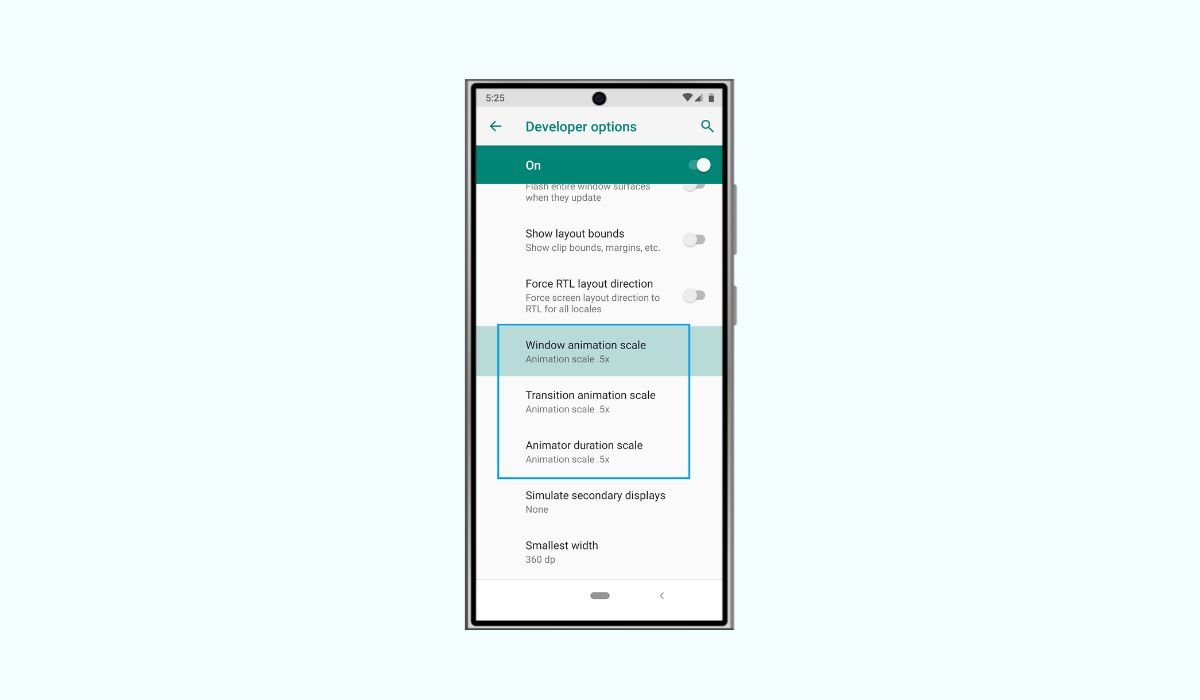
Changing animation speed on Android is simple. Enable Developer Options in Settings, then adjust Window, Transition, and Animator scales. Set them to 0.5x for faster animations or experiment with other values. This tweak can make your device feel more responsive.
Android devices feature various animations that enhance the user interface’s visual appeal and smoothness. However, these animations can sometimes feel sluggish or superfluous, particularly on older devices. Fortunately, Android offers a method to adjust animation speeds, allowing users to tailor their experience. To accelerate these animations, navigate to Settings > Developer options on your Android device. Scroll down to locate the three scale settings: Window, Transition, and Animator scales. Change all three from their default “1x” to “0.5x”. This simple adjustment can significantly improve the responsiveness of your device’s interface.
Key Takeaways
- Changing animation speed can improve device responsiveness
- Developer Options must be enabled to access animation settings
- Three main animation scales can be adjusted: Window, Transition, and Animator
- Reducing animation scales to 0.5x can make your device feel faster
- Completely disabling animations may affect some app functionalities
What are Android Animations?
Android animations are visual effects that occur when you interact with your device. These include transitions between screens, opening and closing apps, and various UI element movements. While animations add a sense of fluidity to the user experience, they can sometimes feel sluggish, especially on older or less powerful devices.
Types of Android Animations
Android uses three main types of animations, each controlled by a separate scale:
- Window animation scale: Controls animations for opening and closing windows
- Transition animation scale: Manages animations between different app screens
- Animator duration scale: Affects the speed of in-app animations
By adjusting these scales, you can significantly impact how your device feels in day-to-day use.
Also read: Creating Stop Motion Videos on Android: A Step-by-Step Guide
Prerequisites for Changing Animation Speed
Developer Options
To change animation speeds on your Android device, you’ll need to access the Developer Options menu. This hidden menu contains various advanced settings, including animation scales.
Enabling Developer Options
If you haven’t already enabled Developer Options on your device, follow these steps:
- Open the Settings app on your Android device
- Scroll down and tap on “About phone” or “About device”
- Find the “Build number” entry and tap it seven times
- You’ll see a message saying, “You are now a developer!”
- Go back to the main Settings menu, and you’ll find “Developer options” near the bottom
Once Developer Options are enabled, you’re ready to adjust animation speeds.
Changing Animation Speed
To change animation speeds:
- Open the Settings app
- Scroll down and tap on “Developer options”
- Look for the “Drawing” section (you may need to scroll down)
- Find the following three options:
- Window animation scale
- Transition animation scale
- Animator duration scale
Adjusting Animation Scales
- Scale Value: 1x
- Effect: Default speed
- Scale Value: 0.5x
- Effect: Twice as fast
- Scale Value: 2x
- Effect: Half speed
- Scale Value: Off
- Effect: No animation
To speed up your device, set all three scales (Window animation scale, Transition animation scale, and Animator duration scale) to 0.5x. This will make animations twice as fast as the default, resulting in a snappier and more responsive feel.
Step-by-Step Guide
- Tap on “Window animation scale”
- Select “Animation scale .5x”
- Repeat for “Transition animation scale”
- Repeat for “Animator duration scale”
These changes will take effect immediately, without requiring a device restart
Recommended Settings for Faster Performance
For a noticeable speed boost without completely removing animations:
- Set Window animation scale to 0.5x
- Set Transition animation scale to 0.5x
- Set Animator duration scale to 0.5x
These settings will make your device feel snappier while still maintaining some visual feedback.
Also read: Resizing Images on Android Device: A Step-by-Step Guide
Testing and Tweaking Animation Speed
Observing the Changes
After adjusting the animation scales, test the new settings by performing various actions on your device:
- Open and close apps
- Switch between recent apps
- Pull down the notification shade
- Navigate through your device’s settings
Pay attention to how the animations feel. Do they seem smoother? Is your device more responsive?
Fine-Tuning the Settings
If you’re not satisfied with the 0.5x setting, try these alternatives:
- Set scales to 0.75x for a subtle speed increase
- Use 0.25x for even faster animations (may feel abrupt)
- Turn animations off completely for maximum speed (but less visual appeal)
Remember, you can set different values for each scale. For example, you might prefer faster window animations but slower in-app animations.
How to Disable Animations
To turn off animations entirely:
- Follow the steps to access Developer Options
- For each animation scale setting, select “Animation off”
- Exit Settings and test your device’s performance
Custom ROMs and Animation Control
Popular Custom ROMs with Enhanced Animation Options
Some custom ROMs offer more granular control over animations:
- LineageOS
- Pixel Experience
- Evolution X
- Paranoid Android
These ROMs often include additional animation settings and smoother overall performance.
Installing Custom ROMs (Caution Advised)
Installing custom ROMs can void your warranty and potentially brick your device if not done correctly. Only attempt this if you’re comfortable with advanced Android procedures.
General steps for installing a custom ROM:
- Unlock your device’s bootloader
- Install a custom recovery (e.g., TWRP)
- Download the desired custom ROM
- Flash the ROM using the custom recovery
- Install necessary Google apps (GApps) if not included
Always research thoroughly and follow guides specific to your device model.
Third-Party Apps for Animation Control
Top Apps for Customizing Animations (2024)
- Nova Launcher: Offers extensive customization options, including animation speeds for home screen interactions
- Animation Changer (Root): Requires root access but provides fine-tuned control over system animations
- Tasker: Automate animation changes based on specific triggers or scenarios
- Swift Switcher: Customize app switching animations and gestures
Using Animation Control Apps Safely
When using third-party apps for animation control:
- Download only from trusted sources like the Google Play Store
- Read user reviews and check the app’s reputation
- Be cautious with apps requiring root access
- Keep your device’s security settings enabled
- Regularly update the apps to ensure compatibility and security
Also read: Turn Pictures into PDF on Android: Quick and Easy Steps
Troubleshooting Common Issues
Animations Not Changing
If you’ve adjusted the animation scales but don’t notice any difference:
- Restart your device
- Ensure Developer Options is still enabled
- Check if your device manufacturer has restricted animation changes
- Look for any system updates that might affect Developer Options
App Compatibility Problems
Some apps may behave unexpectedly with modified animation settings. If you encounter issues:
- Try resetting the animation scales to default (1x)
- Check if the problem persists with default settings
- Contact the app developer if the issue is app-specific
- Consider using app-specific animation settings if available
Advanced Animation Tweaks for Rooted Devices
Understanding Root Access
Root access gives you complete control over your Android device, allowing for deeper system modifications. However, it comes with risks:
- Voiding your warranty
- Potential security vulnerabilities
- Risk of “bricking” your device
Only root your device if you’re comfortable with these risks and have thoroughly researched the process for your specific model.
Using Build.prop Tweaks
With root access, you can modify the build.prop file to further customize animations:
- Use a root file explorer to navigate to /system/
- Open the build.prop file with a text editor
- Add or modify these lines:
- windowsmgr.max_events_per_sec=150
- debug.sf.hw=1
- debug.performance.tuning=1
- video.accelerate.hw=1
- Save the file and reboot your device
Always back up the original build.prop file before making changes.
Impact on Device Performance and Battery Life
Performance Improvements
Adjusting animation speeds can lead to:
- Faster-feeling device navigation
- Reduced delay when opening apps
- Smoother multitasking experience
Battery Life Considerations
The impact on battery life varies:
- Faster animations may slightly reduce battery usage
- Disabled animations could have a minor positive effect on battery life
- The difference is often negligible for most users
Comparing Animation Speeds Across Android Versions
Android 13 vs Android 14 Animation Differences
Android 14, released in 2023, introduced subtle changes to system animations:
- Smoother transition effects
- More responsive touch feedback
- Improved animation consistency across apps
These enhancements make the default animations in Android 14 feel snappier compared to Android 13, even without manual adjustments.
Upcoming Android 15 Animation Features (2024 Preview)
While Android 15 is still in development, early previews suggest:
- New AI-powered adaptive animations that adjust based on user behavior
- Enhanced haptic feedback synchronized with visual animations
- Improved animation fluidity on devices with high refresh rate displays
As Android 15 rolls out, users may find less need to manually adjust animation speeds due to these optimizations.


