

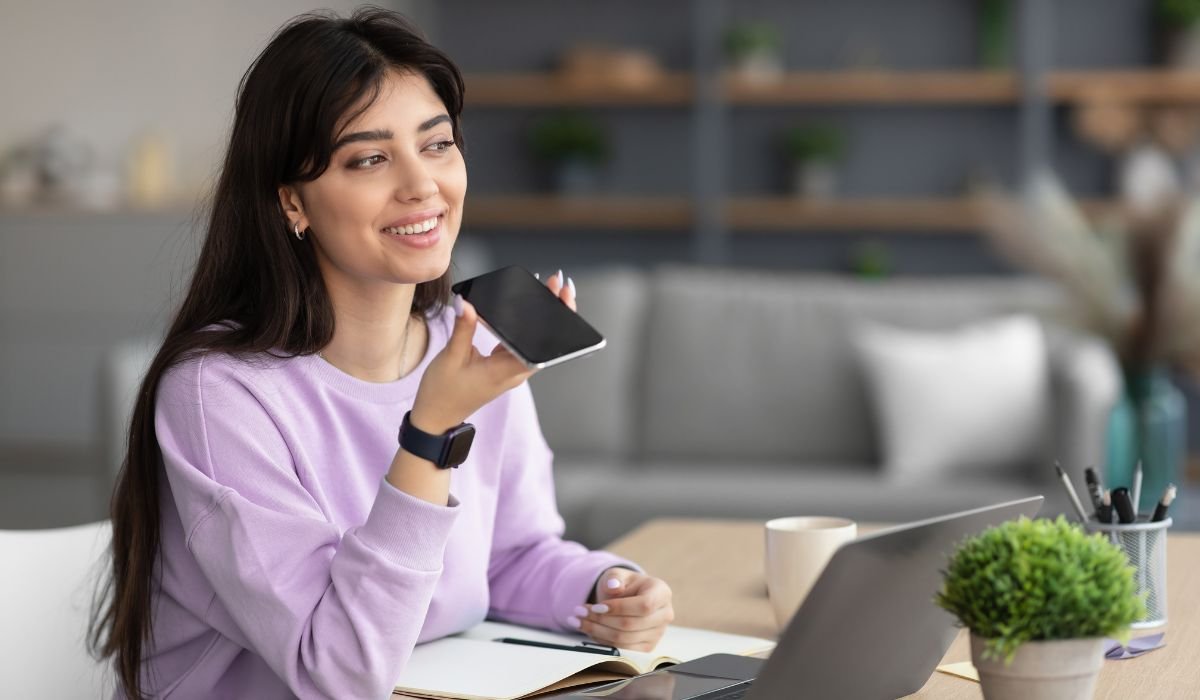
Have you ever wished you could save a phone conversation on your Android device? Maybe it was an important call with instructions you didn’t want to forget or a memorable chat with a friend.
Recording phone calls isn’t as straightforward as hitting a button, which can be frustrating. Fear not, we’re here to guide you through the maze.
Interestingly, most Android users aren’t aware that their devices might already have everything they need to start recording calls today. This article will break down how to capture those conversations easily and legally.
We’ll cover built-in options, third-party apps, and even some tips for crystal-clear audio quality. Stick around; this might just be what you’ve been looking for.
Key Takeaways
- You can record phone conversations on Android using built-in features, Google Voice, or third-party apps. It’s critical to pick the method that best matches your needs, whether for personal reference or legal documentation.
- Before recording any calls on Android devices, make sure you understand and comply with state and federal laws regarding call recording. Consent from all parties might be necessary depending on where you live.
- For better quality audio recordings, consider utilizing external devices like dedicated call recording gadgets or high-quality microphones. Testing your setup before actual calls can help avoid issues during important conversations.
- If the built-in options don’t meet your needs, a wide variety of third-party call recording apps are available in the Google Play Store. These apps offer advanced features such as automatic recording and cloud storage integration but ensure to check their legality in your location.
- Regularly updating your phone’s operating system and the chosen call recording app ensures smoother performance and reduces glitches. Testing different environments for clear recordings can improve the overall quality of captured calls.
Can I Record a Phone Call On Android
Yes, recording a phone call on an Android device is quite doable. Various avenues exist, ranging from built-in features on some smartphones to downloadable apps that specialize in capturing voice conversations.
This versatility allows users to select the method that best fits their needs, whether it’s for keeping records of important discussions or ensuring clarity on agreements made over calls.
Before exploring the sea of options available for call recording on Android devices, users should familiarize themselves with the legality of recording calls, as regulations can vary significantly by location.
Also read: Recording Your Heartbeat Sound on Android: Easy Steps
The Legality of Recording Calls on Android Devices
Recording calls on Android devices raises legal questions. Federal and state laws govern call recording, with consent being a crucial factor for legality.
Federal and State Law Compliance for Call Recording
Handling federal and state laws for recording calls on your Android isn’t as tricky as you might think, but it’s crucial to get it right. Under federal law, at least one person involved in the call must know it’s being recorded.
This is known as “one-party consent” and makes it legal to record a call if you’re part of the conversation or if you’ve gotten permission from one of the participants. However, things get a bit more complicated with state laws.
Some states are sticklers for privacy and require “all-party consent,” which means everyone on the call needs to give their thumbs up before hitting that record button.
Before recording phone conversations on your Android, double-check the rules in your state to avoid stepping on any legal toes. Consent plays a big role here; whether it’s informing other parties yourself or using an app that does the heavy lifting by playing a pre-call message about the recording.
Now that we’ve got this legal maze figured out let’s look into how exactly you can capture those important calls on your device without breaking any rules.
Consent Requirement for Legally Recording Calls
Understanding the laws on call recording sets the stage, but knowing about consent is key to playing by the rules. Every state has its own take on whether you need permission from one or all parties involved in a call before hitting record.
In some places, you’re good to go if you’re part of the conversation and agree to record it yourself; that’s called one-party consent. However, twelve states crank up the strictness with all-party consent rules, meaning everyone in the chat needs to give a thumbs up before you start capturing those words.
Always check your state’s consent laws before recording calls to steer clear of legal hot water.
Options for Recording Phone Calls on Android
Looking to record phone calls on your Android device? You have a few options to explore! One way is to use Android’s built-in features. Another option is utilizing Google Voice for call recording.
And if those don’t suit your needs, you can also consider using third-party apps specifically designed for call recording on Android.
Record Using Android’s Built-In Features
Android devices come equipped with built-in features that allow you to record phone calls without needing to download additional apps. To access this function, simply start a call and tap the three-dot menu icon where you’ll find the option to “Record Call.” This feature is available on most Android devices and provides a convenient way to capture important conversations for later reference or transcription.
Keep in mind that the availability of this feature may vary depending on your device’s make and model.
By utilizing Android’s built-in recording capabilities, you can easily document conversations without relying on third-party applications, providing a seamless and integrated solution for call recording directly from your device.
Record Calls with Google Voice
Google Voice offers a convenient way to record calls on Android devices. By enabling call recording in the app’s settings, you can easily capture both incoming and outgoing calls. This feature is particularly useful for keeping records of important conversations or interviews.
Once enabled, Google Voice automatically notifies all parties with a verbal prompt that the call is being recorded, ensuring compliance with legal requirements.
With Google Voice, you can access your recorded calls through the app or via web browser, making it easy to review and manage your recordings. Keep in mind that call recording using Google Voice may not be available in all countries, so it’s essential to check its availability in your region before use.
Use Third-Party Apps for Call Recording
If you’re looking for additional options to record phone calls on your Android device, third-party call recording apps can provide a simple and convenient solution. These apps offer various features such as automatic call recording, the ability to choose which calls to record, and easy access to recorded conversations.
With a wide range of third-party call recording apps available in the Google Play Store, you can easily find one that suits your specific needs and preferences. Simply download the app of your choice, follow the setup instructions, and start capturing important phone conversations with ease.
Many users opt for third-party call recording apps due to their user-friendly interfaces and additional features like cloud storage integration or advanced settings for better control over recordings.
Keep in mind that some third-party call recording apps may require a subscription or offer in-app purchases for premium features. Always ensure that you comply with local laws and regulations regarding call recording when using these third-party applications.
Also read: Removing Private Number from Android: Easy Guide
Step-by-Step Guide to Recording Calls on Android
To start recording calls on your Android device, you can follow a step-by-step guide that will show you how to set up Google Voice for call recording, use external devices for better quality recordings, and install and configure third-party apps.
How to Set Up Google Voice for Call Recording
Setting up Google Voice for call recording on Android is straightforward and can be done in just a few steps. Here’s a comprehensive guide to help you make the most of this feature:
- Download and Install Google Voice: Start by downloading the Google Voice app from the Play Store. Once installed, open the app and sign in with your Google account.
- Set Up Your Google Voice Number: Follow the prompts to select a new number or link an existing one to your Google Voice account. This number will be used to make and receive calls through the app.
- Enable Call Recording: In the Google Voice app settings, go to “Calls” and turn on the call recording feature. This will allow you to record incoming and outgoing calls seamlessly.
- Review Call Recording Options: Before recording any calls, review the call recording options within the Google Voice settings. You can choose whether to announce that calls are being recorded or not, as well as set up storage preferences for your recordings.
- Start Recording Calls: Once everything is set up, you can start recording calls by simply tapping the “4” key during a call (on mobile) or clicking “Record” on your computer while using Google Voice for web calling.
- Accessing Recorded Calls: All recorded calls will be stored in your Google Voice account under the “Voicemail” section, where you can listen to them at any time or download them for future reference.
By following these steps, you can easily set up Google Voice for call recording on your Android device and ensure that you have a seamless experience capturing important conversations.
Using External Devices for Better Quality Recordings
To improve the quality of your call recordings on Android, consider using external devices such as a dedicated call recording device or a microphone. These devices can help ensure a clearer, more professional-sounding recording. Here are some options for using external devices to enhance the quality of your call recordings:
- Dedicated Call Recording Devices: Consider investing in a dedicated call recording device that can be connected to your Android phone via Bluetooth or an audio cable. These devices are designed specifically for high-quality call recording and can provide superior sound clarity compared to built-in smartphone microphones.
- External Microphones: Using an external microphone attached to your Android device can significantly improve the audio quality of your recordings. Look for a high-quality microphone that is compatible with your smartphone and provides clear, crisp sound capture.
- Headset with Microphone: Utilize a headset with a built-in microphone for clear and hands-free call recording. Many smartphone headsets come equipped with noise-canceling technology, which can help reduce background noise and improve the overall recording quality.
By incorporating these external devices into your call recording setup, you can ensure that the recorded conversations are of the highest possible quality, free from distortion and background noise disturbances.
How to Install and Configure Third-Party Apps
If you’re looking to expand your call recording options on an Android device beyond the built-in features and Google Voice, third-party apps offer a wealth of possibilities. Here’s how to install and configure them for seamless call recording:
- Go to the Google Play Store on your Android device and search for “call recording apps.”
- Choose a reputable call recording app with positive reviews and ratings.
- Download and install the selected app on your phone.
- Open the app and follow the on-screen instructions to set it up according to your preferences.
- Grant any necessary permissions, such as access to your phone’s calls, contacts, and storage.
- Configure settings within the app, such as automatic recording of all calls or selective recording based on contacts or numbers.
- Test the app by making a sample call to ensure that it records as expected.
By following these steps, you can easily take advantage of third-party apps to enhance your call recording experience on Android.
Also read: Block Pop-Up Ads on Your Android Phone: Complete Guide
Tips for Ensuring High-Quality Call Recordings
When recording phone calls on your Android, choose a quiet environment for clear recordings. Select high-quality recording equipment to ensure the best possible sound. Testing your setup before recording calls can help you avoid any unexpected issues later on.
Choose a Quiet Environment for Clear Recordings
To ensure clear recordings of phone calls on Android, it is essential to choose a quiet environment. Background noise can interfere with the quality of the recording, making it difficult to understand the conversation when playing back the call.
By selecting a quiet space, such as a closed room or an outdoor area away from traffic and other distractions, you can significantly improve the clarity of your recorded phone conversations.
This simple step can make a big difference in ensuring that your call recordings are easy to understand and free from unnecessary disturbances.
When recording phone calls on Android, finding a quiet environment is crucial for maintaining clear and high-quality recordings. It’s best to avoid noisy surroundings where background sounds could disrupt the conversation and impact the overall recording quality.
Select High-Quality Recording Equipment
When recording phone conversations on your Android device, selecting high-quality recording equipment is essential to ensure clear and crisp audio. Investing in a good quality external microphone can significantly enhance the sound quality of your recordings.
Look for a microphone designed specifically for smartphones, as it will be compatible with your Android device and provide optimal results. Additionally, consider using noise-canceling headphones to eliminate background noise and capture the conversation more effectively.
By choosing reliable recording equipment, you can greatly improve the overall quality of your recorded phone calls.
Good-quality external microphones designed for smartphones can enhance sound.
Noise-canceling headphones help eliminate background noise from recordings.
Test Your Setup Before Recording Calls
Before you start recording calls, it’s essential to test your setup to ensure everything is working correctly. Make a test call to a friend or family member and activate the recording feature.
Check that the audio is clear on both ends and that there are no technical issues with the recording app or device. This simple step can help you identify any potential problems before an important call, ensuring a smooth and successful recording process.
Ensure that your microphone is picking up your voice clearly, and the speaker’s voice on the other end is also audible in the recordings. Adjust volume levels if necessary and familiarize yourself with how to pause or stop recordings during a call if needed.
Testing your setup beforehand can save you from frustrating hiccups when capturing important conversations on your Android device.
Troubleshooting Common Issues
If you experience low call quality or one-sided recordings, try using headphones with a microphone. Ensure your phone’s operating system and call recording app are up to date to avoid technical glitches.
If calls aren’t being recorded at all, check the app permissions and settings on your device to grant access for call recording. In case of any issues, reach out to the app developer for troubleshooting assistance.
For consistent high-quality recordings, ensure that your Android device has enough storage space available before initiating a call recording session. Additionally, restart your device regularly to prevent any software conflicts that may affect the call recording functionality.
Conclusion
In wrapping up, you’ve now learned about the practical and efficient methods for recording phone calls on your Android device. By following the step-by-step guide and implementing the provided tips, you can ensure high-quality call recordings that are easy to save and manage.
How will you apply these strategies in your everyday phone conversations? Perhaps it’s time to dive into call recording apps or explore setting up Google Voice for call recording! The impact of employing these approaches could lead to clearer communication and more organized records of vital phone discussions.
As you further navigate through the realm of Android call recording, remember that practice makes perfect. Consider testing your setup before diving into important calls. This can unlock the secrets to achieving top-notch recordings without adding complexities to this ever-evolving world of smartphone call recording.
Ready to enhance your calling experience with seamless and robust record-keeping techniques? Keep exploring new resources around Android phone call recording options, seeking more than just a basic understanding but also ways in which this technology can be instrumental in various aspects of modern communication.
Frequently Asked Questions (FAQ)
Can you record a phone conversation on Android?
Yes, you can record phone conversations on your Android device. There are several options available, including using the built-in call recording feature of some Android devices, utilizing Google Voice for call recording, or downloading third-party apps specifically designed for call recording on Android.
Each method offers different features and functionality to cater to your specific needs when it comes to capturing and saving important phone conversations. Whether it’s for personal reference, legal documentation, or simply to ensure you don’t miss any crucial details during a call, recording phone conversations on Android is indeed possible and can be a valuable tool in various situations.
By learning how to properly utilize these methods and familiarize yourself with the best practices for effective call recordings, you can take advantage of this feature without running afoul of legal regulations or privacy concerns.
How do I record a phone call on my Samsung?
To record a phone call on your Samsung device, you can use built-in features or third-party apps. If your Samsung phone has a built-in call recording feature, simply initiate the call and look for the “Record” button during the conversation.
Alternatively, you can explore various third-party apps available in the Google Play Store specifically designed for recording phone calls on Android devices. These apps offer easy-to-use interfaces and allow you to save and organize recorded calls directly on your Samsung smartphone.
Is there an app to record phone calls on Android?
Yes, there are several apps available to record phone calls on Android. Some popular options include ACR Call Recorder, Cube Call Recorder, and Automatic Call Recorder. These apps offer various features such as automatic call recording, the ability to save recordings in different formats, and integration with cloud storage services for easy backup.
It’s important to note that the availability of these apps may vary based on your location and device model.
Utilizing a call recording app can be a convenient way to document important conversations or interviews, ensure accuracy when transcribing notes, or simply for personal reference.
When choosing an app, consider factors such as user reviews, compatibility with your specific device model, and any additional features that may be beneficial for your recording needs.
Android phone call recording apps?
If you’re looking to record phone calls on your Android device, there are various call recording apps available for this purpose. These apps, such as Automatic Call Recorder, Cube Call Recorder ACR, and Call Recorder – ACR, allow you to easily capture and save both incoming and outgoing calls.
With user-friendly interfaces and seamless integration with your device’s calling functions, these apps offer a convenient way to document important conversations or interviews.
Furthermore, many of these Android call recording apps also provide additional features like the ability to categorize recordings, share them with others, or even transcribe voice calls into text.
Some apps offer free versions with limited functionalities while others have premium versions that unlock more advanced features. Whether it’s for personal use or professional purposes such as conducting business calls or legal documentation requirements, these Android call recording apps can be valuable tools in ensuring that you never miss out on any crucial details during phone conversations.
Can recording be done on Android phones?
Yes, recording can be done on Android phones using various methods such as built-in features, Google Voice, or third-party apps. However, it’s important to note that the legality of recording calls varies by state and country.
When considering recording a phone call on an Android device, it is crucial to understand the laws and regulations in your specific location to ensure compliance with consent requirements and privacy laws.
Android users also have options for documenting phone conversations without using a dedicated app. These methods provide flexibility for individuals seeking to save recorded calls directly onto their devices.
By exploring these techniques and understanding legal obligations around call recording, Android users can confidently capture important conversations while staying compliant with relevant regulations.
Which call recorder records both parties?
Many call recording apps, such as ACR Call Recorder and Cube Call Recorder, have the capability to record both parties in a phone conversation. These apps work by capturing the audio from your microphone and the incoming audio on speakerphone simultaneously.
This ensures that both sides of the conversation are recorded clearly for future reference or documentation purposes.
When using these call recorders, it’s important to ensure that you comply with applicable laws regarding consent for recording conversations. Additionally, check if your device’s operating system supports call recording natively or if you need to install a third-party app for this feature.
Always test any call recorder before important calls to ensure that it records both parties effectively without any technical issues.


