

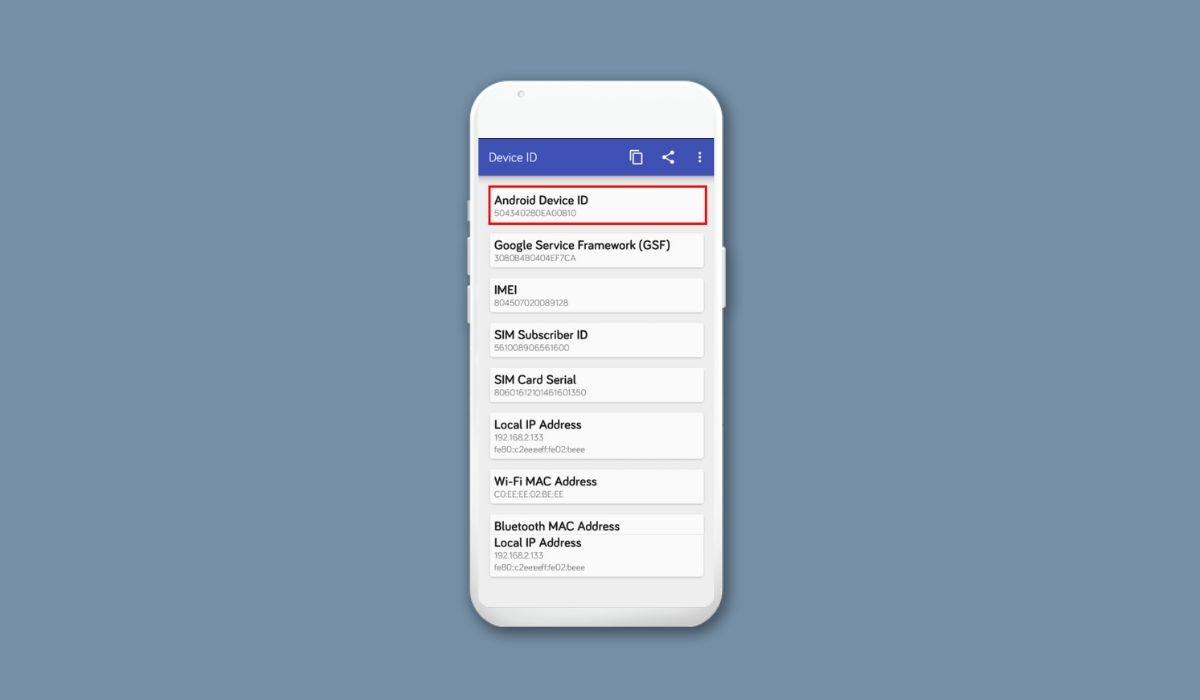
Your Android device ID is a unique identifier that distinguishes your phone or tablet from others. It’s essential for app development, troubleshooting, and more. To find it, open your device’s Settings, then navigate to “About phone” or “About device.” Look for an entry labeled “Device ID” or “IMEI number.” This simple process gives you access to your device’s unique identifier.
Key Takeaways
- The device ID is a unique identifier for your Android device
- Multiple methods exist to find your device ID
- Some methods require additional apps or developer options
- The process may vary slightly between different Android versions and manufacturers
- Always protect your device ID as it’s sensitive information
What is an Android Device ID?
An Android Device ID, also known as Android ID or ANDROID_ID, is a unique string of characters assigned to each Android device. It’s used to identify your device for various purposes, including:
- App installations and updates
- Device tracking in case of loss or theft
- Targeted advertising
- Developer testing and debugging
Methods to Find Your Android Device ID
1. Using Device Settings
The most straightforward method to find your Android device ID is through your device settings:
- Open the Settings app on your Android device
- Scroll down and tap on “About phone” or “About device”
- Look for “Status” or “Phone identity”
- Find the entry labeled “IMEI,” “MEID,” or “Device ID”
2. Dialing a Special Code
For many Android devices, you can use a special dialer code to reveal your device ID:
- Open your phone’s dialer app
- Enter *#06#
- Your device ID (IMEI or MEID) should appear on the screen
3. Using Developer Options
If you’re comfortable with more advanced settings:
- Enable Developer Options by tapping “Build number” in Settings 7 times
- Go to Developer Options in Settings
- Look for “GSF ID” or “Google Service Framework ID”
4. Using Third-Party Apps
Several apps on the Google Play Store can help you find your device ID. Popular options include:
- Device ID
- IMEI Info
- Device Info HW
Always download apps from trusted sources and check reviews before installation.
Device ID vs. IMEI: Understanding the Difference
| Device ID | IMEI |
|---|---|
| Type | Software-generated |
| Changeable | Can change with factory reset |
| Persistence | Remains constant |
| Primary Use | Used primarily by apps |
| Secondary Use | Used by cellular networks |
Protecting Your Android Device ID
Your device ID is sensitive information. Here are some tips to keep it safe:
- Don’t share it publicly
- Be cautious when apps request your device ID
- Use a VPN when connecting to public Wi-Fi
- Regularly update your Android OS and apps
Conclusion
Finding your Android device ID in 2024 is a relatively simple process with multiple methods available. Whether you’re a developer, concerned about security, or just curious, knowing how to locate this unique identifier can be valuable. Remember to keep your device ID private and use it responsibly.
Frequently Asked Questions (FAQ)
How can I get Android device ID?
To get your Android device ID, go to Settings, then tap “About phone” or “About device.” Look for “Status” or “Phone identity” and find the entry labeled “IMEI” or “Device ID.” Alternatively, you can dial *#06# in your phone app to display the IMEI number.
Is device ID the same as IMEI?
Device ID and IMEI are not the same, though they’re often confused. The device ID is a software-generated identifier that can change with a factory reset. IMEI (International Mobile Equipment Identity) is a hardware-based number that remains constant throughout the device’s lifetime and is used by cellular networks.
Where can I find my ID on my phone?
You can find your phone’s ID in the Settings app. Navigate to “About phone” or “About device,” then look for “Status” or “Phone identity.” Your device ID or IMEI should be listed there. Some phones may require you to tap “Status” to reveal more detailed information.
How to get Android Device ID?
To get your Android Device ID, open Settings and go to “About phone” or “About device.” Look for “Status” or “Phone identity,” then find “IMEI” or “Device ID.” For a quicker method, dial *#06# in your phone app. Some devices may require enabling Developer Options to access the GSF ID.
How to find device ID?
To find your device ID, open Settings and tap “About phone” or “About device.” Look for “Status” or “Phone identity” and find the entry labeled “IMEI” or “Device ID.” You can also use the dialer code *#06# or download a device information app from the Google Play Store.


