

Ever felt like your phone’s trying to put words in your mouth? Yeah, autocorrect can be a real pain sometimes.
But don’t worry, I’ve got your back. Let’s dive into how you can take control of your Android’s autocorrect and make it work for you, not against you.
Understanding Autocorrect on Android
What is Autocorrect?
Autocorrect’s that helpful (or sometimes not-so-helpful) feature that tries to fix your typos as you type.
It’s like having a mini editor in your phone, always watching over your shoulder.
How Autocorrect Works on Android
Android’s autocorrect uses a mix of dictionary lookup and machine learning.
It learns from your typing habits and tries to predict what you’re going to say next.
Pretty smart, right? But sometimes it needs a bit of guidance from us.
Accessing Autocorrect Settings
Here’s the quick and dirty on getting to your autocorrect settings:
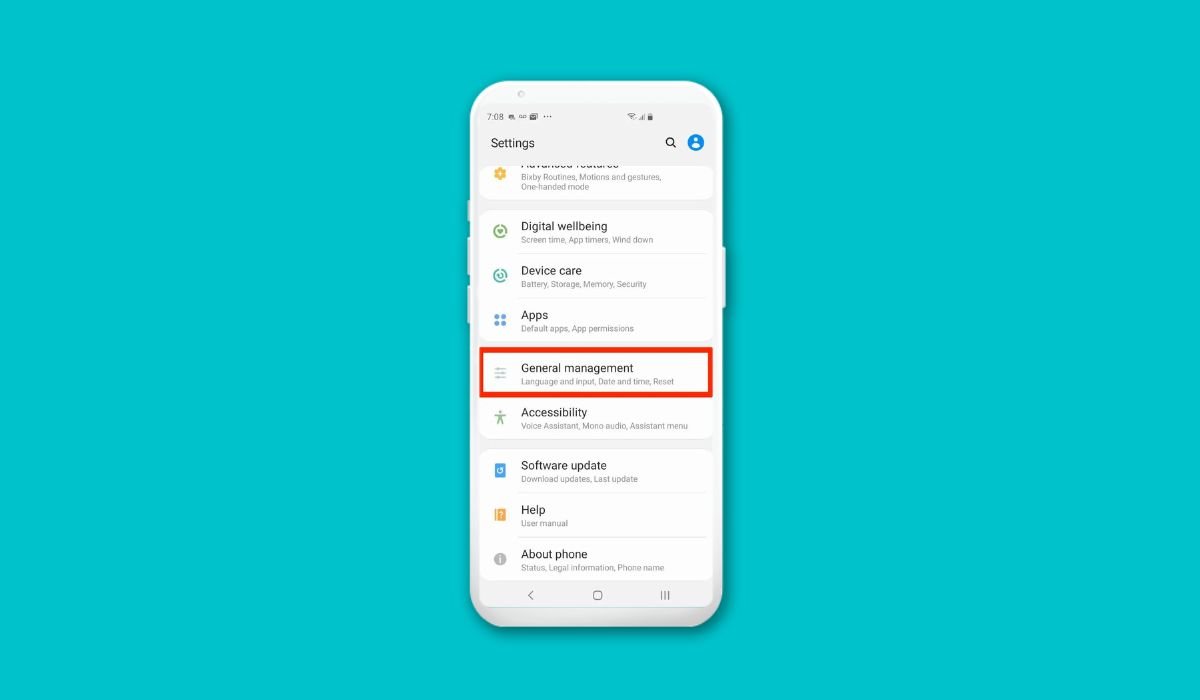
- Open your phone’s Settings app
- Tap on System
- Look for Languages & input
- Hit Virtual keyboard
- Choose your keyboard (usually Gboard)
- Find Text correction
Customizing Autocorrect Settings
Now we’re getting to the good stuff. Here’s where you can really make autocorrect your own:
- Auto-correction: Toggle this on or off. If it’s driving you mad, just turn it off.
- Show suggestion strip: This shows word suggestions above your keyboard. Super handy.
- Next-word suggestions: Predicts your next word. Kinda creepy, but useful.
- Personalised suggestions: Lets the keyboard learn from your typing style. It’s like training your own AI.
Advanced Autocorrect Features
Did you know you can add your own words to the dictionary?
Just tap on ‘Personal dictionary’ in the Text correction menu.
You can even set up shortcuts for phrases you use often. Type ‘omw’ and it’ll expand to ‘on my way’. Neat, huh?
Troubleshooting Common Issues
Sometimes autocorrect just seems to lose its mind. Here are a few quick fixes:
- Clear your keyboard app’s data
- Update your keyboard app
- Check your language settings
If all else fails, try uninstalling and reinstalling your keyboard app.
Tips for Effective Use of Autocorrect
- Use it to your advantage: Let it handle common typos
- Add your frequently used words to the dictionary
- Use text expansion for long phrases
- Don’t rely on it 100% – always proofread important messages
Why is my autocorrect not working on Android?
If your autocorrect gone AWOL, here are a few reasons why:
- It might be turned off in your settings
- Your keyboard app might need an update
- Your phone’s software might be outdated
- The keyboard app’s data might be corrupted
Conclusion
Autocorrect can be your best friend or your worst enemy. But with these tips, you’re now armed to tame this beast and make it work for you.
Remember, the goal is to type faster and more accurately. If autocorrect’s not helping with that, don’t be afraid to tweak it or even turn it off.
Your phone should work for you, not the other way around. So go ahead, take control of your autocorrect and type like a boss!
Step-by-Step Guide:
- Unlocking your Android device.
- Opening the “Settings” app.
- Navigating to the “System” or “General Management” section.
- Selecting “Language and Input” or “Keyboard” settings.
- Choosing your keyboard (e.g., Gboard, Samsung Keyboard).
FAQs
How do you change autocorrect words on Android?
To change autocorrect words on Android, head to Settings > System > Languages & input > Virtual keyboard > Your keyboard > Text correction. Here, you can add custom words to your personal dictionary or adjust autocorrect settings to your liking.
How do I change autocorrect to specific words?
To change autocorrect for specific words, go to your keyboard settings and find the Personal dictionary option. Add your desired words and their corrections. Your phone will now automatically replace the original word with your specified correction when you type.
How do I change my autocorrect settings?
Changing autocorrect settings is easy. Open Settings, find Languages & input, tap Virtual keyboard, select your keyboard app, and look for Text correction. Here, you can toggle various autocorrect features on or off to suit your preferences.
How do I make my phone autocorrect for certain words?
To set up autocorrect for specific words, use the Personal dictionary feature in your keyboard settings. Add the word you want to change and its replacement. Your phone will then automatically correct it every time you type.
How do I set autocorrect misspelled words?
Setting autocorrect for misspelled words is simple. Ensure auto-correction is turned on in your keyboard settings. Your phone will then automatically correct common misspellings. For specific words, add them to your personal dictionary with the correct spelling.
How to get elegant autocorrect on Android?
For more elegant autocorrect, try these tips: regularly update your keyboard app, use the personal dictionary feature, enable next-word suggestions, and let your keyboard learn from your typing habits. These steps can lead to smoother, more accurate autocorrections.


