

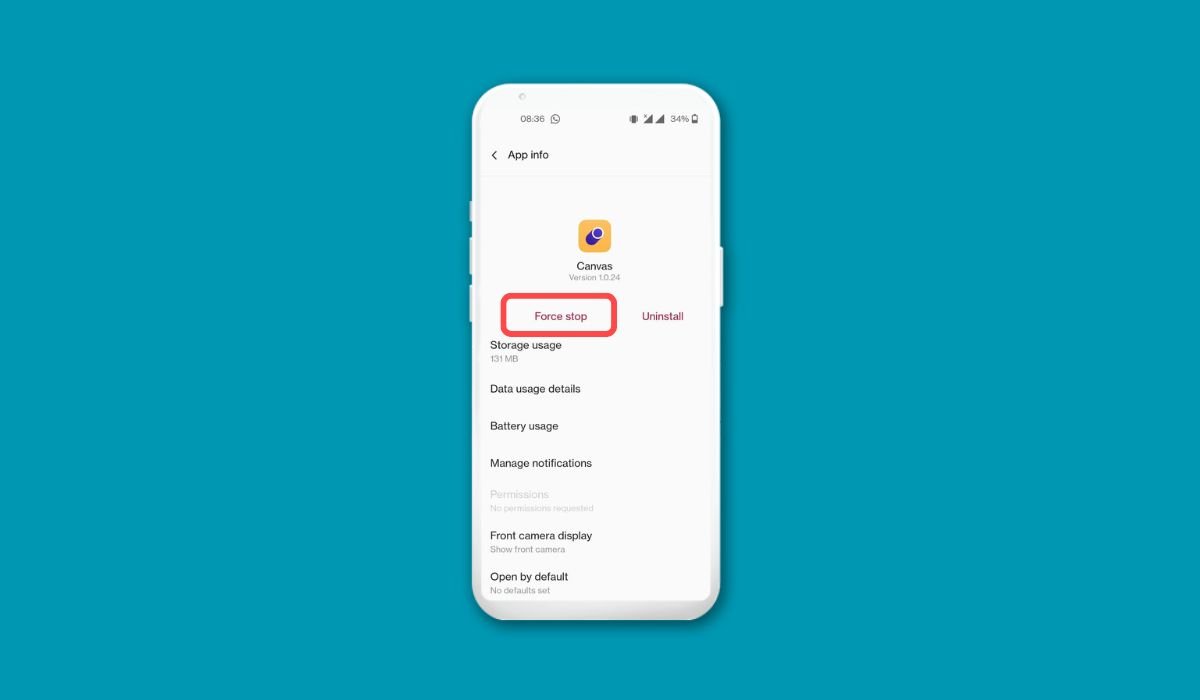
Android users sometimes need to force stop apps, but undoing this action isn’t always straightforward. There are several effective methods to restart a force-stopped app on Android devices.
The simplest solutions include relaunching the app or restarting your device. If these don’t work, clearing the app’s data and cache can often resolve issues. For more stubborn cases, updating the app or uninstalling and reinstalling it may be necessary.
These methods provide a range of options for users to undo a force stop, from quick fixes to more comprehensive solutions. By understanding these techniques, Android users can effectively manage their apps and resolve issues when they arise.
key Takeaways
- Force stopping an app cannot be directly undone
- Reopening the app is the simplest way to restart it
- Restarting your device will relaunch all force-stopped apps
- Clearing app data and cache can resolve persistent issues
- Updating or reinstalling the app may be necessary for stubborn cases
- Force stopping should be used sparingly to avoid potential data loss
- Regular app and system updates can prevent the need for force stopping
Understanding Force Stop
What is Force Stop?
Force stop is a feature in Android that completely shuts down an app, including all its background processes and services. It’s more aggressive than simply closing an app, as it terminates all app-related activities.
When to Use Force Stop
Force stop is typically used when:
- An app becomes unresponsive or freezes
- You need to troubleshoot app-related issues
- You want to stop an app from running in the background
The Impact of Force Stop
When you force stop an app:
- All running processes are terminated
- The app’s cache is cleared
- Any unsaved data may be lost
- Background services are stopped
How to Identify a Force Stopped App
Before attempting to undo a force stop, it’s important to confirm if an app has actually been force stopped. Here’s how you can check:
- Open the Settings app on your Android device
- Tap on “Apps & notifications” or “Application Manager”
- Find and select the app in question
- Look for the “Force Stop” button
- If the button is grayed out, the app is already force stopped
Best Methods to Undoing a Force Stop
Method 1: Restart Your Device
Restarting your Android device will relaunch all force-stopped apps:
- Press and hold the power button
- Tap “Restart” or “Reboot”
- Wait for your device to turn back on
- All previously force-stopped apps should now be running
Method 2: Reopen the App
The simplest way to undo a force stop is to reopen the app:
- Locate the app icon on your home screen or app drawer
- Tap the icon to launch the app
- The app should start up normally
If the app doesn’t have an icon (like some system apps), proceed to the next method.
Method 3: Uninstall and Reinstall
For stubborn cases, you might need to uninstall and reinstall the app:
- Go to Settings > Apps & notifications
- Find and select the app
- Tap “Uninstall”
- Open the Google Play Store
- Search for the app and reinstall it
Or,
- Long-press the app icon
- Tap “Uninstall” or drag it to the uninstall area
- Go to the Google Play Store and search for the app
- Tap “Install” to reinstall it
Method 3: Clear App Data and Cache
Sometimes, clearing the app’s data and cache can help:
- Go to Settings > Apps & notifications
- Find and tap the force stopped app
- Tap “Storage & cache”
- Tap “Clear cache” and then “Clear storage”
- Restart your device and try opening the app
Method 4: Update the App
Outdated apps can sometimes cause issues. Try updating the app:
- Open the Google Play Store
- Tap your profile icon and select “Manage apps & device”
- Look for updates for the affected app
- If available, tap “Update”
Troubleshooting Common Issues
App Still Not Working After Undoing Force Stop
If the app isn’t functioning properly after undoing the force stop:
- Clear the app’s cache:
- Go to Settings > Apps & notifications
- Select the app
- Tap “Storage & cache”
- Hit “Clear cache”
- Update the app:
- Open Google Play Store
- Tap your profile icon
- Select “Manage apps & device”
- Look for updates for the problematic app
System Apps Won’t Restart
For system apps that don’t have icons:
- Go to Settings > Apps & notifications
- Tap “See all apps”
- Find the system app
- Tap “Enable” if it’s disabled
Preventing the Need to Force Stop in the Future
To avoid having to force stop apps frequently:
- Keep your apps updated
- Regularly restart your device
- Avoid installing too many apps
- Use reputable app sources
- Monitor your device’s available storage and RAM
What Happens When You Force Stop an App on Android
Understanding the consequences of force stopping an app can help you make informed decisions:
Immediate Effects
- All app processes are terminated
- The app’s cache is cleared
- Any unsaved data in the app may be lost
Long-term Impacts
- Frequent force stops can lead to app instability
- Some system apps may not function properly if force stopped
- Battery life might improve temporarily if a misbehaving app was stopped
Frequently Asked Questions (FAQ)
What happens when you force stop an app on an Android?
When you force stop an app, it immediately terminates all processes and services related to that app. This clears the app from memory, stops background activities, and may result in the loss of unsaved data. The app won’t run again until you manually relaunch it.
Does force stop uninstall an app?
No, force stopping an app does not uninstall it. It only terminates the app’s current processes and stops it from running in the background. The app remains installed on your device and can be relaunched at any time by tapping its icon.
How to relaunch Google Play Store after force stop?
To relaunch Google Play Store after a force stop, simply tap its icon on your home screen or app drawer. If it doesn’t open, try restarting your device. If issues persist, clear the app’s cache and data in your device settings.
How to restart Google Play Store after force closing?
Restart Google Play Store by tapping its icon. If that doesn’t work, go to Settings > Apps > Google Play Store > Force Stop, then relaunch it. You can also try clearing its cache and data or restarting your device.
How to undo force stop app?
To undo a force stop, simply relaunch the app by tapping its icon. If that doesn’t work, try restarting your device. For persistent issues, clear the app’s cache and data, update the app, or as a last resort, uninstall and reinstall it.
How to restart an app after force stop?
Restart a force-stopped app by tapping its icon on your home screen or app drawer. If it doesn’t respond, reboot your device. For stubborn cases, clear the app’s cache and data in Settings, update the app, or reinstall it.


