

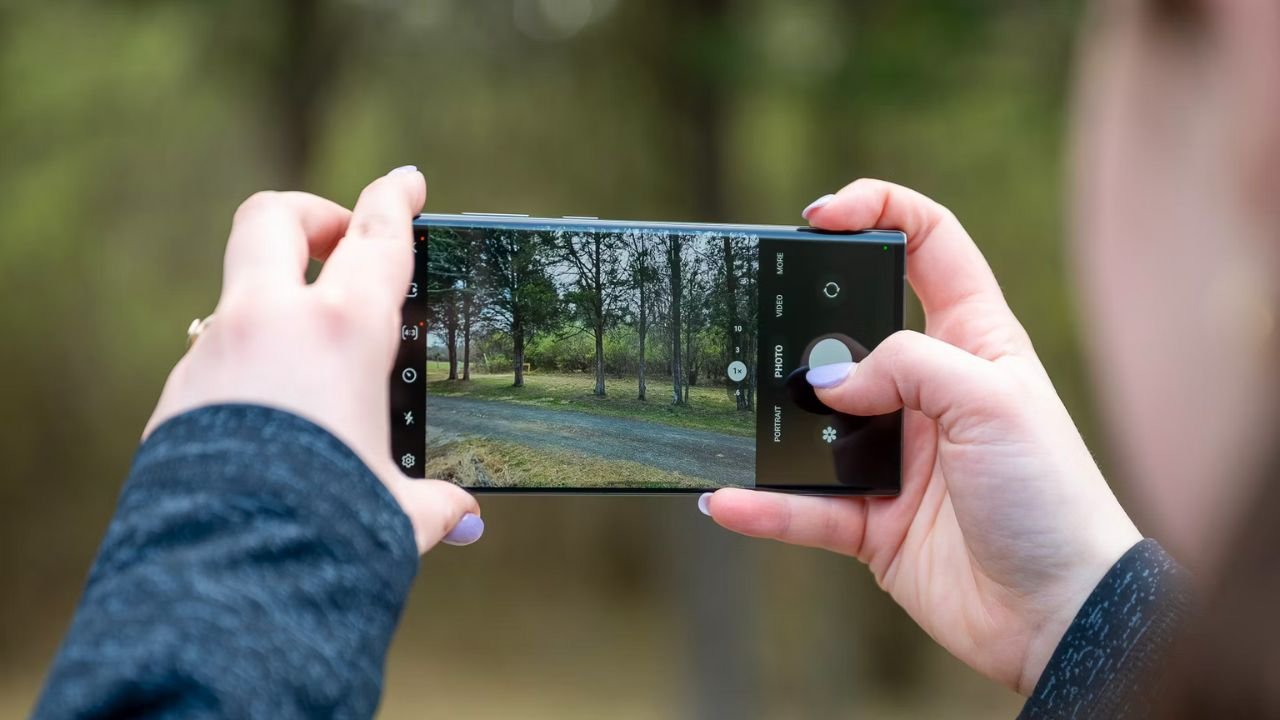
Capturing the perfect photo on your Android device often comes down to mastering exposure. Whether you’re shooting in bright sunlight or low-light conditions, understanding how to adjust exposure can significantly improve your photography skills. This guide will walk you through various methods to change exposure on Android, ensuring you get the best shots possible.
Key Takeaways
- Exposure compensation is the easiest way to adjust brightness in most Android camera apps
- Manual mode offers precise control over ISO, shutter speed, and aperture
- Third-party apps can provide advanced exposure controls
- Focus and exposure lock helps maintain consistent exposure in challenging scenes
- HDR mode can balance exposure in high-contrast situations
- Understanding histograms aids in achieving optimal exposure
Can I Change Exposure on Android?
Yes, you can change exposure on Android. Most Android camera apps offer exposure compensation controls, usually accessible through a sun icon or EV slider. Some devices also provide manual modes for adjusting ISO and shutter speed. Additionally, you can use focus and exposure lock by tapping and holding on your subject in the viewfinde.
Understanding Exposure
Exposure refers to the amount of light that reaches your camera’s sensor. It’s determined by three main factors: aperture, shutter speed, and ISO. On most Android phones, you can adjust these settings individually or use exposure compensation for quick adjustments.
Exposure Triangle
| Factor | Effect | Impact on Image |
|---|---|---|
| Aperture | Controls light input and depth of field | Affects background blur |
| Shutter Speed | Determines light duration | Influences motion blur |
| ISO | Adjusts sensor sensitivity | Can introduce noise at high levels |
Native Camera App Settings
Most Android devices come with built-in camera apps that offer various exposure control options. Here’s how to access and use them:
Exposure Compensation
- Open your camera app
- Look for a sun icon or “EV” slider
- Tap or slide to adjust brightness
- Positive values increase brightness, negative values decrease it
Pro or Manual Mode
- Switch to Pro or Manual mode in your camera app
- Locate ISO, shutter speed, and sometimes aperture controls
- Adjust each setting to fine-tune exposure
- Use the live preview to gauge the effect of your changes
Focus and Exposure Lock
- Tap and hold on your subject in the viewfinder
- Look for AE/AF Lock indicator
- Recompose your shot while maintaining the locked exposure
Third-Party Camera Apps
For more advanced control, consider using third-party camera apps. These often provide additional features for exposure adjustment:
Popular Third-Party Camera Apps
- Camera FV-5: Offers DSLR-like manual controls
- ProCam X: Includes exposure bracketing and focus peaking
- Open Camera: Free, open-source app with comprehensive manual controls
- Filmic Pro: Professional-grade app with advanced exposure tools
Using Third-Party Apps for Exposure Control
- Download and install your chosen app
- Explore the app’s interface for exposure settings
- Look for features like spot metering, histograms, and zebra stripes
- Experiment with different settings to achieve desired exposure
Practical Tips for Adjusting Exposure
Mastering exposure on your Android device takes practice. Here are some tips to help you along the way:
Using Histograms
Histograms provide a visual representation of your image’s exposure. They show the distribution of tones from shadows to highlights.
- Enable histogram display in your camera app settings
- Aim for a balanced distribution across the graph
- Avoid peaks at extreme ends, which indicate over or underexposure
HDR Mode
High Dynamic Range (HDR) mode can help balance exposure in high-contrast scenes.
- Enable HDR mode in your camera settings
- Use it for landscapes or scenes with bright skies and dark foregrounds
- Be aware that HDR may not work well for moving subjects
Exposure Bracketing
Some Android phones offer exposure bracketing, which takes multiple shots at different exposures.
- Look for AEB (Auto Exposure Bracketing) in your camera settings
- Set the number of shots and exposure increment
- Use this feature in challenging lighting conditions
Troubleshooting Common Issues
Even with the right techniques, you may encounter exposure problems. Here’s how to address common issues:
Overexposure
If your images are too bright:
- Reduce exposure compensation
- Lower ISO or use faster shutter speeds in manual mode
- Use spot metering on darker areas of the scene
Underexposure
For images that are too dark:
- Increase exposure compensation
- Raise ISO or use slower shutter speeds in manual mode
- Use spot metering on brighter areas of the scene
Inconsistent Exposure
If exposure varies between shots:
- Use AE/AF lock to maintain consistent exposure
- Switch to manual mode for full control
- Consider using a third-party app with more stable metering
Exposure Techniques for Specific Scenarios
Low Light Photography
In low light conditions:
- Increase ISO (but be mindful of noise)
- Use slower shutter speeds (if your subject is stationary)
- Enable Night mode if available
Bright Sunlight
When shooting in bright conditions:
- Lower exposure compensation
- Use HDR mode to balance highlights and shadows
- Consider using manual mode to prevent overexposure
Backlit Subjects
For backlit scenes:
- Tap on your subject to adjust exposure
- Increase exposure compensation
- Use HDR mode to balance foreground and background
Frequently Asked Questions (FAQ)
How do I change the exposure of a picture on my Android?
To change exposure on Android, open your camera app and look for the sun icon or EV slider. Tap and drag to adjust brightness. Some apps offer manual mode for more control over ISO and shutter speed. Third-party editing apps can also adjust exposure after taking the photo.
How do I change the exposure of a photo?
To change a photo’s exposure after taking it, use your Android’s built-in photo editor or a third-party app like Snapseed or Lightroom Mobile. Look for brightness, exposure, or shadows/highlights adjustments. Slide to increase or decrease exposure until you achieve the desired look.
What is exposure on Android?
Exposure on Android refers to how much light the camera sensor captures when taking a photo. It determines the overall brightness of the image. Proper exposure ensures details are visible in both bright and dark areas. Android cameras typically allow users to adjust exposure before or after taking a picture.
Change Android photo exposure?
To change Android photo exposure, use your device’s built-in editor or a third-party app. Look for brightness, exposure, or shadows/highlights controls. Adjust the sliders to brighten or darken the image. Some apps offer more advanced tools like curves or levels for precise exposure adjustments.
Exposure Lock on Android?
Exposure Lock on Android allows you to set and maintain a specific exposure level. To use it, tap and hold on the area you want to base exposure on in your camera app. Look for an “AE/AF Lock” indicator. This keeps exposure consistent even if you recompose the shot.
How to do long exposure on Android?
For long exposure on Android, use manual mode in your camera app. Set a slow shutter speed (1 second or longer) and use a tripod to avoid camera shake. Some phones have a dedicated “Light Trail” or “Long Exposure” mode. Third-party apps like Camera FV-5 also offer long exposure features.


