

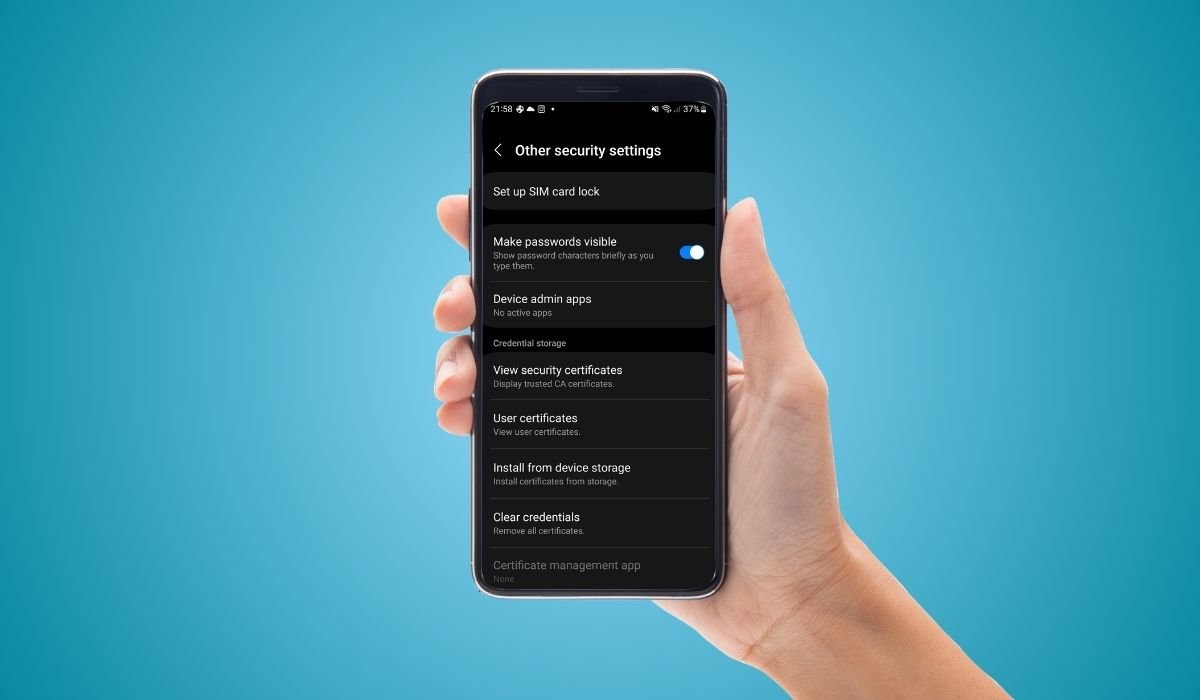
Security certificates play a crucial role in safeguarding your Android device and ensuring secure communication between your smartphone and various online services. These digital passports verify the authenticity of websites, apps, and servers, protecting you from potential cyber threats and data breaches.
Key Takeaways
- Android devices come with pre-installed root certificates from trusted Certificate Authorities (CAs)
- SSL/TLS certificates are essential for secure web browsing and app communications
- Digital certificates verify the authenticity of apps and software updates
- Root certificates form the foundation of the trust chain in mobile security
- Proper management of security certificates is crucial for maintaining device security
- Only install additional certificates from trusted sources when absolutely necessary
Understanding Security Certificates
What Are Security Certificates?
Security certificates, also known as digital certificates, are electronic documents that verify the identity of a website, server, or application. They use cryptographic techniques to ensure that the communication between your device and the service you’re accessing is secure and authentic.
Types of Security Certificates
There are several types of security certificates relevant to Android devices:
- SSL/TLS Certificates
- Digital Certificates
- Root Certificates
Each type serves a specific purpose in maintaining the security and integrity of your Android device.
Pre-installed Certificates on Android
Android devices come with a built-in system root store of trusted Certificate Authority (CA) certificates. These pre-installed certificates are crucial for verifying the authenticity of SSL/TLS certificates used by various websites and services.
Location of Trusted Root Certificates
The trusted root certificates are stored in the /system/etc/security/cacerts directory on Android devices. Users can view the list of installed root certificates by navigating to:
Settings > Security > Encryption & credentials > Trusted credentials
Importance of Pre-installed Certificates
These pre-installed certificates form the foundation of trust for your Android device. They allow your smartphone to verify the authenticity of websites, apps, and services without requiring additional user intervention.
Essential Security Certificates for Android
SSL/TLS Certificates
SSL (Secure Sockets Layer) and its successor TLS (Transport Layer Security) certificates are fundamental for secure web browsing and app communications.
How SSL/TLS Certificates Work
When you connect to a website or use an app that requires secure communication, your Android device checks the SSL/TLS certificate presented by the server. If the certificate is valid and trusted, a secure encrypted connection is established.
Benefits of SSL/TLS Certificates
- Encrypt data transmission between your device and servers
- Prevent eavesdropping and man-in-the-middle attacks
- Verify the authenticity of websites and services
Digital Certificates
Digital certificates are used to verify the authenticity of apps and software updates on your Android device.
Role in App Security
When you install or update an app from the Google Play Store, your device checks the app’s digital certificate to ensure it comes from a legitimate developer and hasn’t been tampered with.
Importance for System Updates
Digital certificates also play a crucial role in verifying the authenticity of system updates, ensuring that only genuine updates from your device manufacturer are installed.
Root Certificates
Root certificates are the foundation of the trust chain in mobile security.
Trust Chain Explained
Root certificates are issued by trusted Certificate Authorities (CAs) and are used to sign intermediate certificates, which in turn sign end-entity certificates used by websites and services.
Risks of Modifying Root Certificates
It’s generally not recommended to remove or disable trusted root certificates unless you are very familiar with PKI (Public Key Infrastructure) and cybersecurity. Modifying the root certificate store can:
- Break functionality of certain apps and services
- Introduce security vulnerabilities
- Compromise the overall security of your device
Managing Security Certificates on Android
Proper management of security certificates is essential for maintaining the security of your Android device.
Viewing Installed Certificates
To view the certificates installed on your Android device:
- Go to Settings
- Navigate to Security > Encryption & credentials
- Tap on “Trusted credentials”
Here, you’ll see two tabs: “System” and “User.” System certificates are pre-installed, while User certificates are those you’ve added manually.
Installing New Certificates
To install a new root certificate:
- Go to Settings > Security > Encryption & credentials
- Tap on “Install a certificate”
- Select “CA Certificate”
- Choose the certificate file to install
Caution When Installing Certificates
Only install additional certificates if absolutely necessary and from trusted sources. Installing certificates from unknown or untrusted sources can compromise your device’s security.
Best Practices for Security Certificate Management
To ensure the optimal security of your Android device, follow these best practices:
- Keep your Android system updated to receive the latest security patches and certificate updates
- Only install apps from trusted sources like the Google Play Store
- Be cautious when installing additional certificates
- Regularly review installed certificates and remove any that are no longer needed
- Use a reputable mobile security app for additional protection
Troubleshooting Common Certificate Issues
Certificate Errors While Browsing
If you encounter certificate errors while browsing, it could indicate:
- The website’s certificate has expired
- The certificate is not from a trusted CA
- There’s a potential security threat
In such cases, avoid proceeding to the website and check with the site owner about the issue.
App Installation Issues
If you’re having trouble installing apps due to certificate issues:
- Ensure your device’s date and time are set correctly
- Clear the Google Play Store cache
- Check if your device has any conflicting security apps or VPNs
Tools and Apps for Managing Security Certificates
- Certificate Info Viewer
- Displays detailed information about installed certificates
- Shows certificate hierarchy and trust chain
- Helps identify potentially harmful or unnecessary certificates
- SSL Certificate Checker
- Verifies the validity of SSL certificates for websites
- Alerts users to expired or improperly configured certificates
- Useful for troubleshooting connection issues
- Network Security Config
- Android feature to customize network security settings for apps
- Allows developers to configure custom trust anchors and certificate pinning
- Helps enhance app security without modifying app code
- CertInstaller
- Simplifies the process of installing certificates on Android devices
- Supports various certificate formats (PEM, DER, P12)
- Useful for IT administrators managing multiple devices
- KeyChain Explorer
- Provides a detailed view of the Android KeyChain
- Allows users to inspect and manage installed certificates
- Helpful for advanced users and developers
- OpenSSL for Android
- Powerful tool for certificate management and encryption
- Enables creation, conversion, and verification of certificates
- Suitable for advanced users and security professionals
- Certificate Pinning Validator
- Checks if apps are properly implementing certificate pinning
- Helps identify potential vulnerabilities in app security
- Useful for app developers and security researchers
- SSL Labs SSL Test
- Web-based tool to analyze SSL/TLS configurations
- Provides detailed reports on server security
- Helpful for checking the security of websites you frequently visit
- HTTPS Everywhere
- Browser extension that enforces HTTPS connections
- Helps protect against SSL stripping attacks
- Available for various mobile browsers on Android
- VPN Certificate Manager
- Manages certificates for VPN connections
- Simplifies the process of setting up secure VPN tunnels
- Useful for users who frequently connect to corporate networks
Frequently Asked Questions (FAQ)
What are trusted security certificates on Android?
Trusted security certificates are digital credentials pre-installed on your Android device. They verify the authenticity of websites, apps, and services, ensuring secure communications. These certificates come from recognized Certificate Authorities (CAs) and form the foundation of your device’s security infrastructure.
Should I remove security certificates on my phone?
It’s generally not recommended to remove pre-installed security certificates from your Android device. These certificates are essential for secure connections and proper functioning of many apps and services. Removing them can compromise your device’s security and cause connectivity issues.
What are the certificate types for Android?
Android supports several certificate types, including SSL/TLS certificates for secure web browsing, root certificates from trusted CAs, and user certificates for specific applications or services. Each type plays a unique role in maintaining your device’s security and enabling secure communications.
What are trusted security certificates in Android?
Trusted security certificates in Android are pre-installed root certificates from recognized Certificate Authorities. They’re stored in your device’s system root store and used to verify the authenticity of other certificates. These trusted certificates ensure secure connections to websites and services.
Should trusted certificates be installed?
Trusted certificates come pre-installed on your Android device and should be left in place. Only install additional certificates if absolutely necessary and from trusted sources. Installing certificates from unknown sources can pose significant security risks to your device.
Do I delete the root certificate?
It’s not advisable to delete root certificates from your Android device. These certificates are crucial for verifying the authenticity of websites and services. Deleting them can break functionality and introduce security vulnerabilities. Only remove a root certificate if you’re certain it’s no longer needed or trustworthy.


