

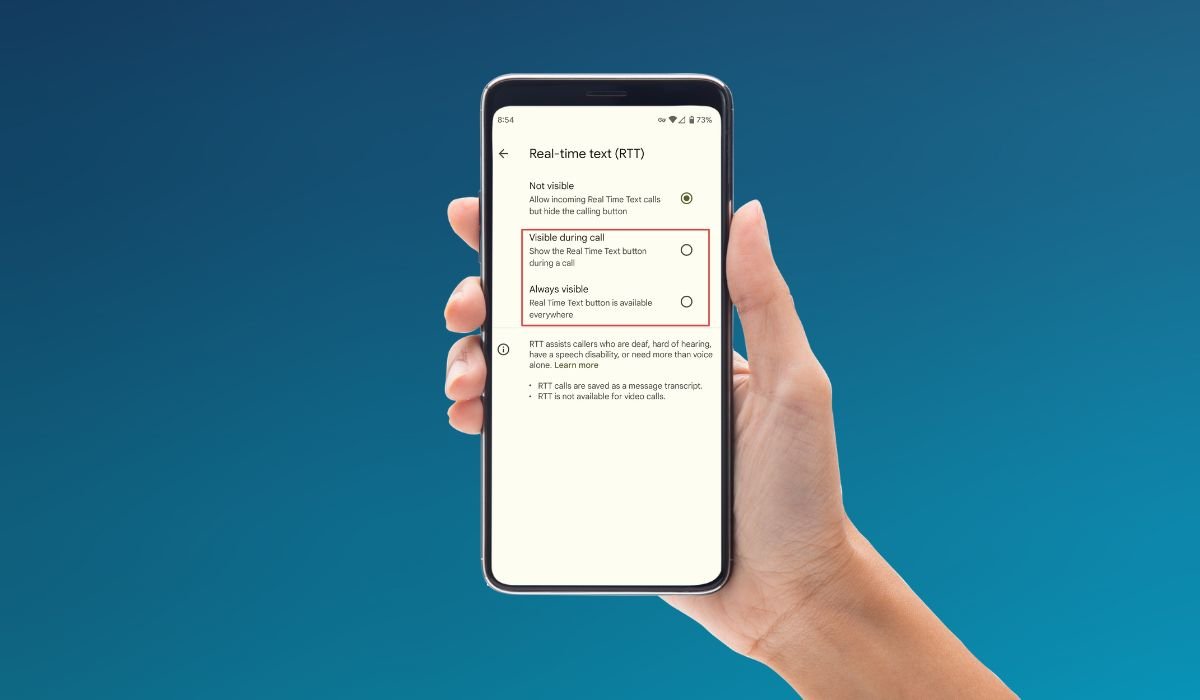
Android users often encounter a puzzling situation where Real-Time Text (RTT) activates unexpectedly on their devices. This sudden activation can disrupt normal phone usage and leave many wondering about its cause and solution. Let’s dive deep into this issue and explore why RTT might randomly turn on your Android device.
Key Takeaways
- RTT is an accessibility feature for real-time text communication during phone calls
- Random RTT activation can be caused by software glitches, accidental triggers, or compatibility issues
- Updating your Android software may resolve RTT activation problems
- Disabling RTT in phone settings is the primary solution for most users
- Persistent issues may require professional technical support or device replacement
What is RTT (Real-Time Text)?
RTT, or Real-Time Text, is an accessibility feature designed to assist individuals with hearing or speech difficulties. It allows users to send and receive text messages in real-time during a phone call, providing an alternative means of communication. While RTT is a valuable tool for many, its unexpected activation can be frustrating for those who don’t require this feature.
Why Does RTT Randomly Turn On?
Several factors can contribute to the random activation of RTT on Android devices:
1. Software Glitches
Android operating systems, like any complex software, can experience glitches. These glitches may cause RTT to activate without user input. Software interactions between different apps or system processes can sometimes trigger unintended feature activations, including RTT.
2. Accidental Activation
The RTT feature is often easily accessible to ensure it’s readily available for those who need it. However, this accessibility can lead to accidental activation through unintended touches or button presses, especially if the feature is enabled by default on your device.
3. Compatibility Issues
Some users report RTT turning on only when calling specific contacts. This suggests potential compatibility issues between different devices or carrier networks. When your phone interacts with another device or network that uses RTT, it might automatically enable the feature.
4. Outdated Software
Running an outdated version of Android can lead to various issues, including unexpected RTT activation. Older software versions may contain bugs or compatibility problems that newer updates have resolved.
5. Hardware Malfunctions
Though less common, hardware issues can sometimes cause unexpected feature activations. A faulty touch screen or button could send false signals to the device, potentially triggering RTT.
Troubleshooting RTT Activation
If you’re experiencing random RTT activation on your Android device, try these troubleshooting steps:
1. Disable RTT in Settings
The most straightforward solution is to disable RTT in your phone settings:
- Open the Phone or Calling app
- Tap the three-dot menu and select Settings
- Navigate to Accessibility settings
- Find the RTT and/or TTY options and turn them off
2. Update Your Android Software
Keeping your device updated can resolve many software-related issues:
- Go to Settings > System > System update
- Tap Download and Install if an update is available
3. Clear Call History
If RTT activates only with specific contacts, try clearing your call history:
- Open the Phone app
- Tap the three-dot menu and select Call history
- Tap the three-dot menu again and choose Clear call history
4. Check for App Conflicts
Third-party apps can sometimes interfere with system functions. Try booting your device in safe mode to see if the issue persists:
- Press and hold the power button
- Touch and hold “Power off” until you see “Reboot to safe mode”
- Tap OK
If RTT doesn’t activate in safe mode, a third-party app might be the culprit.
Preventative Measures
To minimize the chances of random RTT activation, consider these preventative steps:
1. Regular Software Updates
Keep your Android device updated with the latest software version. This ensures you have the most recent bug fixes and improvements.
2. Be Cautious with Accessibility Settings
Familiarize yourself with your device’s accessibility settings and be careful not to accidentally enable features you don’t need.
3. Use a Protective Case
A good-quality case can prevent accidental button presses or screen touches that might activate RTT.
4. Monitor App Permissions
Regularly review the permissions granted to your apps. Some apps might have unnecessary access to phone features, potentially causing conflicts.
When to Seek Professional Help
If you’ve tried all the troubleshooting steps and RTT continues to activate randomly, it might be time to seek professional assistance:
1. Contact Your Carrier
Your mobile carrier’s technical support team may have specific insights or solutions for RTT-related issues on their network.
2. Visit an Authorized Service Center
If you suspect a hardware issue, take your device to an authorized service center for diagnosis and repair.
3. Consider Device Replacement
For older devices that can’t be updated or repaired, replacing your phone might be the most effective long-term solution.
Looking Ahead: RTT in 2024
As we move further into 2024, the landscape of mobile accessibility features continues to evolve. Android developers are working on improving RTT functionality and resolving known issues. Future updates may include:
- Enhanced RTT controls for easier management
- Improved compatibility across different devices and networks
- More intuitive user interfaces for RTT settings
While these improvements are in the pipeline, users should stay vigilant about keeping their devices updated to benefit from the latest enhancements and bug fixes.
Frequently Asked Questions (FAQ)
Why does my phone keep turning on RTT?
Your phone may turn on RTT due to software glitches, accidental activation, or compatibility issues with specific contacts. Outdated software or hardware malfunctions can also cause this problem. Regular updates and careful handling of accessibility settings can help prevent unexpected RTT activation.
How to disable RTT on Android?
To disable RTT on Android:
- Open the Phone app
- Tap the three-dot menu
- Select Settings
- Go to Accessibility
- Find RTT/TTY options
- Turn off RTT or set it to “Off” mode
This should prevent RTT from activating during calls.
Why does real-time text keep popping up?
Real-time text may keep popping up due to accidental touches, software bugs, or conflicts with other apps. It could also be triggered by interactions with contacts who have RTT enabled. Updating your phone’s software and reviewing app permissions may help resolve this issue.
Why is RTT on the phone?
RTT is included on phones as an accessibility feature for people with hearing or speech difficulties. It allows real-time text communication during calls, making phones more accessible to a wider range of users. RTT is often required by regulations to ensure equal access to communication services.
Does RTT mean anyone is listening?
No, RTT doesn’t mean someone is listening. It’s a text-based feature that allows real-time text communication during a call. When RTT is active, it simply means the option for text communication is available, not that anyone is monitoring your conversation.
What is RTT and why is it on my phone?
RTT (Real-Time Text) is an accessibility feature that enables instant text transmission during phone calls. It’s included on phones to assist users with hearing or speech difficulties, allowing them to communicate effectively via text in real-time while on a call.


