

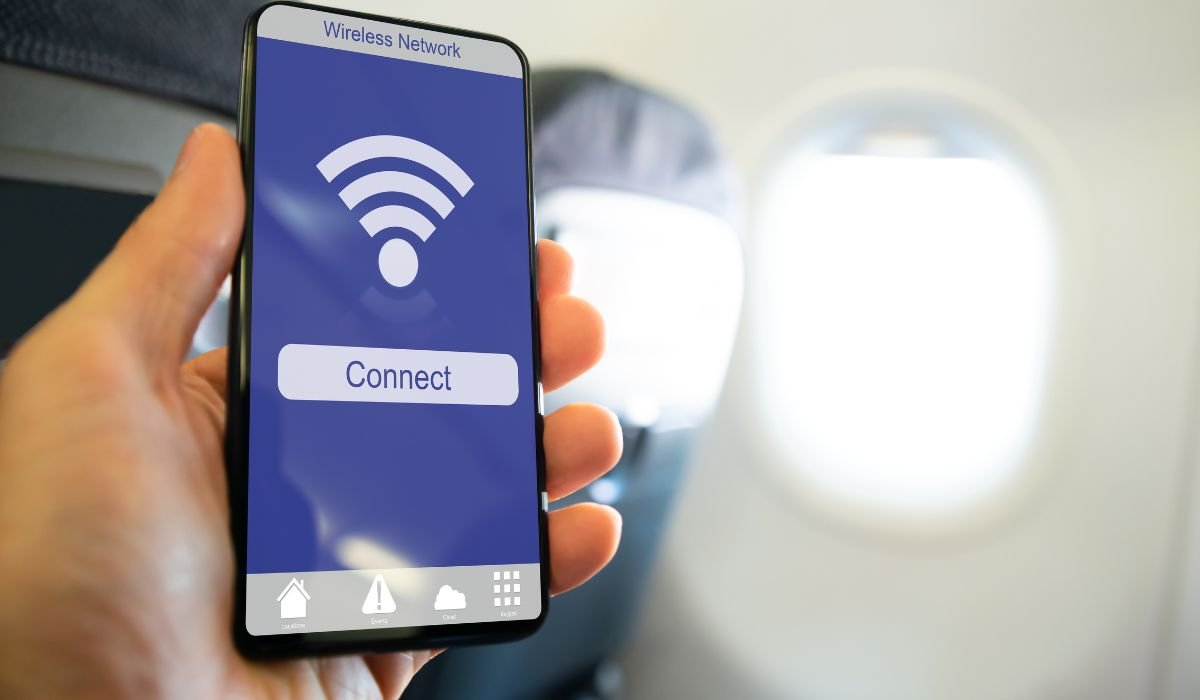
Staying connected while flying has become increasingly important for travelers. JetBlue’s Fly-Fi service offers passengers the ability to enjoy in-flight Wi-Fi on their Android devices.
Once on board, enable Wi-Fi on your Android device and connect to the “Fly-Fi” network. Open a web browser, navigate to www.flyfi.com, and follow the on-screen instructions. You may need to watch a short advertisement to complete the connection process. With these simple steps, you’ll be ready to enjoy seamless connectivity throughout your flight.
Key Takeaways
- Fly-Fi is JetBlue’s free in-flight Wi-Fi service
- Download the Fly-Fi app before your flight for a smoother experience
- Connect to the “Fly-Fi” network once on board
- Use www.flyfi.com to access the service
- Troubleshoot connection issues by adjusting device settings
- Fly-Fi supports web browsing and streaming, but not voice calls or SMS
Understanding Fly-Fi
What is Fly-Fi?
Fly-Fi is JetBlue’s complimentary in-flight Wi-Fi service, designed to keep passengers connected throughout their journey. Unlike many other airlines that charge for internet access, JetBlue offers Fly-Fi free of charge on all its flights.
Benefits of Using Fly-Fi
- Stay connected with friends and family
- Access work emails and documents
- Stream movies, TV shows, and music
- Browse the internet and social media
- Enjoy a range of in-flight entertainment options
Pre-Flight Preparations
To ensure a smooth Fly-Fi experience, take these steps before your flight:
- Download the Fly-Fi app from the Google Play Store
- Ensure your Android device is fully charged
- Consider bringing a portable charger for longer flights
- Update your device’s operating system and browser
How to Connect to Fly-Fi On Android
Follow these steps to connect to Fly-Fi on your Android device:
- Once the flight reaches cruising altitude, turn on Airplane Mode
- Enable Wi-Fi within Airplane Mode
- Open your Wi-Fi settings and connect to the “Fly-Fi” network
- Launch a web browser and navigate to www.flyfi.com
- Alternatively, open the Fly-Fi app if you’ve installed it
- Follow the on-screen instructions to connect
- Watch a short advertisement to gain free access to the Wi-Fi service
Using the Fly-Fi App
The Fly-Fi app streamlines the connection process and offers additional features:
- Open the app once connected to the Fly-Fi network
- Sign in or create an account if prompted
- Access in-flight entertainment options
- View flight information and status updates
- Browse available Wi-Fi packages if you need enhanced speeds
Troubleshooting Common Issues
If you encounter problems connecting to Fly-Fi, try these troubleshooting steps:
- Restart your Android device
- Forget the Fly-Fi network and reconnect
- Clear your browser cache and cookies
- Disable your VPN if you’re using one
- Set your device’s private DNS to automatic
- Try accessing 10.10.0.8 or 192.168.1.1 in your browser to trigger the sign-in page
Fly-Fi Compatibility
Fly-Fi works with a wide range of Android devices. Users have reported successful connections on:
- Samsung Galaxy S22 Ultra
- Google Pixel 6 and 7 series
- OnePlus 9 and 10 series
- Motorola Edge devices
While most Android phones are compatible, some users have reported issues with specific models like the Galaxy Note 10. If you encounter persistent problems, contact JetBlue’s in-flight support for assistance.
Privacy and Security Considerations
When using public Wi-Fi services like Fly-Fi, keep these security tips in mind:
- Avoid accessing sensitive information or making financial transactions
- Use a VPN for added security, but be aware it may affect your connection speed
- Ensure your device has up-to-date antivirus software
- Log out of accounts and clear your browsing data after use
Making the Most of Fly-Fi
To optimize your Fly-Fi experience:
- Connect early in the flight to secure a stable connection
- Use data-saving modes in your apps to conserve bandwidth
- Download content before your flight for offline viewing
- Be considerate of other passengers by using headphones and avoiding voice calls
Can I Use Fly-Fi to Make Voice Calls or Send SMS Messages?
No, Fly-Fi does not support voice calls or SMS messaging. The service is designed for web browsing, email, and streaming entertainment. For safety and courtesy reasons, voice calls are not permitted on JetBlue flights.
Comparing Fly-Fi to Other In-Flight Wi-Fi Services
JetBlue’s Fly-Fi stands out among in-flight Wi-Fi offerings:
- It’s free for basic access, unlike many competitors
- Generally faster speeds compared to other airlines
- Available on most JetBlue flights, including international routes
- Supports streaming services like Netflix and Hulu
However, premium options from other airlines may offer faster speeds for a fee, so consider your needs when choosing an airline for Wi-Fi-dependent work.
Tips for a Smooth Fly-Fi Experience
To ensure you have the best possible experience with Fly-Fi:
- Connect early in the flight to avoid potential congestion
- Be patient during peak usage times, as speeds may vary
- Use offline modes in apps when possible to reduce data usage
- Keep your device charged or bring a portable battery pack
- Respect other passengers by using headphones for audio content
Frequently Asked Questions (FAQ)
How do I connect to FlyFi?
To connect to FlyFi, turn on your device’s Wi-Fi and select the “Fly-Fi” network. Open a web browser and go to www.flyfi.com. Follow the on-screen instructions, which may include watching a short ad. Once connected, you can browse the internet or use the FlyFi app for additional features.
Is FlyFi free?
Yes, FlyFi is complimentary on all JetBlue flights. Passengers can enjoy free in-flight Wi-Fi for web browsing, email, and streaming entertainment. There’s no need to purchase a separate Wi-Fi package or enter payment information to access the service.
How to connect with flight Wi-Fi?
To connect to flight Wi-Fi, enable your device’s airplane mode, then turn on Wi-Fi. Select the in-flight network (e.g., “Fly-Fi” for JetBlue). Open a browser and navigate to the airline’s Wi-Fi portal. Follow the prompts to connect, which may involve agreeing to terms or watching an ad.
Can you connect Bluetooth on JetBlue?
Yes, you can use Bluetooth devices on JetBlue flights. Bluetooth is permitted for personal electronic devices like headphones, keyboards, and mice. However, cellular data must remain off, and devices should be in airplane mode. Always follow crew instructions regarding electronic device usage during the flight.
Can I use my phone on JetBlue?
You can use your phone on JetBlue flights, but it must be in airplane mode. You can enable Wi-Fi to connect to FlyFi for internet access. Use your device for entertainment, messaging apps, or email. However, voice calls and cellular data are not allowed during the flight.
How do I connect my Bluetooth to my plane?
To connect Bluetooth on a plane, first ensure your device is in airplane mode. Then, enable Bluetooth in your device settings. Pair your Bluetooth accessory (e.g., headphones) as you normally would. Remember that some airlines may have specific rules about Bluetooth usage, so always follow crew instructions.


