

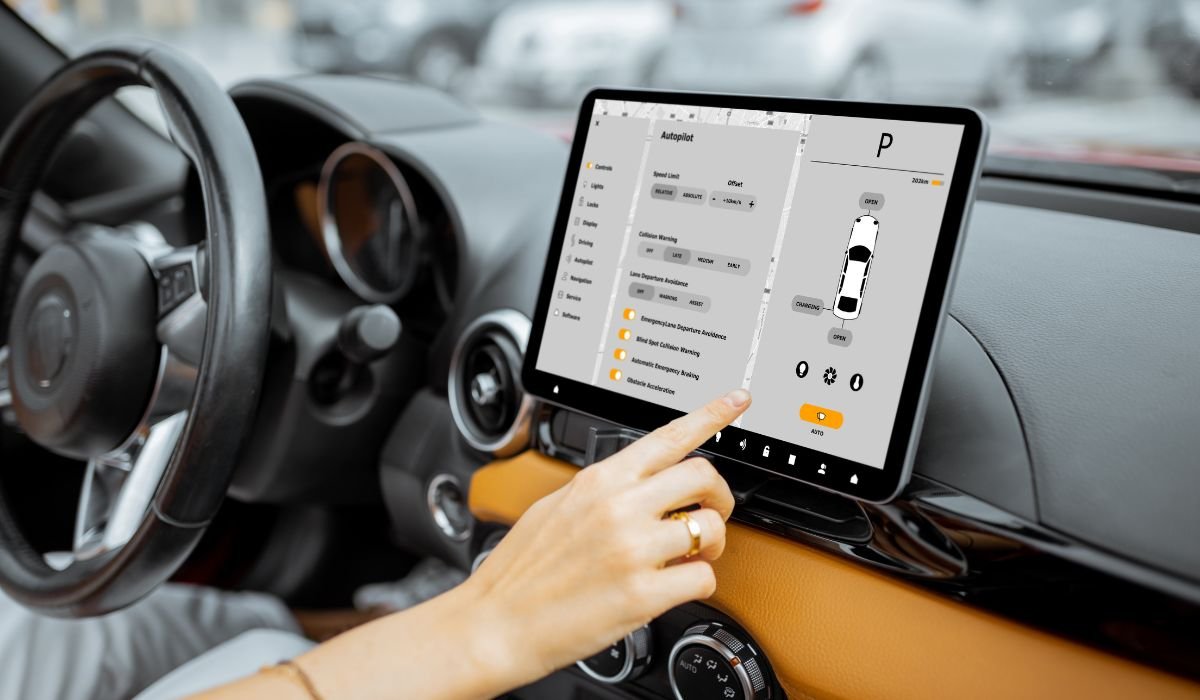
Android Auto enhances driving safety and convenience by integrating smartphone features with vehicle systems. However, occasional issues may necessitate a restart. To do this, access your phone’s Settings, navigate to Apps, and select Android Auto. Under Storage & Cache, tap “Clear Cache” to remove temporary files. Then, tap “Clear Storage” to reset the app to its default state. This process removes saved settings but won’t affect other apps linked to Android Auto. These steps can often resolve common problems and restore smooth functionality.
Key Takeaways
- Restarting Android Auto can resolve many common issues
- Multiple methods are available, from simple app restarts to full system resets
- Regular maintenance can prevent the need for frequent restarts
- Always prioritize safety when dealing with Android Auto while driving
- Stay updated with the latest Android Auto version for optimal performance
What is Android Auto?
Android Auto is a mobile app developed by Google that allows users to mirror their Android device’s interface on a car’s infotainment system. It provides access to navigation, music, messaging, and other apps in a driver-friendly format.
Common Issues with Android Auto
Users may experience various problems with Android Auto, including:
- Connection failures
- App crashes
- Screen freezing
- Audio playback issues
- Navigation errors
Can I restart android auto?
Yes, you can restart Android Auto. While there’s no dedicated “restart” button, you can effectively restart it by force stopping the app, clearing its cache, or disconnecting and reconnecting your phone to your car. For persistent issues, uninstalling and reinstalling the app or restarting your phone can also help refresh Android Auto’s functionality.
How to Restart Android Auto
Let’s explore several methods to restart Android Auto, ranging from simple to more advanced solutions.
1. Disconnect and Reconnect Your Phone
The simplest way to restart Android Auto is often to disconnect and reconnect your phone:
- Unplug your phone from the car’s USB port
- Wait for few seconds
- Plug your phone back in
This quick action can resolve many minor glitches and connection issues.
2. Restart Your Phone
If a simple reconnection doesn’t work, try restarting your phone:
- Press and hold the power button
- Select “Restart” or “Reboot”
- Wait for your phone to turn back on
- Reconnect to Android Auto
A full phone restart can clear temporary files and refresh system processes.
3. Restart Your Car’s Infotainment System
Sometimes the issue lies with your car’s system:
- Turn off your car completely
- Wait for 30 seconds
- Start your car again
- Reconnect your phone to Android Auto
This process can reset the car’s infotainment system and resolve connectivity problems.
4. Clear Android Auto Cache and Data
Clearing the app’s cache and data can fix more persistent issues:
- Open your phone’s Settings
- Go to Apps & notifications > See all apps > Android Auto
- Tap Storage & cache
- Select Clear Cache
- Tap Clear Storage
Remember, this will reset all Android Auto settings to default.
5. Update Android Auto App
Keeping your app updated is crucial for optimal performance:
- Open the Google Play Store
- Search for Android Auto
- If an update is available, tap “Update”
Regular updates often include bug fixes and performance improvements.
6. Reinstall Android Auto
For stubborn issues, a complete reinstall might be necessary:
- Uninstall Android Auto from your phone
- Restart your phone
- Open Google Play Store
- Search for Android Auto and reinstall
A fresh installation can resolve deeply rooted problems.
Additional Troubleshooting Tips
Here are some extra tips to keep Android Auto running smoothly:
Check Cable Quality
Use a high-quality, official USB cable. Cheap or damaged cables can cause connection issues.
Update Your Phone’s Operating System
Ensure your Android phone is running the latest version of its operating system for optimal compatibility.
Clear Google Play Services Cache
Android Auto relies on Google Play Services. Clearing its cache can help:
- Go to Settings > Apps & notifications > See all apps > Google Play Services
- Tap Storage & cache > Clear cache
Check App Compatibility
Ensure all apps you use with Android Auto are compatible and up-to-date.
Disable Battery Optimization
Prevent your phone from limiting Android Auto’s background processes:
- Go to Settings > Apps & notifications > Special app access > Battery optimization
- Find Android Auto and set it to “Don’t optimize”
When to Seek Professional Help
If you’ve tried all these methods and Android Auto still isn’t working correctly, it might be time to seek professional assistance:
- Contact Google Support: They can provide advanced troubleshooting for the Android Auto app.
- Visit Your Car Manufacturer: If the issue seems related to your car’s infotainment system, the manufacturer’s service center can help.
- Check with Your Phone Manufacturer: For device-specific issues, your phone’s manufacturer support can offer tailored solutions.
Frequently Asked Question (FAQ)
Where is Android Auto Restart?
Android Auto doesn’t have a specific “restart” button. To restart, you can force stop the app through your phone’s Settings > Apps > Android Auto > Force Stop. Alternatively, disconnect and reconnect your phone from the car, or restart your phone entirely.
How to restore Android Auto?
To restore Android Auto, uninstall the app, restart your phone, then reinstall from Google Play Store. If issues persist, clear app data in Settings > Apps > Android Auto > Storage > Clear Data. This resets the app to its default state.
How do I force start my Android Auto?
To force start Android Auto, ensure it’s enabled in your phone settings. Connect your phone to your car via USB. If it doesn’t start automatically, open the Android Auto app on your phone or select it from your car’s infotainment system.
How to reset Chevy Android Auto?
To reset Chevy Android Auto, start by restarting your infotainment system. Hold the Home and Fast Forward buttons simultaneously until the screen goes black. If issues persist, update your Chevy’s infotainment software or consult your dealership for assistance.
How do I hard reset my Android Auto?
For a hard reset of Android Auto, go to Settings > Apps > Android Auto > Storage. Tap “Clear Cache” and “Clear Data”. Uninstall the app, restart your phone, then reinstall Android Auto from Google Play Store. This process removes all app data and settings.
How do I manually reset my Android?
To manually reset your Android phone, go to Settings > System > Reset options > Erase all data (factory reset). Backup your data first, as this will erase everything. For a soft reset, press and hold the power button, then select “Restart”.


