

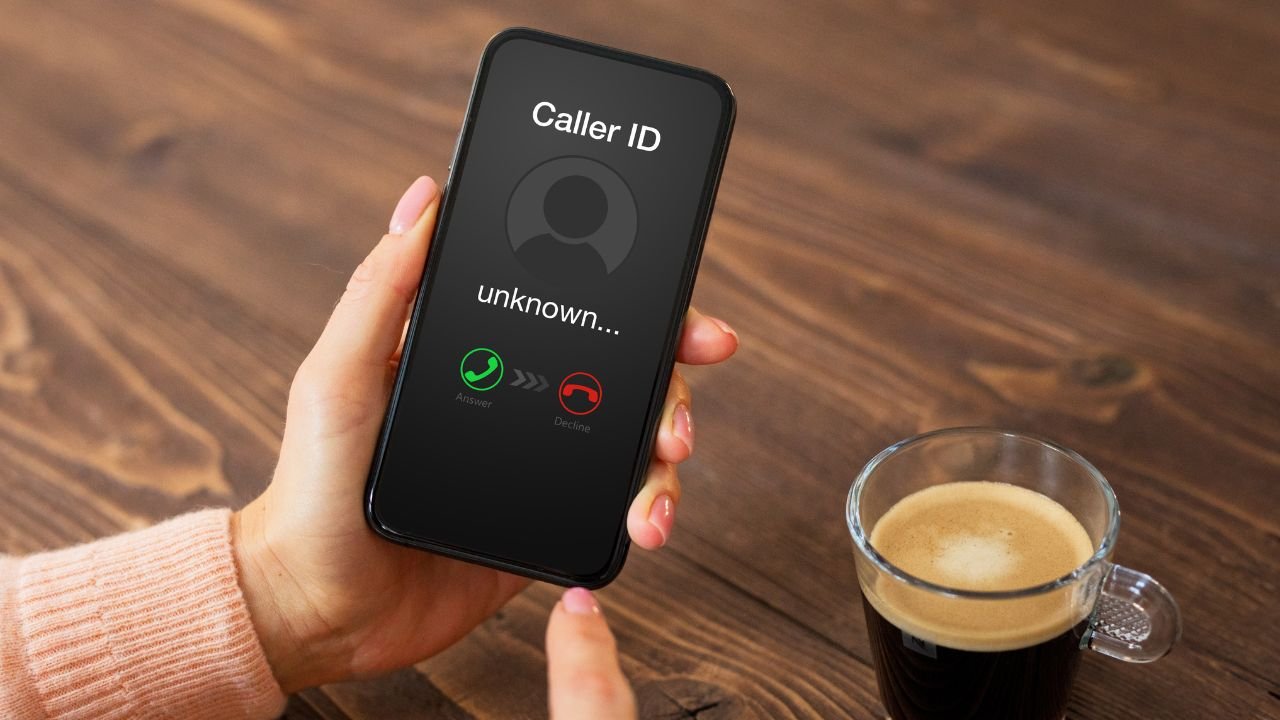
Personalizing your caller ID name on Android is a simple process that helps ensure your contacts see the correct information when you call. To update your name, open the Google app on your Android device and tap your profile icon. Select “Manage Google Account” and navigate to the “Personal Information” tab. Find the “Name” section under your current name, tap to edit it, and make your desired changes. Once you’re satisfied with the new name, tap “Save” to confirm the update. This change will reflect across various Google services and your Android phone’s caller ID.
Key Takeaways
- Caller ID name changes can be made through Google account settings, carrier services, or third-party apps
- The process may vary depending on your Android version and carrier
- Some methods may require contacting your carrier directly
- Third-party apps offer additional customization options but may have privacy considerations
- Regular updates to your caller ID name can help maintain accurate contact information
Understanding Caller ID
Caller ID is a fundamental feature of modern telecommunications that enhances communication by providing vital information about incoming calls. Let’s delve into what it is and how it functions on Android devices.
What is Caller ID?
Caller ID, short for Caller Identification, is a telephone service that reveals the caller’s information to the person receiving the call. This typically includes:
- The caller’s phone number
- The caller’s name (if available)
- Sometimes additional details like location or profile picture
This feature allows recipients to identify who’s calling before answering, helping them make informed decisions about whether to accept, reject, or screen the call.
How Caller ID works on Android phones
On Android devices, Caller ID functionality is integrated into the core operating system and works in conjunction with various services:
- Contact List Integration: When you receive a call, your Android phone first checks your contact list. If the number matches a saved contact, it displays the name and any other information you’ve saved for that contact.
- Google Account Sync: If the number isn’t in your contacts, Android may check against your Google account’s contacts, which can include people you’ve communicated with via Gmail or other Google services.
- Carrier Information: For numbers not found in your personal data, Android phones often rely on information provided by your cellular carrier. Carriers maintain databases of phone numbers and associated names.
- Third-Party Apps: Many Android phones now come with pre-installed apps or allow installation of third-party apps that provide enhanced caller ID services. These apps may use larger databases to identify callers not in your personal contacts.
- Business Listings: Some newer Caller ID systems can identify businesses calling you, even if they’re not in your contacts, by cross-referencing with public business listings.
- Spam Identification: Modern Android phones often include features to identify potential spam or scam calls, warning you before you answer.
- Real-Time Updates: Caller ID information can be updated in real-time, especially when using internet-based calling features or advanced carrier services.
Step-by-Step Guide to Change Caller ID Name
Method 1: Using Google Account Settings
This method updates your name across Google services, including your caller ID:
- Open the Google app on your Android phone
- Tap your profile icon in the top right corner
- Select “Manage Google Account”
- Tap the “Personal Information” tab
- Under your name, tap the “Name” section
- Edit your name
- Select “Save”
Method 2: Using Carrier Services
Some carriers allow you to change your caller ID directly through their services:
- Open your carrier’s app or website
- Log in to your account
- Navigate to profile or account settings
- Look for “Caller ID” or “Line Settings”
- Edit your caller ID name
- Save changes
Note: This method may vary depending on your carrier. Some may require you to contact customer service directly.
Method 3: Using Android Settings
For some Android versions:
- Open “Settings” on your phone
- Scroll to and tap “Phone” or “Call settings”
- Look for “Caller ID” or “Additional settings”
- Tap “Caller ID”
- Choose “Network default,” “Hide number,” or “Show number”
If “Show number” is selected, your phone number and the name associated with your Google account will be displayed.
Method 4: Using Third-Party Apps
Several apps in the Google Play Store offer caller ID customization:
- Search for “Caller ID changer” in the Play Store
- Choose a reputable app with good reviews
- Install and open the app
- Follow the app’s instructions to change your caller ID
Remember, these apps may require additional permissions and might not work with all carriers.
How can I customize the caller ID name for both personal and business use?
For dual-use customization:
- Consider using different phone numbers for personal and business calls
- Use a dual-SIM phone if available, setting unique caller IDs for each SIM
- Explore business-specific VoIP apps that allow custom caller ID settings
- Check if your carrier offers a feature to switch between personal and business profiles
Can I schedule automatic updates for my caller ID name on Android?
While native Android features don’t support scheduled caller ID updates, some solutions include:
- Using third-party apps that offer scheduling features
- Setting calendar reminders to manually update your caller ID
- Exploring carrier services that might offer this functionality
- Utilizing business VoIP systems with advanced caller ID management
Troubleshooting Common Issues
If you’re experiencing problems with changing your caller ID name, try these steps:
- Restart your phone after making changes
- Ensure your Android OS is up to date
- Clear cache and data for the Phone app
- Contact your carrier to verify there are no restrictions on your account
- Check if any installed apps are conflicting with caller ID settings
Frequently Asked Questions (FAQ)
How do I change my outgoing caller ID name?
To change your outgoing caller ID name, start by updating your Google account name. Open the Google app, tap your profile icon, select “Manage Google Account,” then “Personal Information.” Edit your name and save. For carrier-specific changes, contact your service provider directly.
How do I change my call ID on Android?
Changing your call ID on Android involves updating your Google account name or contacting your carrier. In your phone’s settings, look for “Call settings” or “Additional settings,” then “Caller ID.” You may be able to choose options like “Network default,” “Hide number,” or “Show number.”
Why is my caller ID showing a different name?
Your caller ID might show a different name due to outdated carrier information, recent number transfers, or third-party app interference. It could also be caused by the recipient’s phone using an old contact entry or a caller ID app with inaccurate data. Contact your carrier to ensure they have your correct information.
How do I change the name that appears on caller ID T-mobile?
To change your caller ID name with T-Mobile, log into your T-Mobile account online or use the T-Mobile app. Navigate to profile settings and look for an option to edit your name. If you can’t find it, contact T-Mobile customer service directly to request the change.
How do I change my true caller ID name?
To change your Truecaller ID name, open the Truecaller app and go to your profile settings. Look for an option to edit your name. Keep in mind that Truecaller verifies name changes to prevent misuse, so the process may take some time. For faster changes, update your Google account name.
How do I change my mobile number name?
To change the name associated with your mobile number, update your Google account name or contact your carrier directly. Some carriers allow name changes through their website or app, while others require a phone call. Remember, changes may take 24-72 hours to reflect across all systems.


