

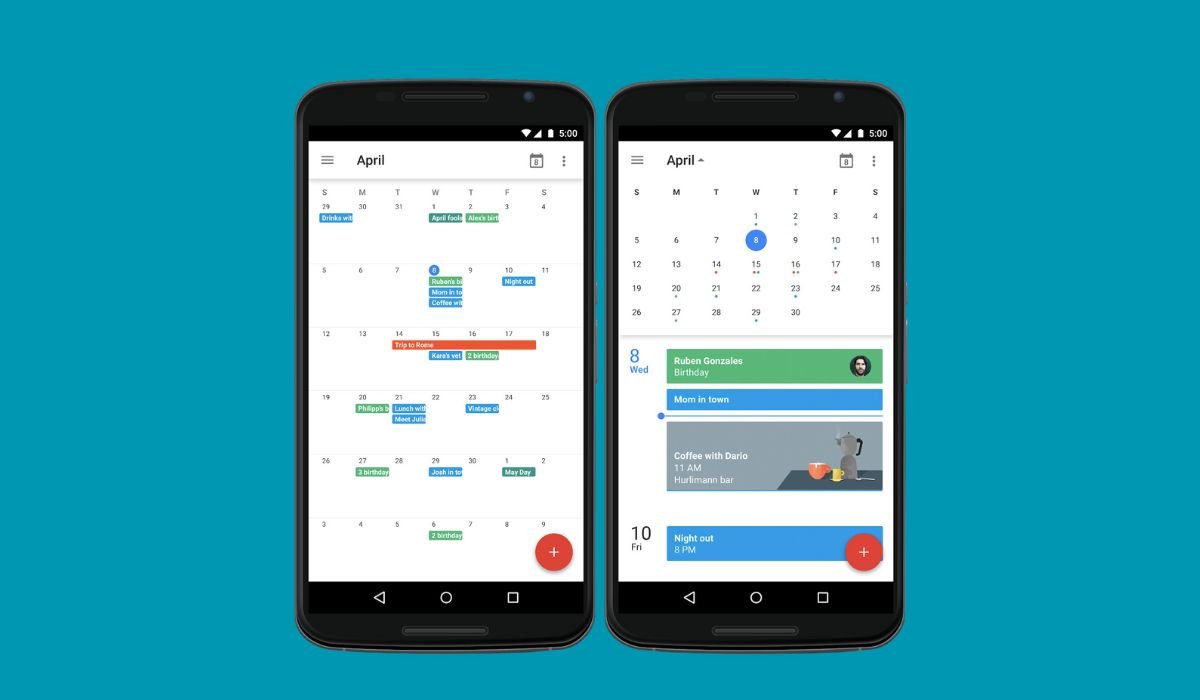
Google Calendar is a powerful tool for organizing your schedule and collaborating with others. Sharing your calendar on Android devices allows you to coordinate events, meetings, and important dates with friends, family, and colleagues. This article will guide you through the process of sharing your Google Calendar on Android, highlighting the latest features and methods available.
Key Takeaways
- Google Calendar sharing enhances collaboration and coordination
- Android users can share individual events or entire calendars
- There are multiple methods to share calendars, including in-app and web-based options
- Privacy settings allow you to control who sees your calendar information
- Troubleshooting steps can help resolve common sharing issues
Understanding Google Calendar Sharing
Types of Sharing
Google Calendar offers two main types of sharing:
- Event sharing: Share individual events with specific people
- Calendar sharing: Share your entire calendar with others
Sharing Permissions
When sharing your calendar, you can set different permission levels:
| Permission Level | Description |
|---|---|
| See only free/busy | Others can see when you’re available but not event details |
| See all event details | Others can view full event information |
| Make changes to events | Others can edit and update your events |
| Make changes and manage sharing | Others have full control over your calendar sharing settings |
| Full control | Others have full control over your calendar |
Limitations of Google Calendar App on Android
While the Android app is convenient, it has some limitations compared to the web version:
- Limited bulk sharing options
- Fewer customization settings for shared calendars
- Some advanced features may only be available on the web interface
Sharing Existing Calendar Events on Android
Follow these steps to share an individual event from your Google Calendar on Android:
- Open the Google Calendar app on your Android device
- Find and tap the event you want to share
- Tap the “Edit” icon (usually a pencil)
- Scroll down and tap “Add people”
- Enter the email addresses of people you want to invite
- Optionally, add a message
- Tap “Send” to share the event
Creating and Sharing New Calendar Events
To create and share a new event:
- Open the Google Calendar app
- Tap the “+” button to create a new event
- Fill in the event details (title, date, time, etc.)
- Tap “Add people” and enter email addresses
- Set the sharing permissions for invitees
- Tap “Save” to create and share the event
Managing Shared Events
Editing Shared Events
To edit a shared event:
- Open the event in the Google Calendar app
- Tap the “Edit” icon
- Make your changes
- Tap “Save”
- Choose to notify guests of the changes if prompted
Removing Shared Events
To remove a shared event:
- Open the event
- Tap the three-dot menu
- Select “Delete”
- Choose whether to notify guests of the cancellation
Alternative Methods for Sharing Google Calendar
Using the Web Interface
For more sharing options, use the Google Calendar web interface:
- Go to calendar.google.com on your computer
- Click the three-dot menu next to the calendar you want to share
- Select “Settings and sharing”
- Under “Share with specific people,” click “Add people”
- Enter email addresses and set permissions
- Click “Send” to share the calendar
Sharing Calendar Links
To share a public link to your calendar:
- In the web interface, go to calendar settings
- Under “Access permissions,” check “Make available to public”
- Copy the provided link and share it with others
Troubleshooting Common Issues
Calendar Not Syncing
If shared calendars aren’t syncing:
- Check your internet connection
- Ensure you’re signed in to the correct Google account
- Manually sync your calendar in the app settings
- Clear the app cache and data
Sharing Permissions Problems
If others can’t see your shared calendar:
- Double-check the email addresses you’ve shared with
- Verify the permission levels you’ve set
- Ask recipients to check their spam folders for invitations
- Try re-sharing the calendar
Privacy and Security Considerations
When sharing your Google Calendar, keep these privacy tips in mind:
- Only share calendars with trusted individuals
- Use the “See only free/busy” option for sensitive calendars
- Regularly review your sharing settings
- Consider creating separate calendars for personal and professional use
Integrating with Other Apps
Google Calendar can integrate with various apps to enhance sharing capabilities:
- Use Slack to share calendar events with your team
- Connect Zoom or Google Meet for easy video conferencing
- Integrate with task management apps like Trello or Asana
Customizing Shared Calendars
Personalize your shared calendars to improve organization:
- Assign unique colors to different shared calendars
- Create calendar groups for better management
- Use labels and categories to sort events
Frequently Asked Questions (FAQ)
How do I give someone access to my Google Calendar?
Open Google Calendar on the web, click the three dots next to your calendar, select “Settings and sharing,” then “Share with specific people.” Enter the person’s email and choose their permission level. Click “Send” to grant access.
Can Android users share a calendar?
Yes, Android users can share calendars. While the app has limited sharing options, you can use the web interface on your mobile browser. Go to calendar.google.com, tap the menu icon, select your calendar, and choose “Settings and sharing” to share.
How do I link to someone’s Google Calendar?
To link to someone’s Google Calendar, they need to provide you with their calendar’s public URL. Once you have it, open Google Calendar, click the “+” next to “Other calendars,” and select “From URL.” Paste the link and click “Add calendar.”
How to create and share a Google Calendar?
To create a new calendar, click the “+” next to “Other calendars” and select “Create new calendar.” Fill in the details and click “Create.” To share it, go to the calendar’s settings, scroll to “Share with specific people,” add email addresses, set permissions, and click “Send.”
How do I send a Google Calendar invite?
To send an invite, create a new event in Google Calendar. Click “Add guests” and enter email addresses. Fill in event details, then click “Save.” Choose whether to send invitations. Recipients will get an email with the option to add the event to their calendar.
How to add URL to Google Calendar Android?
To add a URL to an event in Google Calendar on Android, create or edit an event. Tap “Add location or conferencing.” Choose “Add URL” from the options. Enter the URL and tap “Add.” The link will be included in the event details for easy access.


