

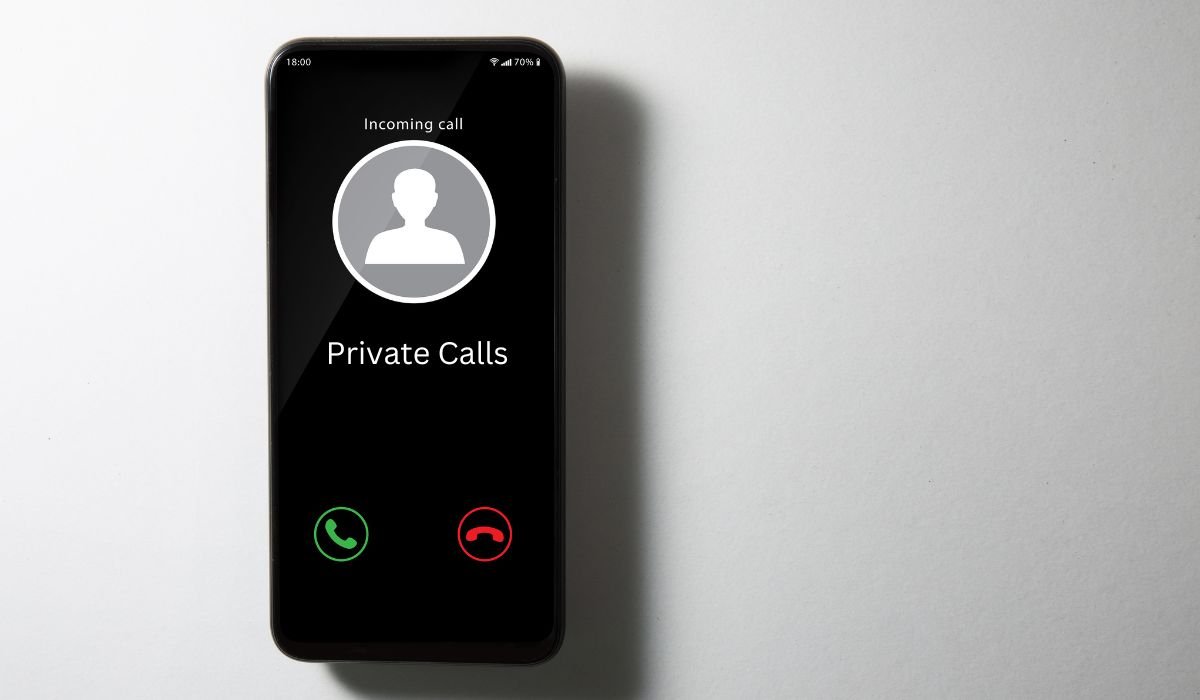
Private calls can be a major annoyance, interrupting your day and potentially exposing you to unwanted conversations or scams. These calls, with hidden or unknown numbers, can leave you feeling frustrated and vulnerable. Fortunately, Android devices offer simple and effective ways to block these unwanted intrusions.
By accessing your phone’s settings, you can quickly activate built-in features to silence unknown callers. In just a few taps, you can toggle switches to block calls from unknown numbers, giving you control over who can reach you. This easy-to-use functionality helps you regain peace of mind and enjoy a quieter, more secure phone experience.
Key Takeaways
- Android devices have built-in features to block private calls
- Third-party apps can provide additional call blocking capabilities
- Network-level blocking is available through some carriers
- Blocking private calls can enhance privacy and reduce unwanted interruptions
- Regular updates to your blocking list can improve effectiveness
Understanding Private Calls
Private calls, also known as anonymous or hidden number calls, are those where the caller’s number is not displayed on your screen. These calls can come from legitimate sources like businesses or government agencies, but they’re often associated with telemarketers, scammers, or unwanted contacts.
Methods to Block Private Calls on Android
1. Using Phone Settings
Most Android devices come with built-in options to block private calls. Here’s a general guide:
Open your Phone app, tap the three-dot menu icon, select “Settings,” look for “Block numbers” or “Blocked numbers,” and toggle on “Block unknown/private numbers.”
Using built-in settings has the advantage of not requiring additional apps and being simple to set up. However, it may block legitimate calls and offers limited customization options.
2. Using Third-Party Apps
If your phone doesn’t have built-in blocking or you need more features, consider apps like Truecaller or Hiya. These apps offer robust call blocking and can identify potential spam calls.
To use a third-party app, download it from Google Play Store, set up an account, grant necessary permissions, enable call blocking features, and customize your blocking preferences.
Third-party apps often provide more features than built-in options and receive regular updates. However, they may require a subscription and raise potential privacy concerns.
3. Using Call Blocking Apps
Dedicated call blocking apps like Mr. Number or RoboKiller focus specifically on blocking unwanted calls. They often use large databases of known spam numbers to protect you.
To use a call blocking app, install it from Google Play Store, follow the setup wizard, enable call blocking, add numbers to your block list, and set rules for unknown numbers.
These apps are specialized for call blocking and often have large databases of spam numbers. However, they may impact battery life, and some features may require payment.
4. Using Network-Level Blocking
Some carriers offer call blocking services that work at the network level. This means calls are blocked before they reach your phone.
To set up network-level blocking, contact your carrier’s customer service, ask about call blocking services, and follow their instructions to enable and configure the service.
Network-level blocking stops calls before they reach your phone and doesn’t rely on your phone’s resources. However, it may incur additional charges and offer limited control over blocked numbers.
Benefits of Blocking Private Calls
Blocking private calls can significantly improve your mobile experience:
- Reduced interruptions: Fewer unwanted calls mean fewer disruptions to your day.
- Enhanced privacy: Limit exposure to potential scams or harassment.
- Improved focus: Avoid the distraction of constant unknown callers.
- Better call management: Prioritize calls from known contacts.
- Peace of mind: Reduce anxiety associated with answering unknown numbers.
Are There Any Security Risks with Using Apps to Block Private Calls?
While call blocking apps can be incredibly useful, it’s important to consider potential security risks:
- Data collection: Some apps may collect and store your call logs or contacts.
- Permissions: These apps often require extensive permissions to function properly.
- Third-party access: Your data might be shared with advertisers or other parties.
- Malware potential: Always download apps from trusted sources like Google Play Store.
To mitigate these risks, read app reviews and ratings before installing, check the app’s privacy policy, limit permissions to only what’s necessary, and regularly update the app to get the latest security patches.
Latest Android Call Blocking Features
Android has continued to improve its call blocking capabilities. Here are some recent updates:
- Enhanced spam detection: Android now uses AI to better identify potential spam calls.
- Automatic call screening: Some Android phones can now screen calls and provide transcripts.
- Customizable block lists: Users can create more detailed rules for blocking calls.
- Integration with Google Voice: Improved syncing between Google Voice and Android’s native call blocking.
- Real-time caller ID: More accurate and up-to-date information about unknown callers.
Tips for Effective Call Blocking
To make the most of call blocking on your Android device:
- Regularly update your block list
- Use a combination of methods for comprehensive protection
- Be cautious about unblocking numbers
- Report spam calls to help improve blocking databases
- Keep your Android system and apps updated
Frequently Asked Questions (FAQ)
Can I block private numbers on Android?
Yes, you can block private numbers on Android. Most Android devices have built-in settings to block unknown or private callers. You can also use third-party apps for more advanced blocking features. Check your phone’s settings or explore apps on the Google Play Store.
How do I block private incoming calls?
To block private incoming calls, go to your Phone app’s settings. Look for options like “Block numbers” or “Blocked numbers.” Enable the feature to block unknown or private numbers. Alternatively, use call-blocking apps for more control over incoming calls.
How do I stop my phone from calling privately?
To stop your phone from calling privately, dial *82 before the number you’re calling. This code temporarily deactivates Caller ID blocking for that call. For a permanent solution, contact your carrier to disable the private calling feature on your line.
Private Number Block Android?
Android offers several ways to block private numbers. Use the built-in Phone app settings, download third-party call blocking apps, or contact your carrier for network-level blocking. Each method has its advantages, so choose the one that best fits your needs.
Are there apps to block private numbers?
Yes, numerous apps can block private numbers on Android. Popular options include Truecaller, Hiya, and RoboKiller. These apps offer features like spam detection, call screening, and customizable block lists. Download them from the Google Play Store.
Is there any code that can block private numbers?
There’s no universal code to block private numbers on Android. However, some carriers offer codes like *77 to block anonymous calls. Check with your service provider for specific codes. For most Android users, using phone settings or apps is more effective.


