

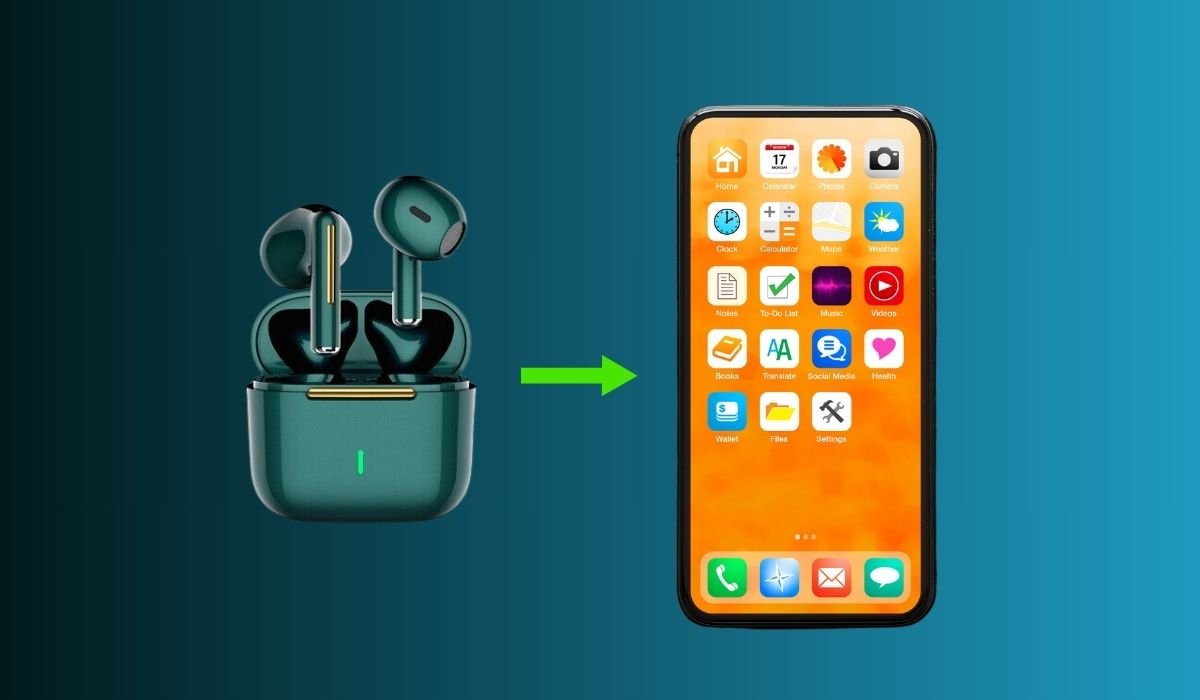
True Wireless Stereo (TWS) earbuds have transformed our audio experience, offering cord-free convenience and high-quality sound. While connecting them to Android devices may seem challenging, it’s actually quite simple with proper guidance.
To connect your TWS earbuds, first turn them on by holding the power button for about 3 seconds until you see a blue light and hear the “power on” voice. Then, initiate pairing by pressing the button on the charging case, followed by the pairing buttons on each earbud. These steps will prepare your earbuds for connection to your Android device.
Key Takeaways
- TWS earbuds are wireless, Bluetooth-enabled audio devices
- Android devices can easily connect to TWS earbuds
- Proper preparation is crucial for a successful connection
- Troubleshooting steps can resolve common connection issues
- Regular maintenance ensures optimal performance of TWS earbuds
Understanding TWS Earbuds
What Are TWS Earbuds?
TWS earbuds are wireless audio devices that connect to your smartphone or other Bluetooth-enabled devices. Unlike traditional wired earphones or even wireless earbuds connected by a cable, TWS earbuds are completely independent of each other, offering true wireless freedom.
Features of Modern TWS Earbuds
| Feature | Description |
|---|---|
| Bluetooth 5.3 | Latest wireless technology for improved connectivity |
| Active Noise Cancellation | Reduces ambient noise for immersive listening |
| Touch Controls | Easy management of playback and calls |
| Voice Assistant Support | Quick access to Siri, Google Assistant, or Alexa |
| Long Battery Life | Up to 8 hours of playtime, with additional charges from the case |
Can I Connect TWS Earbuds to Android?
Yes, you can connect TWS earbuds to Android devices. Android smartphones and tablets are designed to work seamlessly with Bluetooth audio devices, including TWS earbuds. The process is usually simple and quick, requiring just a few steps to establish a connection.
Preparing to Connect TWS Earbuds
Before you start the connection process, ensure your TWS earbuds and Android device are ready:
- Charge your TWS earbuds fully
- Update your Android device’s operating system
- Enable Bluetooth on your Android device
- Place the TWS earbuds close to your Android device
Step-by-Step Guide to Connect TWS Earbuds to Android
Follow these steps to connect your TWS earbuds to your Android device:
Step 1: Power On Your TWS Earbuds
Turn on your TWS earbuds by pressing and holding the power button for about 3 seconds, or until you see the blue light and hear the “power on” voice prompt.
Step 2: Activate Pairing Mode
Initiate the pairing process by pressing the pairing button on the charging case. Then, press the pairing button on each individual earbud. You’ll notice a blinking light, indicating that pairing is in progress.
Step 3: Enable Bluetooth on Your Android Device
- Open the Settings app on your Android device
- Tap on “Connections” or “Network & Internet”
- Select “Bluetooth”
- Toggle the Bluetooth switch to the “On” position
Step 4: Pair Your TWS Earbuds
- In the Bluetooth settings, tap on “Scan” or “Search for devices”
- Wait for your TWS earbuds to appear in the list of available devices
- Tap on the name of your TWS earbuds to initiate pairing
- If prompted, confirm the pairing request
Step 5: Confirm Connection
Once paired, your Android device will show the TWS earbuds as a connected device. You should now be able to hear audio through your earbuds.
Troubleshooting Common Connection Issues
If you encounter problems connecting your TWS earbuds to your Android device, try these troubleshooting steps:
- Restart both your TWS earbuds and Android device
- Clear Bluetooth cache on your Android device
- Forget the TWS earbuds in Bluetooth settings and reconnect
- Update your TWS earbuds’ firmware (if applicable)
- Reset your TWS earbuds to factory settings
Additional Tips for Using TWS Earbuds On Android
To get the most out of your TWS earbuds, consider these tips:
- Keep your earbuds clean to maintain audio quality
- Store them in their case when not in use to prevent damage and extend battery life
- Update your earbuds’ firmware regularly for improved performance and new features
- Customize touch controls through the manufacturer’s app (if available)
- Experiment with different ear tip sizes for the best fit and sound isolation
Frequently Asked Questions (FAQ)
How do you put TWS earbuds in pairing mode?
To put TWS earbuds in pairing mode, remove them from the charging case. Press and hold the touch-sensitive area or button on both earbuds simultaneously for a few seconds until you see flashing lights. Some models may enter pairing mode automatically when removed from the case.
How to connect TWS to Android?
To connect TWS earbuds to Android, ensure they’re in pairing mode. On your Android device, go to Settings > Bluetooth. Turn on Bluetooth and tap “Scan for devices.” When your earbuds appear in the list, tap to connect. Follow any on-screen prompts to complete the pairing process.
Why won’t my TWS connect?
If your TWS earbuds won’t connect, try these troubleshooting steps: Ensure the earbuds are charged and in pairing mode. Restart your Android device and the earbuds. Clear your device’s Bluetooth cache. If issues persist, reset the earbuds to factory settings and try pairing again.
How to put TWS earphones in pairing mode?
To put TWS earphones in pairing mode, start with both earbuds in the charging case. Remove them simultaneously and hold the touch-sensitive areas or buttons for a few seconds. Look for flashing lights indicating pairing mode. Some models enter pairing mode automatically upon removal from the case.
How to reset tws bluetooth earphone?
To reset TWS Bluetooth earphones, place them in the charging case. Press and hold the buttons on both earbuds for about 10 seconds until you see a series of flashes. This typically clears all paired devices. Refer to your specific model’s manual for exact instructions, as methods may vary.
What apps are there in TWS earphones?
TWS earphones often have companion apps provided by manufacturers. These apps offer features like equalizer settings, firmware updates, and customizable touch controls. Some popular examples include the Galaxy Wearable app for Samsung earbuds, Sony Headphones Connect, and Jabra Sound+. Check your earbuds’ documentation for specific app information.


