

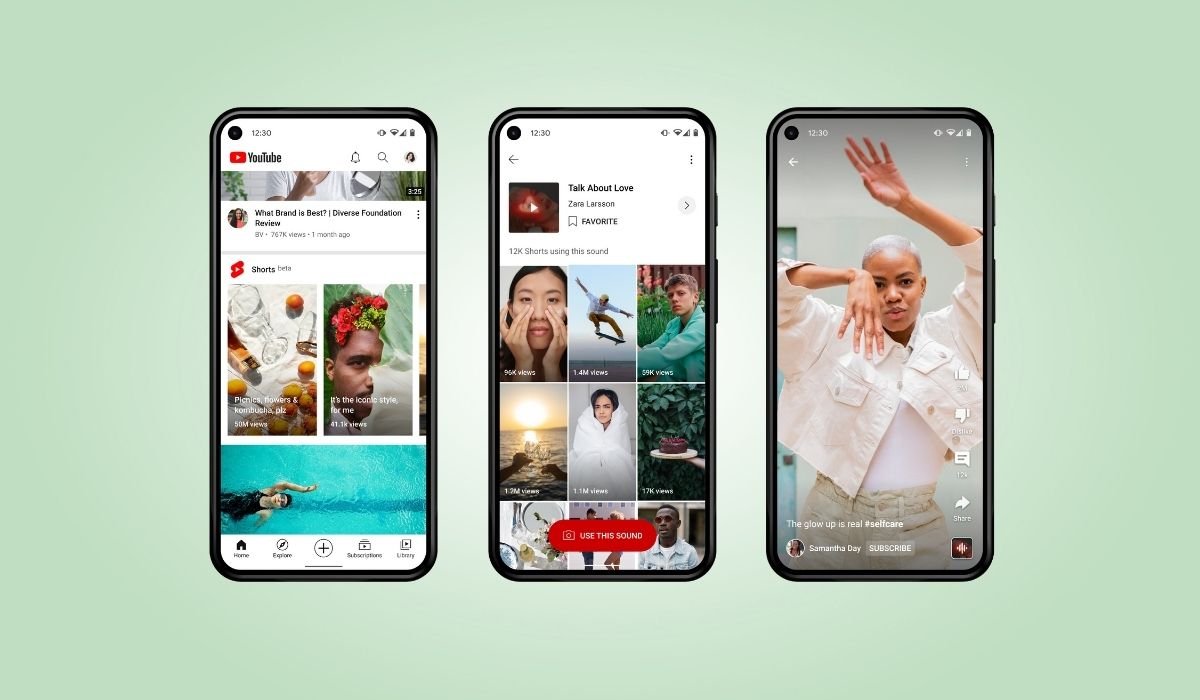
YouTube Shorts has gained popularity, but some users prefer a more streamlined experience. For those looking to disable this feature on Android, there are several methods available.
On the mobile or desktop site, users can click the “X” icon in the Shorts section to remove it. For the Android app, options include using an older version or marking individual Shorts as “Not Interested” by tapping the three dots next to each video.
A more permanent solution involves accessing the app settings. Users can tap their profile picture, navigate to Settings > Shorts, and turn off the “Enable Shorts” option. This effectively removes Shorts from the YouTube feed, providing a cleaner browsing experience.
Key Takeaways
- YouTube Shorts can be disabled through the app settings on newer versions
- Marking Shorts as “Not Interested” helps train the algorithm to show fewer Shorts
- Downgrading to an older YouTube app version can remove the Shorts feature entirely
- Third-party apps like YouTube Vanced offer more control over Shorts visibility
- Browser extensions can hide Shorts when using YouTube on a mobile browser
Understanding YouTube Shorts
YouTube Shorts is a short-form video platform integrated into the main YouTube app. These vertical videos, typically lasting 60 seconds or less, are designed to compete with platforms like TikTok and Instagram Reels. While many users enjoy this quick-hit content, others find it distracting from their preferred long-form videos.
5 Best Methods to disable youtube shorts on android
Method 1: Disabling Shorts in YouTube Settings
The most straightforward way to disable YouTube Shorts on Android is through the app’s settings. This method works for the latest versions of the YouTube app as of 2024.
Steps:
- Open the YouTube app on your Android device
- Tap your profile picture in the top right corner
- Go to “Settings”
- Scroll down and tap on “Shorts”
- Toggle off the “Enable Shorts” option
- Save the changes
This action will permanently disable Shorts in your YouTube feed, giving you a cleaner, more traditional YouTube experience.
Method 2: Mark Shorts as “Not Interested”
If you can’t find the option to disable Shorts in settings, you can train the YouTube algorithm to show fewer Shorts:
- When you see a YouTube Shorts video in your feed, tap the three dots (…) next to it
- Select “Not interested”
- Optionally, choose “Tell us why” and select “I don’t like short videos (Shorts)”
- Repeat this process for each Shorts video you encounter
While this method requires more effort, it gradually reduces the number of Shorts in your feed over time.
Method 3: Downgrading the YouTube App
For users who prefer a more drastic approach, downgrading to an older version of the YouTube app can completely remove the Shorts feature.
Steps:
- Go to your Android device’s Settings
- Navigate to Apps > YouTube
- Tap on “Uninstall updates”
- Confirm the action
Alternatively, you can download an older version of the YouTube app APK from a trusted source like APKMirror. Be cautious when downloading APKs and ensure you’re using a reputable source to avoid security risks.
Method 4: Using YouTube Vanced
YouTube Vanced is a popular modified version of the YouTube app that offers additional features and customization options, including the ability to disable Shorts.
Steps:
- Download and install YouTube Vanced from a trusted source
- Open the Vanced app
- Go to Settings > Shorts
- Disable the Shorts feature
Please note that as of 2024, YouTube Vanced is no longer in active development. However, existing installations may still work, and alternative apps with similar functionality may be available.
Method 5: Using Browser Extensions
If you prefer using YouTube in a mobile browser rather than the app, you can use browser extensions to hide Shorts and other unwanted elements.
Steps:
- Install a compatible browser on your Android device (e.g., Firefox, Kiwi Browser)
- Add an extension like “YouTube Enhancer” or “Improve YouTube”
- Configure the extension to hide the Shorts shelf and other Shorts-related elements
This method provides a high degree of customization but may not be as seamless as using the native app.
The Impact of Disabling YouTube Shorts
Disabling YouTube Shorts can significantly change your YouTube experience. Here are some potential impacts:
- Reduced distractions: Without Shorts, you may find it easier to focus on the content you’re interested in.
- More control over your feed: Your recommendations may become more tailored to your long-form video preferences.
- Potential loss of discovery: Shorts can sometimes introduce users to new creators or topics they might enjoy.
- Bandwidth savings: Short-form videos often autoplay, which can consume more data. Disabling them may reduce your data usage.
Common Issues and Troubleshooting
Shorts Reappearing After Updates
YouTube frequently updates its app, which may reintroduce Shorts even after you’ve disabled them. To combat this:
- Regularly check your YouTube settings
- Consider disabling auto-updates for the YouTube app
- Be prepared to reapply your preferred method after major updates
Limited Options in Newer Versions
As YouTube evolves, some older methods may become less effective. Stay informed about new customization options and be ready to adapt your approach.
Third-Party App Risks
While apps like YouTube Vanced offer powerful features, they come with risks:
- Potential security vulnerabilities
- Violation of terms of service
- Lack of official support
Always download third-party apps from reputable sources and understand the associated risks.
Alternatives to YouTube Shorts
If you enjoy short-form content but prefer to keep it separate from your main YouTube experience, consider these alternatives:
- TikTok: The pioneer of short-form video content
- Instagram Reels: Similar to TikTok, integrated into the Instagram app
- Snapchat Spotlight: Snapchat’s short-form video feature
These platforms offer dedicated short-form video experiences without affecting your YouTube browsing.
Frequently Asked Questions (FAQ)
How do I permanently disable YouTube shorts on Android?
To permanently disable YouTube Shorts on Android, open the YouTube app and tap your profile picture. Go to Settings > Shorts and turn off the “Enable Shorts” option. This removes Shorts from your feed. Remember to check this setting after app updates, as they may reset preferences.
Can you block YouTube shorts on app?
Yes, you can block YouTube Shorts in the app. One method is to mark Shorts as “Not Interested” by tapping the three dots next to each video. Alternatively, you can use older versions of the YouTube app that don’t include the Shorts feature, though this may impact other functionalities.
How to disable YouTube shorts in 2024?
As of 2024, disabling YouTube Shorts involves using app settings or third-party solutions. In the YouTube app, go to Settings > Shorts to turn off the feature. For more control, consider using modified apps like YouTube Vanced or browser extensions that offer customization options.
Can you block YouTube shorts in the app?
Blocking YouTube Shorts in the app is possible through various methods. You can disable the feature in settings, consistently mark Shorts as “Not Interested,” or use an older app version. Some users opt for modified YouTube apps that offer more control over content display.
YouTube shorts blocked in Chrome?
To block YouTube Shorts in Chrome on Android, you can use browser extensions designed for this purpose. Extensions like “YouTube Enhancer” allow you to hide the Shorts shelf and other elements. Alternatively, you can use desktop mode in Chrome to access a different YouTube layout.
Can you control YouTube shorts?
You can control YouTube Shorts to some extent. Options include disabling them in app settings, training the algorithm by marking Shorts as “Not Interested,” or using third-party apps for more granular control. Keep in mind that complete removal may require using older app versions or modified YouTube clients.


