

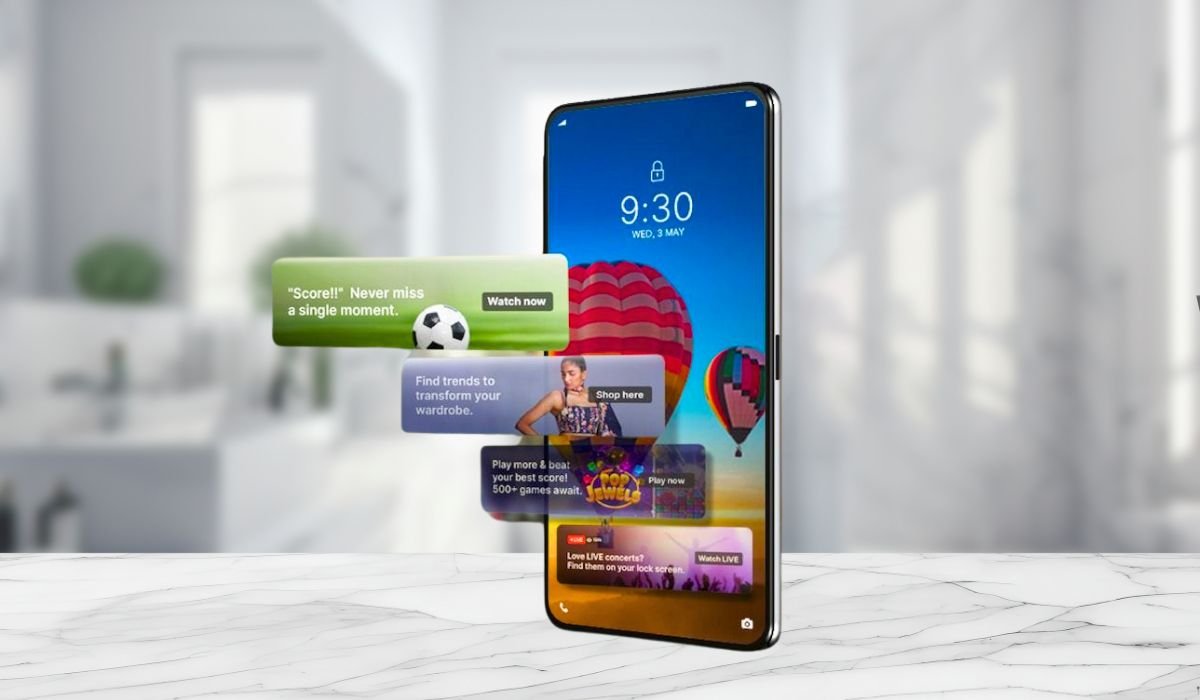
Samsung’s Glance feature turns your lock screen into an information hub, but some users prefer a simpler look. While it offers benefits, a cleaner interface is often desired for various reasons.
To disable Glance on Samsung devices, follow these steps: Open Settings, tap “Wallpaper and style,” select “Change wallpapers,” then “Wallpaper services,” and finally choose “None.” This process reverts your lock screen to a traditional static wallpaper, providing a more streamlined experience.
Key Takeaways
- Glance is a lock screen feature that provides personalized content and information
- To disable Glance, navigate to Settings > Wallpaper and style > Change wallpaper > Wallpaper services
- Turning off Glance can improve battery life and reduce distractions
- You can customize Glance settings if you prefer to keep some features
- Alternative lock screen options are available for Samsung users
What is Glance?
Glance is a lock screen feature developed by InMobi and pre-installed on many Samsung devices. It aims to provide users with quick access to information, news, and entertainment directly from their lock screen. When enabled, Glance displays a variety of content, including:
- News articles
- Weather updates
- Trending products
- Entertainment content
- Sports scores
While Glance can be convenient for some users, others may find it distracting or unnecessary. Let’s explore some reasons why you might want to turn off this feature.
Reasons to Turn Off Glance
1. Battery Life Concerns
Glance constantly refreshes content and may use data in the background, potentially impacting your device’s battery life. By turning it off, you might see an improvement in your battery performance.
2. Privacy and Security
Some users may feel uncomfortable with the amount of personal data Glance collects to provide personalized content. Disabling the feature can help protect your privacy.
3. Reduced Distractions
If you find yourself constantly checking your lock screen for updates, turning off Glance can help minimize distractions and improve your focus.
4. Simplified Lock Screen
For those who prefer a clean, minimalist look, disabling Glance allows you to enjoy a simple lock screen with just your chosen wallpaper.
5. Faster Device Access
Some users report that Glance can occasionally slow down the process of unlocking their device. Turning it off may lead to quicker access to your home screen.
How to Turn Off Glance on Samsung Devices
To disable Glance on your Samsung device, follow these steps:
- Open your Samsung device
- Go to the Settings app
- Tap “Wallpaper and style.”
- Click on “Change wallpaper.”
- Scroll down and select “Wallpaper services.”
- Choose the “None” option to disable Glance.
- Additionally, turn off the “Swipe left for info page” toggle to prevent the Glance page from appearing when swiping left on the lock screen.
| Step | Action |
|---|---|
| 1 | Open the Settings app |
| 2 | Go to “Wallpaper and style” |
| 3 | Tap “Change wallpaper” |
| 4 | Scroll down and select “Wallpaper services” |
| 5 | Choose the “None” option to disable Glance |
| 6 | Turn off the “Swipe left for info page” toggle |
Customizing Glance Settings
If you’d like to keep some Glance features while disabling others, you can customize its settings:
- Open the Settings app.
- Tap on “Lock screen.”
- Select “Glance” or “Information and FaceWidgets.”
- Toggle on/off specific features like weather, calendar events, or news updates.
This way, you can tailor the Glance experience to your preferences without completely disabling it.
Troubleshooting Common Issues
Sometimes, users may encounter difficulties when trying to turn off Glance. Here are some common issues and their solutions:
| Issue | Solution |
|---|---|
| Glance reappears after disabling | Check for system updates and restart your device |
| Can’t find Glance settings | Ensure your device has the latest software update |
| Glance content still visible | Clear app cache and data for the Glance app |
Alternative Lock Screen Options
After disabling Glance, you might want to explore other lock screen customization options:
- Always On Display: Customize what information is shown when your screen is off.
- Digital Wellbeing: Use this feature to limit distractions and manage your screen time.
- Third-party lock screen apps: Explore apps from the Google Play Store for more customization options.
Benefits of Using Glance
While this guide focuses on turning off Glance, it’s worth noting its potential benefits:
- Stay informed: Get the latest news, sports updates, and trending topics at a glance.
- Personalized content: Receive information tailored to your interests and preferences.
- Quick access: View important information without unlocking your device.
- Entertainment: Discover new content, games, and trending products.
- Time-saving: Access relevant information quickly without opening multiple apps.
Privacy Considerations
If privacy is a concern, consider these points before deciding to keep or disable Glance:
- Data collection: Understand what information Glance collects and how it’s used.
- Content personalization: Weigh the benefits of personalized content against potential privacy trade-offs.
- Third-party content: Be aware that Glance may display content from various sources.
- Location services: Check if Glance uses your location for content customization.
Impact on Battery Life
Glance’s effect on battery life can vary depending on usage:
- Content updates: Frequent content refreshes may consume more battery.
- Screen-on time: Glance may encourage more frequent phone checks, increasing overall screen time.
- Background processes: The feature may run in the background, potentially impacting battery performance.
- Individual usage: Battery impact depends on how often you interact with Glance content.
Frequently Asked Questions (FAQ)
How do I turn off at a glance?
To turn off Glance on Samsung, go to Settings > Wallpaper and style > Change wallpapers > Wallpaper services. Select “None” to disable Glance. This removes the dynamic content from your lock screen, reverting it to a static wallpaper for a cleaner look.
How do I remove Glance from my screen?
Removing Glance from your screen involves disabling it in your Samsung device settings. Navigate to Wallpaper and style settings, then choose “None” under Wallpaper services. This action removes Glance content from your lock screen, giving you a more traditional display.
What is Glance on Samsung mean?
Glance on Samsung is a lock screen feature that displays dynamic content like news, weather, and personalized information. It transforms your lock screen into an interactive hub, providing quick access to relevant updates without unlocking your device. Glance aims to keep users informed and engaged.
How to stop at a glance?
To stop Glance, access your Samsung device’s settings. Go to Wallpaper and style, then Change wallpapers. Scroll to Wallpaper services and select “None.” This disables the Glance feature, stopping the dynamic content from appearing on your lock screen.
Where is glance mode in settings?
Glance mode settings are typically found in the Wallpaper and style section of your Samsung device’s settings. Look for “Change wallpapers” or “Wallpaper services” options. If you can’t find it, try searching for “Glance” in the settings search bar.
Why can’t I remove the widget at a glance?
If you’re unable to remove the Glance widget, ensure you’re following the correct steps in your device settings. Some Samsung models might have different paths or names for these settings. If issues persist, check for software updates or contact Samsung support for assistance.


