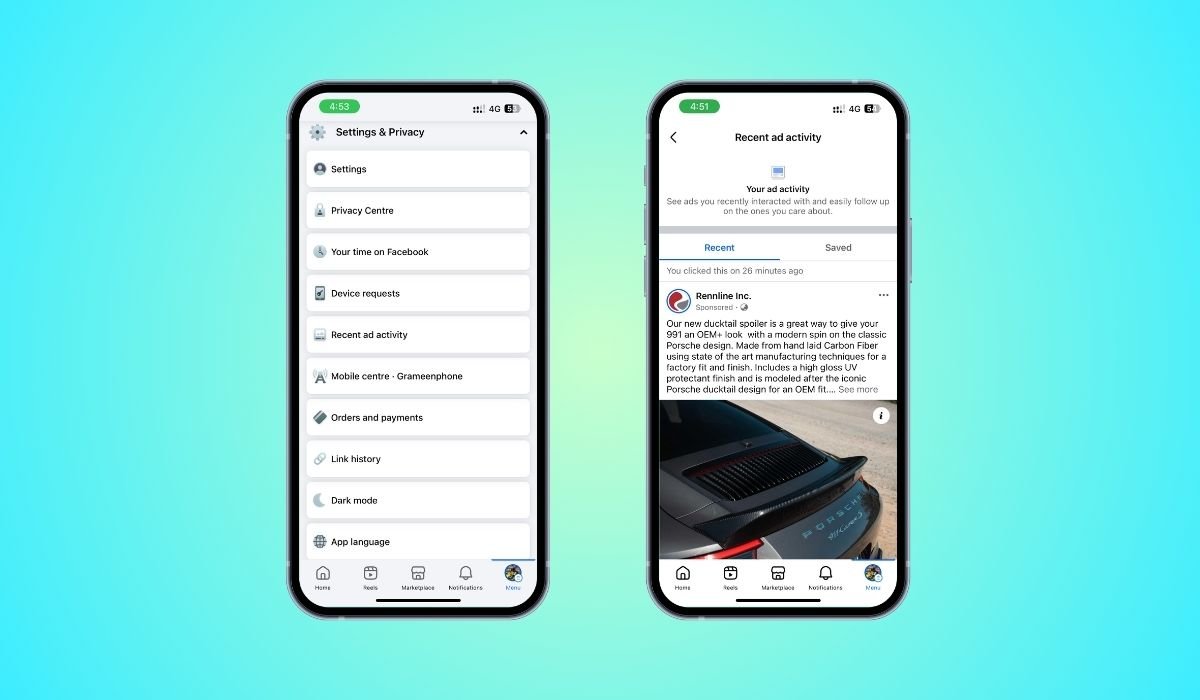
Deleting recent ad activity on Facebook is essential for those seeking to manage their privacy and reduce unwanted ad targeting. This process not only helps you control the ads you interact with but also ensures your preferences are up-to-date.
To remove automated ads, navigate to your Facebook Page, select ‘Ad Center’ from the left menu, and choose ‘Automated Ads’. Here, find the ad you wish to delete, select ‘View results’, and then ‘See all’ if necessary. Click the three dots in the top right of the selected ad and choose ‘Delete ad’. Confirm your choice in the pop-up window to finalize the deletion.
This functionality provides users with the power to clean up their digital footprint, allowing for a more personalized and secure browsing experience on the platform. By following these steps, you can effectively reduce the clutter of irrelevant ads and enhance your overall Facebook use.
Key Takeaways
- Quickly access settings to find your ad activity, ensuring you can manage your preferences efficiently.
- Delete specific ads to reduce unwanted content and improve the relevance of advertisements.
- Remove all ad interactions at once for a comprehensive reset of your ad activity.
- Enhance privacy by adjusting overall ad preferences and controlling data sharing with advertisers.
Understanding Ad Activity on Facebook
Ad activity on Facebook encompasses all your interactions with advertisements on the platform, including clicks, views, likes, and comments. This data is crucial for Facebook as it uses these interactions to tailor the ads you see, aiming to make them more relevant to your interests.
The information gathered can include details about the ads you find engaging, the ones you choose to hide, and how you interact with different types of advertising content.
Understanding this activity can empower you as a user to better manage the types of advertisements that appear in your feed. By being aware of how ad activity is tracked and used, you can take more informed steps to adjust your settings and thereby influence the ad content that is served to you.
This not only enhances your browsing experience but also helps maintain a level of privacy and control over your online data.
By familiarizing yourself with where and how ad activity is recorded in your Facebook settings, you can more effectively manage and delete this information if you choose, leading to a more customized and secure social media environment.
Reasons to Delete Recent Ad Activity
There are several compelling reasons why one might choose to delete recent ad activity on Facebook:
- Enhancing Privacy: By deleting ad activity, users can protect their privacy more effectively. This step helps in minimizing the amount of data advertisers can gather about one’s preferences and online behavior, reducing the potential for intrusive targeting.
- Reducing Ad Clutter: Deleting interactions with specific ads or clearing all ad activity can help in decluttering the ad space on your Facebook feed. This action can lead to fewer repetitive and irrelevant ads, thereby improving the overall user experience.
- Preventing Unwanted Targeting: Sometimes, interacting with an ad—even unintentionally—can lead to a surge of similar advertisements. Deleting these interactions helps prevent advertisers from targeting you with similar ads repeatedly.
- Control Over Personalization: Users might want to reset their ad preferences to start fresh with how ads are personalized based on new interests or changes in their preferences. Deleting recent ad activity allows users to recalibrate the personalization algorithms that Facebook uses.
Step-by-Step Guide to Deleting Recent Ad Activity
Follow these steps to effectively delete your recent ad activity on Facebook:
1. Open the Facebook App
Begin by launching the Facebook application on your smartphone or tablet.
2. Access Settings
Tap on the three horizontal lines at the top right corner of the screen, then select the gear icon to enter the settings menu.
3. Navigate to Activity Log
Scroll down and tap on “Your Activity.” Within this section, select “Activity Log” to view your various interactions on the platform.
4. Find Ad Activity
In the Activity Log, locate the section that tracks your ad interactions. This could be labeled as “Ads” or “Ad Activity.”
5. Delete Specific Ads
If you wish to remove specific ads, tap on the three dots next to the relevant ad and choose the delete option. Confirm your decision when prompted.
6. Clear All Ad Activity
To remove all your recent ad interactions, return to the main settings page, select “Account Center,” then “Your Information and Permissions,” and finally choose “Clear Previous Activity.” Confirm this action to complete the process.
To delete recent ad activity on Facebook, follow these streamlined steps:
| Step | Solution |
|---|---|
| 1 | Open the Facebook app on your device. |
| 2 | Tap the menu icon, then access settings via the gear icon. |
| 3 | Scroll to “Your Activity” and select “Activity Log.” |
| 4 | Locate the “Ads” or “Ad Activity” section. |
| 5 | For individual ads, tap the three dots and select delete. Confirm deletion when prompted. |
| 6 | To clear all ad activity, navigate back to settings, go to “Account Center,” select “Your Information and Permissions,” choose “Clear Previous Activity,” and confirm. |
Tips for Managing Overall Ad Preferences
Managing your overall ad preferences on Facebook not only enhances your browsing experience but also gives you control over the data you share with advertisers. Here are some effective tips for refining these settings:
- Review Ad Preferences: Regularly check your Facebook Ad Preferences section to see what interests are associated with your profile and adjust them as necessary. This helps ensure that the ads you see are more relevant to your current interests.
- Adjust Interest Categories: You can add or remove interest categories that Facebook has associated with your profile to fine-tune the ads you receive.
- Limit Ad Data Sharing: Use the settings available to limit the amount of information that Facebook shares with advertisers. This includes controlling whether or not your social actions (like likes and shares) are used to endorse ads.
- Use ‘Why am I seeing this ad?’: Utilize this feature on ads to understand why they are being shown to you. This can provide insights into what data is influencing the ad targeting.
- Opt out of Ad Personalization: If you prefer not to have your ads personalized based on your activity on and off Facebook, you can opt out through the ad settings. This may lead to less relevant ads, but it increases privacy.
- Manage Advertisers List: From the Ad Preferences, you can see a list of advertisers who have your information. You can view and remove these advertisers if you no longer want them to target you with ads.
Alternative Privacy Enhancements
Enhancing your privacy on Facebook involves more than just managing ad activity. Here are additional measures you can take to bolster your privacy settings:
- Privacy Checkup Tool: Utilize Facebook’s Privacy Checkup feature to review and adjust your privacy settings comprehensively. This tool guides you through sections like who can see your posts, how people can find you on Facebook, and your data settings on Facebook.
- Activity Controls: Adjust settings for features like Face Recognition and Location History to control how much data Facebook can collect about your physical movements and facial data.
- Limit Profile Visibility: Adjust who can see your posts, friends list, and the personal information on your profile. Settings like these can be customized to be visible to just friends, friends of friends, or only you.
- Review App Permissions: Periodically review which apps have access to your Facebook data. Remove permissions for apps you no longer use or trust.
- Secure Account Access: Enable two-factor authentication for an added layer of security. This feature helps protect your account from unauthorized access by requiring a second form of identification beyond just your password.
- Off-Facebook Activity: Manage your off-Facebook activity settings by reviewing and disconnecting the data that external websites and apps share with Facebook, which is used for targeted advertising.
Frequently Asked Questions (FAQ)
How do you clear your recent ad activity on Facebook?
To clear your recent ad activity, navigate to the ‘Activity Log’ under ‘Your Activity’ in settings. From there, locate the ‘Ads’ section and delete individual ads or clear all ad interactions by selecting ‘Clear Previous Activity’ in the ‘Account Center’.
How do I delete active Ads on Facebook?
To delete active ads, go to your Facebook Page, click on ‘Ad Center’, and then ‘All Ads’. Select the active ad you want to delete, click the three dots for more options, and choose ‘Delete Ad’. Confirm the deletion to proceed.
How do I clean up Ads on Facebook?
Cleaning up ads on Facebook involves adjusting your ad preferences to better align with your interests and privacy concerns. Visit the ‘Ad Preferences’ section to review and modify the categories that influence the ads you see, ensuring they are relevant and less intrusive.
How do I remove off Facebook activity?
To remove off-Facebook activity, go to ‘Settings’, select ‘Your Facebook Information’, and then click on ‘Off-Facebook Activity’. Here, you can manage your activity from other apps and websites or disconnect future activity from your account.
How do I delete all my activity history?
Deleting all your activity history on Facebook can be done through the ‘Activity Log’. Go to ‘Settings’, find ‘Your Activity’, and use the ‘Activity Log’ to review and remove any or all recorded actions, such as likes, comments, and posts.
How do I clear my Facebook ad cache?
Clearing your Facebook ad cache involves resetting your ad preferences. This can be done by navigating to ‘Ad Preferences’ under settings, where you can refresh the types of ads you want to see and reset information that influences ad targeting.