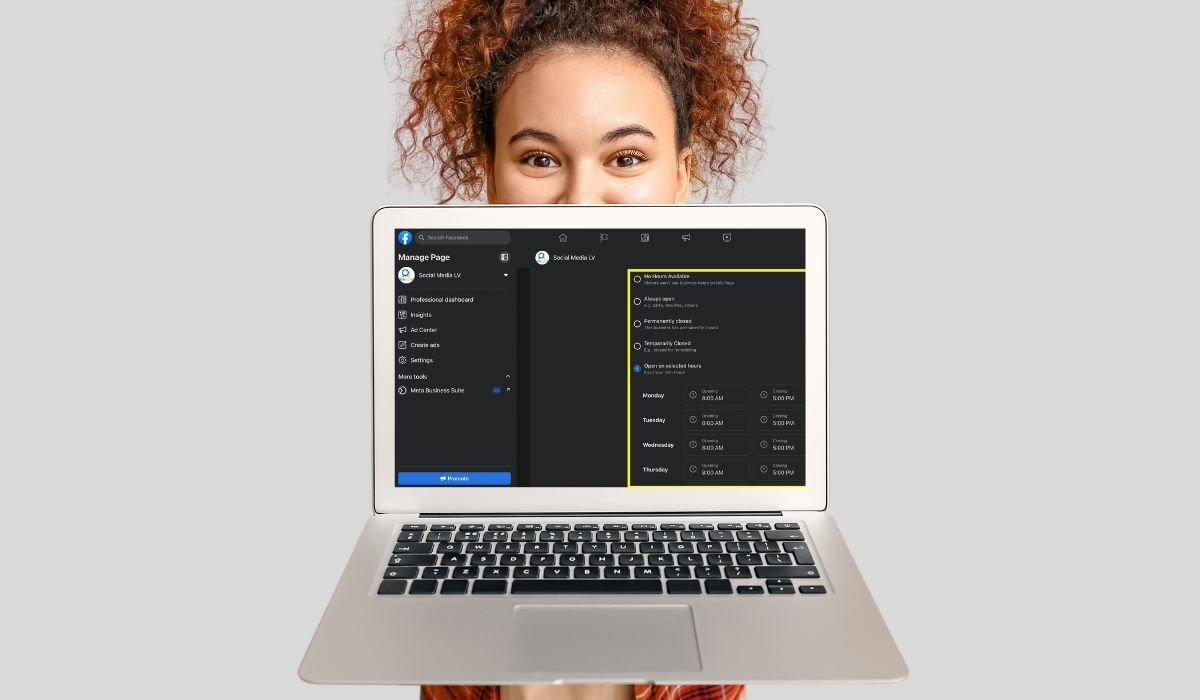
Keeping your business hours up to date on Facebook is crucial. When customers look up your business, they rely on accurate information to plan their visits or inquiries. If your hours are outdated, it can lead to frustration, missed opportunities, and even lost business.
Accurate business hours not only enhance customer satisfaction but also improve your search engine visibility. Search engines like Google prioritize accurate and consistent information, making it easier for potential customers to find you. Keeping this simple detail updated can make a significant difference in how your business is perceived and accessed online.
Key Takeaways
- Keeping business hours updated on Facebook is crucial for customer satisfaction and search engine visibility.
- Regularly review and update hours to ensure accuracy, especially during holidays or special events.
- Consistency across all platforms builds trust and avoids customer confusion.
- Use Facebook’s tools like posts and stories to inform customers of any changes.
- Regular audits and monitoring are essential to maintain an accurate and professional online presence.
Importance of Accurate Business Hours
Incorrect or outdated business hours can lead to several negative consequences. Customers who arrive during closed hours may become frustrated, leading to poor reviews and a damaged reputation. Inconsistent information across platforms can also confuse potential clients, making them less likely to trust your business.
On the other hand, having up-to-date business hours builds customer trust. When customers know they can rely on your posted hours, it enhances their overall experience. Additionally, accurate information boosts your online presence, as search engines like Google reward businesses with consistent details. This can lead to higher search rankings and more visibility, ultimately driving more traffic to your business.
Prerequisites for Changing Business Hours
Before you can change your business hours on Facebook, there are a couple of key prerequisites to check:
First, ensure that you have admin or editor access to the Facebook Business Page. Without the right permissions, you won’t be able to make any changes to the page’s settings.
Second, double-check that you’re logged in to the correct Facebook account. This is especially important if you manage multiple pages, as making changes under the wrong account could lead to confusion or mistakes.
Having these in place will make the process smooth and straightforward.
Step-by-Step Guide to Changing Business Hours on Facebook
Step 1: Accessing Your Facebook Business Page
Start by navigating to your Facebook Business Page. You can do this by logging into your Facebook account and selecting your business page from the left-hand menu under “Pages.”
Step 2: Going to the ‘About’ Section
Once on your business page, locate the “About” section. This is typically found on the left side of the page, just below your profile picture and cover photo.
Step 3: Editing Business Information
In the “About” section, look for the “Edit Page Info” button. Click on it to access the page’s business information. Here, you’ll see the current business hours listed.
Step 4: Setting Custom Hours
If your business has different hours on specific days, you can set custom hours by clicking on the “Hours” field. You can add or adjust the hours for each day of the week, including special hours for holidays or events.
Step 5: Saving Changes
After making all the necessary changes, review them to ensure accuracy. Once everything looks correct, click “Save Changes” to update your business hours. The new hours will be immediately visible to anyone who visits your page.
Here’s summarze on a table:
| Step | Description |
|---|---|
| 1 | Access your Facebook Business Page. |
| 2 | Navigate to the About section. |
| 3 | Click Edit Page Info. |
| 4 | Update your business hours. |
| 5 | Set custom hours if needed. |
| 6 | Save changes to update the hours. |
This step-by-step guide ensures that your business hours are always accurate and up to date, helping you maintain a professional online presence.
Tips for Managing Business Hours on Facebook
- Regular Updates: Review and update your business hours regularly to reflect any changes in your schedule.
- Holiday Hours: Don’t forget to set special hours for holidays or events to avoid customer confusion.
- Time Zone Accuracy: Ensure your time zone is set correctly to avoid discrepancies in your posted hours.
- Notify Customers: Use posts or stories to inform your followers of any temporary changes in your hours.
- Consistency Across Platforms: Make sure your business hours match those listed on other platforms, such as Google My Business and your website.
- Monitor Feedback: Pay attention to customer feedback about your hours to ensure they align with your actual availability.
How to Inform Your Customers About Changes
To keep your customers informed about changes to your business hours, it’s important to use a few effective strategies:
Using Facebook Posts
One of the simplest ways to announce changes is through a Facebook post. Create a clear and concise post that explains the new hours and any temporary changes. Pinning this post to the top of your page can ensure it’s the first thing visitors see.
Utilizing Facebook Stories
For a more engaging approach, use Facebook Stories. Stories are great for temporary updates, like holiday hours or special events. They appear at the top of your followers’ feeds, making them hard to miss.
Updating Other Online Platforms
Consistency is key. Make sure to update your business hours across all platforms where your business is listed. This includes Google My Business, Yelp, and your official website. Consistent information helps avoid customer confusion and enhances your online credibility.
Troubleshooting Common Issues
- Changes Not Reflecting: If your updated hours aren’t showing up immediately, try clearing your browser cache or checking from a different device.
- Lost Access to Edit Hours: If you’ve lost admin or editor access, request the necessary permissions from the page owner to regain control.
- Conflicting Information: If your hours are displaying differently across platforms, ensure that all connected apps and platforms are updated with the same information.
- Unable to Save Changes: If you’re having trouble saving your changes, double-check your internet connection or try logging out and back in to refresh your session.
- Facebook Support: For persistent issues, reach out to Facebook Support for assistance through the Help Center or contact form.
Best Practices for Business Pages on Facebook
- Consistency Across Platforms: Ensure your business information, including hours, address, and contact details, is consistent across all online platforms to build trust and avoid customer confusion.
- Regular Audits: Perform regular audits of your Facebook page to update outdated information and remove any irrelevant content. This keeps your page fresh and reliable.
- Engage with Customers: Respond promptly to customer inquiries and comments. Engaging with your audience helps build a strong community and enhances your brand’s reputation.
- Use Quality Visuals: Ensure your profile picture, cover photo, and any images you post are high-quality and reflect your brand identity.
- Leverage Insights: Use Facebook’s Insights tool to track page performance, understand your audience, and adjust your strategy accordingly.
- Post Regularly: Keep your page active by posting regularly. Share updates, promotions, and relevant content to maintain visibility and keep your audience engaged.
- Optimize for Mobile: Since many users access Facebook via mobile, ensure your page is mobile-friendly with easy navigation and quick access to key information.
- Monitor Competitors: Keep an eye on what your competitors are doing on Facebook to stay competitive and find inspiration for your own strategies.
Conclusion
Keeping your business hours updated on Facebook is more than just a small task—it’s essential for maintaining customer trust and enhancing your online presence. Regularly checking and updating this information ensures that your customers have accurate details, leading to better experiences and fewer missed opportunities.
Take a moment to review your business hours today. If you haven’t updated them recently, now is the perfect time to do so. Keeping your information current can make a significant difference in how customers perceive and interact with your business. Don’t let outdated hours be the reason for lost business—stay on top of it and keep your online presence sharp and reliable.
Frequently Asked Questions
Can I set different hours for specific days?
Yes, Facebook allows you to set different hours for specific days. In the “Edit Page Info” section, you can customize your hours for each day of the week, including setting unique hours for weekends or holidays.
What if my business operates 24/7?
If your business operates 24/7, you can select the “Always Open” option when editing your business hours on Facebook. This setting ensures that customers know you’re available at all times.
How do I set temporary hours for special events?
To set temporary hours, update your business hours in the “Edit Page Info” section and specify the start and end dates for these special hours. This is useful for holidays or one-time events.
How can I change my Facebook business page hours?
You can change your business hours by navigating to your Facebook Business Page, clicking on the “About” section, and then selecting “Edit Page Info.” From there, you can adjust your hours and save the changes.
How do I change my business hours?
To change your business hours on Facebook, go to your Business Page, find the “About” section, click “Edit Page Info,” and update your hours as needed. Be sure to save the changes.
How do I change the time on my Meta business?
To change the time settings on your Meta business, go to the “Settings” on your Facebook Business Page, select “Page Info,” and then update the time zone and business hours. This ensures accurate display of your operating hours.