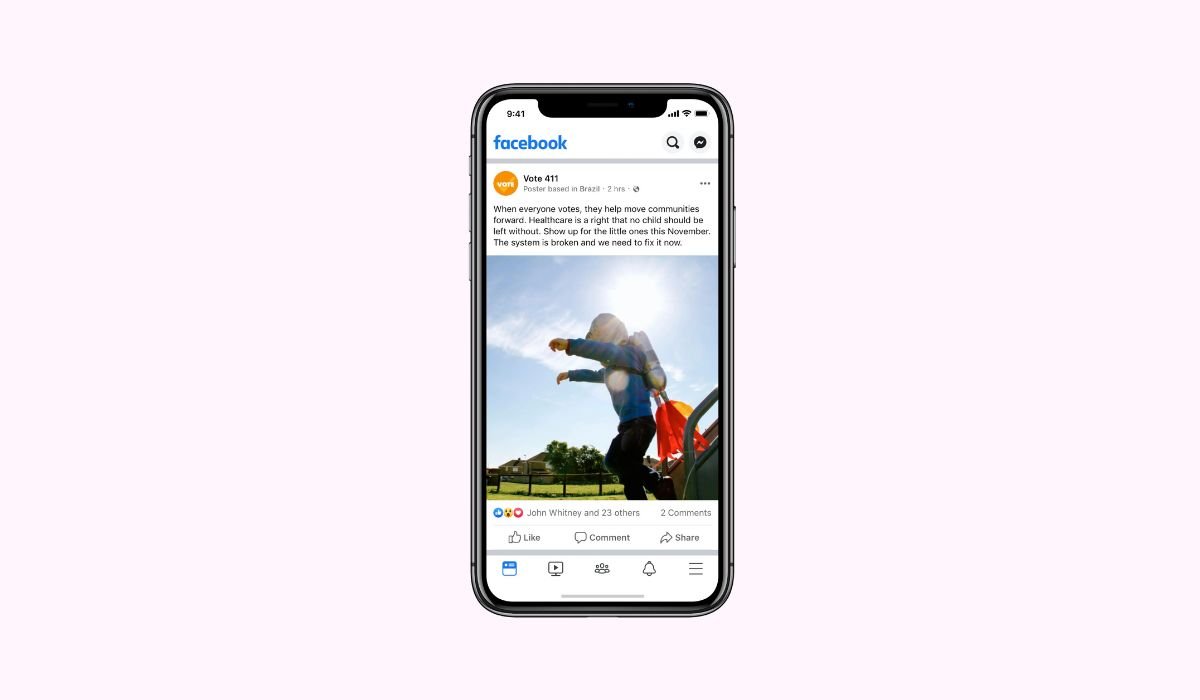
Paragraphs in a Facebook post are more than just spaces between lines. They help break down your ideas into manageable chunks that make it easier for readers to follow along. When content is structured well, it becomes more engaging and digestible.
Using paragraphs improves readability by making the post less overwhelming. Instead of one giant block of text, readers can scan through easily, which encourages them to stay longer and interact with the post.
The Default Behavior of Facebook Posts
When you press “Enter” while typing a Facebook post, it doesn’t create a new paragraph like it would in a word processor. Instead, it instantly posts the content. This often catches users off guard, thinking they can start a new line, but instead, their post goes live prematurely.
A common misconception is that hitting “Enter” will space out your text, but Facebook requires a different approach for paragraph breaks to avoid accidental postings. Understanding this behavior helps avoid frustration and accidental posts.
How to Start a New Paragraph on Facebook
Method 1: Using Shift + Enter
To start a new paragraph without posting the content, simply hold down the Shift key and press Enter. This creates a line break, allowing you to continue typing without worrying about the post going live. By using Shift + Enter, you can neatly format your post into multiple paragraphs, improving readability.
Method 2: Composing in a Text Editor First
Another option is to write your post in a text editor like Notes or Microsoft Word. This allows you to format your paragraphs as needed without any risk of accidentally posting. Once you’re satisfied with the structure, simply copy and paste it into Facebook. This method is especially useful if you’re working on longer or more detailed posts.
Method 3: Mobile vs. Desktop Differences
On desktop, Shift + Enter works seamlessly to create line breaks, but on mobile, it’s a bit different. In most mobile apps, tapping “Enter” brings up a new line automatically. Mobile users don’t need to worry about pressing Shift, but it’s always a good idea to preview your post for proper spacing before hitting “Post.”
Tips for Formatting a Facebook Post
Keep paragraphs short and concise for better readability on social media. Ideally, each paragraph should be 1-2 lines long to prevent overwhelming the reader. Short bursts of text allow readers to engage with your content without feeling bogged down.
Using spacing, bullet points, and emojis can enhance clarity and make your post visually appealing. Spacing out ideas with bullet points helps highlight key information, while emojis add personality and break up the text, making it more engaging. Just ensure not to overuse them, keeping the focus on clarity.
Common Mistakes to Avoid
One frequent mistake is accidentally posting by pressing “Enter” instead of using Shift + Enter for a line break. This can cause incomplete posts to go live before you’re ready.
Another mistake is overusing paragraph breaks or cluttering the post with too many lines. While breaking up text is important, adding too many short lines can make your post look disorganized and difficult to follow. Balance is key—use enough spacing to make the post readable without overwhelming your audience.
Advanced Formatting Options
If you want to take your Facebook post formatting to the next level, you can use third-party tools to add bold, italics, or other text styles. Websites like Unicode Text Converter or FB Formatting tools allow you to format text in bold, italics, or strikethrough, making certain words or phrases stand out. Once formatted, you can copy the text into your Facebook post for a polished look.
A clean, well-formatted post not only looks professional but also boosts engagement. It helps readers quickly understand your message, encourages interaction, and increases the chances of likes, comments, and shares.
Conclusion
Using proper paragraphs in Facebook posts is essential for keeping your audience engaged. Well-structured content improves readability, making it easier for readers to follow along and interact with your message.
To keep posts engaging, remember to use short paragraphs, proper spacing, and simple formatting. Avoid cluttering the post with too many lines or overusing formatting tricks. By keeping things clear and concise, you’ll create posts that are easy to read and encourage more engagement from your audience.
Frequently Asked Questions
How to create a new paragraph on a Facebook post?
To create a new paragraph in a Facebook post, press Shift + Enter on your keyboard. This adds a line break without posting the content. It allows you to neatly separate ideas and keep your post organized.
How do I add a new line in a Facebook post?
Adding a new line in a Facebook post is simple. Hold Shift and press Enter. This action creates a new line without posting the text, ensuring your post remains neatly formatted.
How to make a new paragraph on Facebook Messenger?
In Facebook Messenger, creating a new paragraph is easy. Press Enter for a new line, as it won’t send the message until you tap the “Send” button. This lets you format your text.
How to create space in a Facebook post?
To create space in a Facebook post, use Shift + Enter. This creates a line break, helping you format your post with proper spacing for easy readability and engagement.
How do I format text in a Facebook post?
For advanced text formatting (bold, italics, etc.), use third-party tools like Unicode Text Converter. Once formatted, copy and paste the styled text into your post to make certain parts stand out.
How do I start a new line in Facebook Messenger?
To start a new line in Facebook Messenger, just press Enter. This adds a new line in your message without sending it, allowing for better formatting and easier communication.