

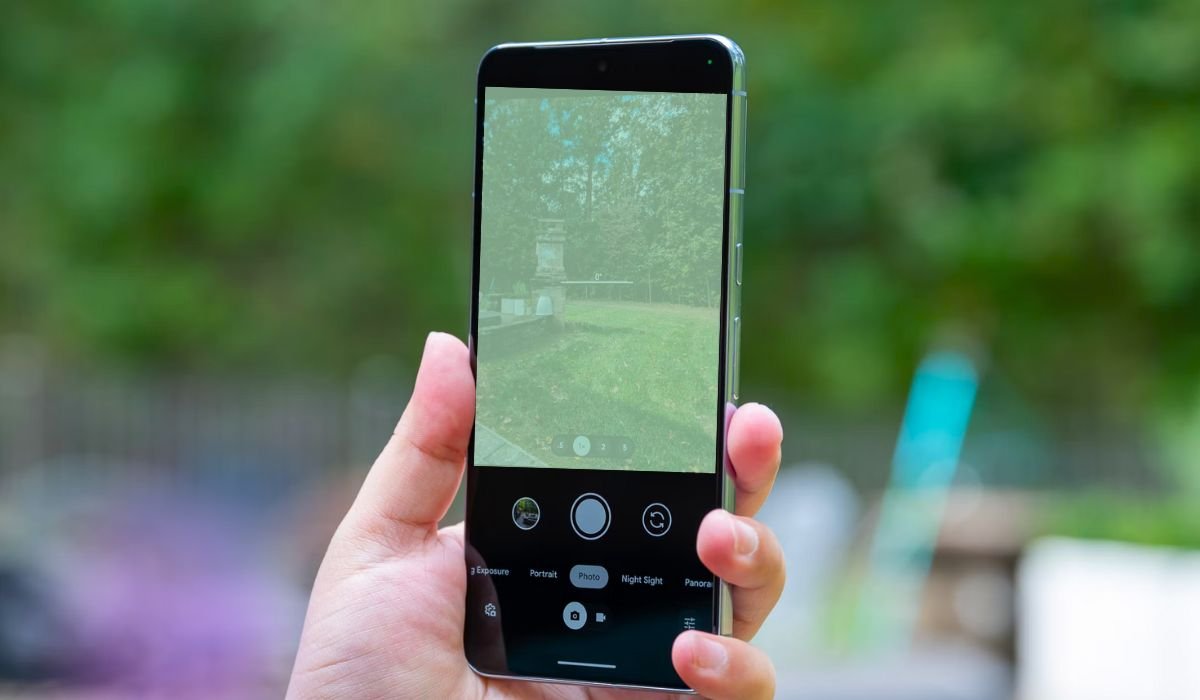
A blurry camera can be incredibly frustrating. Whether you’re trying to capture a special moment or making a video call, no one wants to deal with unclear, smudged images.
Having a clear camera is essential. From snapping photos to recording memories, and even during video calls, it impacts the quality of everyday interactions. A blurry camera can quickly turn what should be a great shot into a disappointment.
Common Reasons Why Your Android Camera Is Blurry
- Dirty Lens: Dust, fingerprints, or smudges can easily collect on the camera lens, blocking it and causing blurry photos.
- Camera Settings: Incorrect focus, exposure, or image stabilization settings can throw off the clarity of your shots, making them appear unclear.
- Outdated Software: Using outdated versions of Android or the camera app can affect camera performance and lead to poor-quality images.
- Low Light Conditions: Poor lighting often results in blurry images, as the camera struggles to capture enough detail in dim environments.
- Movement While Taking Photos: Even slight hand movements can cause motion blur, especially if your phone doesn’t have good stabilization.
- Damaged Camera Lens: Cracks or scratches from accidental drops can obstruct the lens, leading to permanently blurry images.
- Protective Cases or Covers: Sometimes, the protective case or cover might partially block the lens, causing the camera to take unclear pictures without you realizing it.
Software and Settings Misconfigurations
Incorrect Camera Settings
Using the wrong camera settings can drastically affect photo quality. If the resolution is set too low, images will appear less sharp. HDR, when not used correctly, can cause overexposure or underexposure. Similarly, incorrect auto-focus settings can lead to blurry, out-of-focus shots, especially in fast-moving scenes.
Overuse of Digital Zoom
Digital zoom might seem convenient, but it sacrifices image quality. Unlike optical zoom, which uses the camera’s lens, digital zoom simply enlarges the pixels. This results in grainy, blurry images, particularly when zooming in too far.
Third-Party Camera Apps
Third-party camera apps often come with additional features, but they may not be optimized for your Android phone’s camera hardware. This can result in compatibility issues, slower focus, or lower photo quality. It’s best to stick with the phone’s built-in camera app for reliable performance.
Hardware-Related Issues
Damaged Camera Lens
Scratches or cracks on the camera lens can easily cause blurriness in your photos. Even small scratches scatter light, leading to distorted images. If the lens is cracked, it may obstruct the camera’s ability to capture a clear shot, making everything appear fuzzy or out of focus.
Internal Camera Module Issues
Hardware malfunctions, like a misaligned camera sensor, can result in blurry pictures. If the camera module is damaged or not properly aligned with the lens, it can affect how light reaches the sensor, leading to poor image quality.
Image Stabilization Malfunctions
Image stabilization is designed to reduce blur caused by slight hand movements. However, if this feature is malfunctioning, even holding the phone steady may result in blurry photos. Faulty stabilization can make it difficult for the camera to compensate for movement, especially in low-light conditions.
Steps to Fix a Blurry Android Camera
Clean the Camera Lens
Start by wiping the camera lens gently with a microfiber cloth. Avoid using rough materials that could scratch the surface. For stubborn smudges, lightly dampen the cloth with a bit of water or lens cleaner. Keeping the lens clean ensures that dust or fingerprints don’t affect image clarity.
Adjust Camera Settings
Ensure your camera’s focus, exposure, and lighting settings are optimized. Set the focus to auto or manually adjust it for specific subjects. Use exposure compensation to brighten or darken the image as needed, and adjust your lighting settings depending on the environment for clearer photos.
Use Tripods or Stabilizers
For shaky hands, a tripod or stabilizer can make a big difference. These tools keep your phone steady while capturing the shot, reducing the chances of blur, especially in low-light situations or long-exposure shots.
Restart or Update the Camera App
Sometimes, a quick restart can solve camera glitches. If the problem persists, check for app or software updates. Updates often include bug fixes and performance improvements, which can resolve issues causing blurry photos.
Use Manual Mode (If Available)
If your Android phone has a manual or pro mode, take advantage of it. This allows you to manually control focus, ISO, and shutter speed. Adjusting these settings can help you capture sharper images, especially in tricky lighting or fast-moving scenes.
Update Software
Make sure both your Android system and the camera app are updated to the latest versions. Updates often include bug fixes and improvements to the camera.
When to Seek Professional Help
Sometimes, blurry camera issues go beyond simple fixes. Here are signs that indicate you might need professional help:
- Persistent Blurriness: If you’ve tried cleaning the lens, adjusting settings, and updating software but the camera still remains blurry, it may be due to an internal hardware issue.
- Cracked or Scratched Lens: Physical damage, such as cracks or deep scratches on the lens, often requires professional repair or replacement to restore image quality.
- Camera App Malfunction: If the camera app freezes, crashes, or doesn’t focus properly despite troubleshooting, there could be an internal issue with the hardware or software.
- Unresponsive Autofocus: When the autofocus fails to adjust or constantly shifts, it may be a sign of a damaged lens or a malfunctioning sensor.
In these cases, seeking professional repair is the best option to avoid further damage.
Preventing Blurry Camera Issues in the Future
Preventing blurry camera issues is easier with a few simple habits:
- Regularly Clean the Lens: Make it a habit to clean your camera lens frequently. This prevents dust, fingerprints, and smudges from accumulating and affecting photo quality.
- Invest in a Quality Protective Case: Choose a case that provides protection without obstructing the camera lens. A good case helps prevent drops while keeping the lens clear.
- Use Camera Apps with Built-in Stabilization: Opt for camera apps that offer image stabilization features. This helps reduce motion blur, especially in low-light or shaky conditions.
- Avoid Accidental Drops: Be mindful of where and how you handle your phone to avoid drops. A cracked lens from a fall can lead to permanent blurriness.
By following these steps, you can maintain a clear camera and enjoy better photo quality over time.
FAQs
Why is my Android phone camera blurry after a software update?
Sometimes, software updates can reset or change camera settings. Check your camera settings, update the app, and restart your phone to fix any issues.
2. How often should I clean my camera lens?
It’s a good idea to clean the lens whenever you notice smudges or regularly if you use your camera often. A quick wipe with a microfiber cloth every few days should do the trick.
3. Can I fix a cracked camera lens on my own?
It’s not recommended to fix a cracked lens on your own. Camera lenses are delicate, and it’s best to take your phone to a professional repair service.
4. Does using a phone case affect my camera quality?
A phone case can obstruct the camera if it’s poorly fitted or partially covers the lens. Make sure your case is designed for your phone model and doesn’t block the camera.
5. Why is my camera blurry in low light?
Low light makes it harder for your camera to capture details, resulting in blurry photos. Use additional lighting or enable your phone’s night mode for clearer shots.
6. How can I improve the focus on my Android camera?
Tap on the screen where you want the camera to focus. If the focus is still off, check your camera settings and turn on autofocus or image stabilization for better results.


