

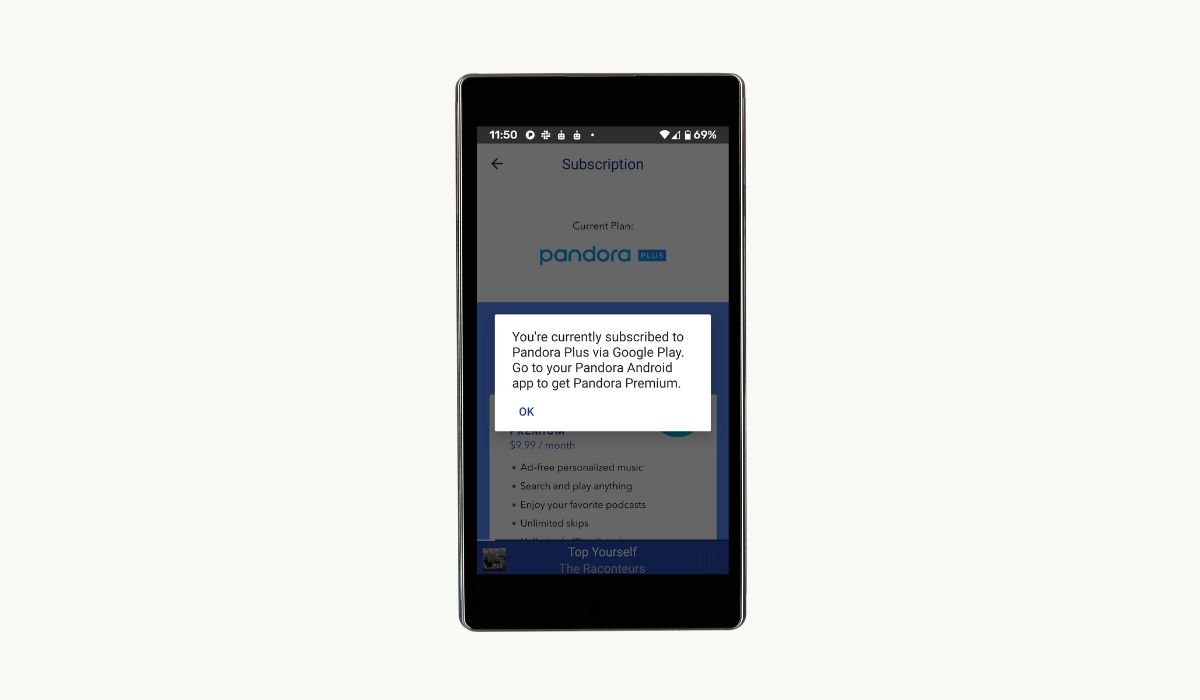
Streaming music services have become an integral part of our daily lives, offering convenience and endless entertainment. However, there may come a time when you need to cancel your Pandora subscription. Whether you’re looking to cut costs or switch to a different service, this guide will walk you through the process of canceling your Pandora subscription on Android devices.
Key Takeaways
- Cancellation methods vary depending on how you subscribed (Google Play Store or Pandora website)
- Always cancel at least 24 hours before your renewal date to avoid additional charges
- You can still enjoy Pandora’s free tier after canceling your paid subscription
- Keep your confirmation email as proof of cancellation
- Consider alternatives like Spotify or YouTube Music if you still want a premium music streaming service
Preparing to Cancel
Before you begin the cancellation process, it’s important to gather some information and make a few considerations:
- Check your subscription type (Pandora Plus or Pandora Premium)
- Identify how you originally subscribed (Google Play Store or Pandora website)
- Note your next billing date
- Decide if you want to switch to Pandora’s free tier or completely close your account
Steps to Cancel Pandora Subscription on Android
The cancellation process differs based on how you initially subscribed to Pandora. We’ll cover both methods: canceling through the Google Play Store and through the Pandora website.
Method 1: Canceling through Google Play Store
If you subscribed to Pandora through the Google Play Store, follow these steps:
- Open the Google Play Store app on your Android device
- Tap on your profile picture in the top right corner
- Select “Payments & subscriptions”
- Tap on “Subscriptions”
- Find and select your Pandora subscription
- Tap “Cancel subscription”
- Follow the prompts to confirm your cancellation
Method 2: Canceling through Pandora Website
If you subscribed directly through Pandora’s website, here’s how to cancel:
- Open a web browser on your Android device and go to www.pandora.com
- Log in to your Pandora account
- Tap the menu icon (three horizontal lines) in the top left corner
- Select “Subscription”
- Tap “Switch Plans”
- Choose “Cancel Subscription”
- Enter your password to confirm the cancellation
Post-Cancellation Considerations
After successfully canceling your subscription, keep these points in mind:
- You’ll retain access to premium features until the end of your current billing cycle
- Your account will automatically revert to the free tier unless you’ve chosen to close it entirely
- Save the cancellation confirmation email for your records
- Remove any saved payment methods from your account if you don’t plan to use Pandora in the future
Troubleshooting Common Issues
- Wrong account: Verify Google account used for subscription
- App glitch: Force stop and restart Pandora app
- Outdated app: Update Pandora to latest version
- Connection issues: Check internet and try again later
- Payment problem: Ensure payment method is valid and active
- Cache buildup: Clear app cache in Android settings
- Subscription sync delay: Wait 24 hours, then contact support
Alternatives to Pandora
If you’re canceling your Pandora subscription but still want to enjoy music streaming services, consider these alternatives:
- Spotify: Offers a vast music library and personalized playlists
- YouTube Music: Integrates well with other Google services and includes music videos
- Apple Music: Great for iOS users with seamless integration across Apple devices
- Amazon Music: Comes bundled with Amazon Prime subscriptions
- Tidal: Known for high-quality audio streaming
Each service has its unique features, so it’s worth exploring their free trials to find the best fit for your music preferences.
Frequently Asked Questions (FAQ)
How do I change my Pandora subscription on Google Play?
To change your Pandora subscription on Google Play, open the Play Store app, tap your profile picture, select “Payments & subscriptions,” then “Subscriptions.” Find Pandora, tap “Manage,” and choose “Change plan.” Select your desired plan and confirm the change.
How to find Pandora subscription?
To find your Pandora subscription, open the Play Store app and go to “Subscriptions” in the menu. If you subscribed through Pandora’s website, log in to your account at pandora.com and check the “Subscription” section in your account settings.
Can I cancel a Pandora order?
If you’ve accidentally purchased a Pandora subscription, you can usually cancel it within 14 days for a full refund. Contact Pandora customer support immediately with your order details. For physical merchandise, check Pandora’s return policy on their website.
How to find pandora subscription?
To locate your Pandora subscription, check both the Google Play Store (under “Subscriptions”) and your Pandora account settings on their website. If you can’t find it in either place, review your email for subscription confirmation or contact Pandora support for assistance.
How to cancel pandora on t mobile?
To cancel Pandora on T-Mobile, log into your T-Mobile account and navigate to the “Services” or “Add-Ons” section. Find the Pandora subscription and select “Cancel.” If you can’t find it there, contact T-Mobile customer support for help with cancellation.
Is Pandora still free?
Yes, Pandora still offers a free tier with ads and limited features. Premium subscriptions provide ad-free listening, higher quality audio, and additional features. You can use the free version indefinitely, but with restrictions like limited skips and no offline listening.


