

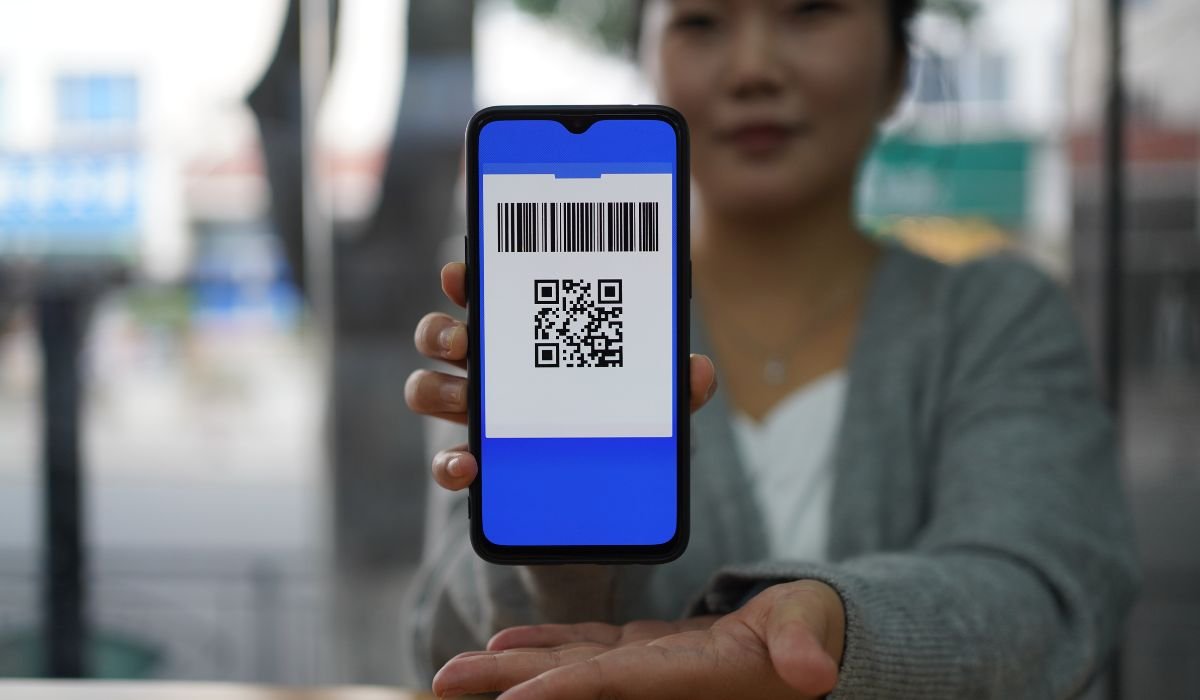
Finding your carrier QR code on Android is easier than you think. QR codes have become essential in mobile technology, streamlining tasks like setting up an eSIM or switching network providers. Instead of manually entering long codes or configurations, a simple scan of a carrier QR code can get you connected instantly.
Carrier QR codes are most commonly used when activating a new eSIM, making them crucial for anyone switching networks or upgrading their device. This guide will walk you through how to locate your carrier’s QR code on any Android device effortlessly.
What is a Carrier QR Code?
A carrier QR code is a unique, scannable code provided by your mobile network operator. It contains crucial information to configure network settings on your device, primarily for activating or switching SIM cards, especially eSIMs.
When scanned, the QR code automatically configures your phone with the necessary network details, such as APN settings and carrier preferences. This eliminates the need for manual setup, making the process of switching networks or activating a new SIM much more straightforward.
With the rise of eSIM technology, carrier QR codes are becoming more common. Unlike traditional SIM cards, eSIMs don’t require physical cards; instead, they rely on digital profiles. Carrier QR codes simplify this process by allowing users to quickly download and activate their eSIM profile with just a scan.
Why You May Need Your Carrier QR Code
You may need your carrier QR code for several reasons, especially if you’re dealing with eSIM activation or network changes. This code is essential when switching to a new network provider or activating a new plan, as it allows for a seamless setup without the need for a physical SIM card.
Another common reason is when setting up an eSIM on a new device. Rather than waiting for a physical SIM to arrive, you can scan the carrier’s QR code and instantly activate your service. It’s also helpful if you’re traveling internationally and need to switch to a local carrier for better rates or connectivity. The QR code simplifies the process, making it quick and hassle-free.
Checking if Your Phone Supports QR Code Activation
Checking if Your Phone Supports QR Code Activation
Not all Android devices support QR code-based eSIM activation or carrier services. While many newer phones have this feature, it’s important to check if your device is compatible before proceeding.
List of Compatible Android Phones:
- Google Pixel 3 and newer
- Samsung Galaxy S20 series and above
- Samsung Galaxy Note 20 series and above
- Motorola Razr (2019 and later)
- Other flagship devices with eSIM support
Steps to Check Compatibility:
- Go to Settings: Open your phone’s settings and navigate to Connections.
- Select SIM Card Manager or eSIM Settings: Scroll down to find SIM card manager or eSIM settings. This may vary based on the phone model.
- Look for Options Related to “Add Mobile Plan” or “Scan QR Code”: If you see an option to Add Mobile Plan or Scan QR Code, your phone likely supports eSIM.
If you’re still unsure, it’s a good idea to check your carrier’s website for a list of compatible devices. Many carriers provide detailed guides on whether your specific Android model supports QR code activation.
How to Find Your Carrier QR Code on Android
Here’s a step-by-step guide to help you locate your carrier QR code:
1. Via the Carrier’s App
- Open your carrier’s app on your Android device.
- Navigate to the eSIM section or look under Account Details.
- You should find an option to view or download your carrier’s QR code for eSIM activation.
2. Through Your Account on the Carrier’s Website
- Log into your account on your carrier’s official website.
- Go to Account Management or eSIM Activation.
- The QR code will be displayed in this section, allowing you to download or scan it directly.
3. Using the Carrier’s Support
- If you’re unable to find the QR code through the app or website, contact customer support.
- Request the QR code via email or SMS. Many carriers can send the QR code directly to your phone, making it easy to activate your eSIM.
Following these steps will ensure you can easily access your carrier QR code and get connected quickly.
How to Scan the Carrier QR Code on Android
1. Access the QR Code Scanner:
- Open Settings on your Android device.
- Navigate to Connections and select SIM card manager (or eSIM management, depending on your device).
- Choose the option labeled Add Mobile Plan or Scan QR Code.
2. Point the Camera at the QR Code:
- Once the scanner opens, hold your device’s camera up to the carrier’s QR code, making sure it’s centered within the frame.
3. Automatic Activation:
- After scanning, follow the on-screen prompts to complete the eSIM activation process. The network will configure automatically, and you’ll be connected in no time.
By following these steps, you’ll be able to seamlessly activate your carrier’s eSIM using the QR code on your Android device.
Using a Third-Party QR Code Scanner
If your phone doesn’t automatically open a QR code scanner, you can use a third-party app to scan your carrier’s QR code. Here are some popular QR code scanner apps:
- Google Lens (often pre-installed on many Android devices)
- QR Code Reader by Scan
- Kaspersky QR Scanner
- NeoReader QR & Barcode Scanner
How to Use a Third-Party QR Code Scanner:
- Download and Install a QR Code Scanner App:
Go to the Google Play Store and install one of the recommended QR code scanner apps. - Open the QR Code Scanner:
Launch the app, and allow any necessary permissions for camera access. - Point the Camera at the QR Code:
Once the scanner is active, point the camera at your carrier’s QR code. Ensure the code is clearly visible and within the app’s scanning frame. - Follow the Prompts:
After scanning the code, the app will automatically redirect you to your phone’s eSIM settings or provide the details needed for manual input. Simply follow the on-screen instructions to complete the activation.
Using a third-party scanner can be a great backup option if your phone’s built-in scanner doesn’t work.
Troubleshooting Tips
If you’re having trouble scanning or finding your carrier’s QR code on Android, here are a few tips to help resolve common issues:
- Ensure Your Device Supports eSIM: Check if your Android device is compatible with eSIM technology. If not, QR code activation won’t be available.
- Update Your Software: Ensure your phone is running the latest version of Android. Sometimes, older software versions may lack eSIM support or have glitches.
- Check Your Internet Connection: A strong Wi-Fi or mobile data connection is necessary for the eSIM activation process. If you’re experiencing issues, verify that your internet connection is stable.
- Clean Your Camera Lens: If the camera can’t scan the QR code properly, it might be due to a smudged or dirty lens. Clean it gently with a microfiber cloth.
- Verify the QR Code: Make sure the QR code provided by your carrier is valid and hasn’t expired. Contact your carrier’s support if the code doesn’t seem to work.
- Restart Your Device: Restarting your phone can often resolve minor software glitches that prevent the QR code scanner from functioning properly.
- Manually Enter eSIM Information: If scanning the QR code fails, most carriers provide an option to manually enter the activation code. This information can usually be found in the carrier’s app or email.
By following these troubleshooting tips, most issues related to carrier QR code scanning or eSIM activation can be resolved efficiently.
Conclusion
Finding your carrier QR code on Android is a straightforward process that simplifies eSIM activation and network setup. Whether you access it through your carrier’s app, website, or by contacting support, the steps are easy to follow. After locating the QR code, scanning it through your phone’s settings or a third-party app quickly connects you to your carrier.
It’s a good idea to keep your QR code accessible for future use, especially if you need to re-activate your eSIM or switch devices. By following this guide, you’ll be well-prepared to manage your mobile connection smoothly.
FAQs
1. What is a carrier QR code, and why do I need it?
A carrier QR code is a scannable code that contains your network’s settings, allowing for easy eSIM activation or network switching. You need it to quickly configure your phone’s network without entering details manually.
2. How do I find my carrier QR code on Android?
You can find your carrier QR code through the carrier’s app, website, or by contacting their customer support. It’s usually available in the eSIM or account management section.
3. What should I do if my phone doesn’t support QR code scanning for eSIM?
If your phone doesn’t support eSIM or QR code scanning, check if a software update is available. If it still doesn’t work, you may need to upgrade to a newer device that supports eSIM.
4. Can I use a third-party QR code scanner to activate my eSIM?
Yes, if your phone’s built-in QR code scanner isn’t working, you can use third-party apps like Google Lens, QR Code Reader, or Kaspersky QR Scanner to scan the carrier QR code.
5. What should I do if my QR code isn’t working?
Ensure the QR code is valid and hasn’t expired. Try cleaning your camera lens, restarting your device, or checking your internet connection. If issues persist, contact your carrier’s support for assistance.
6. Can I reuse my carrier QR code later?
Yes, it’s a good idea to keep the QR code accessible, as you may need it for reactivation if you switch devices or reset your eSIM settings.


