

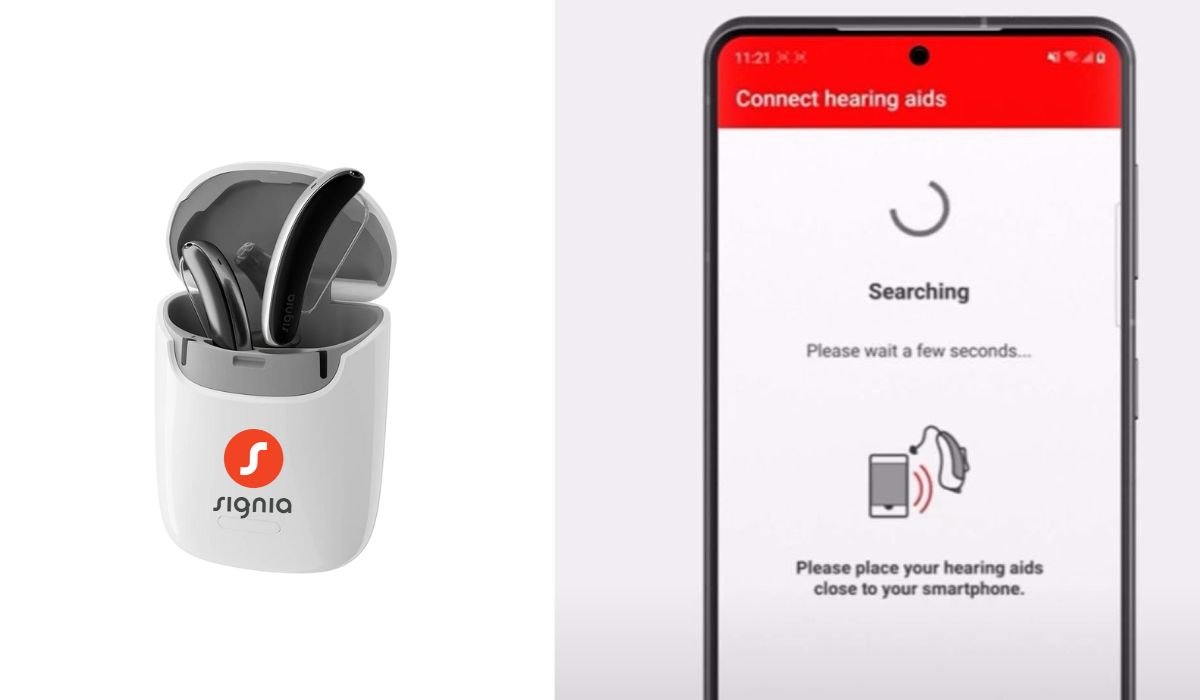
Hearing aids play a crucial role in improving the quality of life for individuals with hearing loss. They make communication easier and help people stay connected to the world around them.
For many users, connecting their hearing aids to smartphones adds an extra layer of convenience. With Android devices, you can control your hearing aids, stream music, and even handle calls directly through your phone.
Signia, a trusted brand in the hearing aid industry, offers seamless compatibility with Android devices, ensuring users get the most out of their hearing experience.
Can I Connect Signia Hearing Aids to Android?
Yes, you can connect Signia hearing aids to Android devices. Most Signia models are compatible, allowing you to pair them through Bluetooth. By using the Signia app, you can control settings, stream audio, and take calls directly from your Android phone for a more convenient experience.
Why Connect Signia Hearing Aids to Android?
Pairing your Signia hearing aids with an Android smartphone offers a range of benefits that enhance everyday convenience. By connecting the two, users can manage their hearing aids directly from their phone, making adjustments easier and faster.
Through the Signia app, users gain enhanced control and customization options. You can fine-tune sound settings, switch between listening modes, and adjust volume to match your environment.
Beyond control, connecting Signia hearing aids to Android allows you to enjoy features like streaming music, taking phone calls hands-free, and making real-time sound adjustments for a more personalized experience.
Prerequisites for Connecting Signia Hearing Aids
Before connecting your Signia hearing aids to an Android device, it’s important to ensure compatibility and have the right tools in place.
First, check if your hearing aid model is compatible. Popular models like Signia Pure, Signia Silk, and Signia Motion are designed for seamless Android connection.
Next, ensure your Android device meets the basic requirements. Your phone should have Bluetooth 4.2 or higher and be running on Android 7.0 (Nougat) or a later version.
Lastly, download the necessary apps. The Signia app is essential for managing your hearing aids. Some users may also need companion apps like myControl or myHearing for additional features and support.
Step-by-Step Guide to Connecting Signia Hearing Aids to Android
1. Enable Bluetooth on Your Android Device
- Open your phone’s Settings.
- Navigate to Bluetooth and toggle it on.
- Ensure your device is set to be visible to nearby Bluetooth devices.
2. Install the Signia App
- Go to the Google Play Store and search for the Signia app.
- Download and install it on your phone.
- The app lets you manage volume, switch between programs, and monitor battery status.
3. Pairing the Hearing Aids
- Turn on your Signia hearing aids and place them close to your phone.
- Go to your phone’s Bluetooth settings and tap on Search for devices.
- Once your hearing aids appear on the list, select them to pair.
4. Finalizing the Connection
- After pairing, open the Signia app.
- Follow any in-app prompts to complete the setup.
- Confirm the connection by adjusting the volume or testing features through the app.
Also read: Disable YouTube Shorts on Android: A Simple Guide
Troubleshooting Connection Issues
1. Bluetooth Connection Problems
- If your hearing aids aren’t connecting, try resetting Bluetooth. Turn it off, wait a few seconds, and turn it back on.
- If that doesn’t work, forget the device in Bluetooth settings and attempt to re-pair your hearing aids from scratch.
2. App Issues
- Make sure your Signia app is updated to the latest version. Go to the Google Play Store and check for updates.
- Also, verify that your Android device is compatible with the app. It should meet the minimum operating system and Bluetooth requirements.
3. Hearing Aid Battery Concerns
- Low battery can prevent your hearing aids from connecting properly. Ensure your hearing aids have a sufficient charge before attempting to pair them with your phone. Replace batteries if needed.
Advanced Features After Connecting Signia to Android
1. Streaming Music and Audio
- Once connected, you can stream music or other audio directly to your hearing aids. Open your favorite music app or audio source, and the sound will automatically be sent to your hearing aids.
- Ensure that media audio is enabled in Bluetooth settings for your Signia hearing aids.
2. Hands-Free Calls
- You can take calls directly through your hearing aids. When you receive a call, the sound will play in your hearing aids. Simply tap the answer button on your phone, and speak as you would with a Bluetooth headset.
- The built-in microphones in your hearing aids will pick up your voice for hands-free conversations.
3. Sound Customization
- Using the Signia app, you can adjust sound settings for different environments. Choose from pre-set sound profiles or customize settings like volume, treble, and bass for specific situations.
- Switch between modes like “Quiet,” “Outdoor,” or “Speech” to optimize hearing in different environments.
Maintenance Tips for Optimal Performance
1. Keeping the App and Android Device Updated
- Regularly check for updates in the Google Play Store to ensure the Signia app runs smoothly.
- Keep your Android device’s operating system updated as well, as newer versions may improve Bluetooth connectivity and app functionality.
2. Regularly Checking and Cleaning the Hearing Aids
- Clean your hearing aids frequently to maintain clear sound quality. Use a soft cloth and specialized tools to remove dust, earwax, or debris.
- Inspect for any signs of damage or wear and address issues immediately to avoid performance dips.
3. Re-pairing Hearing Aids After Software Updates
- After major software or firmware updates on either your phone or hearing aids, you may need to re-pair the devices. Simply go to Bluetooth settings, forget the existing connection, and re-establish it as you did initially.
Additional: Signia Hearing Aids Features
Here’s a short table highlighting key features of Signia Hearing Aids:
| Feature | Description |
|---|---|
| Augmented Focus | Enhances speech while reducing background noise. |
| Conversation Enhancement | Improves clarity in real-time conversations. |
| Rechargeable | Long-lasting rechargeable batteries (up to 36 hours). |
| Bluetooth Streaming | Direct audio streaming from devices. |
| Customization | Personalized settings for individual needs. |
| Water Resistance | Durable designs for various environments. |
| Telecoil | Improved sound in loop-equipped venues. |
| Directional Microphones | Focuses on sounds from specific directions. |
| Noise Reduction | Minimizes unwanted background noise. |
| Various Styles | Options include RIC, BTE, ITC, and CIC models. |
Conclusion
Connecting your Signia hearing aids to an Android device is a straightforward process that brings a range of benefits. From seamless music streaming to hands-free calls, this connection enhances everyday convenience. Plus, the ability to customize sound settings through the Signia app ensures a personalized hearing experience tailored to your needs.
Take full advantage of these features by exploring the app’s capabilities. Whether you’re adjusting sound profiles or fine-tuning settings, your Signia hearing aids can provide a richer, more adaptable hearing experience with just a few taps on your phone.
FAQs
1. Can all Signia hearing aids connect to Android devices?
Most modern Signia hearing aids, such as Signia Pure and Signia Motion, are compatible with Android devices. Check the product specifications to confirm compatibility.
2. What Android version is required to connect Signia hearing aids?
Your Android device should be running Android 7.0 (Nougat) or higher with Bluetooth 4.2 or later to ensure a stable connection.
3. How do I control my Signia hearing aids from my Android phone?
After connecting your hearing aids, use the Signia app to control volume, adjust sound settings, and switch between hearing modes.
4. Why won’t my hearing aids connect to my Android device?
Ensure your Bluetooth is turned on, your hearing aids have sufficient battery, and you’re using a compatible Android version. If issues persist, try re-pairing the devices.
5. Can I stream music directly to my Signia hearing aids?
Yes, once connected, you can stream music and audio from any app on your Android device directly to your Signia hearing aids.
6. Can I take phone calls through my Signia hearing aids?
Yes, your hearing aids function as a hands-free device, allowing you to take calls directly without using headphones or speakers.
7. Do I need the Signia app to connect my hearing aids?
While you can pair your hearing aids through Bluetooth, the Signia app offers advanced features like sound customization and program switching for a better hearing experience.


