

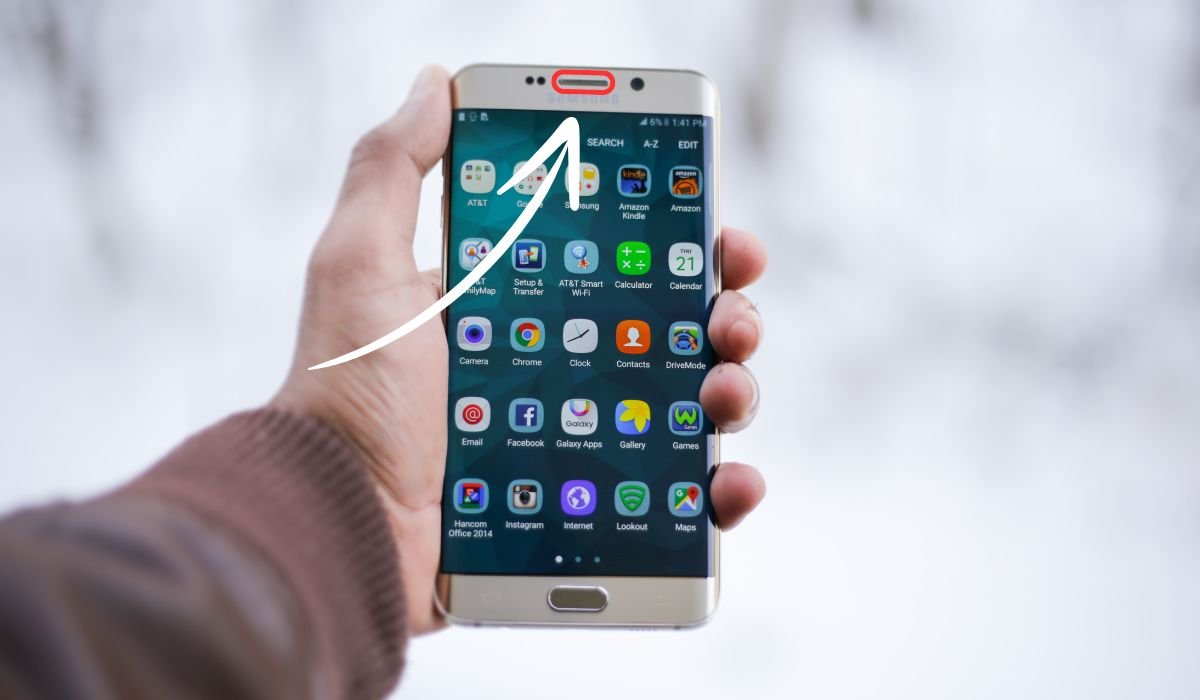
When your Android phone’s ear speaker fails, it can hinder your ability to make calls, listen to voicemails, or use the speakerphone. Fortunately, several troubleshooting steps can help. Start by checking volume levels and ensuring the speaker isn’t muted. Gently clean the speaker to remove dust or debris. Remove screen protectors or cases that might interfere. Check for Bluetooth or Wi-Fi Calling connections diverting audio. If these steps don’t work, consider resetting all settings or performing a factory reset as a last resort before seeking professional help.
Key Takeaways
- Check the volume levels and ensure the ear speaker is not muted
- Clean the ear speaker gently to remove any dust or debris
- Remove any screen protectors or cases that may be interfering with the speaker
- Check for Bluetooth or Wi-Fi Calling connections that could be diverting audio
- Reset all settings or perform a factory reset as a last resort
Potential Causes
There are several possible reasons why the ear speaker on an Android phone may not be working properly:
- Volume Issues: The volume may be turned down or the phone’s audio settings may be configured to mute the ear speaker.
- Dirt and Debris: Over time, dust and debris can accumulate in the ear speaker, causing it to become blocked and prevent sound from properly transmitting.
- Obstructions: Poorly fitted screen protectors or phone cases can sometimes physically block the ear speaker, preventing it from functioning correctly.
- Bluetooth and Wi-Fi Calling: If the phone is connected to Bluetooth devices or has Wi-Fi Calling enabled, the audio may be routed to those rather than the ear speaker.
- Software Glitches: Underlying software issues on the Android device can sometimes cause the ear speaker to stop working.
- Hardware Failure: In some cases, the ear speaker itself may have a hardware problem, requiring professional repair or replacement.
Troubleshooting Steps
Let’s explore various methods to fix ear speaker issues on your Android device:
1. Check Volume Levels
Start with the basics. Ensure your phone’s volume is turned up:
- Press the volume up button on the side of your phone.
- Go to Settings > Sound > Volume and adjust the call volume slider.
- During a call, use the volume buttons to increase the in-call volume.
2. Disable Silent Mode and Do Not Disturb
Make sure your phone isn’t set to silent or Do Not Disturb mode:
- Swipe down from the top of your screen to access Quick Settings.
- Tap the sound icon to ensure it’s not set to silent or vibrate.
- Check that Do Not Disturb is turned off.
3. Clean the Ear Speaker
Dirt and debris can accumulate in the ear speaker, affecting sound quality:
- Use a soft-bristled brush (like a clean, dry toothbrush) to gently sweep the speaker grill.
- Alternatively, use compressed air to blow out any particles.
- For stubborn dirt, lightly dampen a cotton swab with isopropyl alcohol and carefully clean the speaker grill.
4. Remove Screen Protector and Case
Sometimes, accessories can interfere with the ear speaker:
- Remove any screen protector, especially if it covers the ear speaker area.
- Take off your phone case to ensure it’s not blocking the speaker.
- Test the ear speaker without these accessories to see if there’s an improvement.
5. Check Bluetooth Connections
Your phone might be routing audio to a paired Bluetooth device:
- Go to Settings > Connected devices > Bluetooth.
- Turn off Bluetooth or disconnect from any paired devices.
- Make a test call to see if the ear speaker now works.
6. Disable Wi-Fi Calling
Wi-Fi calling can sometimes cause audio routing issues:
- Navigate to Settings > Network & Internet > Wi-Fi calling.
- Toggle off Wi-Fi calling.
- Restart your phone and test the ear speaker again.
7. Clear Cache for Phone App
Corrupted app data can cause various issues, including audio problems:
- Go to Settings > Apps & notifications > See all apps.
- Find and tap on the Phone app.
- Tap Storage & cache > Clear cache.
- Restart your phone and test the ear speaker.
8. Update Your Android OS
Keeping your system up-to-date can resolve many software-related issues:
- Go to Settings > System > System update.
- If an update is available, download and install it.
- After updating, restart your phone and check if the ear speaker works.
9. Boot into Safe Mode
Safe mode helps determine if a third-party app is causing the problem:
- Press and hold the power button.
- Touch and hold “Power off” until you see “Reboot to safe mode.”
- Tap OK to restart in safe mode.
- If the ear speaker works in safe mode, a downloaded app may be the culprit.
10. Reset App Preferences
Resetting app preferences can fix issues caused by disabled system apps or changed default apps:
- Go to Settings > System > Reset options.
- Tap “Reset app preferences.”
- Confirm by tapping “Reset apps.”
11. Perform a Factory Reset
As a last resort, you can try a factory reset:
- Back up all your important data first.
- Go to Settings > System > Reset options.
- Tap “Erase all data (factory reset).”
- Follow the prompts to complete the reset.
Advanced Troubleshooting
If the basic steps don’t work, you can try these more advanced methods:
1. Check for Loose Connections
For tech-savvy users comfortable with phone disassembly:
- Power off the phone and remove the battery if possible.
- Carefully open the phone case (refer to manufacturer guidelines).
- Check for any loose connections around the ear speaker.
- Gently reseat any loose connectors and reassemble the phone.
2. Test with a Headset
To determine if it’s a speaker or software issue:
- Connect a wired headset to your phone.
- Make a call and see if you can hear through the headset.
- If it works, the issue might be with the physical ear speaker.
3. Update Audio Drivers
Some Android devices allow manual driver updates:
- Go to Settings > About phone > Software information.
- Tap “Build number” seven times to enable Developer options.
- Go back to Settings > System > Developer options.
- Look for an option to update audio drivers if available.
When to Seek Professional Help
If none of the above steps resolve the ear speaker issue, it’s time to consider professional assistance:
1. Visit an Authorized Service Center
- Locate an authorized service center for your Android brand.
- Explain the troubleshooting steps you’ve already taken.
- They can perform diagnostics to determine if it’s a hardware issue.
2. Consider Third-Party Repair Shops
- If your warranty has expired, reputable third-party repair shops might offer more affordable solutions.
- Ensure they use genuine parts and provide a warranty for their work.
3. Explore Manufacturer’s Warranty
- Check if your device is still under warranty.
- Contact the manufacturer’s customer support for potential free repair or replacement.
Frequently Asked Questions (FAQ)
Why is my phone ear speaker not working?
Your phone’s ear speaker might not be working due to software glitches, physical obstructions, or hardware damage. Common causes include volume settings, dust accumulation, software conflicts, or worn-out components. Try basic troubleshooting like checking volume levels, cleaning the speaker, and restarting your device before considering professional repair.
Why is my earpiece not working on Android?
Android earpiece issues can stem from software problems, physical damage, or incorrect settings. Check for recent system updates that might have affected audio routing. Ensure the earpiece isn’t blocked by debris or a screen protector. Verify that call audio isn’t being diverted to a Bluetooth device or speakerphone.
How to fix an earphone speaker?
To fix an earphone speaker, first check the connection and try a different audio source. Clean the speaker gently with a soft brush. For wireless earphones, ensure they’re charged and properly paired. If the issue persists, check for firmware updates or consider contacting the manufacturer for warranty service.
Why is the phone’s ear speaker not working?
A phone’s ear speaker may stop working due to software issues, physical damage, or wear and tear. Check for system updates, clear cache for the phone app, and ensure no obstructions are blocking the speaker. If the problem continues after basic troubleshooting, there might be an internal hardware issue requiring professional repair.
Reset phone speaker?
To reset your phone speaker, start by restarting your device. If that doesn’t work, clear the cache for the phone app and audio-related services. You can also try resetting app preferences or performing a factory reset as a last resort. Remember to back up your data before attempting a factory reset.
Why is there no sound on the phone?
No sound on your phone could be due to volume settings, Do Not Disturb mode, or software glitches. Check volume levels and ensure silent mode is off. Restart your device and check for system updates. If the issue affects all audio, not just calls, there might be a problem with the audio drivers or hardware.


