

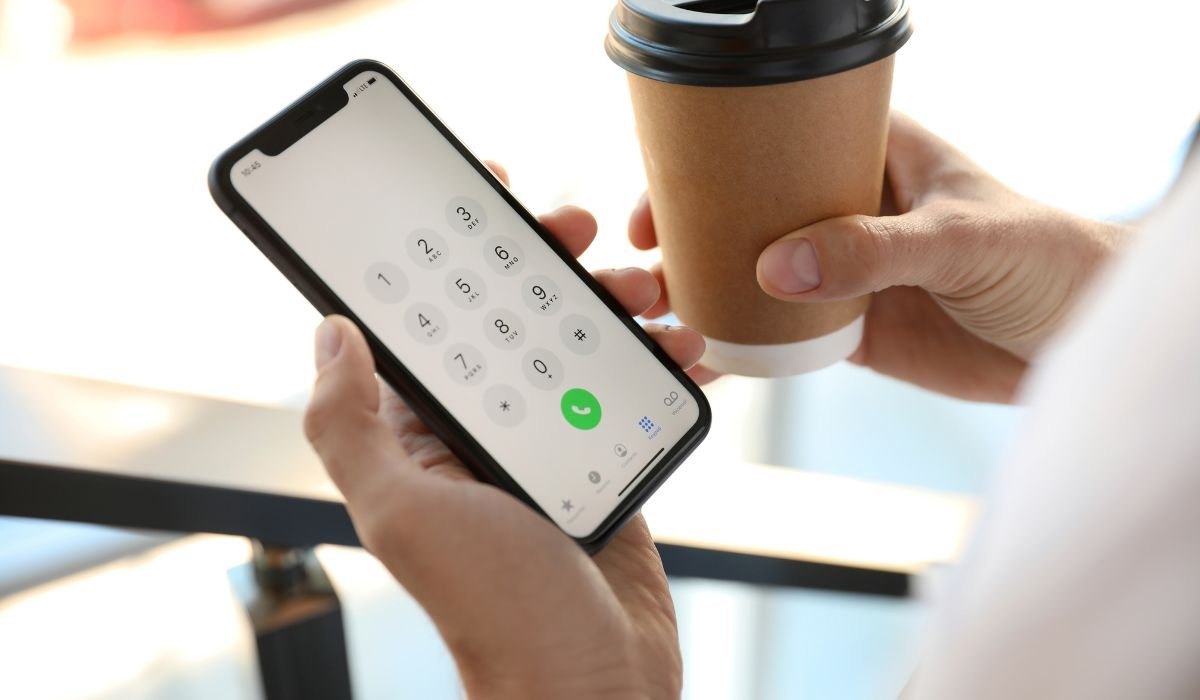
Typing letters on an Android phone is essential for staying connected, whether through texting, social media, or emails. Mastering this simple task can significantly enhance communication speed and accuracy.
In the past, physical keypads were the norm. Now, touch screens have revolutionized the way people type. While the transition brought convenience, it also introduced a learning curve for some users.
Android offers a variety of keyboard options. From the default Gboard to customizable third-party keyboards like SwiftKey and Samsung Keyboard, there’s a range of features to suit every user’s preference.
Can I Input Letters on My Android Phone Keypad?
Yes, you can easily input letters on your Android phone keypad by tapping the individual keys on the virtual keyboard. Whether using the default layout like QWERTY or customizing with swipe typing and voice input, Android offers multiple methods for typing efficiently and accurately.
Step-by-Step Guide: How to Input Letters Using the Android Phone Keypad
1. Accessing the Keyboard
To open the keyboard on your Android phone, simply tap any text field—whether it’s an SMS message, search bar, or social media comment box. This will automatically bring up the keyboard.
Most Android devices come with common keyboard layouts like QWERTY and AZERTY. You can choose the one that fits your preference or switch between them easily in the settings.
2. Typing Letters on Android’s Touchscreen
To input letters, just tap on the individual keys displayed on the touchscreen. Each key corresponds to a letter, much like a physical keyboard.
For better accuracy, make sure your finger placement is correct, especially on smaller screens. Auto-correction can help fix minor mistakes while you type, and swipe typing allows you to slide your finger from one letter to another to form words quickly.
3. Using Gboard and Alternative Android Keyboards
Gboard, Google’s default keyboard, is packed with features for a smooth typing experience. It offers predictive text, emoji suggestions, and glide typing, making letter input faster and easier.
Other popular keyboards like SwiftKey and Samsung Keyboard also provide advanced typing options. You can switch between different keyboards by going to your device’s settings, selecting “Languages & Input,” and choosing the keyboard app you prefer.
Advanced Typing Features
3.1 Auto-Correct and Predictive Text
Auto-correct is a helpful feature that automatically fixes typos as you type. If you accidentally mistype a word, auto-correct will suggest the correct spelling, allowing you to continue typing without interruptions. This is especially useful for fast typers who make minor mistakes.
Predictive text goes a step further by suggesting words based on the letters you’ve already typed. As you enter a few characters, the keyboard predicts possible words, making it faster to complete your sentence. It adapts to your writing style over time, offering more relevant suggestions.
Swipe Typing
Swipe typing is a feature that allows you to input letters by dragging your finger from one letter to the next, rather than tapping individual keys. This creates a smooth typing flow, as the keyboard predicts the word you’re forming based on the letters you swipe across.
The efficiency of swipe typing lies in its speed. For users familiar with the keyboard layout, it can be faster and less tiring than traditional tapping. Plus, it’s great for one-handed typing on larger devices!
Special Characters and Accents
To input accented letters or special characters, simply long press on the relevant key. For example, pressing and holding the “E” key will bring up options like é, è, ê, and ë. This works for many vowels and commonly used special characters.
For symbols and punctuation, look for the symbol key, usually located on the bottom left of the keyboard. Tapping this will bring up a set of common symbols like @, #, and &. To access even more punctuation marks and special characters, tap the “123” or “?123” button, which switches the keyboard to a layout filled with numbers and additional symbols.
Voice Typing as an Alternative to Manual Typing
Step-by-Step: How to Enable and Use Voice Typing
- Open a text field: Start by tapping on any text field where you’d normally type (message, search bar, etc.).
- Access the microphone: On most Android keyboards, you’ll see a microphone icon on the keyboard’s toolbar or spacebar. Tap it.
- Speak your message: Once the microphone is active, begin speaking clearly. The phone will automatically convert your speech into text.
- Finish and review: When you’re done speaking, tap the microphone again to stop. Review the text for any errors and make corrections if needed.
Benefits of Voice Input
Voice typing is a great tool for hands-free operation, making it ideal when you’re on the go or unable to type. It’s also faster than manual typing for many people and can be particularly useful for dictating long messages or notes without needing to press a single key.
Customizing Your Android Keyboard for Easier Typing
1. Adjusting Keyboard Size and Layout
Resizing your keyboard can improve visibility and comfort. To resize the keyboard, go to your keyboard settings by opening the keyboard, tapping the settings icon (gear), and selecting “Preferences”. Look for the option to adjust keyboard height. You can increase or decrease the size based on your preference, making it easier to see and tap keys.
2. Changing Themes and Key Appearance
Customizing your keyboard’s theme can improve the visibility of letters, especially in low-light conditions. Most Android keyboards, like Gboard, offer theme options. To change the theme, go to the keyboard settings, tap on “Theme”, and select from various colors or backgrounds. A high-contrast theme can make the letters stand out, improving typing accuracy.
3. Enabling or Disabling Haptic Feedback
Haptic feedback provides small vibrations when typing, giving a tactile response. To enable or disable it, go to keyboard settings, tap “Preferences”, and toggle the haptic feedback option.
- Pros: Haptic feedback helps you feel each keypress, which can improve accuracy.
- Cons: It can drain battery life and feel distracting during fast typing.
Troubleshooting Common Issues
Resolving Common Keyboard Issues
If you’re experiencing keyboard lag, missing letters, or incorrect inputs, try these solutions:
- Keyboard lag: Clear the cache of your keyboard app by going to Settings > Apps > [Your Keyboard App] > Storage > Clear Cache. Restart the phone to see if performance improves.
- Missing letters or incorrect inputs: Ensure your keyboard is up to date by checking for updates in the Google Play Store. Also, check if the issue persists in other apps to rule out app-specific problems.
Resetting Keyboard Settings
If the above steps don’t work, you can reset your keyboard settings to default. Go to Settings > System > Languages & Input > Virtual Keyboard. Select your keyboard (e.g., Gboard), then go to Settings > Reset to default settings. This will restore the keyboard to its original setup, resolving most issues.
If problems continue, consider switching to an alternative keyboard app like SwiftKey or Samsung Keyboard.
Conclusion
Mastering the Android keypad is essential for efficient communication. From accessing the keyboard to learning how to type efficiently using features like auto-correct, swipe typing, and voice input, understanding these techniques can greatly improve your experience. Additionally, customizing the keyboard layout, themes, and feedback can make typing more comfortable and enjoyable.
Take the time to explore these methods, adjust your settings, and practice. With these tips, typing on your Android device will become faster, easier, and more personalized to your needs.
FAQs
1. How do I access the Android keyboard?
To access the keyboard, tap on any text field, such as in a message or search bar. The keyboard will automatically appear for you to type letters, numbers, or symbols.
2. Can I customize my Android keyboard?
Yes, you can customize your keyboard by changing themes, adjusting the size, and enabling or disabling features like haptic feedback. These settings can be found in your keyboard’s preferences under Settings.
3. How does swipe typing work?
Swipe typing allows you to slide your finger from one letter to another without lifting it. The keyboard predicts the word based on the letters you swiped across, making it faster to type.
4. What is auto-correct on Android keyboards?
Auto-correct fixes common typing errors automatically. When you mistype a word, the keyboard suggests or replaces it with the correct version to enhance your typing speed and accuracy.
5. How do I type special characters on my Android phone?
To type special characters or accented letters, long press on the corresponding key. A menu will appear with alternative options, such as é, è, or other symbols.
6. Can I use voice typing on Android?
Yes, you can use voice typing by tapping the microphone icon on the keyboard. Speak clearly, and your words will be converted into text, making it a hands-free typing alternative.


