

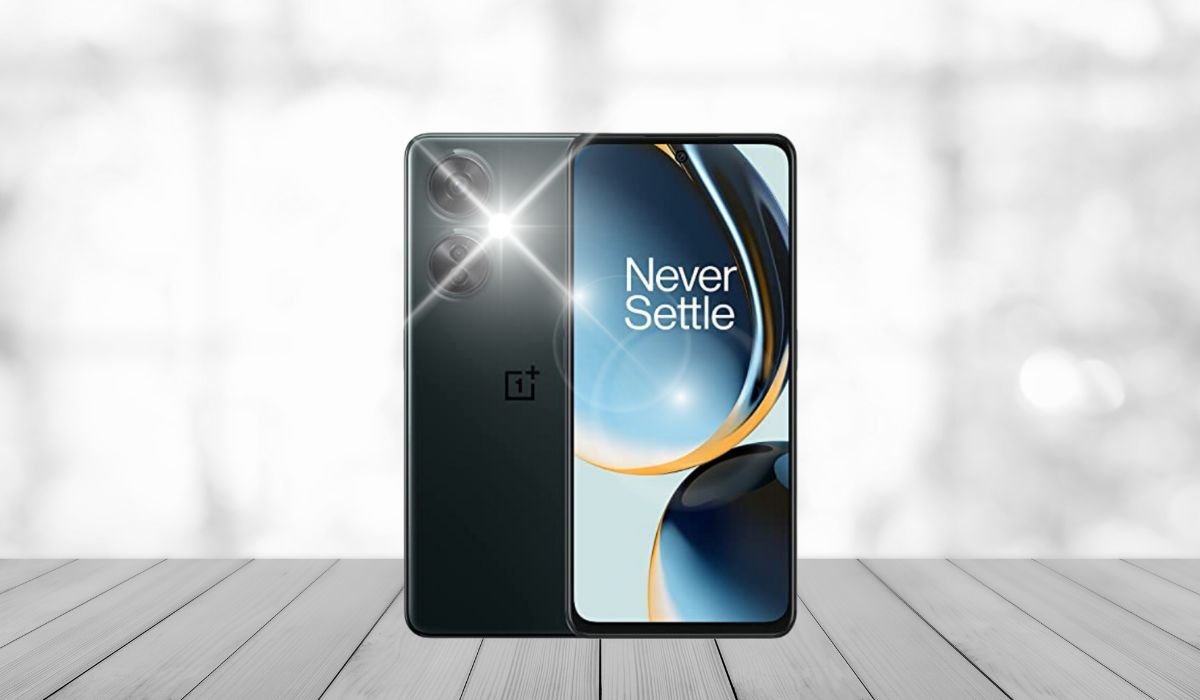
A flashlight is one of the most essential tools on any Android device. It comes in handy when you need quick light in dark situations, whether you’re finding something in a dim room or navigating in the dark.
When it suddenly stops working, it can be incredibly frustrating. You rely on it during emergencies, and without it, things can become complicated quickly.
This blog will explore why your flashlight might not be working on Android and offer simple solutions to get it working again. Let’s dive in and find out what could be going wrong.
Can I Fix My Flashlight Not Working On Android?
Yes, you can often fix a non-working flashlight on Android by restarting your phone, checking for app conflicts, charging the battery, or updating the software. If these steps don’t work, there could be a hardware issue, and you may need professional help.
Common Reasons Why Your Flashlight Might Not Work
- Software Glitch or Bug: Sometimes, a temporary software issue can cause the flashlight to stop working. This could be due to minor bugs or glitches in the system. Restarting the phone often fixes these problems, as it refreshes the software.
- Low Battery: Android devices tend to disable non-essential features, like the flashlight, when the battery is running low. This helps conserve power, so if your battery is below 15%, the flashlight may not work until you recharge.
- Camera App Conflict: The camera app uses the flashlight as a flash, and sometimes this can cause conflicts. If the camera is running or hasn’t closed properly, it may prevent the flashlight from turning on.
- Overheating: If your phone gets too hot, certain hardware features, including the flashlight, may shut down. Overheating can be caused by using the phone for extended periods, especially in hot environments or while running heavy apps.
- Hardware Issues: In some cases, the issue might be hardware-related. A faulty or damaged LED light can prevent the flashlight from working. If none of the software solutions work, this could be the root cause and may require professional repair.
7 Ways to Fix Flashlight Not Working on Android
1. Restart Your Phone
A quick reboot can resolve many minor software glitches that may affect the flashlight. Restarting refreshes the system, clearing temporary bugs that could be blocking the flashlight from working.
2. Check for App Conflicts
Sometimes, the camera or third-party apps may be using the flashlight. Close all background apps, especially the camera, as they could be causing conflicts. Make sure no app is actively using the flashlight.
3. Update Your Software
Keeping your Android device up to date is essential for preventing bugs. Regular updates include patches that fix known issues, including problems that may cause your flashlight to malfunction. Always check for software and app updates.
4. Charge Your Phone
If your phone’s battery is below 15%, features like the flashlight may be disabled to conserve power. Plug your phone into a charger and wait until the battery level is higher before trying to use the flashlight again.
5. Clear Cache of the Camera App
Clearing the camera app’s cache can resolve conflicts between the app and the flashlight. Go to Settings > Apps > Camera > Storage > Clear Cache. This process doesn’t delete your photos, but it might fix the flashlight issue.
6. Use Safe Mode
Running your phone in safe mode disables third-party apps, helping to detect if any of them are causing the issue. To activate safe mode, press and hold the power button, then tap and hold “Power off” until you see the “Reboot to Safe Mode” option.
7. Factory Reset (Last Resort)
If nothing else works, a factory reset might fix the problem. However, this should be your last resort because it will erase all your data. Before performing a factory reset, ensure all important files are backed up. Go to Settings > System > Reset Options to proceed.
Preventing Future Flashlight Issues
Avoid Running Too Many Apps
Running too many apps in the background can lead to software conflicts, especially with features like the flashlight. It’s a good practice to close apps you aren’t using to free up memory and prevent conflicts. This can also improve overall phone performance.
Keep the Phone Cool
Overheating can disable hardware features like the flashlight. To prevent this, avoid using your phone for extended periods in hot environments. Also, close power-hungry apps and remove your phone from direct sunlight when possible to keep it cool.
Maintain Battery Health
To ensure the flashlight works when you need it, maintain good battery health. Regularly charge your phone before it gets too low, and avoid letting the battery drain completely. Keeping your battery between 20% and 80% is ideal for long-term health.
When to Seek Professional Help
Hardware Damage
If none of the troubleshooting steps resolve the issue, it could be due to hardware damage. The LED light or other internal components might be faulty. In this case, it’s best to visit a professional technician or contact the phone manufacturer for repairs. They can accurately diagnose and fix the issue.
Warranty Considerations
Before paying for repairs, check if your phone is still under warranty. If it is, you may be eligible for free repairs or even a replacement. Contact your manufacturer or carrier to see if you can get the problem fixed without extra cost.
Conclusion
Flashlight issues on Android devices can be caused by a variety of factors, from simple software glitches and low battery levels to overheating or hardware damage. Fortunately, many of these problems can be fixed by restarting the phone, closing conflicting apps, updating the software, or charging the battery. If none of these solutions work, hardware damage may be the cause, and seeking professional help is recommended.
By following these troubleshooting steps, users can often resolve the issue on their own. However, if the problem persists, don’t hesitate to reach out for expert assistance.
Maintaining your device by keeping it cool, regularly charging it, and limiting background apps can go a long way in preventing future flashlight issues. Proper care can keep your Android running smoothly and ensure that your flashlight is always ready when you need it.
FAQs
1. Why is my flashlight not working on Android?
The flashlight may not work due to software glitches, low battery, app conflicts, or hardware damage.
2. How do I fix my Android flashlight if it’s not working?
Try restarting your phone, closing background apps, charging the battery, or updating the software.
3. Can low battery affect the flashlight on Android?
Yes, when the battery is low, Android may disable features like the flashlight to conserve power.
4. Why does my flashlight turn off when I use the camera?
The camera app uses the flashlight for flash, which can cause conflicts if both are used simultaneously.
5. What should I do if restarting doesn’t fix my flashlight?
Clear the camera app’s cache, update the software, or try running the phone in safe mode to troubleshoot app conflicts.
6. Could a hardware issue cause the flashlight to stop working?
Yes, a faulty LED or internal hardware damage can prevent the flashlight from functioning and may require professional repair.


