

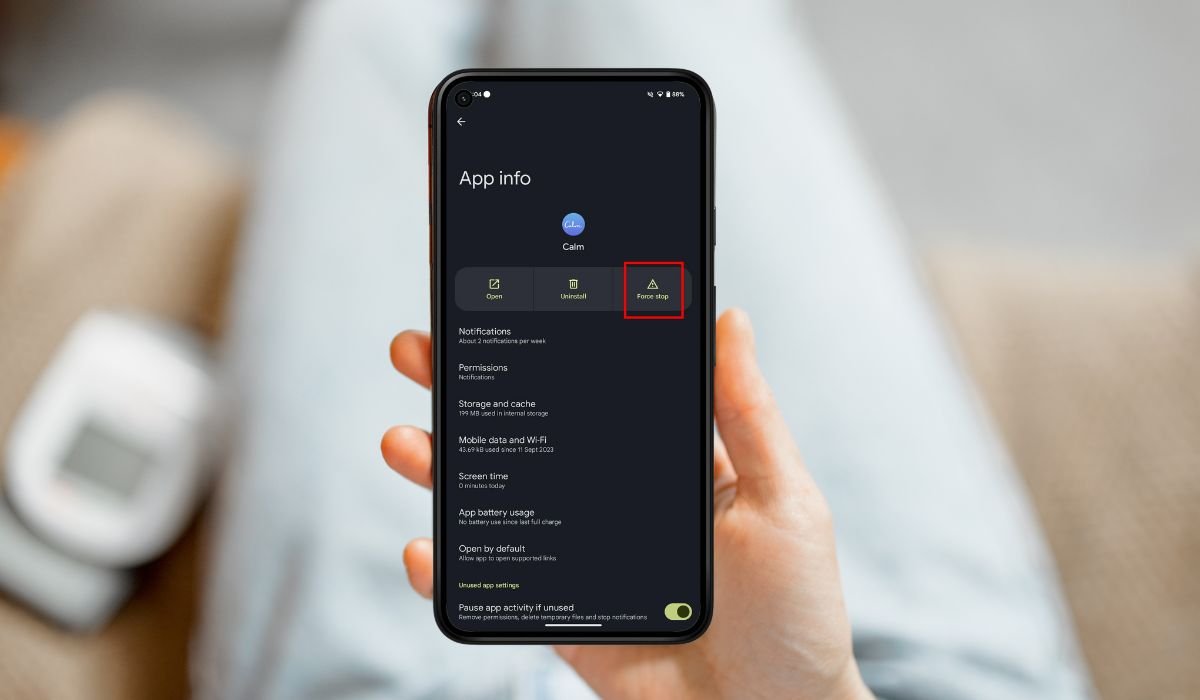
When you force stop an app on Android, it means you’re shutting it down completely. This stops all its processes, services, and background activities instantly. The app is no longer running, even in the background.
People often force stop apps when they become unresponsive or start causing performance issues. It can also be helpful when an app is draining your battery or using up too much data without reason.
By force stopping, you can quickly fix these issues without needing to restart your entire device.
How Force Stopping Works in Android
When you force stop an app on Android, the system immediately halts all of the app’s processes. This includes any background services, running tasks, and notifications. The app is completely inactive until you manually open it again.
There’s a difference between force stopping and simply closing an app. When you close an app from the recent apps list, the app’s processes might still run in the background. It can continue to use memory or send notifications.
Force stopping, on the other hand, shuts down everything. The app won’t function or perform any tasks until you relaunch it.
Also read: How to Transfer Apps From Android to Android (A Easy Guide)
Immediate Effects of Force Stopping an App
When you force stop an app, a few immediate effects take place:
- App Halts Completely: All active processes come to a stop. Any ongoing tasks or background services are instantly terminated.
- No Notifications: The app will no longer send push notifications. You won’t receive updates or alerts from the app until you manually open it again.
- Data Loss Risks: If the app was handling unsaved data, such as a draft or progress, there’s a chance that unsaved information could be lost once the app is force stopped.
Does Force Stop Affect Battery Life?
Force stopping an app can help save battery life, especially in cases where apps are poorly optimized or running excessive background activities. Apps that constantly sync data or use location services can drain your battery without you realizing it. By force stopping them, you prevent these unnecessary processes from continuing.
However, constantly force stopping apps can sometimes have the opposite effect. When you reopen a force-stopped app, it restarts all of its services, which uses more battery. Repeatedly stopping and starting apps can lead to higher battery consumption in the long run.
Force Stopping vs. Uninstalling
Force stopping and uninstalling an app are two very different actions. When you force stop, the app is temporarily shut down, but it remains installed on your device. This stops all of its background activities, but you can open the app again anytime.
On the other hand, uninstalling removes the app completely from your phone. It wipes all associated data, and the app is no longer available until you reinstall it.
Force stop is useful when you’re troubleshooting. If an app is freezing, draining battery, or not responding, force stopping can help reset it without losing data. Uninstalling should only be done if you no longer need the app or if it’s causing major issues that can’t be resolved otherwise.
When Should You Force Stop an App?
You should consider force stopping an app in several situations:
- Frozen Apps: If an app becomes unresponsive and you can’t close it normally, force stopping can instantly resolve the freeze.
- App Crashes or Glitches: When apps are crashing or glitching, force stopping is a quick first troubleshooting step to reset the app’s processes.
- Battery or Data Drain: Some apps may consume excessive resources, like battery or data, in the background. Force stopping helps prevent further drain until you can address the issue.
- Malware or Suspicious Activity: If an app starts behaving suspiciously or shows signs of malware, force stopping it can stop unwanted actions temporarily while you investigate further.
Also read: Installing The DJI Fly App on Android: A Comprehensive Guide
What Happens When You Restart a Force-Stopped App?
When you restart a force-stopped app, it essentially starts fresh. Here’s what happens:
- App Resets: The app will relaunch as if it’s being opened for the first time since the force stop. Any halted processes or tasks will start again.
- Restoring Background Services: Background services, such as notifications or syncing, resume once the app is reopened. It starts running as normal, just like before.
- Data and Cache: Force stopping does not clear the app’s data or cache. All saved information remains intact, so you won’t lose any permanent data unless you manually clear it.
Common Misconceptions About Force Stopping
There are several common misconceptions about force stopping apps that are important to clear up:
- It Doesn’t Improve Long-Term Performance: Many people believe that force stopping apps will permanently make their phone faster. In reality, this only provides a temporary fix and won’t lead to long-term performance improvements.
- Force Stopping Doesn’t Fix Core Issues: If an app has underlying problems, such as bugs or compatibility issues, force stopping won’t resolve them. You may need to update the app or reinstall it to fully address those issues.
- Force Stopping Won’t Save Storage Space: Some users think that force stopping an app will free up space. However, the app’s data and cache remain on the device, so it won’t impact your available storage.
- Regularly Force Stopping Is Not Necessary: Constantly force stopping apps isn’t needed for normal usage. Android is designed to manage background apps efficiently, and repeatedly force stopping can actually drain battery as apps restart frequently.
Risks Associated with Force Stopping Apps
Force stopping apps comes with certain risks that users should be aware of:
- Potential App Instability: Some apps may not recover gracefully after being force stopped. They could behave unpredictably or crash when reopened, especially if they rely on continuous background processes.
- System Apps: Force stopping critical system apps like Android services can cause issues with your phone’s functionality. These apps manage key system operations, and stopping them might lead to errors or unstable performance.
- Third-Party Apps: Force stopping third-party apps could temporarily break certain features or affect usability. Some apps rely on background services for functions like notifications or data syncing, which won’t resume until the app is reopened.
Alternatives to Force Stopping an App
There are several alternatives to force stopping an app that can resolve issues without shutting down its processes completely:
- Clear Cache/Data: Clearing the app’s cache can remove temporary files that might be causing issues, like glitches or slow performance. If problems persist, clearing the app data can reset the app to its default state without needing to force stop, though this will remove saved preferences.
- Uninstalling and Reinstalling: If an app is constantly crashing or misbehaving, sometimes a clean reinstall is the best solution. This removes any corrupted files and ensures you’re running the latest version of the app.
- Using Battery Optimization Settings: Instead of force stopping apps to save battery, you can adjust the phone’s battery optimization settings. By limiting background activity for certain apps, you can prevent battery drain without disrupting app functionality.
Conclusion
In conclusion, force stopping an app can be a useful tool for fixing immediate issues like unresponsiveness, crashes, or excessive battery drain. However, it’s not a long-term solution for app performance problems.
To avoid frequent force stopping, it’s important to practice regular device maintenance. This includes keeping apps updated, clearing cache or data when needed, and managing battery settings effectively. By doing so, you can ensure your apps run smoothly without the need for constant intervention.
FAQs
Does force stopping an app delete my data?
No, force stopping an app does not delete any of your data. It only halts the app’s processes and background activities until you reopen it.
Will I still receive notifications after force stopping an app?
No, you won’t receive any notifications from the app until you manually reopen it. Force stopping disables all notifications and background services.
Is force stopping an app bad for my phone?
Force stopping an app is not harmful to your phone, but doing it too often can lead to app instability or increased battery usage if you repeatedly restart apps.
What’s the difference between force stopping and closing an app?
Closing an app simply removes it from the recent apps list, but it may continue running in the background. Force stopping shuts down all the app’s activities completely.
When should I force stop an app?
You should force stop an app if it’s unresponsive, crashing, draining battery, or acting suspiciously, as a first step to troubleshoot the issue.
Can I force stop system apps?
It’s generally not recommended to force stop system apps like Android services. This could affect your phone’s stability and performance.
Does force stopping an app save battery?
Yes, in some cases, force stopping apps can help save battery, especially if the app is consuming excessive resources in the background. However, overusing force stop can have the opposite effect if apps are constantly restarted.


