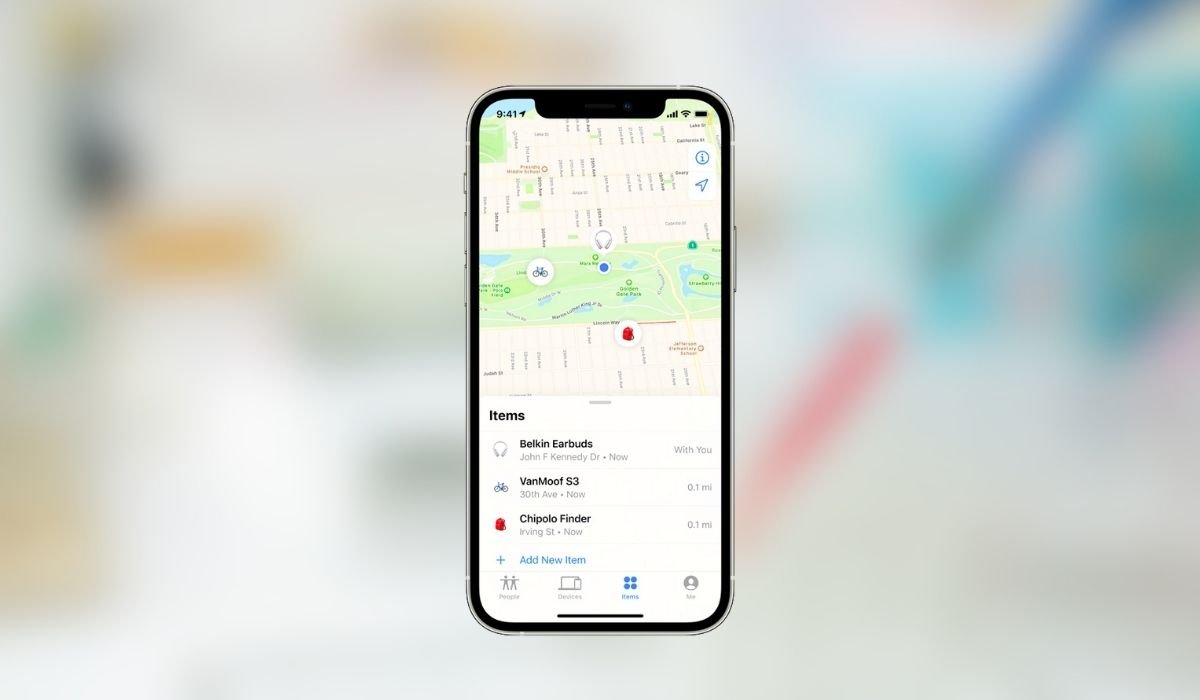
Unlock the full potential of iOS 18 with these 10 hidden tricks! From customizable Control Center widgets and interactive home screen tools to multi-angle Face ID and Live Captions, these features enhance convenience and personalization 😍. Discover new ways to boost productivity and streamline your iPhone experience. 📲✨
With each new📱 iOS release, Apple brings a world of possibilities, and iOS 18 is no exception. While some features—like the redesigned 🔒 lock screen and new widgets—are easy to spot, many of iOS 18’s most exciting updates are hidden away. These lesser-known tricks can boost productivity, add convenience, and even customize your iPhone experience. Ready to dive into these top 10 tricks?
Key Takeaways 🔑✨
- Customizable Control Center: Quickly access essential tools by arranging your Control Center widgets just the way you like.
- Interactive Widgets: Perform tasks like checking off to-dos or controlling music directly from your home screen.
- Enhanced Privacy Controls: The App Activity Log provides transparency, letting you manage app permissions for better privacy.
- Real-Time Text Recognition & Translation: Easily capture, copy, and translate text from images or live camera view, even for handwritten notes.
10 Hidden Secret for iPhone iOS 18 No One Is Talking About
1. Can You Customize Your Control Center Widgets? 🎛️
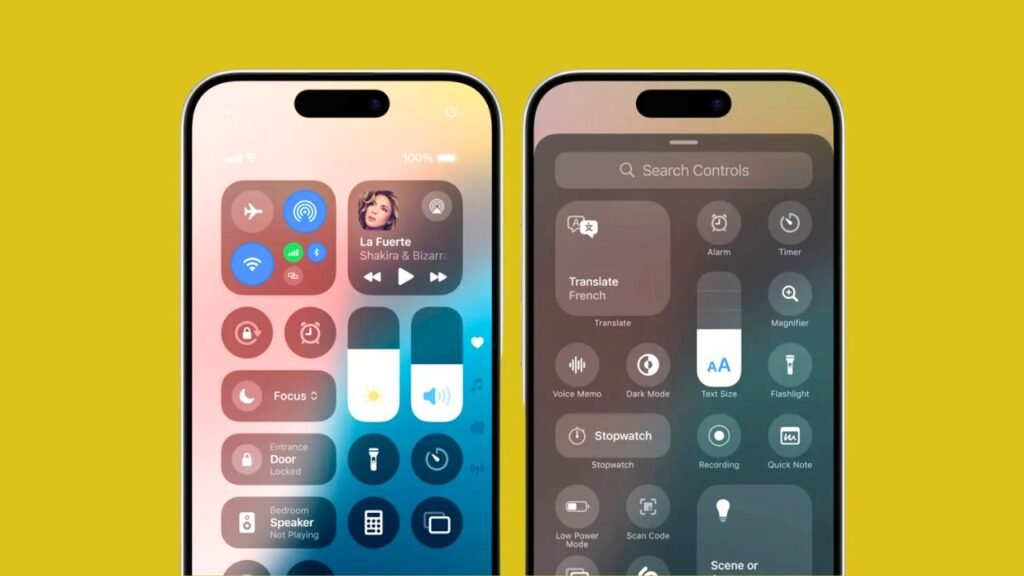
Yes! iOS 18 makes Control Center more flexible. Now you can add, remove, and arrange 🧩 widgets to keep essential tools—like Wi-Fi, Bluetooth, and screen recording—at your fingertips.
How to Set Up:
- Open Settings and select Control Center.
- Tap Customize Controls to view available widgets.
- Add or remove by tapping the green “+” or red “-” icons.
- Rearrange by pressing and dragging each item to your desired position.
💡Tip: Move frequently used tools to the top for even faster access! ⚡
2. What About Dynamic Lock Screen Widgets? 🖥️
Apple’s 🔒 lock screen widgets now update in real-time and let you interact directly. Want to check your calendar, monitor step count, or see live weather updates? It’s all right there without unlocking.
Top Widgets to Try:
- Productivity: Add 📅 Calendar or Reminders for at-a-glance scheduling.
- Health & Fitness: Use the Activity widget to track steps and workouts.
- Social Connectivity: See Messages and notifications instantly.
3. Multi-Angle Face ID—Is It Easier to Use Now? 🤳
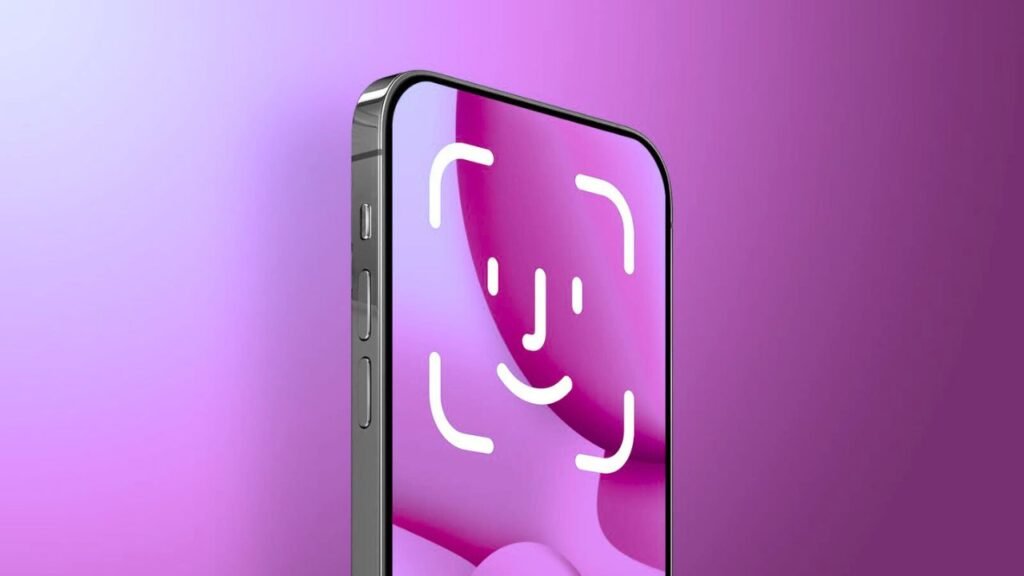
With 📱 iOS 18, Face ID works at various angles, making it easier to unlock your phone from different positions, whether it’s flat on a table or angled in your hand.
Setup Tips:
- Ensure proper lighting during initial setup.
- Add an Alternate Appearance in ⚙️ Settings > Face ID for better recognition with glasses or different looks.
- Clean the front camera regularly for the best results.
Note: “Face ID now works with you, not against you—unlock from more angles and with greater ease.”
4. Can Siri Work Offline Now? 🌐
Absolutely! iOS 18 allows certain Siri commands to work without an internet connection. This makes it possible to adjust settings, launch apps, or set reminders even when offline.
Offline Siri Commands:
- Device Control: “Hey Siri, turn up the brightness.”
- App Launching: “Hey Siri, open the 📝 Notes app.”
- Reminders & Alarms: “Hey Siri, set an alarm for 7 a.m.”
Example: Next time you’re in a no-signal area, ask Siri to turn on airplane mode.
5. Live Captions in FaceTime—How Does It Help? 🎤
The Live Captions feature brings real-time captions to 🎥 FaceTime and videos, making them more accessible. Whether in noisy areas or for those with hearing difficulties, Live Captions ensure everyone can follow along.
To Enable Live Captions:
- Go to Settings > Accessibility > Live Captions.
- Customize font size, text color, and background for improved readability.
6. Quick Actions in the Photos App—Are They Time Savers? 📸
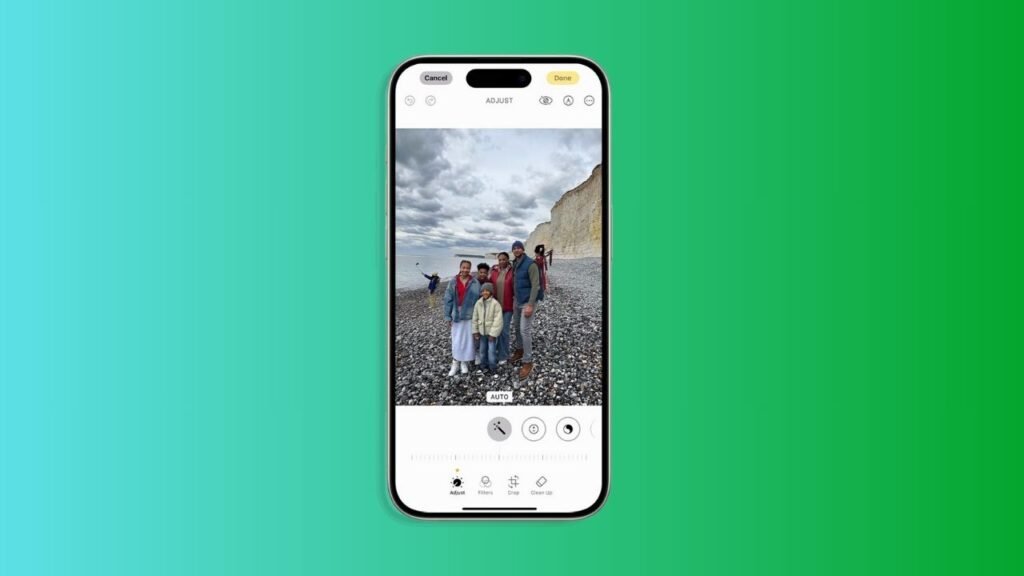
Yes! With Quick Actions, iOS 18 allows one-tap photo edits and batch processing. Edit one photo, then apply those edits across multiple images in seconds.
How to Use Quick Actions:
- Edit an image as usual.
- Tap on More Options (⋯ three dots) and select Copy Edits.
- Paste Edits to apply the changes to selected photos.
Tip: Perfect for editing entire travel albums quickly!
7. StandBy Mode—What’s New? 🖥️
StandBy Mode turns your iPhone into a mini dashboard when placed horizontally. It’s great for showing time, calendar events, ⛅ weather updates, and even smart home controls.
To Set Up:
- Place iPhone horizontally on a stand or dock.
- Swipe to choose layouts, then add widgets like Calendar or Home for smart device control.
🤔 Example: Set up StandBy Mode on your nightstand to check the weather and events first thing in the morning.
8. App Activity Log—Does It Improve Privacy? 🔒
Definitely. The App Activity Log provides transparency by showing how often apps access permissions like 🌎 location, camera, or microphone. This lets you manage privacy better.
Privacy Tips:
- Limit Access to unnecessary permissions under Settings > Privacy.
- Select Allow While Using App for permissions like camera.
- Regularly review the activity log for unusual app behavior.
9. Interactive Home Screen Widgets—Can You Control Everything from Your Screen? 📲
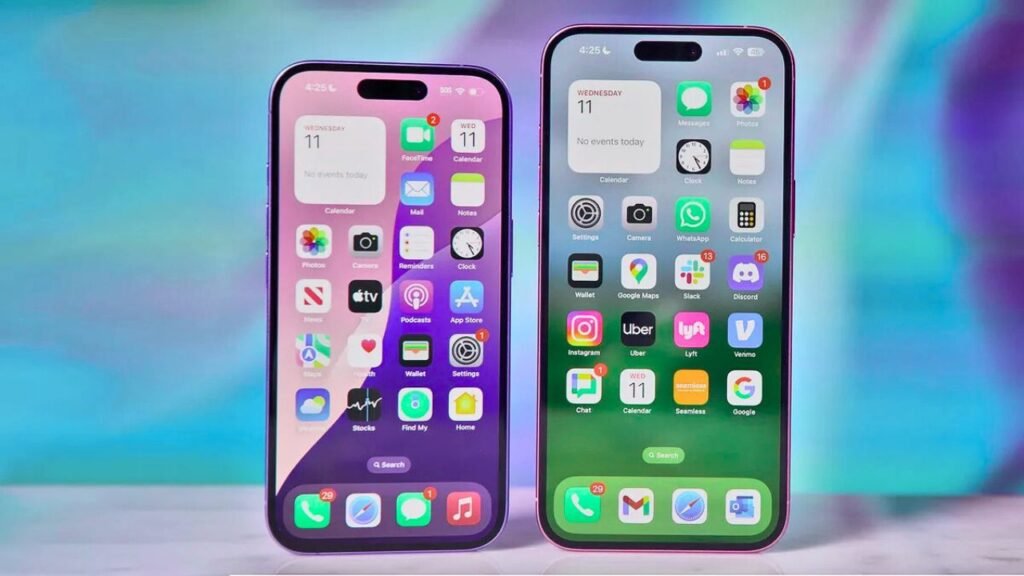
With iOS 18, widgets are now interactive. This means you can complete tasks directly from the 🎛️ widget, like marking off to-dos or playing 🎵 music—no need to open the app.
Popular Interactive Widgets:
- Task Lists: Check off reminders with Todoist or Reminders.
- Media Controls: Play, pause, or skip tracks in Spotify and Apple Music.
- Smart Home Controls: Adjust lights or thermostats through Home widgets.
10. Text Recognition and Instant Translation—How Does It Work? 🌍📄
iOS 18 enhances text recognition, making it easier to scan and translate text in real-time from photos or your camera. You can now copy handwritten notes or translate foreign language text instantly.
How to Use:
- Open the Camera and point it at text.
- Tap Live Text for options to select, copy, or translate.
- Translate text directly for on-the-go assistance.
“Turn your camera into a powerful tool for scanning, translating, and copying text instantly.”
Quick Access Features in iOS 18: An Overview
Here’s a quick, summarized table for iOS 18 Quick Access Features:
| Feature | Function |
|---|---|
| 🔍 Spotlight Enhancements | Faster, smarter search. |
| 🧩 Widget Customization | Interactive, customizable widgets. |
| 🚀 Quick App Actions | Personalized shortcuts from app icons. |
| 🖼️ Live Activities | Real-time updates on Lock Screen. |
| 🔒 Privacy Settings | One-tap control over app permissions. |
| 🎙️ Siri Shortcuts | Easy setup for quick commands. |
| 🌐 Focus Shortcuts | Quick Focus mode switching in Control Center. |
| 📲 Instant Transfer | Faster file sharing between devices. |
| 🗂️ App Library Swipe | App Library access from any screen. |
| 🛠️ Quick Settings Panels | Fast access to Wi-Fi, Bluetooth, and display. |
| 📅 Calendar Add | Add events quickly from widgets. |
| 💬 Message Replies | Quick reply with emoji and GIFs. |
| 🎨 Home Screen Styles | Easy theme changes for Home Screen. |
These features streamline navigation, customization, and accessibility across iOS 18.
Conclusion: Ready to Uncover iOS 18’s Best-Kept Secrets? 🔍
These hidden tricks in iOS 18 🔓 unlock a new level of customization and convenience, whether it’s through enhanced privacy controls, offline Siri commands, or interactive widgets. Don’t just stop here—explore iOS 18’s settings and discover more ways to personalize your iPhone experience. What’s your favorite hidden trick? Share with us in the comments below!
FAQs
👉 How do I enable StandBy Mode on my iPhone in iOS 18?
👍 To enable StandBy Mode, place your iPhone horizontally on a charging dock or stand. The StandBy dashboard should activate automatically, showing widgets like the clock, calendar, or weather. Customize the widgets by holding down on the display and adding your preferred ones.
👉 Can I use Face ID at any angle now with iOS 18?
👍 Yes! iOS 18 supports multi-angle Face ID, allowing you to unlock your iPhone from various angles, like flat on a desk. For best results, ensure proper lighting and consider adding an alternate appearance if you wear glasses or frequently change looks.
👉 How can I view and manage app permissions with the App Activity Log?
👍 Open Settings > Privacy & Security > App Activity Log to see each app’s access to your data, such as location, camera, or microphone. This log helps you track app behaviors and adjust permissions for greater privacy control.
👉 Are there specific Siri commands that work offline in iOS 18?
👍 Yes! Offline Siri commands include adjusting brightness, turning on airplane mode, setting alarms, and launching apps. These commands work without Wi-Fi or cellular data, making Siri useful even in low or no-signal areas.
👉 How do I apply edits to multiple photos at once in the Photos app?
👍 To batch-edit photos, edit a single image in Photos and tap More Options (three dots) to select Copy Edits. Go back to the main album, select multiple photos, and choose Paste Edits to apply the same adjustments to all selected images.
👉 How do I enable Live Captions for FaceTime and video calls?
👍 Go to Settings > Accessibility > Live Captions (FaceTime) to turn on real-time captions. Customize font, color, and background settings to make captions more readable during calls.
👉 What makes iOS 18’s home screen widgets interactive?
👍 With iOS 18, widgets are now interactive, letting you complete tasks like marking reminders, controlling music, or adjusting smart home settings directly from the widget—no need to open the app.
👉 Can I use text recognition for handwritten notes with Live Text in iOS 18?
👍 Yes! The improved Live Text feature can recognize most types of handwriting, allowing you to copy handwritten notes as text. Just point your camera at the handwriting, tap the Live Text icon, and copy it as digital text.