

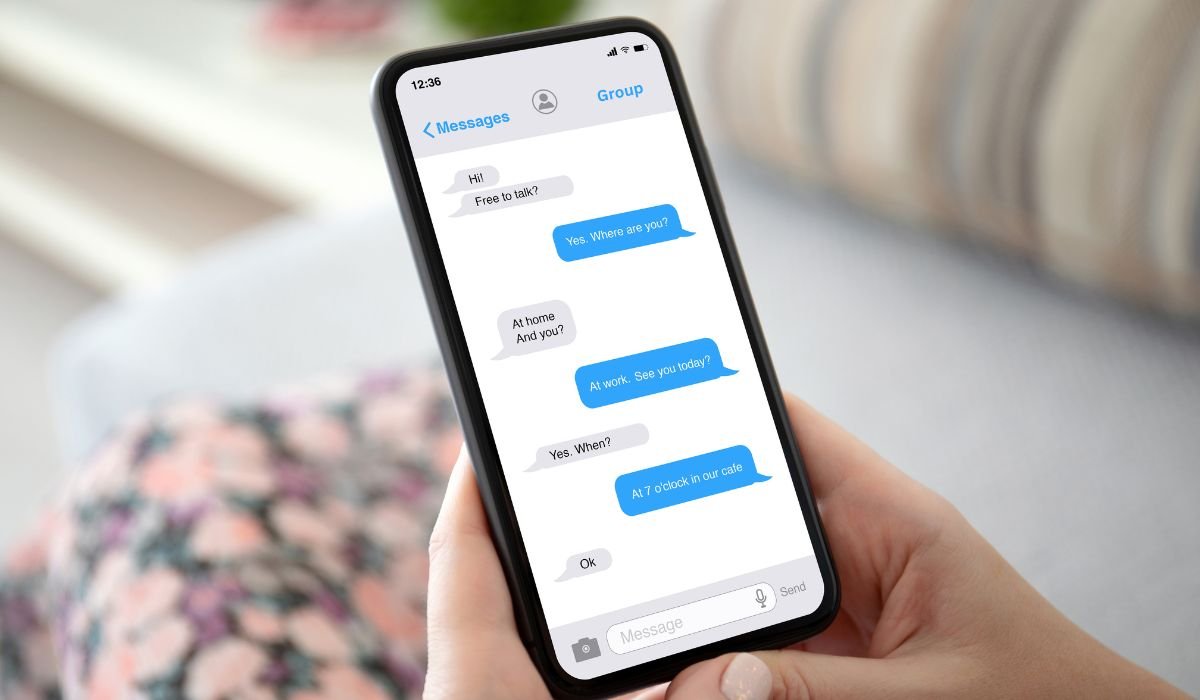
Group chats have become essential for seamless communication among friends, family, and colleagues. Messenger, Facebook’s popular messaging platform, offers a user-friendly way to create and manage group chats on Android devices.
To create a group chat in Messenger, open the app and tap the “New Message” icon. Select “Create a New Group,” add your desired friends, name the group, and tap “Create.” This simple process allows you to quickly set up a space for group conversations.
Key Takeaways
- Creating a group chat in Messenger Android is a simple process
- You can add up to 250 members to a group chat
- Customizing group settings enhances the chat experience
- Effective communication strategies improve group interactions
- Troubleshooting common issues ensures smooth group chat functionality
Setting Up Messenger
Before creating a group chat, ensure you have the latest version of Messenger installed on your Android device.
Downloading and Installing Messenger
- Open the Google Play Store on your Android device
- Search for “Messenger”
- Tap “Install” next to the official Facebook Messenger app
- Wait for the installation to complete
- Open the app and log in with your Facebook account
Updating Messenger
To access the latest features and improvements:
- Open the Google Play Store
- Tap on your profile picture
- Select “Manage apps & device”
- Look for Messenger in the list of apps with available updates
- Tap “Update” if available
Create Group Chat in Messenger Android
Creating a group chat in Messenger is a straightforward process. Follow these steps to get started:
Step 1: Open Messenger
Launch the Messenger app on your Android device by tapping its icon on your home screen or app drawer.
Step 2: Access New Message
Tap the “New Message” icon, usually located in the top right corner of the screen. It often appears as a pencil or plus sign.
Step 3: Create a New Group
Look for the “Create a New Group” option and tap on it. This will open a new screen where you can add members to your group.
Step 4: Add Group Members
- Use the search bar to find friends you want to add to the group
- Tap on each friend’s name to select them
- You can add up to 250 members to a single group chat
Step 5: Name Your Group
- Tap on the “Name your group” field
- Enter a relevant name for your group chat
- This step is optional but recommended for easy identification
Step 6: Finalize Group Creation
Tap the “Create” button to finalize your group chat. You’re now ready to start messaging!
| Feature | Limit |
|---|---|
| Maximum group members | 250 |
| Group name character limit | 100 |
| File sharing size limit | 25 MB |
Shortly, To create a group chat in Messenger on Android:
- Open the Messenger app
- Tap the “New Message” icon (usually a pencil or plus sign)
- Select “Create a new group”
- Add friends to the group by searching or selecting from your contacts
- Give your group a name (optional)
- Tap “Create” to finalize the group chat
Once created, you can start messaging, customize the group settings, and add more members as needed.
Managing Group Chats
Once you’ve created your group chat, there are several ways to manage and customize it.
Customizing Group Settings
- Open the group chat
- Tap on the group name at the top of the screen
- Access various customization options:
- Change group photo
- Edit group name
- Manage member permissions
- Set up group events
Adding or Removing Members
To add new members:
- Open the group chat
- Tap on the group name
- Select “Add People”
- Choose friends to add
To remove members:
- Open the group chat
- Tap on the group name
- Select “See Group Members”
- Tap on the member you want to remove
- Choose “Remove from Group”
Leaving a Group Chat
If you want to leave a group:
- Open the group chat
- Tap on the group name
- Scroll down and select “Leave Group”
- Confirm your decision
Tips and Tricks for Effective Group Communication
Enhance your group chat experience with these helpful tips:
Use Mentions
Type “@” followed by a person’s name to notify them specifically in a busy group chat.
Utilize Reactions
React to messages with emojis to acknowledge without cluttering the chat with text responses.
Create Polls
- Open the group chat
- Tap the “+” icon
- Select “Polls”
- Create your poll question and options
Share Files and Media
Easily share photos, videos, and documents:
- Tap the attachment icon (usually a paperclip or “+” symbol)
- Select the type of file you want to share
- Choose the file from your device
- Add a caption if desired
- Send the file to the group
Use Voice Messages
For quick communication:
- Tap and hold the microphone icon
- Record your message
- Release to send or slide to cancel
Troubleshooting Common Issues
Sometimes you might encounter issues with group chats. Here are solutions to common problems:
Messages Not Sending
- Check your internet connection
- Force stop the Messenger app and reopen it
- Clear the app cache:
- Go to Settings > Apps > Messenger > Storage
- Tap “Clear Cache”
Can’t Add Members
- Ensure you have admin privileges in the group
- Check if you’ve reached the 250-member limit
- Make sure the person you’re trying to add is your Facebook friend
Notifications Not Working
- Open Messenger settings
- Go to Notifications
- Ensure group notifications are turned on
- Check your device’s notification settings for Messenger
Group Chat Lagging
- Update Messenger to the latest version
- Clear app cache and data
- Restart your device
- If problems persist, try uninstalling and reinstalling Messenger
By following these steps and tips, you can create and manage group chats effectively in Messenger Android. Remember to respect group members’ privacy and use group chats responsibly. With practice, you’ll become proficient in leveraging this powerful communication tool for various purposes, from planning events to staying connected with loved ones.
Frequently Asked Questions (FAQ)
Why can’t I create a group message on Messenger?
If you’re unable to create a group message, check your internet connection and app permissions. Ensure you’re using the latest version of Messenger. If issues persist, try logging out and back in, or reinstalling the app.
How to create group chat in Messenger 2024?
Open Messenger, tap the new message icon, select “Create a New Group,” add friends, name the group, and tap “Create.” The 2024 version may include enhanced features like AI-assisted member suggestions or improved customization options.
How to create a group message?
To create a group message, open Messenger, tap the new message icon, choose multiple recipients or select “Create a New Group,” add participants, optionally name the group, and send your first message to start the conversation.
How do you create a group chat plan on Messenger?
Messenger doesn’t have a specific “group chat plan” feature. However, you can use the Events feature within a group chat to plan activities. In the group, tap the “+” icon, select “Plan,” set details, and invite members.
How do I create a Messenger group?
To create a Messenger group, open the app, tap the new message icon, select “Create a New Group,” add friends from your contact list, give the group a name if desired, and tap “Create” to finalize.
How do I organize Messenger group chats?
Organize Messenger group chats by using descriptive names, pinning important conversations, creating chat folders, and utilizing the “Mute Notifications” feature for less active groups. Regularly archive old or inactive group chats to keep your chat list tidy.


