

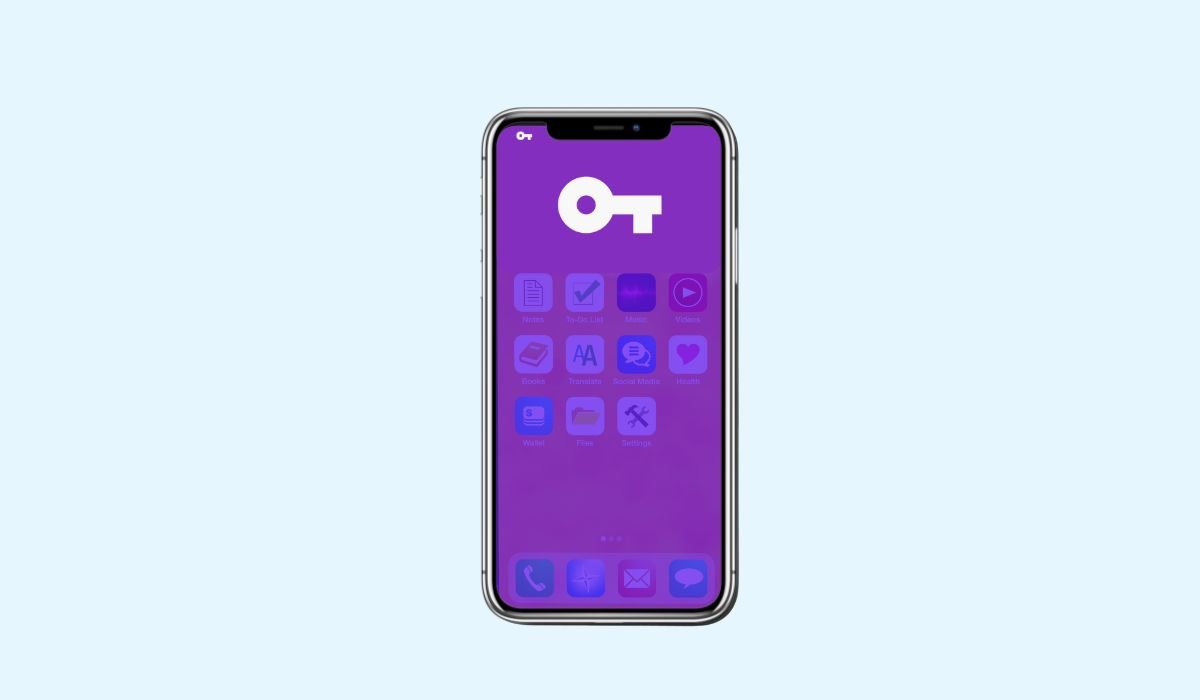
Android users often notice a variety of icons in their status bar, each serving a different purpose. From battery indicators to Wi-Fi signals, these icons provide crucial information at a glance. Yet, some symbols remain a bit of a mystery.
One such icon is the small key symbol. If you’ve ever seen this in your status bar, you might wonder what it means. This blog will dive into the little key icon, explaining its purpose and why it appears on your Android device.
Key Takeaways
- The little key icon on Android indicates an active VPN connection, ensuring your online activity is private and secure.
- You can easily turn off the VPN from the settings to remove the key icon from the status bar.
- VPNs offer enhanced security and privacy, but may reduce internet speed or cause access issues with certain apps.
- Regularly check your status bar icons to stay informed about your device’s security and connectivity settings.
Understanding the Little Key Icon
The little key icon appears as a small key shape, usually located in the top corner of your Android device’s status bar. It’s easy to overlook, but once you spot it, you may wonder what it’s doing there.
This icon represents an active VPN (Virtual Private Network) connection. When the key appears, it means your device is connected to a VPN, ensuring your internet activity is encrypted and private. Whether it’s through a third-party app or your system settings, this icon is a clear sign that a VPN is running in the background.
How Does a VPN Work on Android?
A VPN (Virtual Private Network) is a tool that creates a secure, encrypted connection between your Android device and the internet. It essentially hides your online activity by routing your data through a private server, making it harder for others to track or monitor your browsing habits.
The main benefit of using a VPN is security and privacy. For Android users, a VPN encrypts all the information sent from their device, protecting personal data from hackers, especially on public Wi-Fi networks. It also helps in masking your location, providing anonymity, and allowing access to geo-restricted content, ensuring safer and more private browsing.
Common Scenarios When the Key Icon Appears
There are several common scenarios when the little key icon appears on your Android device:
- Manual VPN Activation: The key icon will show up when users manually turn on a VPN through their device settings or a third-party app. This is often done to secure browsing or access content restricted to certain regions.
- VPN Apps Running in the Background: Many VPN apps are set to automatically connect when you launch them or start your device. These apps ensure your connection is secure at all times without needing manual activation, which is why the key icon may appear even when you don’t expect it.
- Corporate or Work Devices: Businesses often install VPNs on employee devices to secure company data and remote connections. If you’re using a work phone, the key icon may signify that the company VPN is active to protect sensitive information.
How to Turn Off the VPN and Remove the Key Icon
If you want to turn off the VPN and remove the key icon from your Android status bar, here’s a simple guide to follow:
Steps to Disable a VPN
- Open Settings on your Android device.
- Scroll down and tap on Network & Internet.
- Select VPN from the list.
- If a VPN is active, you’ll see the option to Disconnect. Tap it to turn off the VPN.
Third-Party VPN Apps
Sometimes, the key icon appears because a third-party VPN app is running in the background. To check:
- Open the app drawer and find your VPN app.
- Open the app and look for a Disconnect or Turn Off option.
- If you can’t find one, head back to Settings > Apps, select the VPN app, and Force Stop to close it.
Once the VPN is off, the key icon will disappear from your status bar.
Why Should You Care About the VPN Icon?
The VPN icon on your Android device is more than just a symbol; it represents a layer of protection for your data privacy and security.
Data Privacy and Security
When a VPN is active, your internet traffic is encrypted, making it difficult for hackers, advertisers, or even your internet provider to track your online activity. This is particularly important when using public Wi-Fi networks, where data is more vulnerable. A VPN ensures that your personal information, such as login credentials or banking details, stays secure.
Potential Downsides
However, using a VPN does have some drawbacks. You may experience reduced internet speeds, as your data is routed through a remote server. Additionally, certain websites or streaming platforms might restrict access when a VPN is detected, making it difficult to view content or use certain services.
While the benefits of a VPN are clear, understanding these downsides helps users make an informed choice about when and why to use one.
Troubleshooting Common VPN Issues
VPN Icon Stuck
If the little key icon remains visible even after you’ve turned off the VPN, it could be stuck due to a glitch. Here’s how to resolve it:
- Restart Your Device: A quick reboot can often clear any lingering issues with the icon.
- Force Stop the VPN App: Go to Settings > Apps, find your VPN app, and tap Force Stop to ensure it’s completely closed.
- Check for Software Updates: Outdated software can cause glitches, so updating your Android OS or VPN app might solve the problem.
App or Network Conflicts
Certain apps or networks may have trouble functioning when a VPN is active. For instance:
- Banking apps may block access if they detect a VPN for security reasons.
- Streaming services like Netflix sometimes restrict content when they detect VPN usage.
To resolve these conflicts, you may need to disable the VPN temporarily when using specific apps or networks. Some VPN apps also offer split tunneling, allowing you to choose which apps bypass the VPN connection while keeping the VPN active for others.
Alternative Security Icons You Might See
Lock Icon
The lock icon in your Android status bar usually signifies that your device is connected to a secure website or network. You’ll often see this when browsing websites using HTTPS, indicating that your connection is encrypted and secure, which helps protect sensitive data like passwords or payment details.
Other Common Android Status Icons
In addition to the key and lock icons, Android devices display several important symbols:
- Airplane Mode: An airplane icon appears when your device is in airplane mode, disabling all wireless connections like Wi-Fi, Bluetooth, and cellular data.
- Do Not Disturb: The “Do Not Disturb” icon, often a circle with a dash, indicates that notifications and sounds are silenced.
These icons help keep users informed about their device’s connectivity and security status.
Conclusion
Understanding the little key icon on your Android device is crucial for ensuring your data privacy and security. This icon signifies an active VPN, a tool that keeps your online activity private and protected. By recognizing what the key icon represents, you can make informed decisions about when to use a VPN and how it benefits your browsing experience.
Always stay aware of the icons in your status bar. These symbols provide valuable information about your device’s connectivity and security settings. Make it a habit to regularly check these icons and understand what they mean to keep your device safe and secure.
Frequently Asked Questions
What does the key symbol mean on my Android phone?
The key symbol on your Android phone indicates that a VPN (Virtual Private Network) is active. This means your internet traffic is encrypted and routed through a secure server, enhancing your online privacy and security.
How do I get rid of the key icon on my Android phone?
To remove the key icon, simply turn off the VPN. Go to Settings > Network & Internet > VPN and disconnect the active connection. Alternatively, close any third-party VPN apps running in the background.
What is the key icon on my Android notification bar?
The key icon in your Android notification bar represents an active VPN connection. It informs you that your device is securely connected to a VPN, encrypting your data and masking your online activity.
Why is there a lock symbol on my Android?
The lock symbol appears when your Android is connected to a secure website or network. It indicates that the connection is encrypted, typically when browsing sites using HTTPS, ensuring your data remains private.
How do I turn off lock mode?
To turn off lock mode on Android, go to Settings > Security > Screen Lock. Choose None or another screen lock option like PIN or Pattern to disable the current lock mode.
What is the lock icon?
The lock icon symbolizes a secure connection, usually seen when browsing websites or networks that use encryption (like HTTPS). It assures you that data exchanged between your device and the site is protected from unauthorized access.


