

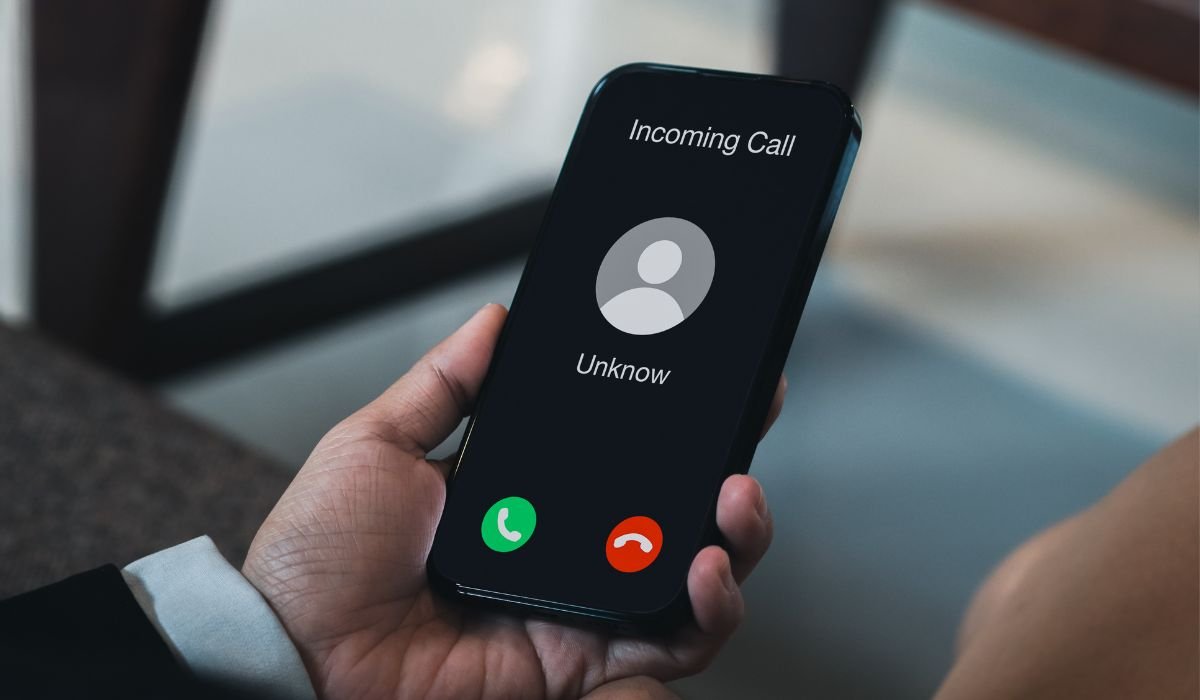
Some calls are too important to miss, even when your phone is on silent. Whether it’s an emergency from a family member, a crucial work-related call, or a trusted friend, having the ability to allow certain contacts to ring while your phone is in silent mode is essential.
In many situations, like meetings, appointments, or when you’re trying to focus, you may want your phone quiet but still need to be reachable by specific people. This feature can help you balance staying focused while ensuring you don’t miss what matters most.
Key Takeaways
- Customizing contact alerts on Android ensures that important calls from specific contacts can bypass silent mode, helping you stay connected without constant distractions.
- Android’s Do Not Disturb settings offer flexibility in managing notifications, allowing you to prioritize essential contacts like family or work-related calls.
- Third-party apps like Tasker or Truecaller provide even more control over notifications, enabling custom rules for individual contacts.
- Regularly review and update your contact preferences to ensure you’re not overwhelmed by unnecessary notifications while still receiving critical calls.
Also read: How to Transfer Contacts From iPhone to iPhone
Understanding Android’s Silent Mode and Contact Customization
Silent mode mutes all notifications, calls, and alerts, letting you focus without distractions. When activated, your phone won’t make any sound, ensuring a quiet environment. However, this means that even important calls will be silenced unless customized.
Android offers great flexibility in managing contact preferences. You can prioritize specific contacts to bypass silent mode, ensuring that only calls from selected individuals will ring through. This customization allows you to maintain peace and quiet while ensuring urgent or critical calls aren’t missed. Android’s “Do Not Disturb” and contact-specific settings make this easy to set up.
Step-by-Step Guide to Setting Specific Contacts to Ring on Silent
Using Android’s Default Settings:
- Navigate to “Do Not Disturb” Settings: Open your phone’s settings, then scroll to Sound or Notifications and select Do Not Disturb.
- Select the “Priority Only” or “Allow Exceptions” Option: In the Do Not Disturb settings, find the option for Priority Only or Allow Exceptions. This setting allows certain notifications or calls to break through silent mode.
- Choose Specific Contacts: Under the Calls section, select From Contacts or Custom, depending on your Android version. You can now select which contacts are allowed to ring even when your phone is on silent.
Adjusting Notifications for Specific Apps: To further customize, go into the Contacts or Phone apps. Tap on a contact’s profile, then choose Custom Notifications. From here, you can assign special ringtones or alerts that will override the silent mode for that specific contact.
Here’s summarize on a table format:
| Step | Action |
|---|---|
| 1 | Go to Settings > Sound > Do Not Disturb. |
| 2 | Select Priority Only or Allow Exceptions. |
| 3 | Choose Calls From and select specific contacts. |
| 4 | Use Custom Notifications for individual contacts. |
| 5 | Install third-party apps like Tasker for advanced customization. |
Also read: Wi-Fi Calling Not Working on Android
Alternative Methods to Ensure Specific Contacts Ring
Custom Ringtone Solutions:
- How to Set a Custom Ringtone to Override Silent Mode: Go to your Contacts app, select the contact you want to customize, and tap Edit. Look for the Ringtone option and choose a unique ringtone for that contact. While this won’t automatically override silent mode, some Android devices allow specific ringtones to bypass silent settings through custom notification options, found under Sound or Do Not Disturb settings.
- Using Third-Party Apps (if needed): If your device doesn’t natively support overriding silent mode with custom ringtones, third-party apps can help. Apps like Ringtone Scheduler or WhoCanCallMe allow you to set contacts to bypass silent mode by creating special rules.
Using Third-Party Apps:
- Tasker: This powerful automation app lets you create complex rules. You can set Tasker to allow calls from specific contacts to ring, even in silent mode, by automating notification behaviors based on your needs.
- Truecaller: Known primarily for identifying callers, Truecaller also allows custom contact notifications. You can set up rules for specific contacts, allowing their calls to override silent mode.
These apps provide greater flexibility in managing how and when you receive important calls.
Best Practices for Contact Alerts on Android
- Keep Notifications Manageable: When customizing contact alerts, it’s important not to go overboard. Stick to essential contacts that truly need to break through silent mode. Over-customizing can lead to constant interruptions, defeating the purpose of using silent mode in the first place. Limit exceptions to a handful of people to keep your notifications under control while ensuring you don’t miss important calls.
- Recommended Contacts to Set as Exceptions: Focus on setting exceptions for critical contacts like emergency contacts, close family members, your boss, or key colleagues. This ensures that only the most important calls can ring through, helping you stay productive and maintaining peace of mind during quiet hours.
Common Issues and Troubleshooting
- Why Some Contacts May Still Be Blocked: Even after setting specific contacts to bypass silent mode, you might notice that their calls are still getting blocked. This could be due to conflicting settings in the Do Not Disturb mode or app-specific notifications. Double-check that both system-wide settings and contact-level exceptions are correctly configured.
- Resolving Conflicts with Different Android Versions: Android’s features can vary slightly across versions, so certain settings may be in different locations. If a feature isn’t working as expected, ensure your device is up to date with the latest Android version. If issues persist, check manufacturer-specific guides for your phone model, as different brands like Samsung or OnePlus may have slightly different approaches to contact management.
Conclusion
Customizing contact alerts on Android is essential for balancing work and personal life. By allowing certain contacts to bypass silent mode, you ensure that critical calls come through without the distraction of constant notifications. This feature helps you stay focused while remaining accessible to those who matter most.
Don’t hesitate to experiment with Android’s full range of customization options. Whether it’s using default settings or third-party apps, these tools give you control over how and when you’re notified, helping you tailor your phone to fit your lifestyle.
Frequently Asked Questions
How to make someone’s phone ring when on silent?
To make someone’s phone ring while it’s on silent, you can use emergency bypass features or third-party apps like Tasker. For Android, set the contact as an exception in Do Not Disturb settings, allowing their calls to bypass silent mode.
How to silence all calls except for certain numbers?
On Android, go to Settings > Sound > Do Not Disturb. From there, select Allow Exceptions and choose specific contacts whose calls should ring, while silencing all others.
How to call a phone on silent and make it ring on Android?
Use apps like Find My Device or third-party apps that can trigger the phone’s sound remotely. Alternatively, send multiple calls in quick succession; some Android phones automatically ring after the second or third consecutive call.
How to allow certain calls on Do Not Disturb Android?
In Do Not Disturb settings, navigate to Allow Exceptions and choose Calls From. Select Favorite contacts or manually pick certain contacts whose calls will ring even when Do Not Disturb is on.
Can you set certain contacts to ring on silent Android?
Yes, you can. Set exceptions for specific contacts through Do Not Disturb settings, or assign custom ringtones that bypass silent mode using apps like Tasker or the built-in contact customization options.
Can you put individual contacts on Do Not Disturb?
Yes, you can put individual contacts on Do Not Disturb by going into the contact’s details and adjusting their notification settings. This allows you to mute specific contacts without affecting others.


