

When your Android phone’s microphone stops working, it can be frustrating. Whether you’re trying to make a call, record a voice memo, or use voice commands, a malfunctioning microphone can disrupt your daily activities. This guide will walk you through various solutions to get your microphone working again.
Key Takeaways
- Check for physical obstructions and clean your microphone
- Restart your device and update software
- Verify app permissions and audio settings
- Test in safe mode to identify third-party app issues
- Consider professional repair for hardware problems
Understanding Microphone Issues on Android
Before diving into solutions, it’s important to understand why microphone problems occur. Common causes include:
- Software glitches or outdated operating systems
- Physical damage or debris in the microphone opening
- Incorrect app permissions
- Conflicting third-party applications
- Hardware malfunctions
Identifying the root cause will help you apply the most effective solution.
How to Fix Microphone Not Working on Android
Let’s explore step-by-step solutions to resolve microphone issues on your Android device.
1. Restart Your Device
A simple restart can often resolve temporary glitches affecting your microphone:
- Press and hold the power button
- Tap “Restart” or “Reboot”
- Wait for your device to turn back on
- Test the microphone after restarting
2. Check for Physical Obstructions
Physical barriers can interfere with your microphone’s functionality:
- Remove your phone case and screen protector
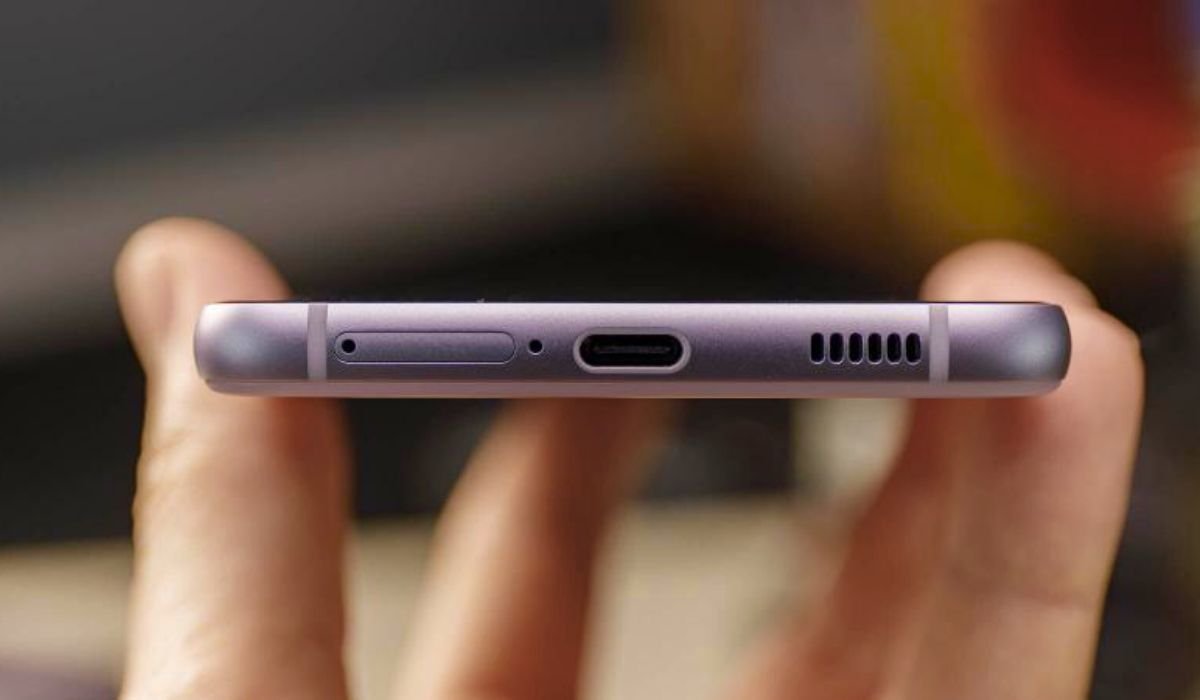
- Locate the microphone openings (usually at the bottom of the device)
- Gently clean the openings with a soft brush or adhesive putty
- Avoid using liquids or sharp objects that might damage the microphone
3. Boot into Safe Mode
Safe mode helps identify if a third-party app is causing the issue:
- Press and hold the power button
- Touch and hold “Power off” until you see “Reboot to safe mode”
- Tap “OK” to restart in safe mode
- Test the microphone in safe mode
- If it works, a third-party app likely caused the problem
4. Check App Microphone Permissions
Ensure apps have the necessary permissions to access your microphone:
- Go to Settings > Privacy > Permission manager > Microphone
- Review the list of apps and their microphone access status
- Toggle on permissions for apps that need microphone access
- Test the microphone in apps after adjusting permissions
5. Update Your Software
Outdated software can cause compatibility issues:
- Go to Settings > System > System update
- Check for available updates
- If an update is available, download and install it
- Restart your device after updating
- Test the microphone to see if the issue is resolved
6. Clear App Caches
Corrupted app data can interfere with microphone functionality:
- Go to Settings > Apps & notifications
- Select the app experiencing microphone issues
- Tap “Storage & cache”
- Tap “Clear cache”
- Repeat for other apps using the microphone
7. Test with Different Apps
Try using the microphone in various apps to isolate the problem:
- Open the Phone app and make a test call
- Use a voice recording app
- Try a video calling app like WhatsApp or Zoom
- Test Google Assistant or another voice command app
If the microphone works in some apps but not others, the issue may be app-specific.
8. Disable Noise Reduction
Sometimes, noise reduction features can interfere with microphone performance:
- Go to Settings > Sound > Call settings
- Look for “Noise reduction” or similar options
- Toggle off noise reduction features
- Test the microphone to see if audio quality improves
9. Reset App Preferences
Resetting app preferences can resolve permission-related issues:
- Go to Settings > System > Reset options
- Tap “Reset app preferences”
- Confirm the action
- Restart your device
- Reconfigure microphone permissions for essential apps
Advanced Troubleshooting for Microphone Issues
If the above steps don’t resolve your microphone problem, try these advanced solutions:
1. Factory Reset
A factory reset can fix persistent software issues, but it erases all data on your device:
- Back up your important data
- Go to Settings > System > Reset options
- Tap “Erase all data (factory reset)”
- Follow the on-screen instructions
- Set up your device and test the microphone
2. Check for Water Damage
Water exposure can damage your microphone:
- Look for moisture indicators (usually in the SIM card tray)
- If water damage is detected, let your phone dry completely
- Consider professional repair if issues persist
3. Examine Hardware Connections
Loose internal connections can cause microphone failure:
- Power off your device
- Gently tap around the microphone area
- Listen for any rattling sounds
- If you hear loose components, seek professional repair
4. Update Audio Drivers
For rooted devices, updating audio drivers might help:
- Research compatible audio drivers for your device model
- Use a root file explorer to access system files
- Back up existing audio drivers
- Replace with updated drivers
- Restart your device and test the microphone
Additional Tips for Maintaining Microphone Health
Prevention is key to avoiding future microphone issues:
- Regular cleaning: Gently clean your phone’s microphone openings monthly
- Case selection: Choose phone cases that don’t block microphone ports
- Software updates: Keep your device and apps updated to the latest versions
- Avoid extreme conditions: Protect your phone from excessive heat, cold, and moisture
- Use screen protectors wisely: Ensure they don’t cover microphone openings
When to Seek Professional Help
If you’ve tried all the above solutions and your microphone still isn’t working, it may be time to consult a professional:
- Contact your device manufacturer’s support team
- Visit an authorized service center for diagnostics
- Consider third-party repair shops, but be aware of warranty implications
Troubleshooting Microphone Not Working on Specific Android Devices
When dealing with microphone issues on specific Android devices, it’s important to consider unique features and potential problems. Here’s a brief guide for troubleshooting microphone issues on popular Android brands:
Samsung Galaxy Series
- Check for debris in the small microphone holes
- Disable Bixby Voice if it’s interfering with other apps
- Test call quality in Safe Mode to rule out third-party app conflicts
- Use the built-in Device Care feature to optimize phone performance
Google Pixel
- Verify that “Hey Google” voice detection isn’t causing conflicts
- Check if Adaptive Sound is affecting microphone performance
- Use the Pixel’s built-in Safety Check feature to test microphone functionality
- Ensure Digital Wellbeing settings aren’t restricting microphone access
OnePlus
- Test microphone in Fnatic Mode to see if gaming optimizations are affecting audio
- Check if OxygenOS updates are available
- Verify that Work-Life Balance feature isn’t limiting microphone access
- Use OnePlus Diagnostic app to run a hardware check
Xiaomi
- Disable MIUI optimization temporarily to test microphone
- Check if Ultra Battery Saver mode is affecting microphone performance
- Use the built-in Security app to scan for system issues
- Verify that App Lock feature isn’t restricting microphone access
Huawei
- Check if AI noise reduction is causing audio issues
- Verify that AppGallery apps have proper permissions
- Use Phone Clone app to backup and restore system settings
- Test microphone in ePrivacy mode to rule out security features interference
General tips for all devices
- Always check for system updates specific to your device model
- Use the manufacturer’s official support apps for diagnostics
- Consider device-specific forums for known issues and community solutions
- If problems persist, contact the brand’s customer support for model-specific advice
Frequently Asked Questions (FAQ)
How do I fix the microphone on my Android phone?
To fix your Android microphone, start by restarting your device and checking for physical obstructions. Then, verify app permissions, update your software, and clear app caches. If issues persist, try booting in safe mode or resetting app preferences. For stubborn problems, consider a factory reset or professional repair.
Why is my phone microphone not working on calls?
Your phone’s microphone might not work during calls due to software glitches, outdated OS, or third-party app interference. Check call settings for any active noise reduction features. Ensure the Phone app has microphone permissions. If the issue persists in safe mode, there might be a hardware problem.
How do I get my microphone back on my Android phone?
To restore your Android microphone, first check if it’s disabled in your device settings. Go to Privacy > Permission manager > Microphone and ensure relevant apps have access. If that doesn’t work, clear the cache of communication apps, update your phone’s software, or perform a factory reset.
Why is the microphone not working when calling?
Microphone issues during calls can stem from network problems, outdated software, or incorrect audio settings. Check your signal strength and Wi-Fi connection. Ensure your phone app has microphone permissions. Disable any active Bluetooth devices that might be hijacking the audio input. Consider updating your device’s software.
How to clean the Android microphone?
Clean your Android microphone gently using a soft-bristled brush or compressed air to remove debris. For stubborn dirt, use a toothpick wrapped in a microfiber cloth. Avoid liquids or sharp objects that could damage the microphone. Regular cleaning can prevent audio issues caused by physical obstructions.
Why is the phone voice not working?
Phone voice issues can result from software glitches, hardware damage, or incorrect settings. Check your volume levels and ensure your phone isn’t on mute or Do Not Disturb mode. Verify that no headphones are connected. If the problem persists, there might be a more serious hardware or software issue requiring professional attention.


