

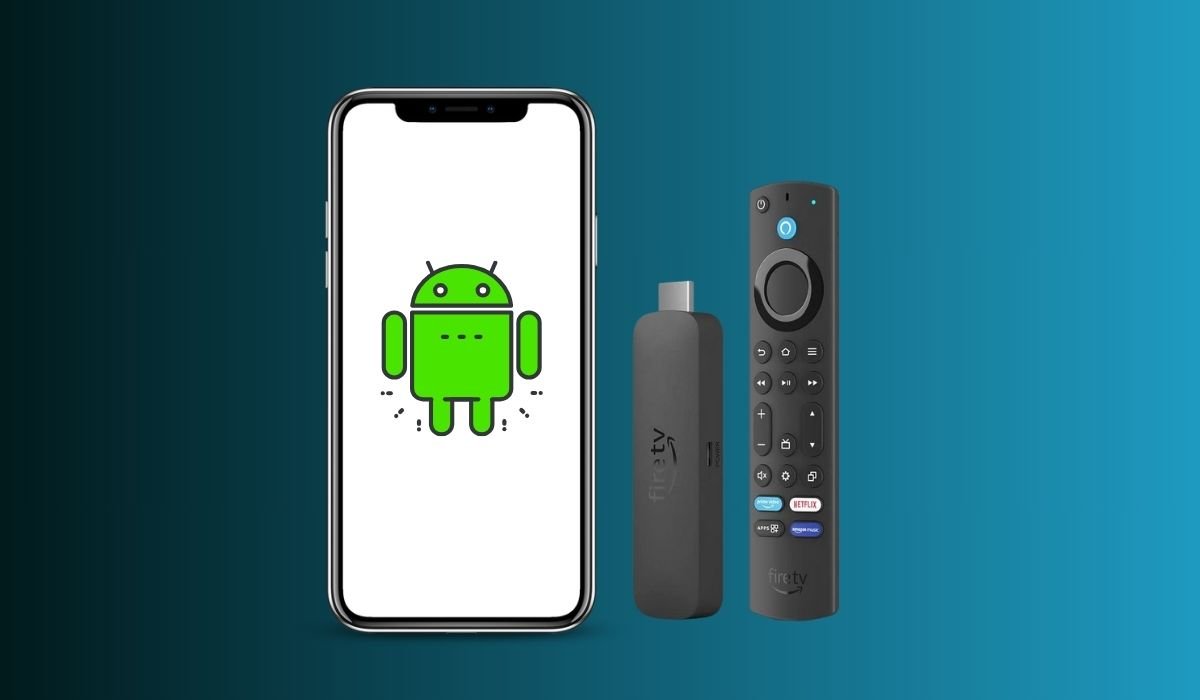
Mirroring your Android device to a Firestick can significantly enhance your entertainment experience. This process allows you to display your phone’s screen on a larger TV, perfect for sharing photos, watching videos, or even playing mobile games on a bigger display. Let’s dive into the step-by-step process of how to achieve this seamlessly.
Key Takeaways
- Ensure both your Android device and Firestick are connected to the same Wi-Fi network
- Enable screen mirroring on your Firestick through the Settings menu
- Use the built-in casting feature on your Android device to connect
- Third-party apps can provide additional mirroring options
- Troubleshoot common issues like lag or connection problems
Prerequisites
Before you begin, make sure you have:
- An Amazon Firestick (any model)
- An Android device (phone or tablet) running Android 4.2 or higher
- Both devices connected to the same Wi-Fi network
- The latest software updates installed on both devices
Preparing Your Firestick
To start mirroring, you’ll need to enable the feature on your Firestick:
- Turn on your TV and ensure it’s set to the correct HDMI input for your Firestick
- On your Firestick remote, press and hold the Home button
- Select “Mirroring” from the pop-up menu
Alternatively, you can enable mirroring through the Settings menu:
- Go to Settings > Display & Sounds
- Select “Enable Display Mirroring”
Your Firestick is now ready to receive the mirrored content from your Android device.
Setting Up Your Android Device
The process for enabling screen mirroring on your Android device may vary slightly depending on the manufacturer and model. Here are some common methods:
For Samsung Devices:
- Swipe down from the top of the screen to open the Quick Settings panel
- Tap on “Smart View” or “Screen Mirroring”
- Select your Firestick from the list of available devices
For Other Android Devices:
- Swipe down from the top of the screen to open the Quick Settings panel
- Look for options like “Cast,” “Screen Cast,” or “Wireless Display”
- Tap the option and select your Firestick from the list of available devices
If you can’t find these options, check your device’s settings menu for screen mirroring features.
Initiating the Mirroring Process
Once you’ve selected your Firestick on your Android device, the mirroring process should begin automatically. You may see a prompt on your TV screen asking for permission to connect. Use your Firestick remote to accept the connection.
Your Android device’s screen should now appear on your TV. Keep in mind that there might be a slight delay between your actions on the phone and what you see on the TV – this is normal.
Optimizing Your Mirroring Experience
To get the best performance:
- Keep your Android device and Firestick close to your Wi-Fi router
- Close unnecessary apps on your Android device to free up resources
- Adjust your TV’s picture settings for optimal viewing
Troubleshooting Common Issues
- Restart both devices to refresh connections
- Ensure same Wi-Fi network on Android and Firestick
- Update software on both devices for compatibility
- Clear cache on Firestick for smoother performance
- Disable power-saving modes on Android for stability
- Reduce Wi-Fi interference from other electronic devices
- Try third-party mirroring apps for alternative solutions
Exploring Additional Features
Third-Party Apps for Enhanced Mirroring
While the built-in mirroring features work well, some third-party apps can offer additional functionality:
- AllCast: Allows you to cast local media files to your Firestick
- AirScreen: Provides support for mirroring from iOS devices as well as Android
- Screen Mirroring for Fire TV: Offers a simple interface for quick connections
These apps are available on the Google Play Store and can be installed on your Android device.
Mirroring Specific Content
Instead of mirroring your entire screen, you can cast specific content from supported apps:
- Open a compatible app like YouTube or Netflix
- Look for the cast icon (usually in the top right corner)
- Select your Firestick from the list of available devices
This method often provides better performance and video quality compared to full-screen mirroring.
Privacy and Security Considerations
When mirroring your Android device, remember:
- Everything on your screen will be visible on the TV
- Notifications and incoming calls may appear on the larger screen
- Consider enabling Do Not Disturb mode on your Android device while mirroring
Advanced Mirroring Techniques
For more advanced users, there are additional ways to enhance your mirroring experience:
Using Ethernet for Stability
If you’re experiencing consistent Wi-Fi issues, consider connecting your Firestick directly to your router using an Ethernet adapter. This can provide a more stable connection, especially for high-quality video streaming.
Customizing Display Settings
Once connected, you can adjust various display settings on your Firestick to optimize the mirrored image:
- Go to Settings > Display & Sounds
- Adjust options like display resolution, color depth, and refresh rate
Experiment with these settings to find the best balance between image quality and performance for your setup.
Audio Routing Options
Depending on your preferences, you can choose where the audio is played:
- Through your TV speakers
- Via Bluetooth headphones connected to your Firestick
- Through your Android device’s speakers or connected headphones
To change audio output, go to Settings > Display & Sounds > Audio on your Firestick.
Frequently Asked Questions (FAQ)
How to cast Google Photos to Firestick?
Open Google Photos on your Android device. Select the photo you want to cast. Tap the cast icon and choose your Firestick. Alternatively, use the Google Photos app on your Firestick and sign in to your account to access your photos directly.
How do I mirror my PC to my Firestick?
Enable mirroring on your Firestick. On your PC, press Windows + K to open the Cast menu. Select your Firestick from the list of available devices. Your PC screen should now be mirrored on your TV via the Firestick.
How to cast an Android phone to a TV?
Ensure your Android phone and TV are on the same Wi-Fi network. Swipe down for Quick Settings and tap “Cast” or “Screen mirroring.” Select your TV from the list of available devices. Your phone’s screen will now be displayed on the TV.
How to connect phone to firestick without remote?
Download the Amazon Fire TV app on your phone. Ensure your phone and Firestick are on the same Wi-Fi network. Open the app and select your Firestick. Follow the on-screen instructions to connect and use your phone as a virtual remote.
How to mirror phone to Fire Stick?
Enable mirroring on your Firestick. On your Android phone, open Quick Settings and tap “Cast” or “Smart View.” Select your Firestick from the list of available devices. Your phone’s screen should now appear on your TV through the Firestick.
Can you cast to a Fire Stick without remote?
Yes, you can cast to a Firestick without a physical remote. Use the Amazon Fire TV app on your smartphone as a virtual remote. Alternatively, use the built-in casting feature on your phone or tablet to mirror your screen to the Firestick.


