

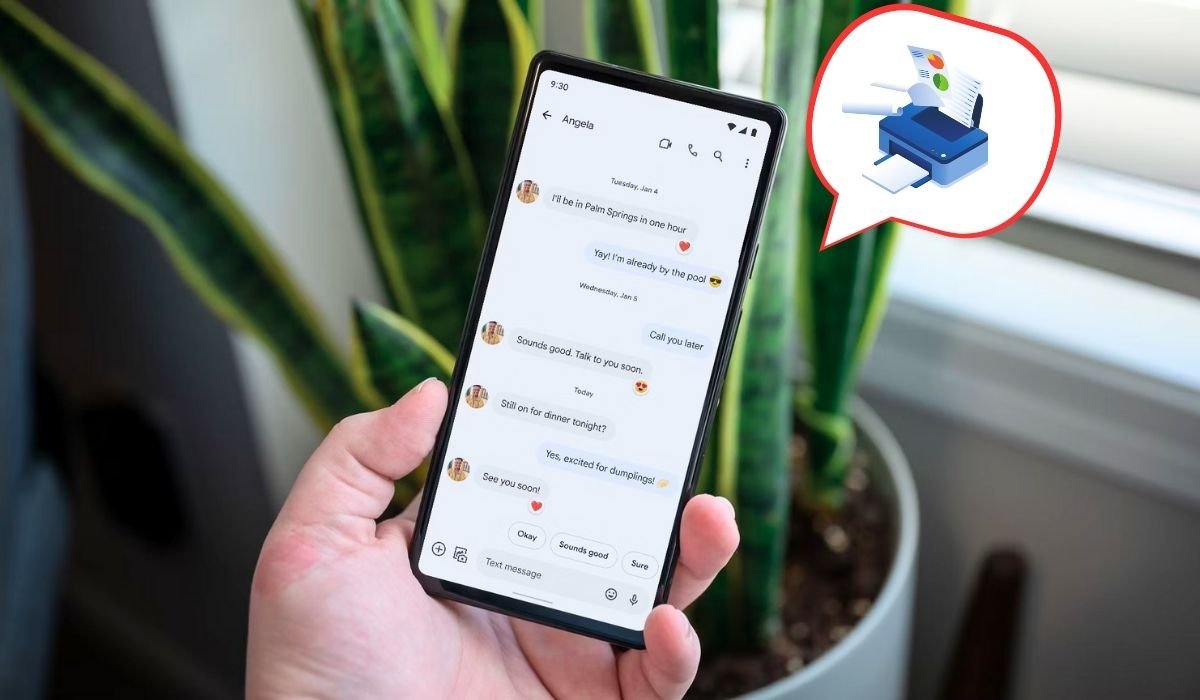
Text messages can serve as crucial evidence in legal proceedings. Whether you’re involved in a civil dispute or a criminal case, having a hard copy of your text conversations can be invaluable. This guide will walk you through various methods to print your Android text messages for court without spending a dime.
Key Takeaways
- Several free methods exist to print text messages from Android devices
- Screenshots are a quick solution but may not be suitable for lengthy conversations
- Third-party apps can simplify the process but require careful vetting
- Built-in Android features offer reliable options for some devices
- Always ensure the printed messages maintain their integrity and authenticity for court use
Understanding the Importance of Printed Text Messages in Court
Text messages can provide timestamped evidence of conversations, agreements, or disputes. Courts often accept printed text messages as evidence, but they must be presented in a clear, organized manner. It’s crucial to preserve the context and chronology of the messages when printing them for legal purposes.
How to print text messages from android for court free
Method 1: Using Screenshots
The most straightforward method to capture text messages is by taking screenshots. This built-in feature is available on all Android devices.
Steps to take screenshots:
- Open the text conversation you want to capture
- Press the power button and volume down button simultaneously (may vary by device)
- The screenshot will be saved in your gallery
- Repeat for each screen of messages
Method 2: Using Google Drive
Google Drive offers a free way to back up and print your text messages.
Follow this simple steps:
- Open your Android’s Settings
- Tap on “Google”
- Select “Backup”
- Ensure “SMS messages” is toggled on
- Perform a backup
- Access Google Drive on a computer
- Navigate to the backup folder
- Download and print the SMS file
Method 3: Using SMS Backup & Restore App
This popular free app allows you to backup and print your text messages easily.
Follow this simple steps:
- Download SMS Backup & Restore from the Play Store
- Open the app and grant necessary permissions
- Tap “Set up a backup”
- Choose “Local backup and upload”
- Select Google Drive as the cloud service
- Start the backup process
- Access the backup file on a computer
- Open and print the file
Method 4: Using Android’s Built-in Printing Option
Some Android devices offer a built-in option to print text messages directly.
Follow this easy steps:
- Open your messaging app
- Select the conversation you want to print
- Tap the three-dot menu icon
- Look for a “Print” or “Save as PDF” option
- If available, select your printer or save as PDF
- Print or transfer the PDF to a computer for printing
Method 5: Using Email to Print Messages
You can email yourself text messages and print them from your computer.
Follow this steps:
- Open the text conversation
- Select the messages you want to print
- Tap the share icon
- Choose “Email” as the sharing method
- Send the email to yourself
- Open the email on a computer
- Print the messages from your email client
How to Print Text Messages
From iPhone
Using the Messages App
- Open the Messages app on your iPhone
- Select the conversation you want to print
- Take a screenshot by pressing the side button and volume up button simultaneously
- Go to Photos and select the screenshot
- Tap the share icon and choose “Print”
Using Third-Party Apps
Several apps in the App Store can help you print text messages more efficiently:
- iExplorer: Allows you to export messages as PDF or text files
- AnyTrans: Offers a user-friendly interface to print messages directly
- iMazing: Provides options to export messages in various formats
From Android
Using Built-in Features
- Open your messaging app
- Select the conversation you want to print
- Tap the three-dot menu icon
- Look for a “Share” or “Export” option
- Choose to share as a text file or PDF
- Send the file to your email or cloud storage
- Open the file on a computer and print
Using Third-Party Apps
Android users can also benefit from apps designed for message printing:
- SMS Backup & Restore: Backs up messages and allows for easy printing
- Message Printer: Directly prints messages from your phone
- SMS to Text: Converts messages to text files for printing
From Computer
If you’ve synced your messages to your computer, printing becomes easier:
- For Mac users with iMessage: Open the Messages app on your Mac and print directly
- For Windows users: Use phone companion apps or third-party software to access messages on your PC
How to Print Text Messages for Court
When printing text messages for legal purposes, it’s crucial to ensure the printouts are admissible in court. Here are some steps to follow:
- Use a reliable third-party app or service that can generate court-admissible reports
- Include metadata such as dates, times, and phone numbers
- Ensure the printout is clear and legible
- Consider having the printouts notarized or certified by a professional
- Consult with your lawyer to ensure you’re following proper legal procedures
Recommended Apps for Court-Ready Printouts
- Decipher TextMessage: Creates detailed, court-ready PDF reports
- TranscriptPad: Organizes and prepares text message evidence for legal use
- Cellebrite UFED: A professional-grade tool used by law enforcement
Tips for Better Printouts
To ensure your printed text messages are clear and useful:
- Clean up your conversation before printing by deleting irrelevant messages
- Use high-quality paper for better readability
- Print in color if possible, especially for multimedia messages
- Include a cover sheet with relevant information about the conversation
- Number pages and add dates to help with organization
- Consider using landscape orientation for better formatting
- Test print a few pages to check quality before printing the entire conversation
Privacy Considerations
When printing text messages, keep these privacy tips in mind:
- Obtain consent from the other party if possible
- Redact sensitive information not relevant to your purpose
- Store printed messages securely to prevent unauthorized access
- Be aware of legal implications of sharing or using printed messages
Frequently Asked Questions (FAQ)
How can I print text messages from my Android phone for free?
Use your Android’s built-in export feature in the messaging app. Take screenshots of conversations or use free apps like SMS Backup & Restore. Export messages as a file, send it to your computer, and print. Remember, free methods may not always meet court standards.
What is the easiest way to print text messages for court?
The easiest way is using specialized apps like Decipher TextMessage or TranscriptPad. These create court-admissible reports with necessary metadata. Alternatively, export messages as PDFs, ensuring all relevant information is included. Always consult your lawyer to ensure the method meets legal requirements.
How to convert text messages to PDF for court?
Use third-party apps designed for legal purposes, like Decipher TextMessage. These apps export messages directly to PDF format with proper formatting and metadata. For a manual approach, export messages as text files, then use PDF conversion tools. Add a sworn statement attesting to the authenticity.
Convert text messages to PDF?
To convert text messages to PDF, use apps like iExplorer (iOS) or SMS Backup & Restore (Android) to export messages. Then, use online PDF converters or word processing software to create a PDF. Ensure all relevant information, including dates and contact details, is preserved in the conversion process.
How do I export an entire text conversation on Android?
Open your messaging app and find the conversation. Look for a ‘More’ or ‘Settings’ option, usually represented by three dots. Select ‘Export’ or ‘Share’ and choose your preferred format (text or PDF). Save the file to your device or send it to your email.
How can I export text messages from my Android for free?
Use the built-in export feature in your Android messaging app. Alternatively, install free apps like SMS Backup & Restore. These apps can export your messages as text or XML files. You can then transfer these files to your computer for further processing or printing.


