

A live launcher on Android is an app that customizes your device’s home screen and app drawer. It often includes dynamic elements like animations, widgets, and real-time updates to enhance the look and feel of your phone. While it adds visual appeal and features, live launchers can sometimes cause performance issues.
Some users notice their device slowing down, draining battery faster, or even becoming less responsive. This is when removing or disabling the live launcher becomes necessary. Whether it’s to improve performance or simply return to a simpler interface, removing a live launcher is a straightforward process.
In this guide, we’ll walk you through the steps to easily remove a live launcher from your Android device, ensuring a smoother experience.
Why You Might Want to Remove a Live Launcher
Many Android users decide to remove live launchers for several reasons. One of the most common issues is performance slowdown. Live launchers, with their dynamic features and animations, can consume system resources, causing your phone to lag or freeze.
Another reason is the presence of unnecessary features or bloatware. Many launchers come with pre-installed apps or settings that you may never use, cluttering your home screen and storage.
Additionally, live launchers can contribute to battery drain. The constant animations and updates require more power, which can significantly reduce your device’s battery life.
Some users simply prefer a simpler or different launcher. A minimalistic launcher or even the default system launcher can offer a cleaner, more efficient experience, without the extra frills of live launchers.
Steps to Remove Live Launcher from Android
Method 1: Uninstalling from Settings
- Open Settings on your Android device.
- Scroll down and tap on Apps or Application Manager.
- Look for the Live Launcher in the list of installed apps.
- Tap on it, then select Uninstall and confirm the action.
Method 2: Uninstalling from the Google Play Store
- Open the Google Play Store on your device.
- In the search bar, type Live Launcher.
- Find the app in the search results and tap on it.
- Hit the Uninstall button and confirm.
Method 3: Removing Default Launcher Permission
- Before uninstalling, you need to switch back to the system launcher.
- Go to Settings and tap on Apps.
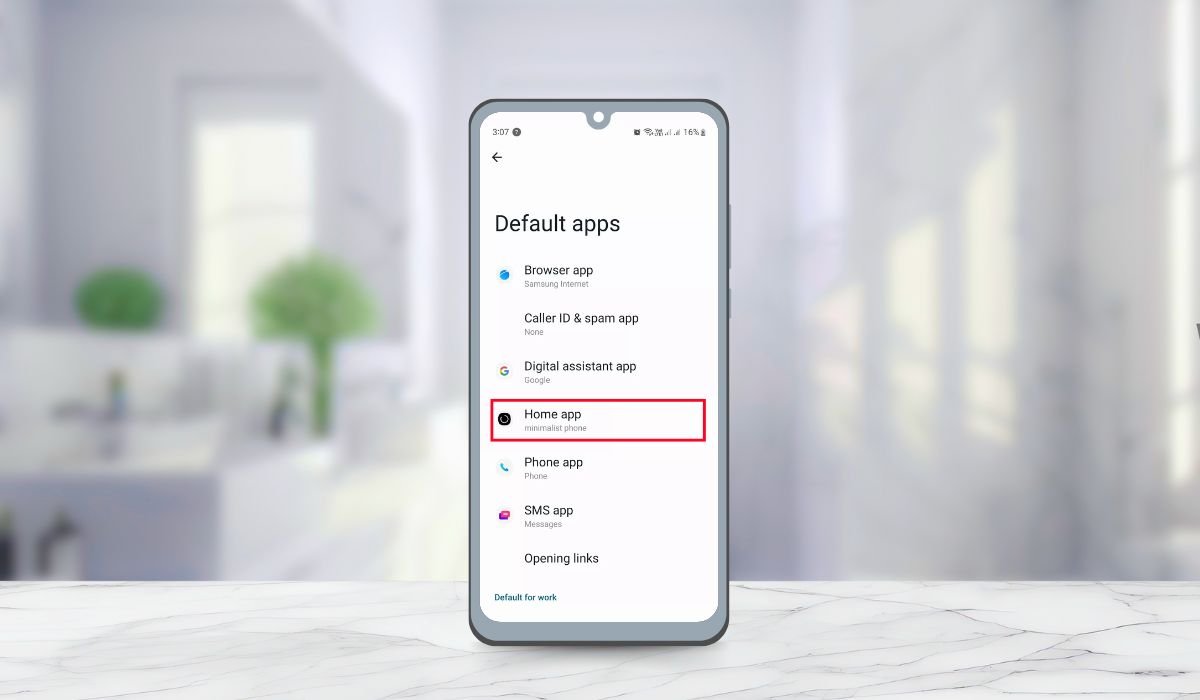
- Navigate to Default Apps and select Home App or Launcher.
- Choose the System Launcher as your default option.
- Once switched, you can proceed to uninstall the live launcher using either method above.
What If You Can’t Uninstall the Live Launcher?
Disabling the Launcher
- Open Settings on your Android device.
- Go to Apps or Application Manager and find the Live Launcher.
- Instead of uninstalling, tap Disable.
Disabling a launcher will stop it from running in the background, but it won’t remove it from your device. This is a great option if the launcher came pre-installed or if you’re unable to uninstall it directly.
Uninstalling via ADB (Advanced Method)
For more advanced users, you can use ADB (Android Debug Bridge) to remove the live launcher. Here’s how:
- Enable Developer Options on your device by going to Settings > About Phone and tapping Build Number seven times.
- Once Developer Options are enabled, go to Settings > Developer Options and enable USB Debugging.
- Connect your Android device to your computer with a USB cable.
- On your computer, download and install ADB.
- Open a command prompt or terminal and type adb devices to ensure your device is connected.
- Use the command adb shell pm uninstall –user 0 com.package.name (replace com.package.name with the launcher’s package name).
This method completely removes the launcher from your device, but it’s more technical and should be used carefully.
Using a Third-Party App Manager
If the above methods don’t work, you can try using a third-party app manager. Some trusted options include:
- App Inspector (to find the package name of the launcher).
- SD Maid (to clean and uninstall stubborn apps).
- CCleaner (for managing and uninstalling apps).
These tools help identify and remove apps that are difficult to uninstall through regular methods.
What to Do After Removing the Live Launcher
Switching to a New Launcher Once you’ve removed the live launcher, you’ll need a new launcher to manage your home screen. Here are a few lightweight and customizable launchers you might consider:
- Nova Launcher: Known for its high level of customization while being easy on performance.
- Microsoft Launcher: A simple, clean interface with great integration for Microsoft services.
- Lawnchair Launcher: Open-source and lightweight, ideal for those who want a minimalistic look.
These launchers are optimized for performance, ensuring your phone runs smoothly without draining too many resources.
Resetting Your Home Screen Setup After installing a new launcher, your home screen may need a bit of reorganizing. Here’s how to reset it:
- Rearrange your apps: Long-press on app icons to move them around or create folders for better organization.
- Re-add widgets: If you were using widgets before, go to the widget section of the new launcher and place them back on your home screen.
- Set up shortcuts: Many launchers allow for gesture shortcuts or custom app shortcuts for quicker access.
Customizing the New Launcher To make the most of your new launcher, here are some customization tips:
- Themes and Icon Packs: Most launchers support themes and icon packs, allowing you to personalize the look of your phone.
- Adjust grid size: Customize how many apps appear in rows and columns to fit your preference.
- Gesture controls: Some launchers, like Nova, allow you to set up gestures for actions like opening apps or adjusting settings.
With these tips, you can ensure your home screen looks great and is tailored to your personal needs.
Troubleshooting Common Issues
Launcher Reappears After Reboot Sometimes, even after uninstalling or disabling a live launcher, it may reappear after a device reboot. To fix this:
- Clear Cache and Data: Go to Settings > Apps > Live Launcher and select Clear Cache and Clear Data. This removes any lingering data that may cause it to reappear.
- Reboot in Safe Mode: Booting your device in Safe Mode can help you identify if any background processes are reinstalling the launcher. If it doesn’t reappear in Safe Mode, you may need to remove any suspicious apps.
Home Screen Layout Is Messed Up Switching launchers can often disrupt your home screen layout. To restore or improve it:
- Backup and Restore: If you backed up your old launcher’s settings, most new launchers allow you to import that data.
- Manual Reorganization: Drag and drop apps to reorder them. Some launchers also let you reset to default layouts.
Device Performance Issues After Removal If your device experiences performance issues after removing the live launcher:
- Clear System Cache: Go to Settings > Storage and tap on Clear Cache. This removes temporary files that may slow down your device.
- Restart the Device: A simple reboot can often resolve performance lags after uninstalling apps.
- Factory Reset (Last Resort): If performance issues persist, consider backing up your data and performing a factory reset to clear out any leftover files causing problems. This should be your last option.
By following these troubleshooting tips, you can ensure a smoother experience after removing the live launcher.
Conclusion
Removing a live launcher can significantly improve your Android device’s performance, especially if you’ve been experiencing slowdown, battery drain, or simply want a cleaner interface. Whether you’re uninstalling it through Settings, the Google Play Store, or using advanced methods like ADB, there are multiple ways to regain control over your phone’s performance.
After removing the live launcher, switching to a lightweight and customizable launcher can give you the flexibility and speed you need without sacrificing personalization. It’s all about finding the launcher that best fits your device and your daily needs.
Feel free to share your own experiences or ask any questions in the comments below. We’d love to help you out with any launcher-related issues or advice!
FAQs
1. Is it safe to uninstall a live launcher?
Yes, uninstalling a live launcher is completely safe. It won’t affect your core system or cause any damage to your phone. Your device will revert to its default system launcher or another installed launcher.
2. What is the best alternative launcher for Android?
Some popular alternatives include Nova Launcher for customization, Microsoft Launcher for a clean and professional interface, and Lawnchair Launcher for a minimalistic approach. The best choice depends on your needs—whether you prefer performance, features, or simplicity.
3. Can uninstalling the launcher cause problems with my phone?
Uninstalling a launcher should not cause any issues with your phone. However, if it was set as the default launcher, your device will switch back to the system launcher or prompt you to select a new default launcher.
4. What happens to my home screen after I uninstall the launcher?
When you uninstall a launcher, your home screen setup may change. Icons, widgets, and layout preferences may reset to the default system launcher setup. You’ll need to reconfigure your apps and widgets with the new launcher.
5. How do I change the default launcher on Android?
Go to Settings > Apps > Default Apps, then tap on Home App or Launcher. From there, you can select your preferred launcher to replace the live launcher.
6. Will removing a live launcher improve my phone’s battery life?
Yes, removing a live launcher can improve your battery life, especially if it had animations, widgets, or other resource-intensive features. A simpler launcher consumes fewer resources, which helps extend your battery usage.


