

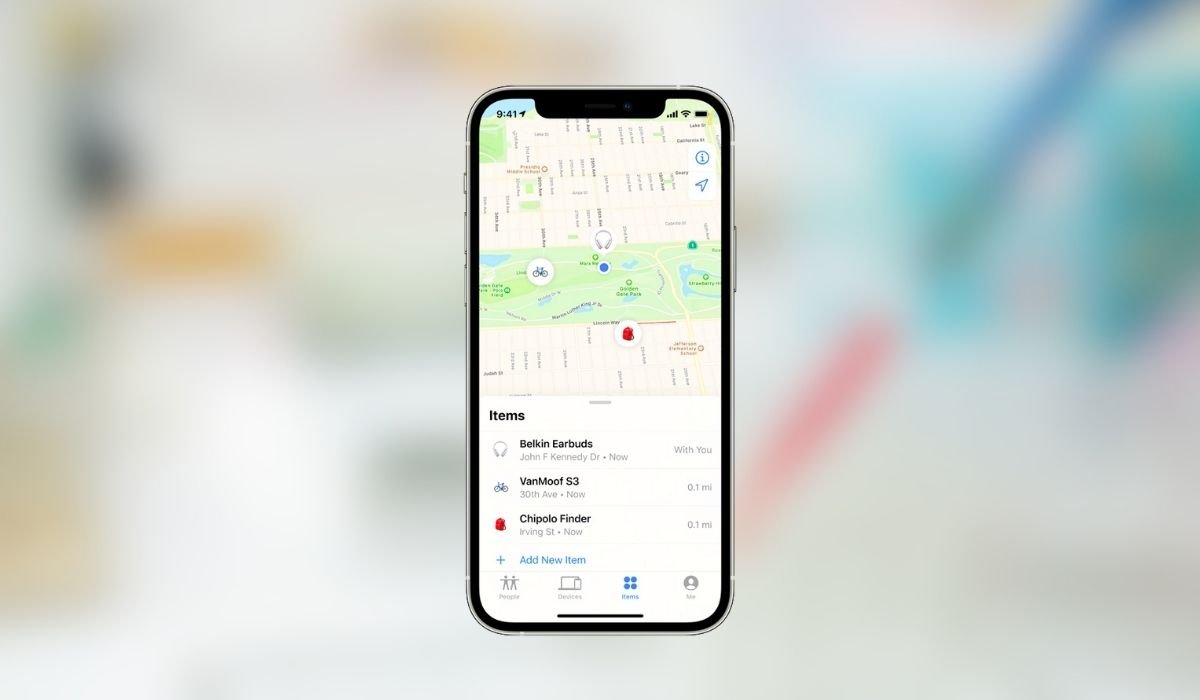
Losing your iPhone can be a stressful experience. Fortunately, Apple’s Find My feature provides a powerful tool to locate, protect, and recover your device. To set it up, go to Settings and tap your name at the top. Select Find My, then toggle on Find My iPhone. For added security, enable Send Last Location. These simple steps ensure you’re prepared if your iPhone ever goes missing.
Key Takeaways
- Find My is a free service provided by Apple for locating lost iOS devices
- Setting up Find My requires an Apple ID and an internet connection
- The feature includes options for locating offline devices and sending last-known locations
- Find My can be used to remotely lock or erase your iPhone if it’s lost or stolen
- Regular checks and updates ensure Find My continues to protect your device
Understanding Find My
Find My is Apple’s all-in-one solution for locating lost devices. It combines the previous Find My iPhone, Find My Friends, and Find My Mac services into a single, powerful app. With Find My, you can:
- Locate your devices on a map
- Play a sound to find nearby devices
- Put your device in Lost Mode to lock it and display a custom message
- Erase your device remotely to protect your data
- Share your location with family and friends
The service is free and comes pre-installed on iOS devices. It uses a combination of GPS, Wi-Fi, and cellular data to pinpoint your device’s location.
Preparing Your iPhone
Before setting up Find My, ensure your iPhone meets these requirements:
- iOS 13 or later installed
- Active Apple ID
- Location Services enabled
- Find My iPhone enabled in iCloud settings
To check your iOS version, go to Settings > General > About. If you need to update, go to Settings > General > Software Update.
Set up Find My on your iPhone
Follow these steps to enable Find My on your iPhone:
- Open the Settings app on your iPhone.
- Tap your name at the top of the screen to access Apple ID settings.
- Select “Find My” from the list of options.
- Tap “Find My iPhone” and toggle it on.
- Enable “Find My network” to locate your device even when it’s offline.
- Turn on “Send Last Location” to share your device’s location when the battery is critically low.
| Step | Action |
|---|---|
| 1 | Go to Settings |
| 2 | Tap on your name at the top |
| 3 | Select Find My |
| 4 | Toggle on Find My iPhone |
| 5 | Enable Send Last Location for added security |
How to Use Find My
Once set up, you can use Find My in several ways:
Locate Your Device
- Open the Find My app on another Apple device or visit iCloud.com/find.
- Sign in with your Apple ID.
- Select the Devices tab.
- Choose your lost iPhone from the list.
- View its location on the map.
Play a Sound
If your iPhone is nearby but out of sight:
- In the Find My app, select your device.
- Tap “Play Sound.”
- Your iPhone will emit a loud sound, even if it’s on silent mode.
Enable Lost Mode
If your iPhone is lost or stolen:
- In Find My, select your device.
- Choose “Mark As Lost.”
- Follow the prompts to lock your device and display a custom message with your contact information.
Erase Your iPhone
As a last resort to protect your data:
- In Find My, select your iPhone.
- Tap “Erase This Device.”
- Confirm your decision.
Remember, after erasing, you won’t be able to locate your iPhone using Find My.
New Features
Apple continues to improve Find My. Here are some recent updates:
- Enhanced Precision Finding: Uses Ultra Wideband technology in newer iPhone models for more accurate location.
- Offline Finding: Locate your device even when it’s not connected to Wi-Fi or cellular data.
- Find My Items: Track third-party accessories and items using Apple’s Find My network.
- Separation Alerts: Get notified if you leave your iPhone behind in an unfamiliar location.
Troubleshooting Common Issues
If you’re having trouble with Find My, try these solutions:
Find My is not updating location
- Ensure your device has an internet connection
- Check that Location Services are enabled (Settings > Privacy > Location Services)
- Restart your iPhone
Device not appearing in Find My
- Verify that you’re signed in with the correct Apple ID
- Check if Find My is enabled on the device (if you have access to it)
- Ensure the device has not been offline for more than 24 hours
Unable to play sound on lost device
- Check if the device is online
- Ensure the device is not in silent mode
- Try putting the device in Lost Mode, which may override silent settings
Family Sharing and Find My
Family Sharing allows you to locate devices belonging to your family members. To set this up:
- Go to Settings > [Your Name] > Family Sharing
- Tap “Add Member” and follow the prompts to invite family members
- Ensure “Share My Location” is enabled for each member
Once set up, you can view your family members’ devices in the Find My app under the “People” tab.
Privacy and Security Considerations
While Find My is a powerful tool, it’s important to consider privacy implications:
- Only share your location with trusted family members or friends
- Regularly review which devices and people have access to your location
- If lending your device to someone, consider temporarily turning off Find My
Keeping Find My Updated
To ensure Find My continues to protect your device:
- Regularly update your iOS to the latest version
- Periodically check that Find My is still enabled
- Ensure your Apple ID password is strong and unique
Best Practices for Using Find My
To get the most out of Find My:
- Keep your software updated to access the latest features.
- Enable two-factor authentication for your Apple ID to enhance security.
- Set up Family Sharing to help locate family members’ devices.
- Regularly check that Find My is enabled on all your Apple devices.
- Consider using an Apple AirTag for items you frequently misplace.
Frequently Asked Questions (FAQ)
How can I use Find My iPhone from another iPhone?
To use Find My iPhone from another iPhone, open the Find My app on the second device. Tap the “Me” tab, then select “Help a Friend.” Sign in with your Apple ID to locate your lost device on the map and access options like playing a sound or marking it as lost.
How do I use my iPhone to find someone?
You can use your iPhone to find someone by opening the Find My app and selecting the “People” tab. If the person has shared their location with you, you can see their real-time location on the map. You can also request location sharing if they haven’t done so
How do I turn on my iPhone with Find My iPhone?
To turn on Find My iPhone, go to Settings, tap your name, then select “Find My.” Ensure that “Find My iPhone” is enabled. This feature must be activated before your device is lost to track it effectively
How do I use Find My iPhone effectively?
Using Find My iPhone effectively involves enabling “Send Last Location” to see your device’s last known location if the battery dies. Regularly check your Find My settings and ensure location sharing is active with trusted contacts
Can I Find My iPhone if it is off?
You cannot find your iPhone if it is off, as it needs to be powered on and connected to the internet to send its location. If it’s offline, you can see its last known location for up to 24 hours.
How do I Find My phone from another phone?
To find your phone from another phone, use the Find My app on a device signed in with your Apple ID or a family member’s device. You can also log into iCloud.com/find on any browser to locate your device.
Can I use my iPhone to Find My wife’s iPhone?
Yes, you can use your iPhone to find your wife’s iPhone if she has shared her location with you. Open the Find My app, tap the “People” tab, and select her name to view her device’s location on the map.


