

Stop motion animation is a creative way to bring still objects to life by taking a series of photos and playing them in sequence. This creates the illusion of movement.
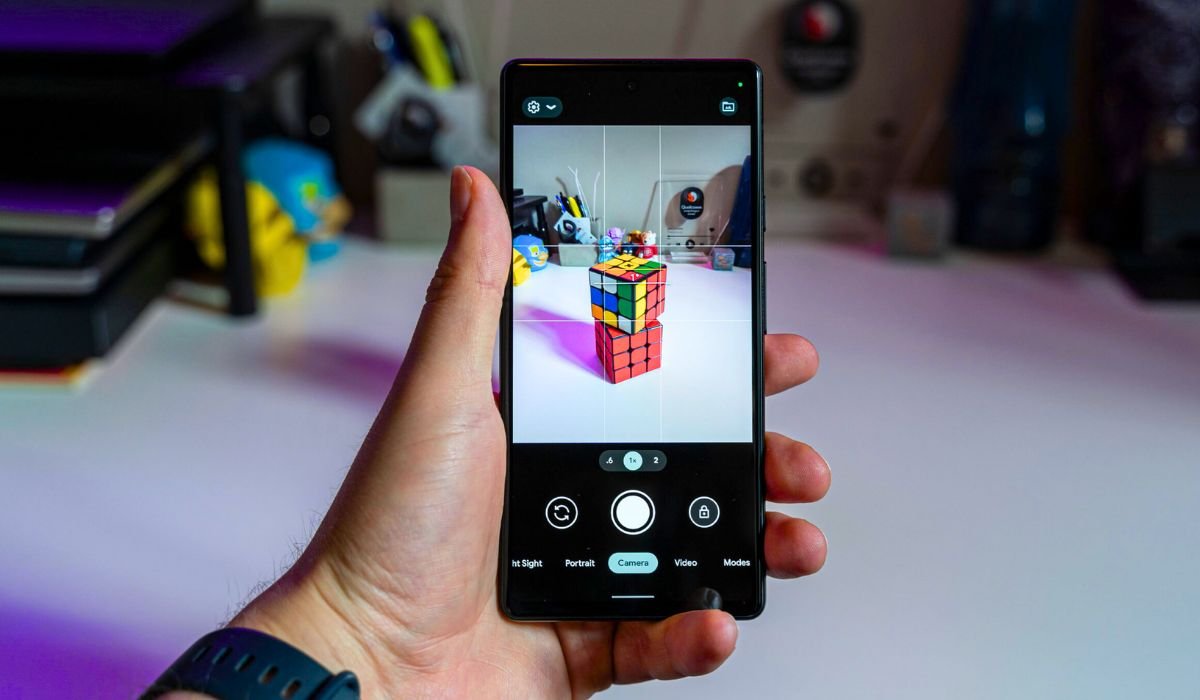
Using Android devices makes stop motion even more accessible. Many smartphones today have high-quality cameras and easy-to-use apps that simplify the process.
With apps like Stop Motion Studio and PicPac, you can easily create unique stop motion videos. All you need is creativity, a steady camera, and a bit of patience!
What Is Stop Motion Animation?
Stop motion animation is a technique where objects are moved in small increments between individually photographed frames. When these photos are played rapidly, it creates the illusion that the objects are moving on their own.
Famous movies like Wallace & Gromit and The Nightmare Before Christmas are classic examples of stop motion. Each scene in these films is meticulously crafted, with characters and settings brought to life frame by frame.
This method is not only fun but also a highly creative way to tell stories. It allows people to animate everyday objects and bring their imagination to life without needing expensive equipment.
Why Use Android for Stop Motion?
Android devices are an excellent choice for stop motion due to their affordability and widespread availability. You don’t need a professional setup to get started—just your phone.
Many Android phones come equipped with powerful camera features, including high-resolution lenses and manual settings, which are perfect for capturing detailed stop motion frames.
Additionally, there are several apps specifically designed for stop motion on Android. These apps make it easy to create, edit, and polish your animations, all from the convenience of your device.
Best Stop Motion Apps for Android
Stop Motion Studio is the most popular app for creating stop motion on Android. It offers a frame-by-frame editor, which allows precise control over each shot. The onion skinning feature helps you align your next frame with the previous one, making the animation smooth. You can also add audio tracks or voiceovers directly within the app.
How to Use Stop Motion Studio:
- Open the app and create a new project.
- Position your phone and take the first frame.
- Use onion skinning to align your next shots.
- Capture each frame, making small movements between photos.
- Edit the speed, add audio, and export your video.
PicPac Stop Motion & Time Lapse is another great option, offering the ability to import both photos and videos for stop motion projects. It also supports time-lapse creation, making it versatile for beginners exploring both techniques.
How to Get Started with PicPac:
- Select the type of project: stop motion or time lapse.
- Capture your images or import them from your gallery.
- Arrange the frames and adjust timing.
- Export your project or add sound and effects for extra polish.
Clayframes Stop Motion stands out for its precision controls and loop playback feature. This app is ideal for those working on clay animation projects, as it lets you fine-tune movements for more detailed animations.
Unique Features:
- Adjustable frame rates for smoother playback.
- Ability to review scenes on loop while capturing new frames.
Step-by-Step Guide to Creating Stop Motion on Android
- Step 1: Choose Your Subject and Plan Your Story
Before you start shooting, it’s essential to plan your scenes. Pre-planning helps you visualize how each frame will come together. Creating a simple storyboard can act as your guide, ensuring smooth transitions between movements and helping you stay on track with the story. - Step 2: Set Up Your Phone and Shooting Space
Position your phone securely to ensure steady shots. Using a tripod or placing your phone on a stable surface is key to avoiding camera shake. Pay attention to lighting—consistent lighting across all frames will make your animation look more professional. - Step 3: Capture Your Frames
Now it’s time to take your photos. Make small adjustments between each shot to create smooth transitions in your animation. Using the onion skin feature in apps like Stop Motion Studio helps you see the previous frame as an overlay, ensuring perfect alignment. - Step 4: Edit Your Stop Motion Video
Once you’ve captured all your frames, import them into your stop motion app. You can adjust the speed of the frames to control the pace of your animation. Adding visual effects like transitions or filters can enhance the overall look of your video. - Step 5: Add Audio and Final Touches
To complete your project, consider adding soundtracks or voiceovers that match your animation’s mood. Most apps allow you to export your video in various formats, so choose the one that fits your platform—whether you’re sharing on YouTube, Instagram, or elsewhere.
Creating a stop motion video on Android is easy with the right steps on table format:
| Step | Description |
|---|---|
| 1 | Choose your subject and plan your story. |
| 2 | Set up your phone and stable shooting space. |
| 3 | Capture frames with small movements between shots. |
| 4 | Use onion skin feature for frame alignment. |
| 5 | Edit the video by adjusting frame speed. |
| 6 | Add audio or voiceovers for final touches. |
| 7 | Export your stop motion in high resolution. |
Tips and Tricks for Better Stop Motion
- Keep lighting consistent: Use the same lighting throughout to avoid flickering.
- Use a tripod: Prevents shaky shots and ensures smooth transitions.
- Make small movements: Smaller adjustments create smoother animations.
- Plan your frames: A clear storyboard keeps the animation on track.
- Use onion skinning: Align each frame perfectly for fluid motion.
- Experiment with frame rates: Adjust the speed to get the desired effect.
- Add props and backgrounds: Enhances the visual appeal of your story.
Common Mistakes to Avoid
- Inconsistent lighting: Causes distracting flickers in the animation.
- Camera shake: Ruins the smoothness—always use a tripod.
- Large object movements: Makes the animation appear jumpy.
- Skipping pre-planning: Leads to a disorganized and unclear animation.
- Not using onion skinning: Results in poorly aligned frames.
- Rushing through shots: Patience is key for smooth and detailed animations.
- Overcomplicating early projects: Start simple to master the basics first.
Sharing Your Stop Motion Videos
Once your stop motion video is complete, export it in high resolution to maintain visual quality. Most apps offer export options in HD or 4K.
Upload your video to platforms like YouTube, Instagram, or TikTok. These platforms are great for sharing your work with a wider audience.
Engage with the stop motion community by sharing your creations in forums or social media groups. Getting feedback from fellow creators can help you improve and inspire new ideas!
Conclusion
Creating stop motion on Android is both easy and fun, thanks to the powerful tools and apps available. With just your phone and a bit of creativity, you can bring everyday objects to life in unique and exciting ways.
Don’t hesitate to experiment with different subjects and techniques—the possibilities are endless! Now that you have the know-how, start your stop motion journey and share your creations with the world.
FAQs
1. What is stop motion animation?
Stop motion is a filmmaking technique where individual frames are captured of objects being moved slightly between shots, creating the illusion of motion when played back quickly.
2. Can I create stop motion on any Android phone?
Yes! As long as your phone has a camera and access to stop motion apps, you can create stop motion videos on most Android devices.
3. What are the best apps for stop motion on Android?
Popular apps include Stop Motion Studio, PicPac Stop Motion & Time Lapse, and Clayframes Stop Motion. Each offers unique features for different levels of expertise.
4. Do I need a tripod for stop motion?
While not required, a tripod is highly recommended to keep the camera steady and avoid shaky frames.
5. How many frames should I take for a smooth animation?
Typically, 12-24 frames per second create smooth motion. The more frames you take, the smoother the animation will be.
6. Can I add audio to my stop motion video?
Yes, most stop motion apps, like Stop Motion Studio, allow you to add soundtracks or voiceovers directly within the app.


