

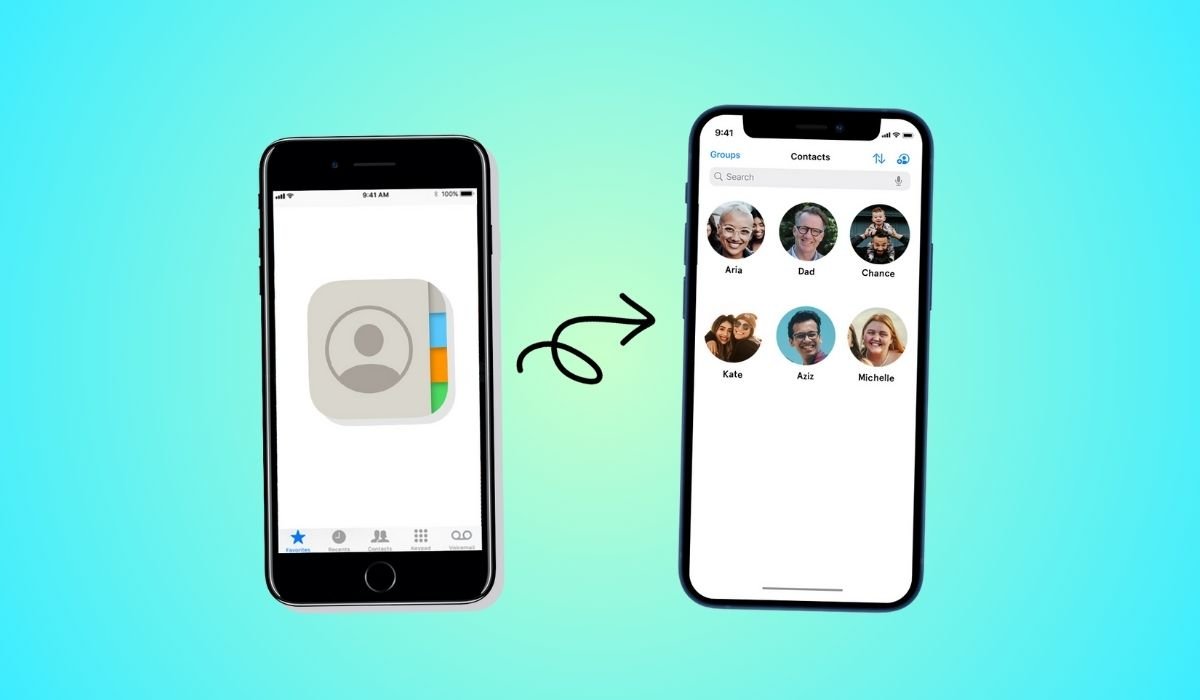
Getting a new iPhone is exciting, but transferring all your contacts can seem daunting. Whether you’re upgrading to the latest iPhone 15 Pro or switching to a different model, moving your contacts is a crucial step. Fortunately, Apple offers several straightforward methods to accomplish this task.
From cloud-based solutions like iCloud to direct transfer options such as AirDrop, there’s a method suitable for every user’s needs. This guide will walk you through the most effective ways to move your contacts, helping you choose the best approach for your situation and get your new iPhone set up quickly.
Key Takeaways
- iCloud is the easiest method for transferring all contacts at once
- iTunes (or Finder on newer Macs) offers a wired alternative for contact transfer
- AirDrop is great for transferring individual or small groups of contacts
- Manual methods like SIM card transfer or email export are available for specific situations
- Third-party apps can provide additional features for contact management and transfer
- Bluetooth is not directly used for contact transfer between iPhones
Can I Transfer Contacts From Old iPhone to New iPhone?
Yes, you can transfer contacts from your old iPhone to your new iPhone. Apple provides several built-in methods to make this process smooth and straightforward. Additionally, there are third-party options available for more specific needs.
How to Transfer Contacts From iPhone to iPhone
Method 1: Using iCloud
iCloud is Apple’s cloud storage service, and it’s the most seamless way to transfer contacts between iPhones.
Here are simple steps:
- On your old iPhone:
- Go to Settings > [your name] > iCloud
- Toggle on “Contacts” if it’s not already on
- Tap “iCloud Backup” and select “Back Up Now”
- On your new iPhone:
- During setup, choose “Restore from iCloud Backup”
- Sign in with your Apple ID
- Select the most recent backup
If you’ve already set up your new iPhone:
- Go to Settings > [your name] > iCloud
- Toggle on “Contacts”
- Wait for the contacts to sync
Pros:
- Quick and wireless
- Syncs all contacts at once
- Keeps contacts updated across devices
Cons:
- Requires internet connection
- Uses iCloud storage (which is limited unless you pay for more)
Method 2: Using iTunes (or Finder)
For those who prefer a wired connection or don’t use iCloud, iTunes (or Finder on macOS Catalina and later) is a reliable option.
Here’s few simple steps:
- Connect your old iPhone to your computer
- Open iTunes (or Finder)
- Select your iPhone when it appears
- Click on “Info” in the sidebar
- Check “Sync Contacts”
- Click “Apply” to sync contacts to your computer
- Disconnect your old iPhone and connect your new iPhone
- Repeat steps 3-6 to sync contacts to your new iPhone
Pros:
- Doesn’t require internet connection
- Doesn’t use iCloud storage
- Good for large contact lists
Cons:
- Requires a computer and cable
- Can be time-consuming
Method 3: AirDrop
AirDrop is perfect for transferring individual contacts or small groups of contacts quickly.
Here are simple steps:
- On your old iPhone, open the Contacts app
- Select the contact(s) you want to transfer
- Tap “Share Contact”
- Choose “AirDrop” and select your new iPhone
- On your new iPhone, accept the incoming contact(s)
Pros:
- Quick and wireless
- Good for transferring select contacts
- Doesn’t require internet or iCloud
Cons:
- Not practical for large numbers of contacts
- Both devices must be nearby
Method 4: Manual Transfer via SIM Card
If your iPhone uses a physical SIM card, you can use it to transfer contacts.
Here’s few simple steps:
- On your old iPhone:
- Go to Settings > Contacts > Export SIM Contacts
- This will save your contacts to the SIM card
- Remove the SIM card and insert it into your new iPhone
- On your new iPhone:
- Go to Settings > Contacts > Import SIM Contacts
- Choose where to import the contacts (iPhone or a specific account)
Pros:
- Doesn’t require internet or computer
- Works even with older iPhone models
Cons:
- Only works with physical SIM cards
- May not transfer all contact information (like email addresses)
- Limited by SIM card storage capacity
Method 5: Using Email or Messaging Apps
This method is useful for transferring a subset of contacts or if other methods aren’t available.
Here are simple steps:
- On your old iPhone, open the Contacts app
- Select the contact(s) you want to transfer
- Tap “Share Contact”
- Choose Email or a messaging app
- Send the contact(s) to yourself
- On your new iPhone, open the email or message
- Tap the contact file(s) and select “Add to Contacts”
Pros:
- Works without special apps or services
- Allows selective contact transfer
- Can be done over time
Cons:
- Time-consuming for large numbers of contacts
- Requires manual adding on the new device
Method 6: Using Third-Party Software
There are various third-party apps and software solutions that can help transfer contacts, often with additional features.
Popular Options:
- FoneTool
- Offers direct phone-to-phone transfer
- Can transfer other data types besides contacts
- CopyTrans
- Allows selective contact transfer
- Works well for transferring to and from non-Apple devices
General Steps:
- Download and install the chosen software on your computer
- Connect both iPhones to the computer
- Follow the software’s specific instructions for contact transfer
Pros:
- Often faster than manual methods
- Can offer more control over what’s transferred
- May include additional features like contact deduplication
Cons:
- May require purchasing the software
- Potential privacy concerns with third-party apps
- Can be complex for non-tech-savvy users
Transfer Contacts From iPhone to iPhone via Bluetooth
While iPhones don’t support direct Bluetooth contact transfer, you can use a combination of Bluetooth and Wi-Fi through AirDrop.
Steps:
- Ensure both iPhones have Bluetooth and Wi-Fi turned on
- Open Control Center on both devices
- Tap the AirDrop icon and set it to “Everyone” temporarily
- Follow the AirDrop method described earlier
Remember to set AirDrop back to “Contacts Only” or “Receiving Off” after the transfer for security.
Troubleshooting Common Issues
| Issue | Possible Solution |
|---|---|
| iCloud sync not working | Check internet connection, ensure enough iCloud storage |
| iTunes backup failing | Update iTunes, check USB connection, free up computer storage |
| AirDrop not showing up | Ensure both devices have Wi-Fi and Bluetooth on, are nearby |
| SIM transfer incomplete | Check if contacts are saved to SIM, not just phone storage |
| Third-party app issues | Check app compatibility with your iOS version, update the app |
Additional Tips
- Always back up your contacts before attempting any transfer method
- Keep your iOS updated on both devices for best compatibility
- If using iCloud, ensure you’re signed in with the same Apple ID on both devices
- For large contact lists, consider breaking the transfer into smaller batches
- After transfer, verify that all contacts have moved correctly
Frequently Asked Questions (FAQ)
How do I export my entire contact list from my iPhone?
To export your entire contact list, go to Settings > [Your Name] > iCloud. Turn on Contacts sync. On a computer, visit iCloud.com, sign in, select Contacts, then click the gear icon. Choose “Select All” and “Export vCard” to download your contacts.
Can you transfer contacts from iPhone to iPhone without iCloud?
Yes, you can transfer contacts without iCloud. Use iTunes to create a backup of your old iPhone, then restore that backup to your new iPhone. Alternatively, use AirDrop for wireless transfer, or export contacts to your SIM card and move it to the new device.
How to transfer everything from iPhone to iPhone?
To transfer everything, use the “Quick Start” feature during setup. Place your new iPhone near your old one, follow the on-screen instructions, and choose “Transfer from iPhone.” This method moves all data, including apps, settings, and passwords, creating an exact copy of your old device.
How to move Contacts from one list to another on iPhone?
Open the Contacts app and select the contact you want to move. Tap “Edit,” then scroll down to “Groups.” Here, you can uncheck the current group and select a new one. Tap “Done” to save changes. Repeat for each contact you wish to move.
How do I send iPhone Contacts to another iPhone?
To send contacts, open the Contacts app and select the ones you want to share. Tap the “Share” button, then choose your preferred method: AirDrop, Messages, or Mail. If the recipient is nearby, AirDrop is the quickest option for transferring multiple contacts at once.
How do I AirDrop all Contacts?
Unfortunately, there’s no built-in way to AirDrop all contacts at once. You’ll need to select contacts manually in the Contacts app. For a large number of contacts, consider using iCloud sync or creating a backup, which are more efficient for transferring your entire contact list.


