

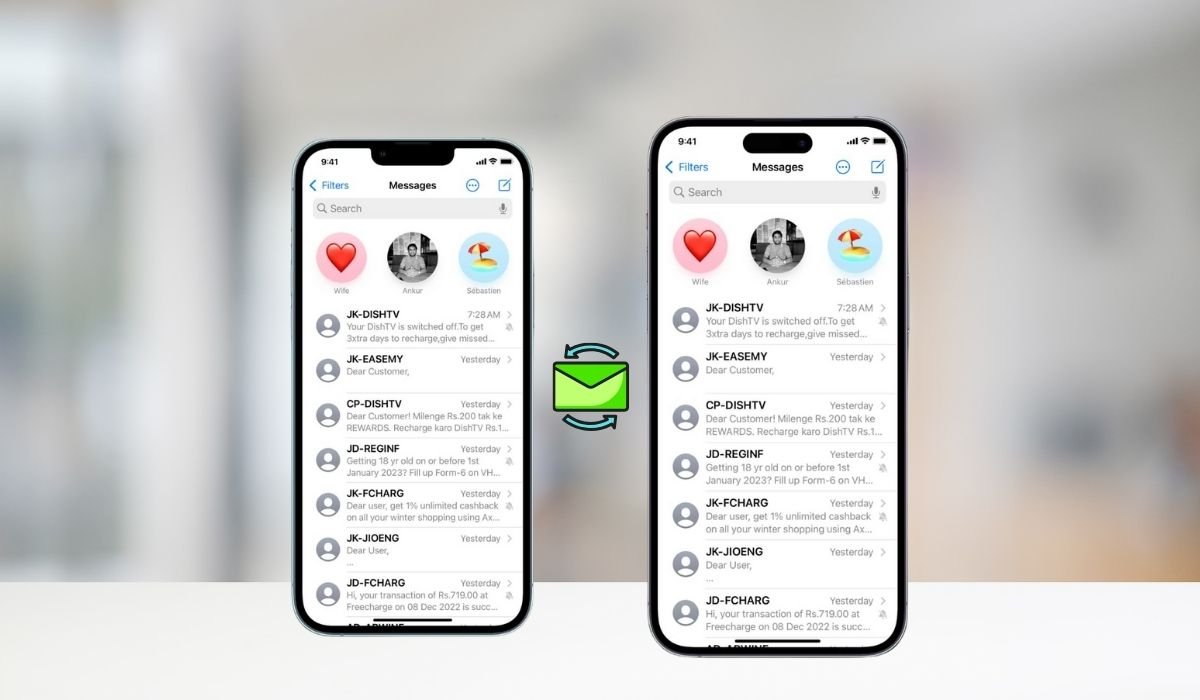
Upgrading to a new iPhone is exciting, but ensuring all your important data, especially messages, makes the journey with you is crucial. This guide will walk you through various methods to transfer your messages, ensuring you don’t lose those cherished conversations.
Key Takeaways
- iCloud offers a seamless method for transferring messages
- iTunes/Finder provides a comprehensive backup and restore option
- Third-party software can offer more flexibility in message transfer
- Enabling Messages in iCloud keeps conversations synced across devices
- Always backup your data before attempting any transfer method
Methods for Transferring Messages
1. Using iCloud
iCloud is Apple’s cloud storage service, providing an easy way to transfer messages and other data between iPhones.
Follow these simple steps:
- On your old iPhone:
- Go to Settings > [Your Name] > iCloud
- Toggle on “Messages”
- Tap “iCloud Backup”
- Ensure iCloud Backup is turned on
- Tap “Back Up Now”
- On your new iPhone:
- During setup, choose “Restore from iCloud Backup”
- Sign in with your Apple ID
- Select the most recent backup
- Wait for the restore process to complete
If you’ve already set up your new iPhone:
- Go to Settings > [Your Name] > iCloud
- Toggle on “Messages”
- Your messages should sync automatically
Pros:
- Easy to use
- Automatic syncing
- Works in the background
Cons:
- Requires internet connection
- iCloud storage may be limited
2. Using iTunes/Finder
For those who prefer a local backup method, iTunes (on Windows or older macOS versions) or Finder (on newer macOS) offers a comprehensive solution.
Follow these simple steps:
- Connect your old iPhone to a computer with iTunes or Finder
- Open iTunes or Finder and select your device
- Click “Back Up Now” under the Backups section
- Wait for the backup to complete
- Disconnect your old iPhone
- Connect your new iPhone
- Select “Restore from this backup” and choose the recent backup
- Wait for the restore process to finish
Pros:
- Transfers all data, not just messages
- Doesn’t require internet after initial backup
- More storage space available compared to iCloud
Cons:
- Requires a computer
- Can be time-consuming for large backups
3. Using Third-Party Software
Third-party applications like iMobie AnyTrans, dr.fone, or iMazing offer additional features and flexibility for transferring messages.
General Steps:
- Download and install the third-party software on your computer
- Connect both iPhones to the computer
- Follow the software’s instructions to transfer messages
Pros:
- Often provides more control over what’s transferred
- Can transfer messages selectively
- Some allow transfer without full device restore
Cons:
- May require payment
- Potential security concerns with third-party access
Troubleshooting Common Issues
| Issue | Possible Solution |
|---|---|
| iCloud sync not working | Check internet connection, ensure enough iCloud storage |
| iTunes backup failing | Update iTunes, check USB connection, free up computer storage |
| Messages not appearing after transfer | Ensure both devices are signed into the same Apple ID, check if Messages in iCloud was enabled before transfer |
| Third-party app issues | Check app compatibility with your iOS version, update the app |
Additional Tips
- Always backup your iPhone before attempting any transfer method
- Keep your iOS updated on both devices for best compatibility
- If using iCloud, ensure you’re signed in with the same Apple ID on both devices
- For large message histories, consider using a Wi-Fi connection for faster transfer
- After transfer, verify that all important conversations have moved correctly
How to Transfer Messages from iPhone to iPhone After Setup
If you’ve already set up your new iPhone and want to transfer messages without erasing it, you have a few options:
1. Enable Messages in iCloud
- On both devices, go to Settings > [Your Name] > iCloud
- Toggle on “Messages”
- Wait for messages to sync (this may take some time depending on your internet speed and message volume)
2. Use Quick Start
- Place your new iPhone near your old one
- Follow the on-screen instructions to begin the transfer process
- Choose to transfer your data wirelessly or using a wired connection
- Wait for the process to complete
3. Use a Third-Party Tool
- Choose a reputable third-party tool like iMobie AnyTrans or dr.fone
- Install the software on your computer
- Connect both iPhones to your computer
- Follow the software’s instructions to transfer messages selectively
4. Manual Transfer for Important Messages
For a few crucial messages:
- Open the conversation on your old iPhone
- Take screenshots of important messages
- Use AirDrop or email to send these screenshots to your new iPhone
Remember, this method is only practical for a small number of messages and doesn’t transfer the actual message data.
How to Transfer Text Messages from One iPhone to Another Using Bluetooth
Unfortunately, iPhones don’t support direct text message transfer via Bluetooth alone. However, you can use AirDrop, which combines Bluetooth and Wi-Fi technologies, to share individual messages or conversations. Here’s how to do it:
Enable AirDrop on Both iPhones
- Swipe down from the top-right corner of your screen to open Control Center.
- Press and hold the network settings card (with Airplane Mode, Cellular Data, Wi-Fi, and Bluetooth icons).
- Tap AirDrop and select “Contacts Only” or “Everyone” (temporarily).
Sharing Individual Messages
- Open the Messages app on your old iPhone.
- Find the conversation containing the message you want to transfer.
- Press and hold the specific message bubble.
- Tap “More” in the pop-up menu.
- Select the messages you want to share.
- Tap the share icon (square with an arrow pointing up).
- Choose AirDrop from the share sheet.
- Select your new iPhone from the list of available devices.
- On your new iPhone, accept the incoming file.
Sharing Entire Conversations
- Open the Messages app on your old iPhone.
- Swipe left on the conversation you want to share.
- Tap the “More” button (three dots icon).
- Choose “Export Chat” from the menu.
- Select whether to include attachments (this may significantly increase file size).
- Choose AirDrop from the share sheet.
- Select your new iPhone from the list of available devices.
- On your new iPhone, accept the incoming file.
Limitations
- You can only share messages one conversation at a time.
- Shared messages will be saved as a text file or PDF on the receiving iPhone, not directly into the Messages app.
- This method is best for transferring a few important conversations, not your entire message history.
Alternative Methods
For transferring all your messages, consider using:
- iCloud backup and restore
- iTunes/Finder backup and restore
- Quick Start feature during new iPhone setup
- Third-party transfer tools (e.g., iMazing, AnyTrans)
These methods are more comprehensive and will transfer your messages directly into the Messages app on your new iPhone.
Best Practices for Message Transfer
To ensure a smooth transfer process and maintain the integrity of your messages, consider these best practices:
- Regular Backups: Perform regular iCloud or iTunes backups to ensure your messages are always up to date.
- Check Storage: Before transferring, ensure you have enough storage space on both your iCloud account and your new iPhone.
- Stable Internet Connection: Use a stable Wi-Fi connection when transferring messages, especially for large message histories.
- Update iOS: Keep both iPhones updated to the latest iOS version for better compatibility and performance.
- Verify Apple ID: Ensure you’re using the same Apple ID on both devices for seamless iCloud syncing.
- Clean Up: Before transferring, consider deleting unnecessary messages to speed up the process and save space.
- Security First: When using third-party tools, research their privacy policies and use reputable software to protect your data.
How to Transfer Messages from iPhone to iPhone with Different Apple ID
Transferring messages between iPhones with different Apple IDs can be challenging, as Apple’s built-in methods are designed to work with the same Apple ID. However, there are several workarounds you can use to accomplish this task. Here are some methods to consider:
Method 1: Using a Third-Party Tool
Third-party software can often bypass the Apple ID restriction and transfer messages directly.
Follow these simple steps:
- Choose a reputable third-party tool like iMobie AnyTrans, dr.fone, or iMazing.
- Download and install the software on your computer.
- Connect both iPhones to your computer using USB cables.
- Launch the software and follow its specific instructions for transferring messages.
- Select the messages you want to transfer.
- Initiate the transfer process.
Method 2: Exporting and Importing as Text Files
This method involves exporting messages as text files and then importing them manually.
Follow these simple steps:
- On the old iPhone:
- Open the Messages app.
- Select the conversation you want to transfer.
- Tap the contact name at the top, then the “i” icon.
- Scroll down and tap “Export Chat”.
- Choose whether to include attachments.
- Select a method to share the exported file (e.g., email to yourself).
- On the new iPhone:
- Access the exported file (e.g., from your email).
- Open the file to view the messages.
Method 3: Using iCloud Backup (Partial Solution)
This method allows you to transfer messages, but requires temporarily changing the Apple ID on the new phone.
Follow these simple steps:
- On the old iPhone:
- Go to Settings > [Your Name] > iCloud.
- Ensure “Messages” is toggled on.
- Tap “iCloud Backup” and “Back Up Now”.
- On the new iPhone:
- During setup (or after resetting), choose “Restore from iCloud Backup”.
- Sign in with the old iPhone’s Apple ID.
- Select the recent backup and restore.
- Once restored, go to Settings > [Old Apple ID] > Sign Out.
- Sign in with the new Apple ID.
Method 4: Screenshot Important Messages
For a few crucial messages, you can use screenshots as a quick solution.
Follow these simple steps:
- On the old iPhone, take screenshots of important messages.
- Transfer these screenshots to the new iPhone via AirDrop, email, or any file-sharing method.
The Importance of Message Transfer
Transferring messages might seem like a minor task, but it’s crucial for several reasons:
- Preserving Memories: Text conversations often contain cherished memories, photos, and important information.
- Business Continuity: For those who use iMessage for work, maintaining conversation history is crucial for reference and follow-ups.
- Legal Reasons: In some cases, message histories may be needed for legal or documentation purposes.
- Seamless Transition: Having all your messages on your new device ensures a smooth transition without losing context in ongoing conversations.
Future of Message Transfer on iPhones
As technology evolves, Apple continues to improve the process of transferring data between devices. Some potential developments we might see in the near future include:
- Faster Wireless Transfer: Improvements in wireless technology could lead to quicker device-to-device transfers.
- Enhanced iCloud Integration: Apple may expand iCloud capabilities, making it even easier to sync and transfer messages across devices.
- AI-Assisted Organization: Future iOS updates might include AI features to help organize and prioritize which messages to transfer.
- Improved Third-Party Access: Apple might provide more APIs for third-party apps to securely access and transfer messages.
Frequently Asked Questions (FAQ)
How do I transfer text messages from my old iPhone to my new iPhone?
The easiest way is using iCloud. Enable Messages in iCloud on both devices. For a full transfer, use iCloud backup on your old iPhone, then restore from this backup on your new iPhone during setup.
How do I get my iPhone messages sent to another iPhone?
Enable Messages in iCloud on both iPhones using the same Apple ID. Go to Settings > [Your Name] > iCloud, then toggle on Messages. Your messages will sync across devices. Alternatively, use the iPhone’s Text Message Forwarding feature in Settings.
Can you transfer messages from iPhone to iPhone without iCloud?
Yes, you can transfer messages without iCloud. Use iTunes or Finder to create a backup of your old iPhone, then restore that backup to your new iPhone. Alternatively, use third-party software like iMazing or dr.fone for more flexibility.
Can you AirDrop text messages from iPhone to iPhone?
You can’t AirDrop entire conversations, but you can share individual messages. In the Messages app, long-press a message, tap More, select messages, then tap Share and choose AirDrop. This sends the messages as a text file.
Can I export iPhone text messages?
Yes, you can export iPhone text messages. In the Messages app, open a conversation, tap the contact name, then the info icon. Scroll down and tap “Export Chat.” Choose to include or exclude attachments, then select how to share the exported file.
How do I forward a message from my iPhone to another iPhone?
To forward a message, long-press the message in the conversation. Tap “More,” then select the message(s) you want to forward. Tap the forward arrow, enter the recipient’s contact information, add any additional text if desired, then send.


