

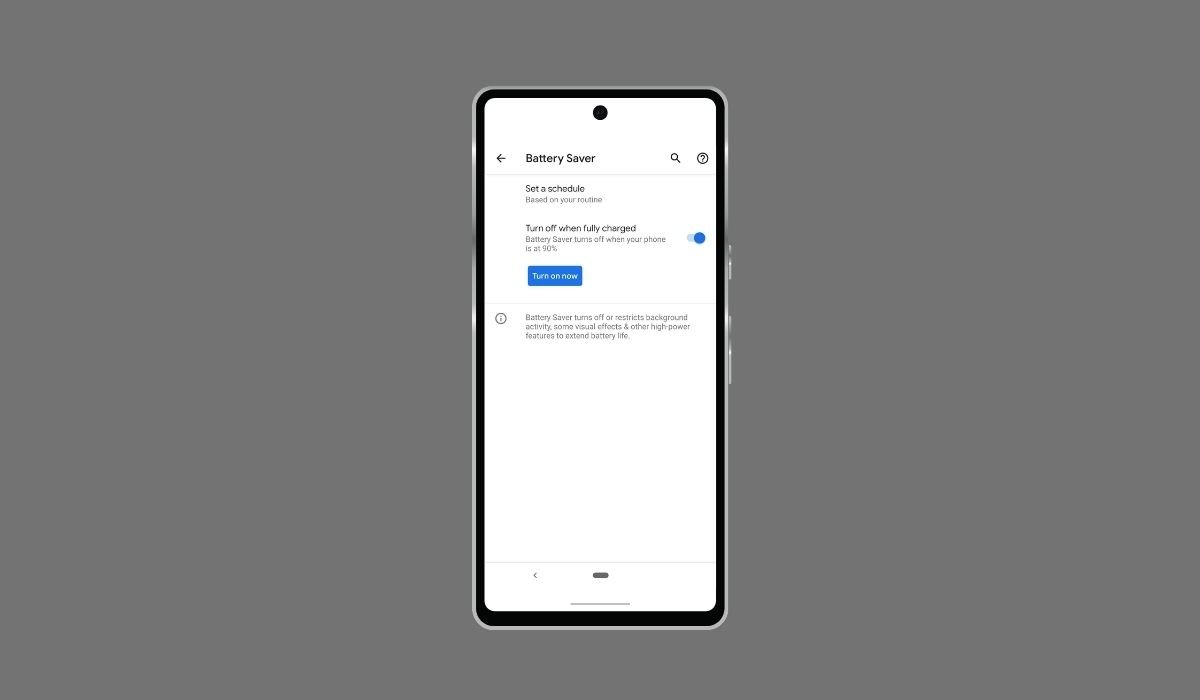
Battery saver mode on Android devices helps conserve power when your battery is low, but there are times when you might want to disable it for full device functionality. To turn off battery saver, follow these simple steps: Open your phone settings, tap on “Battery,” and ensure that both “Battery Saver” and “Super Battery Saver” are toggled OFF. This quick process allows you to regain full control over your device’s performance and features when needed.
Key Takeaways
- Battery saver mode can be turned off through the device settings
- Quick settings panel offers a convenient way to toggle battery saver
- Disabling battery saver may impact battery life but allows full device performance
- Custom battery saver settings are available on many Android devices
- Android 15 introduces new battery optimization features
When to Turn Off Battery Saver
While battery saver mode is beneficial for conserving power, there are scenarios where you might want to disable it:
- When charging your device
- To access full performance for gaming or resource-intensive tasks
- If you’re experiencing app compatibility issues
- When you need full network connectivity
- To use all background processes and notifications
How to Turn Off Battery Saver
Method 1: Through Settings
- Open the Settings app on your Android device
- Scroll down and tap on “Battery” or “Battery & device care”
- Look for “Battery Saver” or “Power Saving Mode”
- Toggle the switch to turn off Battery Saver
Method 2: Quick Settings Panel
- Swipe down from the top of your screen to open the Quick Settings panel
- Look for the Battery Saver icon (usually a battery symbol)
- Tap the icon to toggle Battery Saver off
If you don’t see the Battery Saver icon, you may need to edit your Quick Settings panel to add it.
Method 3: Google Assistant
- Activate Google Assistant by saying “Hey Google” or long-pressing the home button
- Say “Turn off battery saver” or “Disable power saving mode”
- Confirm the action if prompted
Alternative Methods
Scheduled Battery Saver
Many Android devices allow you to schedule when Battery Saver turns on and off automatically:
- Go to Settings > Battery > Battery Saver
- Look for “Set a schedule” or “Turn on automatically”
- Choose your preferred schedule or battery percentage threshold
App-Specific Battery Optimization
Instead of using the global Battery Saver mode, you can optimize battery usage for individual apps:
- Go to Settings > Apps & notifications > See all apps
- Select an app and tap on “Battery”
- Choose “Optimize” or “Don’t optimize” based on your preference
How Does Disabling Battery Saver Affect Battery Life?
Turning off battery saver mode may lead to faster battery drain, but it allows your device to function at full capacity. Here’s what to expect:
- Increased performance: Apps and processes run without restrictions
- Full screen brightness: The display operates at your preferred brightness level
- Background processes: All apps can run in the background and sync data
- Full network connectivity: 5G, Wi-Fi, and location services operate normally
- Reduced battery life: Your device may consume power more quickly
To balance performance and battery life, consider using adaptive battery features or manually adjusting settings like screen brightness and app background usage.
Are There Any Risks Associated with Turning Off Battery Saver?
Disabling battery saver mode is generally safe and won’t harm your device. However, be aware of these potential issues:
- Faster battery drain: Your device may not last as long between charges
- Increased data usage: Apps may use more mobile data in the background
- Higher power consumption: Your device may generate more heat during intensive tasks
To mitigate these risks, monitor your device’s battery usage and adjust settings as needed.
Can I Customize Battery Saver Settings on Android?
Yes, many Android devices allow you to customize battery saver settings. Here’s how:
- Go to Settings > Battery > Battery Saver
- Look for “Schedule” or “Customize”
- Set a specific battery percentage to automatically enable battery saver
- Choose which features to restrict when battery saver is active
Some devices offer multiple power-saving modes with different levels of restrictions. Experiment with these options to find the best balance for your needs.
Turning off battery saver on Android is a straightforward process that can be accomplished through various methods. While disabling this feature may impact battery life, it allows you to utilize your device’s full potential when needed. By understanding the effects of battery saver mode and leveraging the latest Android optimization features, you can strike a balance between performance and battery longevity.
Remember to monitor your device’s battery usage and adjust settings as necessary to suit your needs. With the right approach, you can maximize both the functionality and battery life of your Android device.
Frequently Asked Questions (FAQ)
How do I turn off battery saver mode?
To turn off battery saver mode, go to Settings > Battery > Battery Saver and toggle it off. Alternatively, use the quick settings panel by swiping down from the top of your screen and tapping the battery saver icon. You can also ask Google Assistant to disable it.
Where is battery saver on Android phone?
Battery saver is typically found in the Settings app. Navigate to Settings > Battery or Settings > Battery & device care. Look for “Battery Saver” or “Power Saving Mode” within this menu. It’s also often accessible through the quick settings panel.
How to remove power saving mode in Android?
To remove power saving mode, open Settings and tap on Battery. Find the “Power Saving Mode” or “Battery Saver” option and toggle it off. You can also disable it from the quick settings panel or by using voice commands with Google Assistant.
How do I turn off battery saver for specific apps?
To turn off battery saver for specific apps, go to Settings > Apps & notifications > See all apps. Select the app you want, tap on “Battery,” and choose “Don’t optimize” or “Unrestricted.” This allows the app to run normally without battery saving restrictions.
How do I stop apps from saving my battery in the background?
To stop apps from saving battery in the background, go to Settings > Apps & notifications > See all apps. Select the app, tap “Battery,” and choose “Restricted” or “Optimized.” You can also use the “Battery optimization” feature to manage multiple apps at once.
How do I turn off battery optimization in Android?
To turn off battery optimization, go to Settings > Apps & notifications > Advanced > Special app access > Battery optimization. Tap “Not optimized,” select “All apps,” find the app you want, and choose “Don’t optimize.” This allows the app to run without restrictions.


