

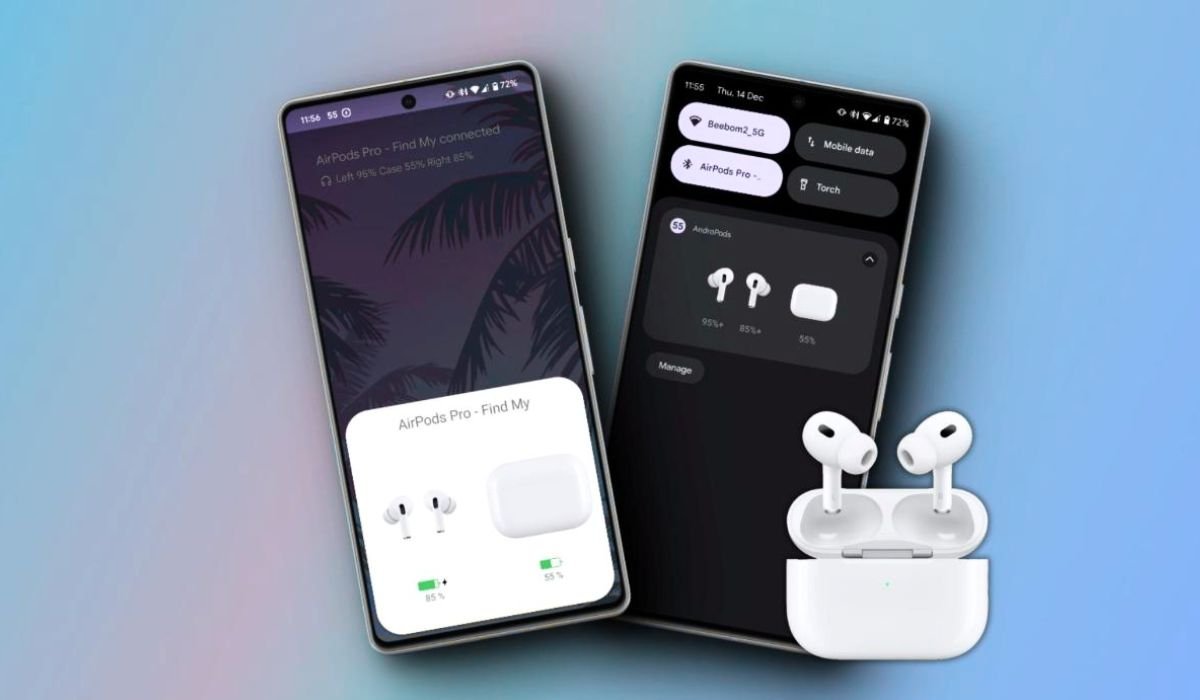
AirPods Pro offer exceptional sound quality and advanced noise cancelling, even for Android users. These premium earbuds, while designed for Apple devices, can still be enjoyed on other platforms.
To use Active Noise Cancellation (ANC) on Android, simply connect your AirPods Pro and wear them. Press and hold the force sensor on either AirPod’s stem until you hear a chime. This toggles between ANC modes. Repeat to switch between ANC, Transparency Mode, and Off, allowing you to customize your listening experience.
Key Takeaways
- AirPods Pro’s noise cancelling works with Android devices
- Toggle noise cancelling by pressing and holding the force sensor
- Third-party apps can enhance control over AirPods Pro features
- Proper fit and regular cleaning improve noise cancelling performance
- Consider alternatives if you face compatibility issues
Understanding AirPods Pro Noise Cancelling
What is Active Noise Cancellation (ANC)?
Active Noise Cancellation (ANC) is a technology that reduces unwanted ambient sounds using advanced sound wave manipulation. AirPods Pro use this technology to create a more immersive listening experience.
How ANC Works on AirPods Pro
AirPods Pro use both outward-facing and inward-facing microphones to detect environmental noise. The earbuds then create an equivalent anti-noise that cancels out the background noise before it reaches your ears.
Pairing AirPods Pro with an Android Device
Before you can use noise cancelling, you need to pair your AirPods Pro with your Android device.
- Open your Android device’s Bluetooth settings
- Put your AirPods Pro in pairing mode by holding the button on the back of the case
- Select “AirPods Pro” from the list of available devices
- Confirm the pairing on your Android device
Enabling Noise Cancelling on AirPods Pro
Once your AirPods Pro are paired with your Android device, you can toggle noise cancelling directly on the earbuds.
Step-by-Step Guide
- Ensure your AirPods Pro are connected and worn properly
- Press and hold the force sensor on the stem of either AirPod
- Listen for a chime, indicating the mode has changed
- Repeat to cycle through noise cancelling modes:
- Noise Cancellation On
- Transparency Mode
- Off (Normal mode)
Force Sensor Location
The force sensor is located on the flat part of the AirPod Pro stem. It’s not a button, but a touch-sensitive area that responds to pressure.
Verifying Noise Cancelling is Active
You’ll notice a significant reduction in background noise when ANC is enabled. If you’re unsure, try toggling between modes in a noisy environment to hear the difference.
Using Third-Party Apps
While Android devices don’t have native support for controlling AirPods Pro features, there are third-party apps that can help enhance your experience.
Popular Apps for AirPods Pro Control
| Name | Features | Price |
|---|---|---|
| Pods | Battery levels, ear detection, ANC control | Free |
| AndPods | Custom gestures, battery alerts, firmware info | Free with in-app purchases |
| PodAir | ANC toggle, battery monitoring, auto-pause | Paid |
Setting Up Third-Party Apps
- Download and install your chosen app from the Google Play Store
- Open the app and follow the setup instructions
- Grant necessary permissions for the app to function properly
- Connect your AirPods Pro to your Android device
- Use the app to control noise cancelling and other features
Tips for Maximizing Noise Cancelling Performance
To get the most out of your AirPods Pro’s noise cancelling feature on Android, consider these tips:
Ensure a Proper Fit
A good seal is crucial for effective noise cancellation. AirPods Pro come with different-sized ear tips. Try each size to find the best fit for your ears.
Keep Your AirPods Pro Clean
Regular cleaning can improve noise cancelling performance:
- Gently wipe the earbuds with a soft, dry cloth
- Clean the ear tips with water and mild soap
- Ensure the mesh covering the speakers is free from debris
Update Firmware When Possible
While automatic updates aren’t available on Android, connecting your AirPods Pro to an iOS device occasionally can ensure you have the latest firmware improvements.
Alternatives to Consider
If you’re facing compatibility issues or want more seamless integration with your Android device, consider these alternatives:
Android-Friendly Noise Cancelling Earbuds
- Sony WF-1000XM4
- Bose QuietComfort Earbuds II
- Samsung Galaxy Buds Pro
- Jabra Elite 85t
Troubleshooting Common Issues
Noise Cancelling Not Working
If you’re having trouble with noise cancelling on your AirPods Pro:
- Ensure they’re properly connected to your Android device
- Check if the earbuds are clean and free from debris
- Try resetting your AirPods Pro:
- Put them in the case
- Hold the button on the back until the light flashes amber
- Reconnect to your Android device
Battery Drain Issues
Noise cancelling can impact battery life. If you notice excessive drain:
- Turn off noise cancelling when not needed
- Use one AirPod at a time to extend overall usage
- Keep your AirPods Pro in their case when not in use
Frequently Asked Questions (FAQ)
How do I activate noise cancelling AirPods Pro on Android?
To activate noise cancelling on AirPods Pro with Android, ensure they’re connected and worn properly. Press and hold the force sensor on either AirPod’s stem until you hear a chime. This toggles between noise cancelling modes. Repeat to cycle through ANC, Transparency, and Off.
How do I activate noise cancelling on AirPods Pro?
Activating noise cancelling on AirPods Pro is simple. While wearing them, press and hold the force sensor on the stem of either AirPod until you hear a chime. This switches between noise cancelling modes. The process is the same for both iOS and Android devices.
How to activate noise cancellation on Android?
To activate noise cancellation on Android with AirPods Pro, connect and wear your earbuds. Press and hold the force sensor on either AirPod’s stem until you hear a chime. This toggles noise cancellation. For other earbuds, check the manufacturer’s instructions or use their dedicated app.
How to change AirPods Pro settings on Android?
Changing AirPods Pro settings on Android is limited compared to iOS. You can toggle between noise cancelling modes by pressing and holding the force sensor on the stem. For more control, consider using third-party apps like MaterialPods or AndPods from the Google Play Store.
Do AirPods Pro features work on Android?
Many AirPods Pro features work on Android, including Active Noise Cancellation and Transparency mode. However, some features like automatic switching between devices, spatial audio, and customizable controls are limited or unavailable. Basic functionality like audio playback and noise cancelling work well on Android devices.
How to setup AirPods Pro on Android?
To setup AirPods Pro on Android, open your device’s Bluetooth settings. Put your AirPods Pro in pairing mode by holding the button on the case. Select “AirPods Pro” from the available devices list. Once connected, you can use basic functions and toggle noise cancelling modes using the force sensor.


